-
Market
-
Who's Online 2 Members, 0 Anonymous, 97 Guests (See full list)
- Carlosan
- Domiek
-
Topics
-
- 2 replies
- 53 views
-
- 0 replies
- 48 views
-
- 0 replies
- 53 views
-
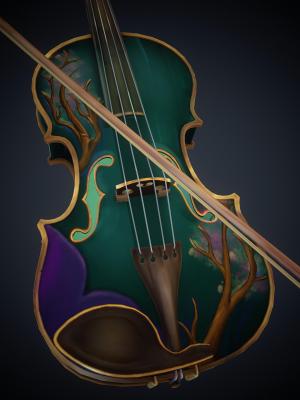
Guitar Material Breakdown in 3DCoat #3dtexturing
By webmaster, in Announcements and new feature demos
- 0 replies
- 68 views
-
painting Artefact after retopo painted model
By Baaltiwax, in SOS! If you need urgent help for 3DCoat
- 4 replies
- 135 views
-
- 0 replies
- 68 views
-
Using the Stencils Panel to Add 3D Paint Elements to the Model #3dsculpting
By webmaster, in Announcements and new feature demos
- 0 replies
- 67 views
-
-
Posts
-

By Domiek · Posted
Is there any possibility where we can get the files needed to build our own flatpaks, without exposing the closed source code of 3dcoat? I'm thinking that there are a decent amount of people, myself included, who would be willing to put in the time to make this work and document it in order to assist with the overall linux implementation. I'm just not sure how much effort it would be on the developers side to provide the files while still protecting their source code. -

By MJonathan · Posted
You also can use the new node editor, it works with sculpt objects too, or use vdm files. -
By MJonathan · Posted
Maybe some of these videos can help you. -
By Kayess · Posted
hello dear community, I like to support some scientists by providing them a high-res terrain mesh for 3D printing. I have a version of the mesh @ around 30k tris. Now I want to use a 4096x4096 tif heightmap to re-create a highpoly version of this mesh. how can I do that? I guess I need a plane with some displacement and then somehow bake heightmap to geometry or something like this? 3DCoat is capable of doing stuff like this I believe (but I am not atm) oh - I need the resulting mesh to have the same detail/resolution as the heightmap (16mio pixels/verts) Cheers! -

-

-
By Carlosan · Posted
source... Learn GDScript From Zero, a free and open-source course from GDQuest, has received a major update. The creators rewrote the app in Godot 4, enhanced the lessons and exercises based on feedback from Reddit and Discord, and added bug fixes. As a result, the new version is a more reliable and polished version of the course. The app provides more stable performance, gives users better feedback on code practices, and supports more languages. The changes are described in detail on GitHub. You can get the source on GDQuest's web course platform and on the page with the engine's official documentation. Learn GDScript From Zero, one of the most comprehensive sources for learning Godot, includes interactive tutorials designed for beginners who wish to learn to program using Godot's GDScript language. You can access it via a desktop application or in-browser. -

By Baaltiwax · Posted
I found a workaround in my case. The virtual mirror mode of symmetry seams to cause the issue. If I don't use this mode when I retopo the painted mesh, the UV island won't overlap itself when updated. -
By SreckoM · Posted
Every tablet will be recognized as xwayland. I use OTD and in Absolute mode it works (but no pressure), Artist mode should have pressure too, but I am having crashes of Gnome when in Artist mode, so did not test it much. -
By Domiek · Posted
Yeah wayland support is broken and the linux builds in general seem experimental at best. Also have a wacom intuos and spent several hours trying to get it to work before giving up. Using a windows build with the latest WINE 11+ seems to be the best option. Full tablet support in wayland and generally good performance. -
By ebitz · Posted
On Linux Ubuntu 26.04.1. With the flatpak installation I have no tablet support. It is a wacom intuos. I am assuming this is a X11,xwayland,wayland issue. Running 3d coat in terminal shows xwayland-tablet stylus:17 Disabled -- > Screen (enabled as stylus) rather than my actual tablet name. Anyone else have this issue? The touch pad of the tablet works as well as mouse. Just no stylus. all permissions were enabled as well. Thanks. It appears xwayland is not passing my stylus events to X11 after creating the xwayland-tablet stylus. Wayland sees my tablet just fine. This is likely not a 3d coat problem. -

By Gwennet · Posted
Hi! 3DCoat textura 2026.18 lags when you ctrl Z. It takes like a second or two where the program freezes before undoing. I apdated to 2026.22, and this problem became worse. Brushstokes lagging as well. The same file works fine in 2025.15, this problem doesn't occur there. -
By Carlosan · Posted
Sadly no, still there is glitched painting over overlapped UV islands -
By Carlosan · Posted
Toon shader is how light act over the mesh, sorry I don't know how to replicate it to baked maps Only this Toon shader I get to use. Copy into \\Documents\3DCoat2026\UserPrefs\Shaders\PbrShaders\#Toon Toon.rar -
By webmaster · Posted
Guitar Material Breakdown in 3DCoat #3dtexturingView the full article -
By Carlosan · Posted
You mean this ? (RMB over channel name to select another) -
By Ctc_nick · Posted
Hello! Is it possible to create a custom Channel and output it with the Export Configurator? It should not bleed into other channels (gloss,metal,etc). I tried like this: When I tried, i had to use gloss or some of the other usual channels, but then again it appears on ior and specular. I think it would be great if that can be done. It would not have to be rendered inside coat. Could be used for weights, or any sort of driven data. All the Best! -
By Ctc_nick · Posted
Hi! IMHO if the engine requires 512, then you can remove the lower 64 128 256 from ppp settings, and document/message somewhere that gpuppp natively works with minimum 512. Upscaling is good but i would mention it somewhere . -
By Baaltiwax · Posted
Hi, thanks for the answer. You wrote it at past tense. is it fix in a new update ? -

-