• 中文 (台灣)
  • 3DCoat文档
  • Chapters
    • 3DCoat简介
    • 入门
    • 界面和导航
    • Brush组件
    • 工作区房间
    • Scripting和Core API
    • 问题和答案
    • licensing
    • 培训教程
  • Pilgway
  • Products
    • 3DCoat
    • 3DCoatTextura
    • 3DCoatPrint
    • PBRLibrary
  • Blog Posts
  • Store
  • 中文 (台灣) 中文 (台灣)
    • English English
    • Українська Українська
    • Español Español
    • Deutsch Deutsch
    • Français Français
    • 日本語 日本語
    • Русский Русский
    • 한국어 한국어
    • Polski Polski
    • 中文 (中国) 中文 (中国)
    • Português Português
    • Italiano Italiano
    • Suomi Suomi
    • Svenska Svenska
    • Dansk Dansk
    • Slovenčina Slovenčina
    • Türkçe Türkçe
    • Nederlands Nederlands
    • Magyar Magyar
    • ไทย ไทย
    • हिन्दी हिन्दी
    • Ελληνικά Ελληνικά
    • Tiếng Việt Tiếng Việt
    • Lietuviškai Lietuviškai
    • Latviešu valoda Latviešu valoda
    • Eesti Eesti
    • Čeština Čeština
    • Română Română
    • Norsk Bokmål Norsk Bokmål
  • Creating 3D Character Using 3DCoat
  • 3DCoat文档
  • Chapters
    • 3DCoat简介
    • 入门
    • 界面和导航
    • Brush组件
    • 工作区房间
    • Scripting和Core API
    • 问题和答案
    • licensing
    • 培训教程
  • Pilgway
  • Products
    • 3DCoat
    • 3DCoatTextura
    • 3DCoatPrint
    • PBRLibrary
  • Blog Posts
  • Store
  • 中文 (台灣) 中文 (台灣)
    • English English
    • Українська Українська
    • Español Español
    • Deutsch Deutsch
    • Français Français
    • 日本語 日本語
    • Русский Русский
    • 한국어 한국어
    • Polski Polski
    • 中文 (中国) 中文 (中国)
    • Português Português
    • Italiano Italiano
    • Suomi Suomi
    • Svenska Svenska
    • Dansk Dansk
    • Slovenčina Slovenčina
    • Türkçe Türkçe
    • Nederlands Nederlands
    • Magyar Magyar
    • ไทย ไทย
    • हिन्दी हिन्दी
    • Ελληνικά Ελληνικά
    • Tiếng Việt Tiếng Việt
    • Lietuviškai Lietuviškai
    • Latviešu valoda Latviešu valoda
    • Eesti Eesti
    • Čeština Čeština
    • Română Română
    • Norsk Bokmål Norsk Bokmål
  • Creating 3D Character Using 3DCoat
Expand All Collapse All
  • 3DCoat简介
  • 入门
    • System requirements
    • Why 3DCoat is Unique?
    • 激活3DCoat
    • 启动错误
      • Startup error Mac
    • Color management
    • Upgrading permanent license
    • Linux Setup
      • Linux initial setup per-user installation
      • Linux initial setup for system
      • Tablet setup
      • To GTK3 from GTK2
    • 文件夹结构
      • Custom documents folder
    • 不同形式的“决议”
    • Tablet on Window
    • Import_
    • 3DCoat中的Applinks
      • Blender应用程序链接
        • Blender with the Applink in Linux
      • Blender 4.2/3/4/5 applink
      • Max Applink
      • Houdini applink
      • Lightwave uplink
  • Navigation
    • 打开对话框(快速启动菜单)
    • 导航面板
    • 相机和导航
      • Customize Navigation as Blender
    • Viewport Navigation Gizmo
    • Left tool panel
    •  Activity Bar
    • 使用 3DConnexion 设备导航
      • How to compile Spacenavd on non Ubuntu distro
    • Stylus doesn’t work in sculpting
    • 热键
  • 界面和导航
    • 文件菜单
    • 编辑菜单
      • Calculate Curvature
      • Calculate Occlusion
      • Light Baking Tool
      • 优先
    • 查看菜单
    • 对称
    • Textures
    • Calculate
    • 图层菜单
    • 冻结菜单
    • Hide
    • Bake
    • 曲线 2022
      • 曲线菜单
      • Curves Properties RMB
      • 填充网格层
      • Scale of imported curves
    • 窗口菜单
      • 选项卡式 Windows 弹出式面板
      • 滑块
    • Scripts
    • Addons
    • Capture
    • 帮助菜单
    • 客制化
    • 修改或创建新房间
  • Brush组件
    • Brush顶栏
    • 刷子一般用途
      • 创建画笔和贴花
      • 从当前造型制作 alpha
      • 从 3D 对象创建Brush
      • Create brushes based on Curves
      • Load photoshop .abr brushes
    • 笔画
      • 曲线弹出菜单
    • Brush选项
    • 条件限制器
    • 条面板
    • 模板面板
    • 智能材料
      • 添加新图像或材料
      • 将智能材质附加到图层
      • Import Quixel Material
    • 如何为Brush创建预设
  • 工作区房间
    • Painting
      • 纹理Painting和模式
        • Per-PixelPainting
        • 位移Painting(微顶点)
        • PtexPainting
        • 表面Painting(Polypainting)
      • 导入Painting室
        • Initial CC subdivision
        • UV Set smoothing
        • Sharp (hard) edge
        • 锁定法线
        • 模型更改后加载新的UV布局
        • DAZ Genesis models into 3DCoat
      • Painting工作区的菜单
        • Edit menu
        • 纹理菜单
          • 纹理Baking工具
        • 隐藏
        • Bake Paint菜单
        • 拾色器
      • Painting的顶栏
      • 图层面板
        • 混合面板
        • Layer and Clipping Masks
      • Painting室工具
      • 不透明度 - 透明度
      • 调整工作区
        • 调整工具集
        • 从调整室导出
      • 蒙版/材质预览面板
      • 从Painting室导出
    • UV工作区
      • UV顶栏
      • UV左工具面板
      • UV预览面板
      • UV工作流程示例
      • 导入UV室
      • 从UV室导出
    • 重新拓扑
      • 导入Retopo Room
      • Retopo Mesh 菜单和 Bake 菜单
        • 虚拟镜像模式
      • Bake menu
        • Treat Poly Groups as Paint Objects
        • Baking guide
      • 顶栏
        • 选择几何体
      • Retopology 房间的左侧工具面板
        • 总体目的和功能
        • 添加几何
          • Retopology 中的笔触工具
        • Retopo调整工具
        • UV工具
        • 拓扑室命令
      • 自动拓扑
        • Autopo guide
      • 保利集团
    • 塑造
      • Sculpt Layer
      • 造型树
      • 雕刻Brush选项
      • Top Bar
      • Brush引擎
      • 几何子菜单
      • 雕刻“右键单击”菜单
      • 着色器
      • Voxel模式
        • 纯Voxel雕刻
        • 密度和分辨率
        • 黏土引擎
        • Voxel工具
        • 体素上的表面工具
        • Voxel调整工具
        • 立体Painting
        • Voxel对象工具
      • 表面模式
        • 表面工具
        • 表面定制工具
        • 表面调整工具
        • 表面Painting
        • 表面对象工具
        • 多级分辨率
          • Multires tools
          • Multires adjust
          • Multires commands
      • 雕刻曲线
        • 样条曲线
        • Splines model creation
      • 矢量位移
      • 表面变换工具
        • Voxel变换工具
        • Instancer
        • Move
        • Pose
        • Fit
        • Reproject
        • Surface Array
      • Voxel基元和Import工具
      • 实时布尔值
      • 雕刻室的命令
      • Import到造型室
      • 从 Sculpt Room 导出
    • 使成为
      • Comparison of different roughness values
      • 渲染面板功能
      • 转盘
      • 伪造光照 - 非PBR-
    • Factures
      • 工作流程
    • 最简单的
    • 造型
      • Mesh Menu
      • 建模室中的左侧工具面板
        • 添加几何图形
          • 已选择
        • 调整
        • Smart Hybrid
        • UV
          • 命令
        • 整个网格
      • Fluffy 的阁楼表面示例
      • Poeboi 封锁
      • Import Zbrush Polygroups for UV mapping
    • Kitbash - 快速创建 3D 模型
      • Create kitbash
      • Left tool panel Kitbash
    • 3DPrint
    • Photogrammetry
      • How to install Reality Capture
      • Reality Capture doesn’t show up ?
    • 网格到 NURBS 房间
    • Nodes
      • 雕刻着色器节点库
  • Scripting和Core API
    • Scripting
    • Core API
    • Python API
  • 免费3DCoatPrint

Comparison of different roughness values

539 views 0

Written by Carlos
November 14, 2024

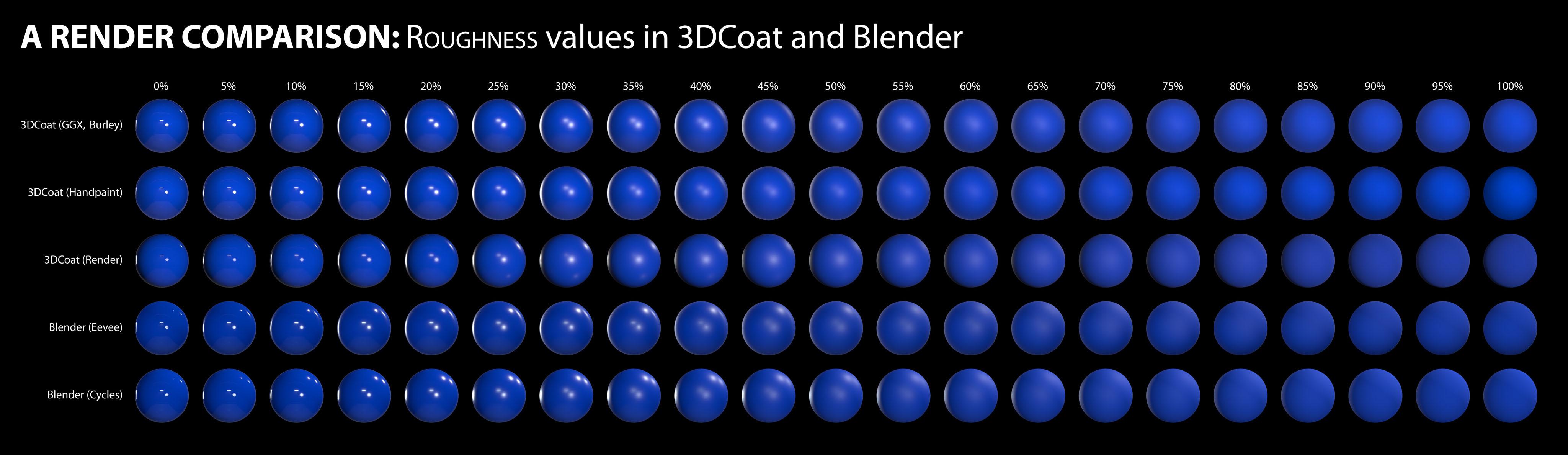
A render comparison of different roughness values in 3DCoat and Blender by DMG

I was going between 3DC and Blender a bit trying to hit the sweet spot I wanted for something, and I noticed differences between the two renders, especially caused by varying roughness values.

I decided to get a bit scientific about it, so here’s the results of my tinkering.  I used the studio.exr panorama from Blender in both programs for a fair comparison. The 3DCoat environment settings were left at default, but the light was deactivated. The HDRI was normalized when I imported it. The HDRI strength was left at default value in Blender too.

A simple sphere, identical color value in all renders. 

I’m making no judgement as to which renderer is ‘better’. This is just purely for comparison, to see how roughness values appear in each in order to make texturing a bit more predictable.

I did notice that in the HDRI there is a tiny but bright spotlight high up adjacent to the other light, but for some reason this isn’t picked up in the 3DCoat renders. Perhaps it’s just a tiny pinprick and too small to be picked up. I don’t know. There also appears to be a light down low, right of center, but only on the renders for 25% to 40% roughness in the 3DCoat renders. I don’t know where that’s coming from. It isn’t apparent in any of the others.

The rows are: 3DCoat’s GGX, Handpaint, Render; then Blender’s Eevee, Cycles.

* I think the Handpaint render (compared to the GGX one) has slightly lower intensity in the bright highlights, as well as ever so slightly more diffuse reflections when the roughness reached mid-levels. And compared to the 3DCoat render, the bright highlights in the Handpaint render are a touch more intense, and as with the GGX ones, much more defined.

Looking at the Handpaint renders and the Blender Cycles renders, they’re actually very similar. This is excellent.
I feel that if I use the Handpaint preview, I will be seeing a very close approximation of what I’ll get in Blender. So my chart is now redundant, based on the reason I created it in the first place, but it has nevertheless been very useful.
RenderComparisonChart.jpg

The most noticeable differences is that the reflections in the 3DCoat Paint Room preview are a touch more intense than both of Blender’s renders, but the same reflections are a bit feinter in 3DCoat’s Renderer.

Also, at around 35-40% roughness, the 3DCoat Renderer has greater blur on the main reflections near the center, which has almost become a single bright patch, whereas all the others still have two distinct light sources.

Like I said, this isn’t about picking a ‘winner’ or ‘favorite’.  It’s just to help me predict how my textured objects will appear and render in Blender to save time to-ing and fro-ing making adjustments.

Tags:roughness

Was this helpful?

Yes  No
Related Articles
  • Surface Array
  • Top Bar
  • Curves Properties RMB
  • Left tool panel Kitbash
  • Create kitbash
  • Color management
Previously
使成为
Up Next
渲染面板功能
AI:
Hi! How can I help you?
Attention: This is a beta version of AI chat. Some answers may be wrong. See full version of AI chat