• English
  • 3DCoat Documentation
  • Chapters
    • Introduction to 3DCoat
    • Getting started
    • Interface
    • Brush Components
    • Node System
    • GPU Texturing
    • Workspaces Rooms
    • Scripting & Core API
    • Questions/Answers
    • Licensing
  • Library
    • Getting Started
    • Painting
    • Sculpt
    • Modeling
    • Retopology
    • UV
    • Smart Materials
    • Nodes
    • Photogrammetry
    • Render
    • Print
    • Learning
    • Training Tutorials
  • Blog Posts
    • 2026 Key Features and Improvements
    • Texturing with nodes
    • Shader Nodes VS. a Material Nodes
    • Multiple UV Tiles/UDIMs to one single UV set ?
    • I want to create geometry only with displacement to be manufactured with a CNC machine
    • Creating 3D Character Using 3DCoat
    • DAZ Genesis models into 3DCoat
    • Cavity and Curvature maps
    • Types of normal maps
    • Texture painting pipeline
    • Load new UV layout After Model Changes
    • Import Zbrush Polygroups for UV mapping
  • Products
    • 3DCoat
    • 3DCoatTextura
    • 3DCoatPrint
    • PBRLibrary
  • Store
  • Pilgway
  • English English
    • Українська Українська
    • Español Español
    • Deutsch Deutsch
    • Français Français
    • 日本語 日本語
    • Русский Русский
    • 한국어 한국어
    • Polski Polski
    • 中文 (中国) 中文 (中国)
    • Português Português
    • Italiano Italiano
    • Suomi Suomi
    • Svenska Svenska
    • 中文 (台灣) 中文 (台灣)
    • Dansk Dansk
    • Slovenčina Slovenčina
    • Türkçe Türkçe
    • Nederlands Nederlands
    • Magyar Magyar
    • ไทย ไทย
    • हिन्दी हिन्दी
    • Ελληνικά Ελληνικά
    • Tiếng Việt Tiếng Việt
    • Lietuviškai Lietuviškai
    • Latviešu valoda Latviešu valoda
    • Eesti Eesti
    • Čeština Čeština
    • Română Română
    • Norsk Bokmål Norsk Bokmål
  • 3DCoat Documentation
  • Chapters
    • Introduction to 3DCoat
    • Getting started
    • Interface
    • Brush Components
    • Node System
    • GPU Texturing
    • Workspaces Rooms
    • Scripting & Core API
    • Questions/Answers
    • Licensing
  • Library
    • Getting Started
    • Painting
    • Sculpt
    • Modeling
    • Retopology
    • UV
    • Smart Materials
    • Nodes
    • Photogrammetry
    • Render
    • Print
    • Learning
    • Training Tutorials
  • Blog Posts
    • 2026 Key Features and Improvements
    • Texturing with nodes
    • Shader Nodes VS. a Material Nodes
    • Multiple UV Tiles/UDIMs to one single UV set ?
    • I want to create geometry only with displacement to be manufactured with a CNC machine
    • Creating 3D Character Using 3DCoat
    • DAZ Genesis models into 3DCoat
    • Cavity and Curvature maps
    • Types of normal maps
    • Texture painting pipeline
    • Load new UV layout After Model Changes
    • Import Zbrush Polygroups for UV mapping
  • Products
    • 3DCoat
    • 3DCoatTextura
    • 3DCoatPrint
    • PBRLibrary
  • Store
  • Pilgway
  • English English
    • Українська Українська
    • Español Español
    • Deutsch Deutsch
    • Français Français
    • 日本語 日本語
    • Русский Русский
    • 한국어 한국어
    • Polski Polski
    • 中文 (中国) 中文 (中国)
    • Português Português
    • Italiano Italiano
    • Suomi Suomi
    • Svenska Svenska
    • 中文 (台灣) 中文 (台灣)
    • Dansk Dansk
    • Slovenčina Slovenčina
    • Türkçe Türkçe
    • Nederlands Nederlands
    • Magyar Magyar
    • ไทย ไทย
    • हिन्दी हिन्दी
    • Ελληνικά Ελληνικά
    • Tiếng Việt Tiếng Việt
    • Lietuviškai Lietuviškai
    • Latviešu valoda Latviešu valoda
    • Eesti Eesti
    • Čeština Čeština
    • Română Română
    • Norsk Bokmål Norsk Bokmål
Expand All Collapse All
  • Introduction to 3DCoat
  • Getting started
    • System requirements
    • Why 3DCoat is Unique?
    • Activating 3DCoat
    • Startup error
      • Startup error Mac
    • Color management
    • Upgrading permanent license
    • Linux Setup
      • Linux initial setup per-user installation
      • Linux initial setup for system
      • Tablet setup
      • To GTK3 from GTK2
      • Error libicuuc.so.70
    • Folders Structure
      • Custom documents folder
    • Different Forms of “Resolution”
    • Tablet on Window
    • Import and Export
    • Applinks in 3DCoat specifications
      • Blender 4.1 applink
        • Blender with the Applink in Linux
      • Blender 4.2/3/4/5 applink
      • Max Applink
      • Houdini applink
      • Lightwave uplink
  • Navigation
    • Quick Start Menu
    • Navigation Panel
    • Camera and Navigation
      • Customize Navigation as Blender
    • Left tool panel
    •  Activity Bar
    • Navigation using 3DConnexion devices
      • How to compile Spacenavd on non Ubuntu distro
    • Quick Access Menu
    • Stylus doesn't work in sculpting
    • Hotkeys
  • Interface
    • File
    • Edit
      • Bake Geometry Info
      • Calculate Occlusion
      • Calculate Curvature
      • Light Baking Tool
      • Preferences
    • View
    • Symmetry
    • Textures
    • Calculate
    • Layers
    • Freeze
    • Hide
    • Bake
    • Curves
      • Curves editor
      • Curves Properties RMB
      • Fill with mesh layer
      • Scale of imported curves
    • Windows
      • Tabbed and Popup Panels
      • Controls
    • Scripts
    • Addons
    • Capture
    • Help
    • Room Customization
    • Modify or Create new Room
  • Brush Components
    • Brush Top Bar
    • Brushes general use
      • Create alpha brushes and decals
      • Making alpha from current sculpt
      • Create a Brush from a 3D Object
      • Create brushes based on Curves
      • Load photoshop .abr brushes
    • Strokes
      • Curves Popup Menu
    • Brush Options panel
    • Conditions (Height/Color) Limiter
    • Strips Panel
    • Stencils Panel
    • Smart Materials
      • Add new images or materials
      • Attach a Smart material to a layer
      • Import Quixel Megascans
    • Presets for Brush alphas
  • Node System
    • Node Editor
    • Node & Object Inspectors
    • Node Graph
    • NodeGraph Language (NGL)
    • GPU Nodes
      • Color
      • GeometryIn
      • In
      • Layer
      • Material
      • Out
      • Pattern
      • Pattern3D
      • ShaderToy
      • Shape
      • Texture
      • Tilable
      • UV
      • Math
    • Filters
    • Masks
    • Materials
    • Modifiers
    • Volumes
  • Free 3DCoatPrint
  • GPU Texturing
    • PBM Channels
    • Per-Pixel Painting
  • Workspaces Rooms
    • Paint
      • Painting Modes
        • Per Pixel Painting
        • Displacement Painting (Micro-Vertex)
        • Ptex Painting
        • Surface Painting (Vertex painting)
      • Importing Into the Painting Room
        • Initial CC subdivision
        • UV Set smoothing
        • Sharp (hard) edge
        • Lock Normals
        • Load new UV layout After Model Changes
        • DAZ Genesis models into 3DCoat
        • ID map
      • Paint Menus
        • Edit menu
        • Textures Menu
          • Texture Baking Tools
        • Hide
        • Bake Paint menu
        • The Color Picker
      • Surface Materials
      • Top Bar for the Painting
      • The Layers Panel
        • The Blending Panel
        • Layer and Clipping Masks
      • Left Tool Panel
      • Opacity & Transparency
      • Tweak tools
        • Tweak Toolset
        • Exporting from the Tweak Room
      • Stencil & Material preview panel
      • Exporting from the Painting Room
    • UV
      • UV Top Bar
      • UV Left tool panel
      • UV Preview Panel
      • UV workflow example
      • Importing Into the UV Room
      • Exporting from the UV Room
    • Retopology
      • Importing into Retopo Room
      • Retopo Mesh Menu
        • Virtual Mirror Mode
      • Bake menu
        • Treat Poly Groups as Paint Objects
        • Baking guide
      • Strokes tool in Retopology
      • Top Bar
        • Select geometry
      • Left tool panel
        • Overall Purpose & Function
        • Add Geometry in the retopology room
        • Tweak Tools
        • UV Tools
        • Commands for Retopology room
      • AUTORETOPO
        • Autopo guide
      • Poly Groups
    • Sculpt
      • Sculpt Layer
      • Sculpt Tree
      • Sculpt Brush options
      • Top Bar
      • Brush engine
      • Geometry menu
      • Right-Click Menu
      • Shader
      • Voxel mode
        • Pure Voxel Sculpting
        • Density and Resolution
        • Clay Engine
        • Voxel Tools
        • Surface tools on Voxels
        • Voxel Adjust
        • Volumetric Painting
        • Voxel Objects Tools
      • Surface mode
        • Surface tools
        • Surface custom tools
        • Surface Layer
        • Surface adjust tools
        • Surface Painting
        • Multi Level Resolution
          • Multires tools
          • Multires adjust
          • Multires commands
      • Sculpt curves
        • Spline Curves
        • Splines model creation
      • Vector Displacement
      • Transform tools
        • Transform
        • Instancer
        • Move
        • Pose
        • Fit
        • Reproject
        • Surface Array
      • Primitives
        • Hollow Box
      • Live Booleans
      • Commands for Sculpt room
      • Import to Sculpt Room
      • Exporting from the Sculpt Room
    • Render
      • Comparison of different roughness values
      • Render Panel Functions
      • Turntable
      • Fakebake the lighting -non PBR-
    • Factures
      • Workflow
    • Simplest
    • Modeling
      • Mesh Menu
      • Mod Tool panel
        • Add Geometry
          • Make Joints
          • Selected
        • Tweak
        • Smart Hybrid
        • UV category
          • UV: Selected and Commands
        • Entire Mesh
      • Loft surface example by Fluffy
      • Blockout by Poeboi
      • Import Zbrush Polygroups for UV mapping
    • Kitbash
      • Create kitbash
      • Left tool panel Kitbash
    • 3DPrint
    • Photogrammetry
      • How to install Reality Capture
      • Reality Capture doesn't show up ?
    • Nurbs
    • Nodes
      • Texturing with nodes
      • Shader Nodes Library
      • Open PBR
  • Scripting & Core API
    • Core API
    • Python API
    • Extensions and Addons

Folders Structure

2081 views 0

Written by Carlos
March 7, 2023

New Folders Structure

Really streamlined and logical as it was proposed.
Almost all now is split between two folders – data and UserPrefs.

  • UserPrefs is user-created content.
  • Data is sort of temporary stuff.

The folder in documents changed, now it is Documents/3DCoat202x/
Even if the folders structure is changed it is compatible with the previous one.

As soon as 3DCoat detects some files copied to the new location in Documents from the old one, it will convert the files to the new structure.
Also, if you will install 3dcpack it will be installed correctly (except for presets that use old tools that are not present in the toolset).

So, to migrate from an earlier version you may copy folders from old versions to Docs/3DCoat-202x or create 3dcpack in the old version and install using the latest.


Migrating old v4 data to the newest versions

Use Migration Master to import your brushes, presets, smart materials from V4.

The 3DC_Brushes is quite extensive, so seemed to take a while, but then 3DC restarted with them added.

Warning: Not all presets are compatible
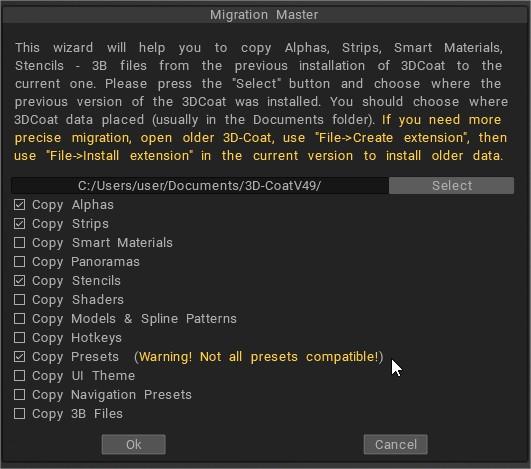
MigrationMaster.jpg


3DCoat 2026 includes many fundamental changes to documents folder

We have added `3DCoatGL64Legacy.exe` to every installation -including 3DCoat Textura 2026-. This executable runs per-pixel UV texturing on the legacy engine, ensuring identical results when loading projects from previous versions.

You can keep both versions of 3DCoat completely isolated from each other: simply copy `doc_folder.txt` into the folder where 3DCoat Textura 2026 is installed. This will create a separate folder in your Documents directory named `3DCoatTextura2026`, allowing versions 2025 and 2026 to run without any conflicts.

You can also specify a different folder name inside `doc_folder.txt` if you prefer a different naming convention for the Documents folder. I plan to adjust the default folder in the Documents folder to `3DCoatTextura2026` in future versions; this should help resolve version conflicts, including issues where menus disappear.
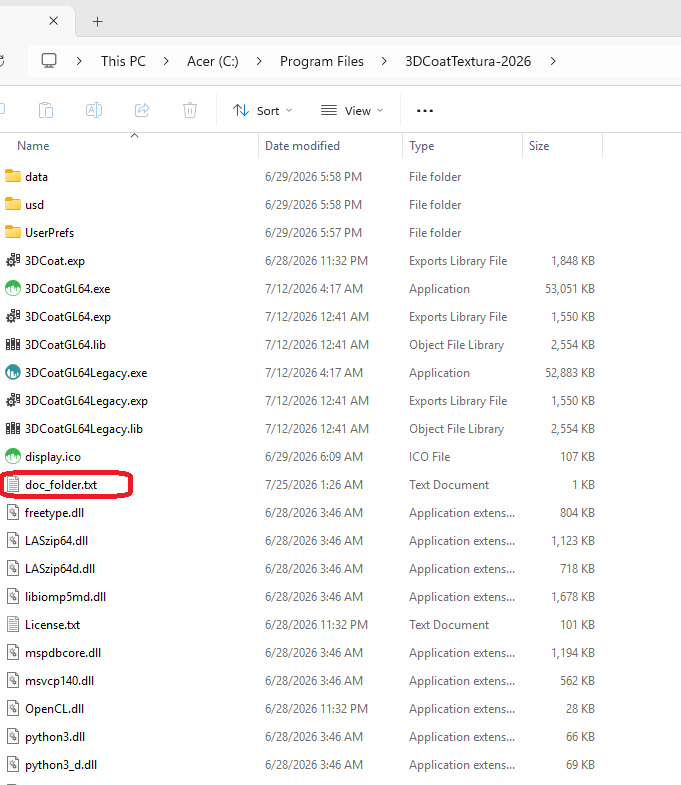
image.png
doc_folderDownload

Create extensions

Using the File Menu to Create Extensions (for general users)
  • Gather Your Assets: Create a folder on your computer containing all the assets you want to include in the extension, such as custom brushes, smart materials, textures, and scripts. 
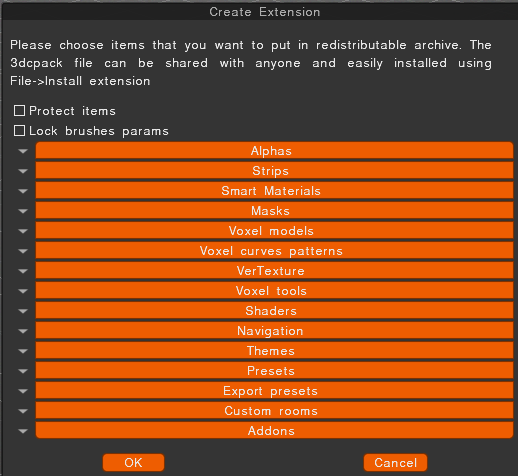
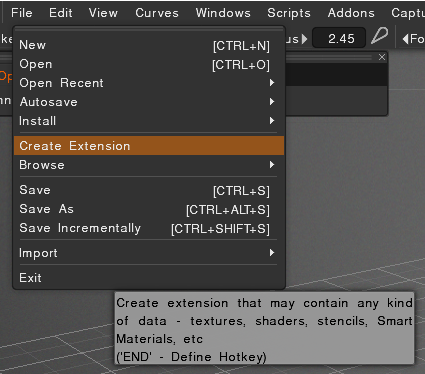
Create the Extension: In 3DCoat, go to the File > Create extensions menu to start the process of packaging your assets. 

Select Your Folder: The tool will prompt you to select the folder containing your assets.

Generate the Package: 3DCoat will then create a distributable package in the .3dcpack file format. 

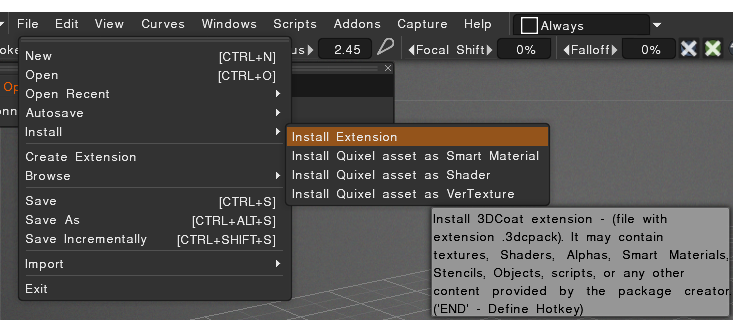
Installing an Extension: An extension is a .3dcpack file. You can install an external file by selecting File > Install extension in the File menu.
Tags:Folders Structure

Was this helpful?

Yes  No
Related Articles
  • Bake Geometry Info
  • Make Joints
  • Texturing with nodes
  • Hollow Box
  • GPU Texturing
  • Math
Previously
Error libicuuc.so.70
Up Next
Custom documents folder
AI:
Hi! How can I help you?
Attention: This is a beta version of AI chat. Some answers may be wrong. See full version of AI chat