 English
In 3DCoat, the Presets Panel allows you to save, organize, and quickly recall custom brush settings, tool parameters, and alphas. The Presets Panel got a Folder structure (like Smart Materials and PBR Shaders) for more efficient organization of the Presets.
It includes the ability to drag and drop a preset from one folder to another.
How to Access and Dock the Presets Panel
- Opening: Press the P hotkey or open it from the Windows > Pop-ups menu.
- Layout: You can keep the panel free-floating to scale it or dock it into a UI column. Without dragging the tab, 3DCoat may auto-hide the panel when your cursor moves away.
Managing and Creating Presets
- Creating a Preset: Adjust your brush or tool settings, click the options arrow in the upper right-hand corner of the panel, and select Add Preset (or right-click an existing preset).
- Folders: Click the plus icon in the panel to create preset folders (such as for clay or painting brushes) and drag-and-drop presets into them.
- Updating Presets: Modify your active brush settings, right-click the target preset, and choose Update Preset.
- Quick Panel Integration: Right-click any preset to add it to your Quick Panel, which is accessible in the viewport using the Spacebar.
- Loading & Saving Files: You can import or export preset packages via the drop-down menu in the Presets Panel by choosing Add Presets from File or saving your collection, such as custom brushes
Watch this video for an overview of how to manage and organize the Presets Panel in 3DCoat:
Presets are a set of brush modification done by every user and are useful to keep a “library” of own sets.
Same as any Tools, can be duplicate if need to keep your own original settings.
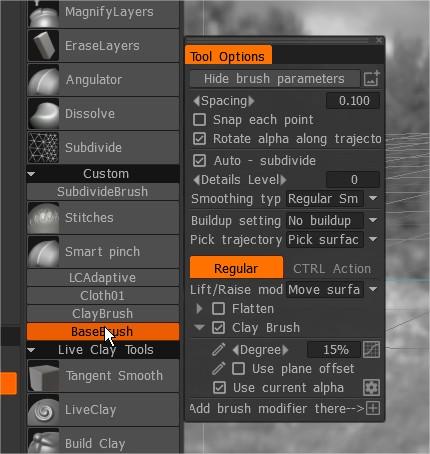
On Sculpt Room another new tool named Custom > BaseBrush are very useful too, let you create a new category of stacked tools.
How to load presets
If you like to load new brushes in the Brushes’s Panel, go to the upper right hand corner of the pallet and click the little drop list arrow.
From the list, choose Add Brushes from Package: (.3dcpack file format). If you want to create your own package and share your custom Brushes, please select File> Create extension.
Once the brushes are loaded go do the same thing in the Presets Panel > Choose “Add Presets from File.”
Now you should have Presets loaded.
If you add to them at any point, with your own presets, you should choose from that drop list to Save presets to file.
This way, if you have to delete some config files in the MyDocs/3DCoat directory, then you can quickly restore your presets.
Tutorials
This video covers the usage of Tool Presets and the Preset Panel in 3DCoat.