• English
  • 3DCoat Documentation
  • Chapters
    • Introduction to 3DCoat
    • Getting started
    • Interface
    • Brush Components
    • Node System
    • GPU Texturing
    • Workspaces Rooms
    • Scripting & Core API
    • Questions/Answers
    • Licensing
  • Library
    • Getting Started
    • Painting
    • Sculpt
    • Modeling
    • Retopology
    • UV
    • Smart Materials
    • Nodes
    • Photogrammetry
    • Render
    • Print
    • Learning
    • Training Tutorials
  • Blog Posts
    • Creating 3D Character Using 3DCoat
    • DAZ Genesis models into 3DCoat
    • Cavity and Curvature maps
    • Types of normal maps
    • Texture painting pipeline
    • Load new UV layout After Model Changes
    • Import Zbrush Polygroups for UV mapping
  • Products
    • 3DCoat
    • 3DCoatTextura
    • 3DCoatPrint
    • PBRLibrary
  • Store
  • Pilgway
  • English English
    • Українська Українська
    • Español Español
    • Deutsch Deutsch
    • Français Français
    • 日本語 日本語
    • Русский Русский
    • 한국어 한국어
    • Polski Polski
    • 中文 (中国) 中文 (中国)
    • Português Português
    • Italiano Italiano
    • Suomi Suomi
    • Svenska Svenska
    • 中文 (台灣) 中文 (台灣)
    • Dansk Dansk
    • Slovenčina Slovenčina
    • Türkçe Türkçe
    • Nederlands Nederlands
    • Magyar Magyar
    • ไทย ไทย
    • हिन्दी हिन्दी
    • Ελληνικά Ελληνικά
    • Tiếng Việt Tiếng Việt
    • Lietuviškai Lietuviškai
    • Latviešu valoda Latviešu valoda
    • Eesti Eesti
    • Čeština Čeština
    • Română Română
    • Norsk Bokmål Norsk Bokmål
  • 3DCoat Documentation
  • Chapters
    • Introduction to 3DCoat
    • Getting started
    • Interface
    • Brush Components
    • Node System
    • GPU Texturing
    • Workspaces Rooms
    • Scripting & Core API
    • Questions/Answers
    • Licensing
  • Library
    • Getting Started
    • Painting
    • Sculpt
    • Modeling
    • Retopology
    • UV
    • Smart Materials
    • Nodes
    • Photogrammetry
    • Render
    • Print
    • Learning
    • Training Tutorials
  • Blog Posts
    • Creating 3D Character Using 3DCoat
    • DAZ Genesis models into 3DCoat
    • Cavity and Curvature maps
    • Types of normal maps
    • Texture painting pipeline
    • Load new UV layout After Model Changes
    • Import Zbrush Polygroups for UV mapping
  • Products
    • 3DCoat
    • 3DCoatTextura
    • 3DCoatPrint
    • PBRLibrary
  • Store
  • Pilgway
  • English English
    • Українська Українська
    • Español Español
    • Deutsch Deutsch
    • Français Français
    • 日本語 日本語
    • Русский Русский
    • 한국어 한국어
    • Polski Polski
    • 中文 (中国) 中文 (中国)
    • Português Português
    • Italiano Italiano
    • Suomi Suomi
    • Svenska Svenska
    • 中文 (台灣) 中文 (台灣)
    • Dansk Dansk
    • Slovenčina Slovenčina
    • Türkçe Türkçe
    • Nederlands Nederlands
    • Magyar Magyar
    • ไทย ไทย
    • हिन्दी हिन्दी
    • Ελληνικά Ελληνικά
    • Tiếng Việt Tiếng Việt
    • Lietuviškai Lietuviškai
    • Latviešu valoda Latviešu valoda
    • Eesti Eesti
    • Čeština Čeština
    • Română Română
    • Norsk Bokmål Norsk Bokmål
Expand All Collapse All
  • Introduction to 3DCoat
  • Getting started
    • System requirements
    • Why 3DCoat is Unique?
    • Activating 3DCoat
    • Startup error
      • Startup error Mac
    • Color management
    • Upgrading permanent license
    • Linux Setup
      • Linux initial setup per-user installation
      • Linux initial setup for system
      • Tablet setup
      • To GTK3 from GTK2
      • Error libicuuc.so.70
    • Folders Structure
      • Custom documents folder
    • Different Forms of “Resolution”
    • Tablet on Window
    • Import and Export
    • Applinks in 3DCoat specifications
      • Blender 4.1 applink
        • Blender with the Applink in Linux
      • Blender 4.2/3/4/5 applink
      • Max Applink
      • Houdini applink
      • Lightwave uplink
  • Navigation
    • Quick Start Menu
    • Navigation Panel
    • Camera and Navigation
      • Customize Navigation as Blender
    • Viewport Navigation Gizmo
    • Left tool panel
    •  Activity Bar
    • Navigation using 3DConnexion devices
      • How to compile Spacenavd on non Ubuntu distro
    • Space Bar Menu
    • Stylus doesn't work in sculpting
    • Hotkeys
  • Interface
    • File
    • Edit
      • Calculate Curvature
      • Calculate Occlusion
      • Light Baking Tool
      • Preferences
    • View
    • Symmetry
    • Textures
    • Calculate
    • Layers
    • Freeze
    • Hide
    • Bake
    • Curves
      • Curves editor
      • Curves Properties RMB
      • Fill with mesh layer
      • Scale of imported curves
    • Windows
      • Tabbed and Popup Panels
      • Controls
    • Scripts
    • Addons
    • Capture
    • Help
    • Room Customization
    • Modify or Create new Room
  • Brush Components
    • Brush Top Bar
    • Brushes general use
      • Create alpha brushes and decals
      • Making alpha from current sculpt
      • Create a Brush from a 3D Object
      • Create brushes based on Curves
      • Load photoshop .abr brushes
    • Strokes
      • Curves Popup Menu
    • Brush Options panel
    • Conditions (Height/Color) Limiter
    • Strips Panel
    • Stencils Panel
    • Smart Materials
      • Add new images or materials
      • Attach a Smart material to a layer
      • Import Quixel Megascans
    • Presets for Brush alphas
  • Node System
    • Node Editor
    • Node & Object Inspectors
    • Node Graph
    • NodeGraph Language (NGL)
    • GPU Nodes
      • Color
      • GeometryIn
      • In
      • Layer
      • Material
      • Out
      • Pattern
      • Pattern3D
      • ShaderToy
      • Shape
      • Texture
      • Tilable
      • UV
      • Vector
    • Filters
    • Masks
    • Materials
    • Modifiers
    • Volumes
  • Free 3DCoatPrint
  • GPU Texturing
    • PBM Channels
    • Per-Pixel Painting
  • Workspaces Rooms
    • Paint
      • Painting Modes
        • Per Pixel Painting
        • Displacement Painting (Micro-Vertex)
        • Ptex Painting
        • Surface Painting (Vertex painting)
      • Importing Into the Painting Room
        • Initial CC subdivision
        • UV Set smoothing
        • Sharp (hard) edge
        • Lock Normals
        • Load new UV layout After Model Changes
        • DAZ Genesis models into 3DCoat
        • ID map
      • Paint Menus
        • Edit menu
        • Textures Menu
          • Texture Baking Tools
        • Hide
        • Bake Paint menu
        • The Color Picker
      • Surface Materials
      • Top Bar for the Painting
      • The Layers Panel
        • The Blending Panel
        • Layer and Clipping Masks
      • Left Tool Panel
      • Opacity & Transparency
      • Tweak tools
        • Tweak Toolset
        • Exporting from the Tweak Room
      • Stencil & Material preview panel
      • Exporting from the Painting Room
    • UV
      • UV Top Bar
      • UV Left tool panel
      • UV Preview Panel
      • UV workflow example
      • Importing Into the UV Room
      • Exporting from the UV Room
    • Retopology
      • Importing into Retopo Room
      • Retopo Mesh Menu
        • Virtual Mirror Mode
      • Bake menu
        • Treat Poly Groups as Paint Objects
        • Baking guide
      • Strokes tool in Retopology
      • Top Bar
        • Select geometry
      • Left tool panel
        • Overall Purpose & Function
        • Add Geometry in the retopology room
        • Tweak Tools
        • UV Tools
        • Commands for Retopology room
      • AUTORETOPO
        • Autopo guide
      • Poly Groups
    • Sculpt
      • Sculpt Layer
      • Sculpt Tree
      • Sculpt Brush options
      • Top Bar
      • Brush engine
      • Geometry menu
      • Right-Click Menu
      • Shader
      • Voxel mode
        • Pure Voxel Sculpting
        • Density and Resolution
        • Clay Engine
        • Voxel Tools
        • Surface tools on Voxels
        • Voxel Adjustment Tools
        • Volumetric Painting
        • Voxel Objects Tools
      • Surface mode
        • Surface tools
        • Surface custom tools
        • Surface Layer
        • Surface adjust tools
        • Surface Painting
        • Multi Level Resolution
          • Multires tools
          • Multires adjust
          • Multires commands
      • Sculpt curves
        • Spline Curves
        • Splines model creation
      • Vector Displacement
      • Transform tools
        • Transform
        • Instancer
        • Move
        • Pose
        • Fit
        • Reproject
        • Surface Array
      • Primitives
        • Cardboard Box
      • Live Booleans
      • Commands for Sculpt room
      • Import to Sculpt Room
      • Exporting from the Sculpt Room
    • Render
      • Comparison of different roughness values
      • Render Panel Functions
      • Turntable
      • Fakebake the lighting -non PBR-
    • Factures
      • Workflow
    • Simplest
    • Modeling
      • Mesh Menu
      • Left tool panel
        • Add Geometry
          • Selected
        • Tweak
        • Smart Hybrid
        • UV category
          • UV: Selected and Commands
        • Entire Mesh
      • Loft surface example by Fluffy
      • Blockout by Poeboi
      • Import Zbrush Polygroups for UV mapping
    • Kitbash
      • Create kitbash
      • Left tool panel Kitbash
    • 3DPrint
    • Photogrammetry
      • How to install Reality Capture
      • Reality Capture doesn't show up ?
    • Nurbs
    • Nodes
      • Shader Nodes Library
      • Open PBR
  • Scripting & Core API
    • Core API
    • Python API
    • Extensions and Addons

Cardboard Box

65 views 0

Written by Vitaliy Volokh
June 8, 2026

Cardboard Box — a parametric geometric primitive representing a cardboard box. The generator procedurally generates shape from a set of parameters.
ParameterDescription
WidthExternal box width
HeightExternal box height
LengthExternal box length/depth
Wall ThicknessThickness of the cardboard walls
Edge Bevel (Fillet) RadiusOuter bevel radius, configurable globally, per edge, per axis group (X, Y, Z), or axis combinations. 
Bevel (Fillet) Radius Ratio (0.0–1.0)Defines the bevel radius relative to half of the wall thickness. A value of 0 produces no bevel, while 1 sets the bevel radius equal to one-half of the wall thickness. 
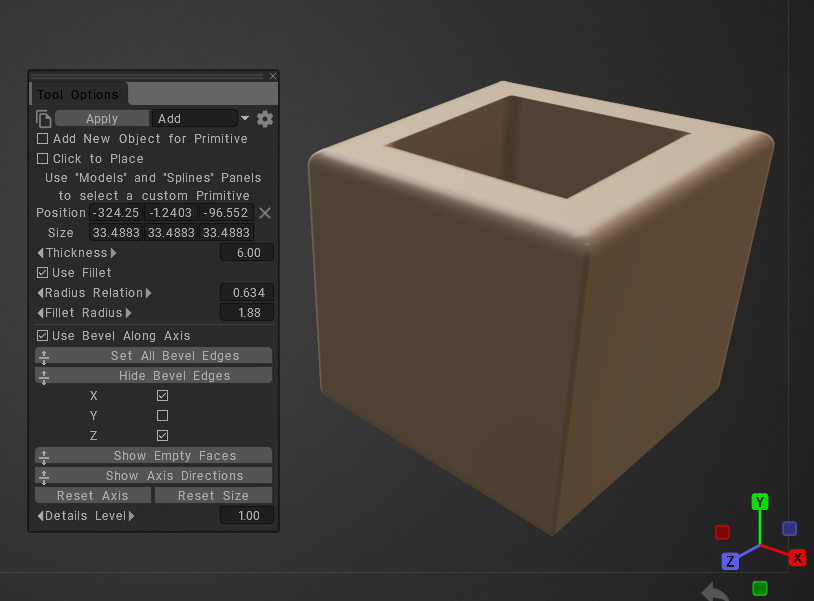
Use Fillet Along Axis Enables fillet generation on edges parallel to the selected axis. Fillet parameters can be specified independently for the X, Y, and Z axis groups, or assigned to predefined axis combinations (X+Y, X+Z, Y+Z, and X+Y+Z). 
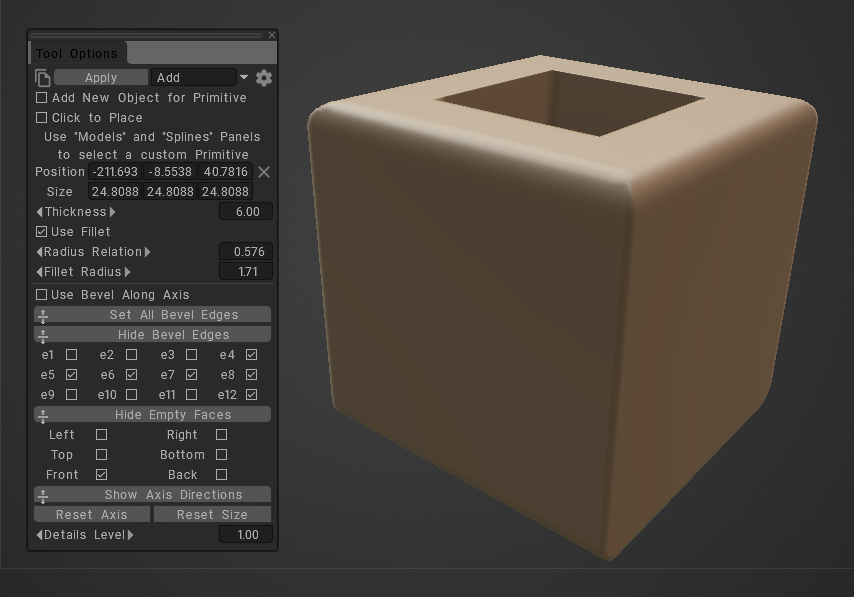
Side Closure State (Solid / Empty Face)Defines whether each side of the box is open or closed

Fillet Applied Along X and Z Axes Example (see picture below).

The generator applies the specified fillet radius to all edges parallel to the X and Z axes. Edges parallel to the Y axis remain unaffected. 
Side Closure Example

You can enable or disable closure independently for each face, allowing any combination of open and closed sides. 
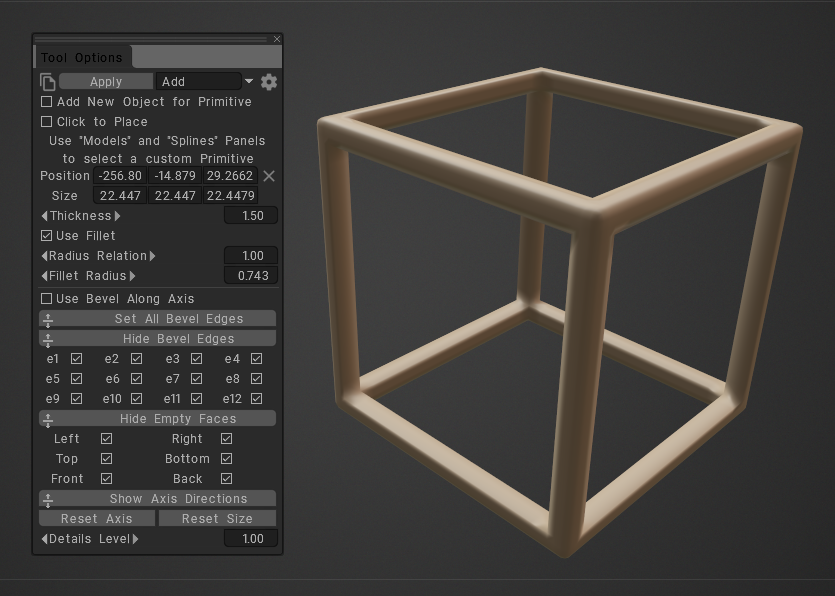
The cardboard box generator supports a wide range of box styles and dimensions.

Furthermore, the generator procedurally creates all geometry from the specified parameters, allowing rapid creation and modification of cardboard box designs without manual mesh editing.

Was this helpful?

Yes  No
Related Articles
  • GPU Texturing
  • Vector
  • Volumes
  • Modifiers
  • Materials
  • Masks
Previously
Primitives
Up Next
Live Booleans
AI:
Hi! How can I help you?
Attention: This is a beta version of AI chat. Some answers may be wrong. See full version of AI chat