 中文 (中国)
  English
 Українська
 Español
 Deutsch
 Français
 日本語
日本語 Русский
 한국어
한국어 Polski
 Português
 Italiano
 Suomi
Suomi Svenska
 中文 (台灣)
 Dansk
Dansk Slovenčina
 Türkçe
 Nederlands
 Magyar
 ไทย
ไทย हिन्दी
 Ελληνικά
 Tiếng Việt
 Lietuviškai
 Latviešu valoda
 Eesti
Eesti Čeština
 Română
 Norsk Bokmål
Surface Materials in 3DCoat are the equivalent of polygonal material assignments from other programs, such as Modo or Maya.
If upon import 3DCoat detects any of these Surface Materials, they will be respected and kept, and can also be used to perform various functions in the Paint Room.
2 panels are very useful to isolate paint objects:
- Windows > Panels > Surface Materials
Display the objects surface materials list. You can rename, hide, lock surface materials, and change texture sizes for export.
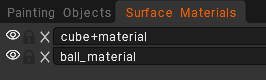
- Windows > Panels > Painting Objects
Show the Paint Objects list into a Layer system. You can rename, hide lock and delete objects listed here.
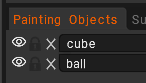
In 3DCoat unlike SPainter the textures are assigned globally by painting Objects or Surface materials, and not by texture sets (uvsets).
So you don’t need to assign the same smart material to every layer or uDim.
Everything can be done inside the Modeling or Retopo Room
1. Go to “Edit > Preferences > Beta > Treat retopo groups as materials”
2. Make poly selections and separate onto different Poly Group layers
3. “Bake Menu > Update Paint Mesh with Retopo Mesh”
You should now see them pop up in the Surface Materials panel.
After you create the Surface Materials, usually go back and undo Step 1 so that can do the usual workflow from there.