 中文 (中国)
In 3DCoat, Layer Masks and Clipping Masks provide non-destructive ways to control texture visibility and painting boundaries across Vertex Paint, Vertex/PBR, and Voxel Paint workspaces.
Layer Masks
Layer masks use a grayscale thumbnail next to a paint layer to hide or reveal parts of that specific layer. [1, 2]
- White: Reveals 100% of the layer.
- Black: Hides 100% (makes transparent) of the layer.
- Gray: Creates partial transparency or soft blending.
- Usage: Paint directly on the mask thumbnail using black or white brushes to bring back or conceal details without erasing original pixel data
Clipping Masks
Clipping masks restrict painting visibility based on the non-transparent boundaries or shapes defined on the layer directly below. [1]
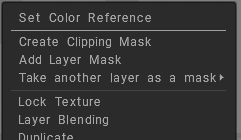
- How to Apply: Right-click a target layer in the Layers Panel and select Clipping Mask from the drop-down menu.
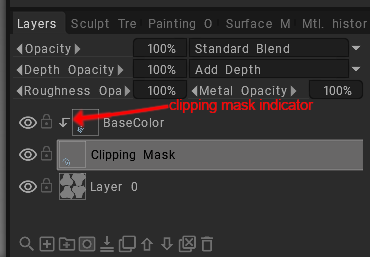
- Behavior: Anything painted on the upper clipped layer stays strictly inside the opaque cut-out areas of the bottom base layer.
- Usage: Ideal for non-destructive local shading (e.g., setting the clipped layer to Multiply blend mode) or adding details over base patterns without painting outside the lines.
They are also compatible with Layer Masks in Photoshop.
This video provides an overview of the New Photoshop-style Layer & Clipping masks in 3DCoat and 3DCoat-Textura.
Clipping mask
You can access to Clipping mask on pressing RMB over a Layer to show the Drop Down Menu: Navigate to Clipping Mask to assign a new clipping mask layer below the selected Layer.
A clipping mask layer makes an invisible cut-out area based on the layer below it for you to paint in.
Why would you need to use a clipping mask instead of a layer mask?
While they share some conceptual similarities, their applications are different.
Layer masks use black and white to show and hide different parts of the layer, whereas clipping masks rely on the shape of the bottom layer to define the visible area of the connected layers.
As example on the clipping mask layer, select Multiply blending mode. Change the opacity of this layer to make your painted layer look shaded.
Tutorials
RGB Masks in 3DCoat: by Salomon Gutierrez