 English
  Українська
 Español
 Deutsch
 Français
 日本語
日本語 Русский
 한국어
한국어 Polski
 中文 (中国)
 Português
 Italiano
 Suomi
Suomi Svenska
 中文 (台灣)
 Dansk
Dansk Slovenčina
 Türkçe
 Nederlands
 Magyar
 ไทย
ไทย हिन्दी
 Ελληνικά
 Tiếng Việt
 Lietuviškai
 Latviešu valoda
 Eesti
Eesti Čeština
 Română
 Norsk Bokmål
When you’re in the Voxel Room, there are a robust set of tools on the left-side tool panel that you can use for sculpting and performing different operations.
These brushes were manufactured using the brush engine from version 4. The brush engine was improved in newer versions, but these brushes have been retained to ease the migration of users from V4 to the newer versions. Over time, these brushes will be phased out, and only brushes manufactured with the new brush engine will remain.
You can always access the Voxel Tool Panel by pressing “Spacebar” anywhere on the screen. As with any other panel, you can dock it for your convenience.
Tools
Vox Clay: Expand surface with smoothing. This options increases the surface area beneath the cursor, and simultaneously smooths it.
It lets you blend expansive strokes quickly on the surface of your model. It will also simultaneously smooths the surface after you’ve applied it.
Grow: Expand the surface outward or reduce the surface inwardly. Use LMB to increase the surface area beneath the cursor. Brush alpha does not affect, but brush size does. Use CTRL+LMB to reduce (collapse) the surface area.
Increases or decreases the surface beneath the cursor. None of the Brush Alphas affect “Grow”, just the brush size and the intensity. Press “LMB” and move the mouse to produce an expanded section.
CTRL+RMB to produce a contracted section. On the top panel, the “Growth power” slider controls the intensity of the expansion, and the “Thaw power” slider controls the intensity of the contraction.
Build: The build tool grows the surface constantly when you move the brush. This is a deprecated brush from 4.9, so it may be replaced with another brush based on Voxel Brush Engine.
Airbrush: Airbrush tool from the 4.9 toolsets.
Smooth: A dedicated tool for evening out any irregular areas of a sculpture. See also Smoothing Options.
Fill: Voxel based fill tool. This option fills and softens cavities in the surface beneath the cursor. Use CTRL+LMB to flatten protrusions.
Fills any cavities or voids that you apply the brush to. Its action is similar to the “Smooth” tool but more precise. It’s useful when making cavities shallower but not fully level with the rest of the surface. It sometimes requires very high-intensity settings to fill areas.
Carve: Carve with brush alpha. This tool uses a brush alpha to expand an area. Use the Depth slider to adjust the strength of the carve. Use CTRL to scoop into the surface, and SHIFT to smooth it.
It lets you place high peaks and deep gouges quickly on your model, but with no smoothing.
Blob: Very much like the “2D Paint” tool, but with fewer options. Button “Do Filling” was added. The slider Density was added for Filling.
Sphere: Draw spheres. Single LMB clicks to place a sphere in 3D space. Drawing with LMB produces cylindrical volumes across the screen plane.
This tool is a quick way to create bubbles, bodies, eyeballs, etc. The size of the sphere is dependent on the size of the brush. You can also make it dependent on stylus pressure: click on the icon near the Sphere extrusion slider. The maximum size will be the maximum size of the brush.
You can create separate spheres, and long, “pill-shaped” cylinders rounded at the ends by the Left click-dragging in open space. Because of this, regular, “button-based” viewport navigation needs to be accompanied by holding down the “Alt” key.
This tools paints voxel thickness on two axes you specify by right-clicking anywhere in space or on the surface of an object. Notice first that as you rotate the view and move the brush, it’s moving along the two axes. When you change your view, new strokes will always face the camera. Pick any Brush Alpha you like and just paint.
Plane: This tool acts just like a carpenter’s wood plane does. It allows to cut off everything in front of a specifically defined plane and scrape the volume away from the set position and the normal of the brush cursor. You set the brush cursor’s position and normal by clicking and holding the RMB and then dragging along the surface of a voxel object.
Use RMB and tool options to align the plane. This tool respects rectangle painting. CTRL will invert the action and fill the hole behind the plane.
2D-Paint: Sculpt in the plane. This option provides a 2D plane as a reference for sculpting new volumes. LMB draws with the current brush, and the depth slider adjusts the thickness.
Use RMB to define the plane location. (Orientation will always be parallel to the screen view.) Use SHIFT to smooth the surface independent of the plane.
2D paint is a useful tool combined with Stamp Drag mode using different alphas. Use it to add ornaments to your sculpture.

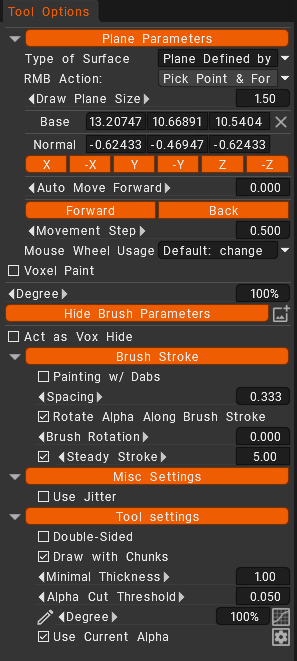
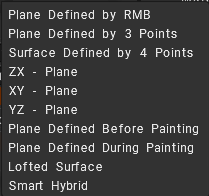
The Panel Parameters > Type of Surface show modes by which you decide the position of the brush:
If you click quickly, the RMB menu appears. Click longer to select a point and a plane. Hold RMB to move the plane’s central point over the surface, but keep it normal. Press CTRL to move the plane along the normal.
Plane: What action will be performed when the RMB is pressed?
There are five modes by which you decide the position of the brush:
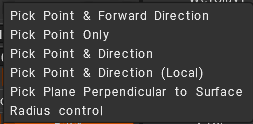
- 1. Pick Point & Forward direction: This will place the cursor at the last location you used the RMB, facing toward the camera.
- 2. Pick Point only: This will place the cursor at the last location you used the RMB only. Its direction is based on the settings in the parameters tab.
- 3. Pick Point & Direction: This will place the cursor at the last location you used the RMB, and its direction will be based on the average normals of the voxels that your brush covers.
- 4. Pick Point & Direction (local): This will place the cursor at the last location you used the RMB, and its direction will be based on the single normal of the voxel your brush is centered on.
- 5. Pick Plane Perpendicular to Surface: Position and direction of the drawing plane will be selected perpendicular to the surface on which the cursor is positioned.
- 5. Navigate: It lets you navigate the viewport. This can also be done while holding the ALT key.
Draw Plane Size: The size of the plane that shows the direction and position of the drawing plane. Displaying the helper drawing plane allows you to select the exact direction of drawing between different, existing objects.
Base: Brush position coordinates on Global Space.
Normal: Brush normal coordinates on Global Space.
Coordinates: Fast selection off Brush normal coordinates on Global Space.
Auto Move Forward: Move pick point forward automatically when plane picking occurs.
Forward & Back: Move plane position coordinates forward & back. It is better to assign hotkey and use hotkey to move plane.
Movement Step: the amount of coordinates setting for every movement step.
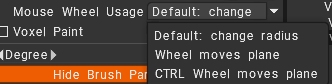
Mouse wheel usage: Mouse wheel action type selection.
Voxel Paint: Enable the Voxel Paint for all tools. It means that constructive sculpting brushes will not only grow the surface but also cover it with PBR paint material. All Additive merging (boolean) operations will be covered with the selected Paint as well, when Voxel Paint is enabled. Shapes with different paint, will maintain their respective paint values to the point where the shapes meet.
Degree: The amount of effect each (enabled) brush modifier applies, together as a whole, for each stroke of the brush.
Act as Vox Hide: This is very important for realistic sculpting. If enabled, the brush acts as the Vox Hide tool. Draw to hide, CTRL + draw to unhide. Also, look at the Geometry->Invert hidden, objectify hidden, and other nearby options.
On Plane Option
Constraint strokes to a plane. Use RMB to define plane. Click the Plane Opt. button to further edit how the plane functions.
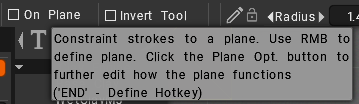
You could try another tool (Carve, Blob, Sphere, 2D-Paint) which has the “on plane” checkbox, it should work basically the same with any tool since you seem to be using rectangle mode.
There is a Way to set an absolute Depth Value to the 2D-Paint Tool
If you start painting with for example a radius of 20 and depth of 50%, and then change at least one of those values, it is not at the same depth as before.

You can find a “lock” icon on the left of Depth in the top bar. Toggling that on will keep the depth the same while adjusting radius.
How pick the depth when drawing a shape.
How to you control where the shape appears in depth?
The tool would draw on a plane defined by “last pick point”. That is, if your cursor goes over the voxels at the top in your example either at the time you start your stroke or at the time you end your stroke depending on the tool, then it will draw at that depth.
In order to avoid drawing on different planes unintentionally, use the 2d-Paint tool with plane defined by RMB. That way you will be sure to draw on the same plane unless you click RMB. If you do use 2d-Paint, you may find that the red plane preview is really annoying. In the tool options you can reduce it in size so that it doesn’t bother you.
Graphic reference for V4
It also has an important option on the top toolbar: “Double-sided”. With this checked, you can paint double-sided strokes.

Scrape: Flatten the surface. This is a voxel-based flatten tool. The area beneath the cursor is depressed into the surface and simultaneously smoothed.
This tool is not affected by pens, just the size of the brush and the Intensity. It’s very similar to the Flatten tool: it flattens the surface beneath the brush.
Pinch: Pinch the surface. This voxel-based pinch tool draws surface features closer toward the center of the cursor. Press CTRL+LMB to expand the surface.
This makes very nice tight edges, cavities, and peaks.
Smudge: This tool drags the surface topology along with the brush. It’s great for producing wrinkles on a character or clothing.
Tutorials
Voxel Sculpt Tools: In this tutorial series, I will be going over the basics of 3DCoat. We’ll discuss the basics of the sculpting tools.
On-Plane Vox Hide Layering: Dive in concept designing of ships from tiny jets to motherships.
Timecodes:
00:00 Vox Clay, 00:14 Grow, 00:33 Build, 00:53 Smooth, 00:58 Fill, 01:09 Carve, 01:23 Blob, 01:51 Sphere, 02:20 2D-Paint, 03:03 Plane, 03:38 Scrape, 04:02 Pinch, 04:18 Smudge.