 Ελληνικά
The Node Editor in 3DCoat is a powerful tool for visual programming of materials, textures, and masks using interconnecting blocks (nodes). This guide will help you understand the core UI elements and learn how to effectively work with node graphs.
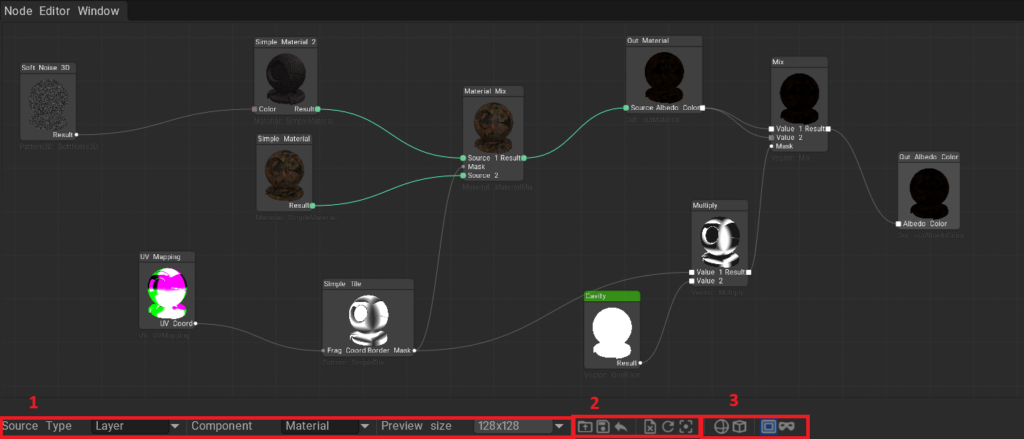
1. Main Settings Panel (Interface)
On the Node Editor Window panel, you will find the main parameters for managing the display and type of the current graph.
- Node Graph Source (NGSourceType):
Determines what the current node graph is applied to. It can be:- Layer: Nodes operate within the currently selected layer (e.g., generating a texture or a mask for the layer).
- Object: Nodes operate globally for the entire object or material.
- Graph Component (NGComponent):
Allows switching between different components of the node graph (default is Main). - Preview Size:
Determines the resolution of thumbnail previews inside the nodes themselves.- Disable: Turns off result visualization on nodes (speeds up the system).
- 64, 128, 256: Preview size in pixels. A larger size provides better quality but requires more graphics card resources.
2. Toolbar (Buttons)
The top row of buttons in the editor provides quick access to basic graph operations:
- Load: Opens a dialog to load a node graph from a
.ngfile. - Save: Saves your current graph to the internal 3DCoat preset library (with an option to choose a category and folder).
- Export: Allows you to save the node graph to an external
.ngfile on your hard drive for future sharing or backup. - Clear: Completely clears the current workspace (deletes all nodes).
- Refresh: Forces a recalculation of all nodes. Useful if the visualization didn’t update automatically.
- Recenter: Instantly focuses the camera on all created nodes, centering them on the screen. Convenient if you get “lost” on an infinite canvas.
Variable Visibility Management
- Show/Hide Global Variables: Shows or hides global variables that can be used across different graphs.
- Show/Hide Object Variables: Shows or hides variables specific to the current object.
Layer Mask Operations (for Layer mode)
- Toggle Mask: Enables or disables filling the current layer with the node material (FillNGLayer).
- Toggle Mask Preview: Enables or disables the layer mask preview.
3. Working with Nodes and Links
The workspace (canvas) allows you to place nodes, connect them, and configure their properties.
Nodes
Each node is a distinct mathematical or graphical operation.
- Selection: Left Mouse Button (LMB) click selects a node. Hold
CtrlorShiftto select multiple nodes. - Double Click: Depending on settings, it may expand/collapse the list of internal variables (Defines) of a node to save space.
- Preview (Center Image): If Preview Size is enabled, the center of the node will display the result of its operation.
Knots & Links
- Inputs and Outputs: Located on the edges of the node. Outputs are usually on the right, inputs on the left.
- Creating a Link: LMB click on an output knot and drag the line to an input knot of another node.
- Reconnecting (Flying knots): If a knot is already connected, you can click on it and “tear off” the link, dragging it to another node.
- The system automatically checks data type compatibility. For example, it’s not always possible to directly connect a Color to a Vector3D without conversion, but the editor tries to do automatic type casting where possible (via compatible class masks).
Node Properties
Most nodes have settings that can be changed in the properties panel or directly on the node:
- Numerical Values (Float / Vector): Entering specific values.
- Color: Calls the standard 3DCoat color picker dialog.
- Curves/Ramps: Some parameters allow editing a curve (ShowCurveUI). This is useful for creating gradients, adjusting levels, or remapping color/contrast.
4. Hotkeys and Navigation
- Mouse Wheel: Canvas scaling (Zoom in / Zoom out).
- Middle Mouse Button (or Right Mouse Button) + drag: Panning (moving) across the canvas.
- Shift + LMB: Add a node to the selection.
- LMB on an empty space + drag: Box selection of nodes.