• 日本語
  • 3DCoatドキュメント
  • Chapters
    • 3DCoatの紹介
    • 入門
    • インターフェイスとナビゲーション
    • Brushコンポーネント
    • Node System
    • ワークスペース ルーム
    • ScriptingとCore API
    • 質問と回答
    • licensing
    • トレーニング チュートリアル
  • Pilgway
  • Products
    • 3DCoat
    • 3DCoatTextura
    • 3DCoatPrint
    • PBRLibrary
  • Blog Posts
    • Creating 3D Character Using 3DCoat
  • Store
  • 日本語 日本語
    • English English
    • Українська Українська
    • Español Español
    • Deutsch Deutsch
    • Français Français
    • Русский Русский
    • 한국어 한국어
    • Polski Polski
    • 中文 (中国) 中文 (中国)
    • Português Português
    • Italiano Italiano
    • Suomi Suomi
    • Svenska Svenska
    • 中文 (台灣) 中文 (台灣)
    • Dansk Dansk
    • Slovenčina Slovenčina
    • Türkçe Türkçe
    • Nederlands Nederlands
    • Magyar Magyar
    • ไทย ไทย
    • हिन्दी हिन्दी
    • Ελληνικά Ελληνικά
    • Tiếng Việt Tiếng Việt
    • Lietuviškai Lietuviškai
    • Latviešu valoda Latviešu valoda
    • Eesti Eesti
    • Čeština Čeština
    • Română Română
    • Norsk Bokmål Norsk Bokmål
  • 3DCoatドキュメント
  • Chapters
    • 3DCoatの紹介
    • 入門
    • インターフェイスとナビゲーション
    • Brushコンポーネント
    • Node System
    • ワークスペース ルーム
    • ScriptingとCore API
    • 質問と回答
    • licensing
    • トレーニング チュートリアル
  • Pilgway
  • Products
    • 3DCoat
    • 3DCoatTextura
    • 3DCoatPrint
    • PBRLibrary
  • Blog Posts
    • Creating 3D Character Using 3DCoat
  • Store
  • 日本語 日本語
    • English English
    • Українська Українська
    • Español Español
    • Deutsch Deutsch
    • Français Français
    • Русский Русский
    • 한국어 한국어
    • Polski Polski
    • 中文 (中国) 中文 (中国)
    • Português Português
    • Italiano Italiano
    • Suomi Suomi
    • Svenska Svenska
    • 中文 (台灣) 中文 (台灣)
    • Dansk Dansk
    • Slovenčina Slovenčina
    • Türkçe Türkçe
    • Nederlands Nederlands
    • Magyar Magyar
    • ไทย ไทย
    • हिन्दी हिन्दी
    • Ελληνικά Ελληνικά
    • Tiếng Việt Tiếng Việt
    • Lietuviškai Lietuviškai
    • Latviešu valoda Latviešu valoda
    • Eesti Eesti
    • Čeština Čeština
    • Română Română
    • Norsk Bokmål Norsk Bokmål
Expand All Collapse All
  • 3DCoatの紹介
  • 入門
    • System requirements
    • Why 3DCoat is Unique?
    • 3DCoatの有効化
    • 起動エラー
      • Startup error Mac
    • Color management
    • Upgrading permanent license
    • Linux Setup
      • Linux initial setup per-user installation
      • Linux initial setup for system
      • Tablet setup
      • To GTK3 from GTK2
      • Error libicuuc.so.70
    • フォルダ構造
      • Custom documents folder
    • さまざまな形の「解決」
    • Tablet on Window
    • Import&Export
    • 3DCoatのApplinks
      • Blenderアプリリンク
        • Blender with the Applink in Linux
      • Blender 4.2/3/4/5 applink
      • Max Applink
      • Houdini applink
      • Lightwave uplink
  • Node System
    • PBM Channels
    • Node Editor
    • Node & Object Inspectors
    • Per-Pixel Painting
    • Node Graph
    • NodeGraph Language (NGL)
    • GPU Nodes
      • Color
      • GeometryIn
      • In
      • Layer
      • Material
      • Out
      • Pattern
      • Pattern3D
      • ShaderToy
      • Shape
      • Texture
      • Tilable
      • UV
    • Filters
    • Masks
    • Materials
    • Modifiers
    • Volumes
  • Navigation
    • オープニングダイアログ(クイックスタートメニュー)
    • ナビゲーションパネル
    • カメラとナビゲーション
      • Customize Navigation as Blender
    • Viewport Navigation Gizmo
    • Left tool panel
    •  Activity Bar
    • 3DConnexion デバイスを使用したナビゲーション
      • How to compile Spacenavd on non Ubuntu distro
    • Space Bar Menu
    • Stylus doesn’t work in sculpting
    • ホットキー
  • インターフェイスとナビゲーション
    • ファイルメニュー
    • 編集メニュー
      • Calculate Curvature
      • Calculate Occlusion
      • Light Baking Tool
      • 環境設定
    • メニューを見る
    • 対称
    • Textures
    • Calculate
    • レイヤーメニュー
    • フリーズメニュー
    • Hide
    • Bake
    • カーブス 2022
      • 曲線メニュー
      • Curves Properties RMB
      • メッシュレイヤーで塗りつぶす
      • Scale of imported curves
    • ウィンドウ メニュー
      • タブ付き Windows ポップアップ パネル
      • スライダー
    • Scripts
    • Addons
    • Capture
    • ヘルプメニュー
    • カスタマイズ
    • ルームの変更または新規作成
  • Brushコンポーネント
    • Brushトップバー
    • ブラシの一般的な使用
      • ブラシとデカールを作成する
      • 現在のスカルプトからアルファを作成する
      • 3D オブジェクトからBrushを作成する
      • Create brushes based on Curves
      • Load photoshop .abr brushes
    • ストローク
      • 曲線ポップアップメニュー
    • Brushオプション
    • 条件リミッター
    • ストリップパネル
    • ステンシル パネル
    • スマートマテリアル
      • 新しい画像や素材を追加する
      • スマートマテリアルをレイヤーにアタッチする
      • Import Quixel Megascans
    • Brushのプリセットを作成する方法
  • ワークスペース ルーム
    • Painting
      • テクスチャPaintingとモード
        • Per-PixelのPainting
        • ディスプレイスメントPainting(マイクロ頂点)
        • PtexPainting
        • 表面Painting(ポリペイント)
      • Paintingルームにインポートする
        • Initial CC subdivision
        • UV Set smoothing
        • Sharp (hard) edge
        • 法線をロックする
        • モデル変更後に新しいUVレイアウトをロードする
        • DAZ Genesis models into 3DCoat
        • ID map
      • Paintingワークスペースのメニュー
        • Edit menu
        • テクスチャメニュー
          • テクスチャBakingツール
        • 隠れる
        • Bake Paintのメニュー
        • カラーピッカー
      • Surface Materials
      • Paintingのトップバー
      • レイヤーパネル
        • ブレンディングパネル
        • Layer and Clipping Masks
      • Painting室ツール
      • 不透明度 - 透明度
      • ワークスペースを調整する
        • 微調整ツールセット
        • Tweak Room からのエクスポート
      • マスク/マテリアル プレビュー パネル
      • Paintingルームからのエクスポート
    • UVワークスペース
      • UVトップバー
      • UV左ツール パネル
      • UVプレビュー パネル
      • UVワークフローの例
      • UVルームへのインポート
      • UVルームからのエクスポート
    • リトポロジー
      • Retopoへのインポート
      • Retopo Mesh メニューと Bake メニュー
        • 仮想ミラーモード
      • Bake menu
        • Treat Poly Groups as Paint Objects
        • Baking guide
      • リトポロジーのストローク ツール
      • トップバー
        • ジオメトリを選択
      • リトポロジー ルームの左ツール パネル
        • 全体的な目的と機能
        • ジオメトリを追加
        • Retopo微調整ツール
        • UVツール
        • リトポロジ ルームのコマンド
      • オートレトポ
        • Autopo guide
      • ポリ グループ
    • スカルプ
      • Sculpt Layer
      • スカルプト ツリー
      • スカルプトBrushのオプション
      • Top Bar
      • Brushエンジン
      • 形状サブメニュー
      • スカルプトの「右クリック」メニュー
      • シェーダー
      • Voxelモード
        • ピュアVoxelスカルプティング
        • 密度と解像度
        • クレイエンジン
        • Voxelツール
        • ボクセルのサーフェス ツール
        • Voxel調整ツール
        • ボリュメトリックPainting
        • Voxelオブジェクト ツール
      • 表面モード
        • サーフェスツール
        • サーフェス カスタム ツール
        • Surface Layer
        • 表面調整ツール
        • 表面Painting
        • サーフェス オブジェクト ツール
        • マルチレベル解像度
          • Multires tools
          • Multires adjust
          • Multires commands
      • スカルプト カーブ
        • スプライン曲線
        • Splines model creation
      • ベクトル変位
      • サーフェス変換ツール
        • Voxel変換ツール
        • Instancer
        • Move
        • Pose
        • Fit
        • Reproject
        • Surface Array
      • VoxelプリミティブとImportツール
      • ライブブール値
      • スカルプト ルームのコマンド
      • スカルプト ルームにImport
      • スカルプト ルームからのエクスポート
    • 与える
      • Comparison of different roughness values
      • レンダリング パネル関数
      • ターンテーブル
      • ライティングをフェイクベイクする -non PBR-
    • Factures
      • ワークフロー
    • 最も単純な
    • モデリング
      • Mesh Menu
      • モデリング ルームの左ツール パネル
        • ジオメトリの追加
          • 選択済み
        • 微調整
        • Smart Hybrid
        • UV
          • コマンド
        • メッシュ全体
      • Fluffyによるロフト面の例
      • ポエボイによるブロックアウト
      • Import Zbrush Polygroups for UV mapping
    • Kitbash - クイック 3D モデル作成
      • Create kitbash
      • Left tool panel Kitbash
    • 3DPrint
    • Photogrammetry
      • How to install Reality Capture
      • Reality Capture doesn’t show up ?
    • NURBS ルームへのメッシュ
    • Nodes
      • スカルプト シェーダ ノード ライブラリ
      • Open PBR
  • ScriptingとCore API
    • Core API
    • Python API
    • Extensions and Addons
  • 無料の3DCoatPrint

Node Editor

46 views 0

Written by Volodymyr Makovetskyi
May 14, 2026

The Node Editor in 3DCoat is a powerful tool for visual programming of materials, textures, and masks using interconnecting blocks (nodes). This guide will help you understand the core UI elements and learn how to effectively work with node graphs.
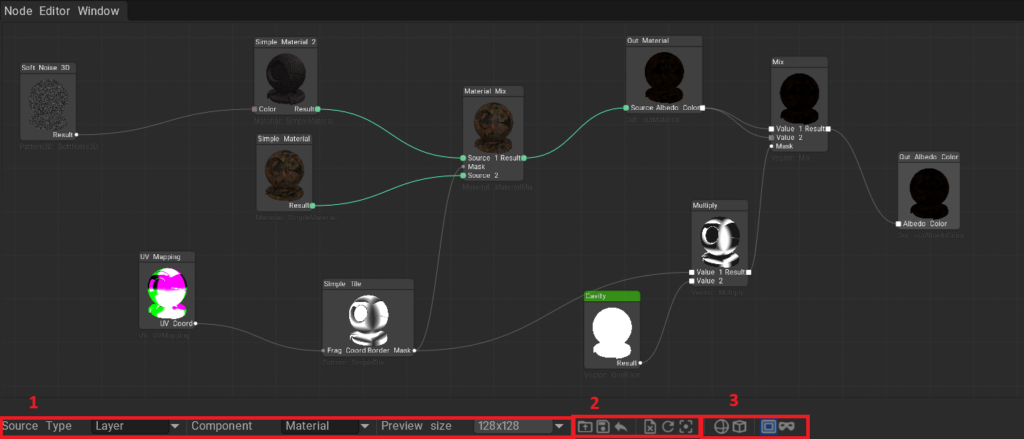

1. Main Settings Panel (Interface)

On the Node Editor Window panel, you will find the main parameters for managing the display and type of the current graph.

  • Node Graph Source (NGSourceType):
    Determines what the current node graph is applied to. It can be:
    • Layer: Nodes operate within the currently selected layer (e.g., generating a texture or a mask for the layer).
    • Object: Nodes operate globally for the entire object or material.
  • Graph Component (NGComponent):
    Allows switching between different components of the node graph (default is Main).
  • Preview Size:
    Determines the resolution of thumbnail previews inside the nodes themselves.
    • Disable: Turns off result visualization on nodes (speeds up the system).
    • 64, 128, 256: Preview size in pixels. A larger size provides better quality but requires more graphics card resources.

2. Toolbar (Buttons)

The top row of buttons in the editor provides quick access to basic graph operations:

  • 📂 Load: Opens a dialog to load a node graph from a .ng file.
  • 💾 Save: Saves your current graph to the internal 3DCoat preset library (with an option to choose a category and folder).
  • 📤 Export: Allows you to save the node graph to an external .ng file on your hard drive for future sharing or backup.
  • 🗑️ Clear: Completely clears the current workspace (deletes all nodes).
  • 🔄 Refresh: Forces a recalculation of all nodes. Useful if the visualization didn’t update automatically.
  • 🎯 Recenter: Instantly focuses the camera on all created nodes, centering them on the screen. Convenient if you get “lost” on an infinite canvas.

Variable Visibility Management

  • 🌐 Show/Hide Global Variables: Shows or hides global variables that can be used across different graphs.
  • 🧊 Show/Hide Object Variables: Shows or hides variables specific to the current object.

Layer Mask Operations (for Layer mode)

  • 🎭 Toggle Mask: Enables or disables filling the current layer with the node material (FillNGLayer).
  • 👁️ Toggle Mask Preview: Enables or disables the layer mask preview.

3. Working with Nodes and Links

The workspace (canvas) allows you to place nodes, connect them, and configure their properties.

Nodes

Each node is a distinct mathematical or graphical operation.

  • Selection: Left Mouse Button (LMB) click selects a node. Hold Ctrl or Shift to select multiple nodes.
  • Double Click: Depending on settings, it may expand/collapse the list of internal variables (Defines) of a node to save space.
  • Preview (Center Image): If Preview Size is enabled, the center of the node will display the result of its operation.

Knots & Links

  • Inputs and Outputs: Located on the edges of the node. Outputs are usually on the right, inputs on the left.
  • Creating a Link: LMB click on an output knot and drag the line to an input knot of another node.
  • Reconnecting (Flying knots): If a knot is already connected, you can click on it and “tear off” the link, dragging it to another node.
  • The system automatically checks data type compatibility. For example, it’s not always possible to directly connect a Color to a Vector3D without conversion, but the editor tries to do automatic type casting where possible (via compatible class masks).

Node Properties

Most nodes have settings that can be changed in the properties panel or directly on the node:

  • Numerical Values (Float / Vector): Entering specific values.
  • Color: Calls the standard 3DCoat color picker dialog.
  • Curves/Ramps: Some parameters allow editing a curve (ShowCurveUI). This is useful for creating gradients, adjusting levels, or remapping color/contrast.

4. Hotkeys and Navigation

  • Mouse Wheel: Canvas scaling (Zoom in / Zoom out).
  • Middle Mouse Button (or Right Mouse Button) + drag: Panning (moving) across the canvas.
  • Shift + LMB: Add a node to the selection.
  • LMB on an empty space + drag: Box selection of nodes.

Was this helpful?

Yes  No
Related Articles
  • Volumes
  • Modifiers
  • Materials
  • Masks
  • Filters
  • UV
Previously
PBM Channels
Up Next
Node & Object Inspectors
AI:
Hi! How can I help you?
Attention: This is a beta version of AI chat. Some answers may be wrong. See full version of AI chat