 English
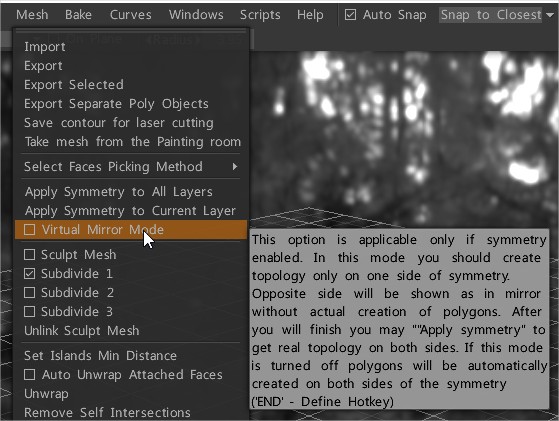
Virtual Mirror Mode (VMM) in 3DCoat’s Retopo Room is a non-destructive workflow that lets you model on one side of a symmetry plane while showing a ghosted, real-time preview on the opposite side without actually generating real polygons yet.
How It Works
- One-Sided Modeling: You create and edit your topology exclusively on the active side (typically the positive side) of your symmetry axis.
- Virtual Preview: The opposite side displays a mirrored preview, making it easier to judge overall proportions without duplicate geometry getting in your way.
- Mirror Snapping: Enables edges along the center line to snap cleanly to the symmetry axis.
- Finalizing Geometry: Real polygons are not created on the mirrored side until you explicitly choose to apply symmetry to your layer or mesh.
Key Controls & Steps
- Toggling Symmetry: Press the
Skey to open the symmetry menu and configure your axis (X, Y, or Z) and symmetry type. - Enabling/Disabling Virtual Mirror: Found under the Retopo or Mesh menu (Mesh -> Virtual Mirror Mode). It requires symmetry to be active.
- Applying Symmetry: When your one-sided work is complete, go to Mesh -> Apply Symmetry to Current Layer (or Apply Symmetry to All Layers) to convert the virtual preview into real, editable polygons.
Common Issues & Workarounds
- Stroke Tool Incompatibility: Virtual Mirror Mode does not always work properly with the strokes/brush tools. If you run into glitches, temporarily disable symmetry, delete any stray duplicated faces, and re-apply.
- Inverting the Mirror: If 3DCoat tries to build on the wrong side of the axis, check the Invert Mirror option in the toolbar or ensure your geometry is on the positive side of the plane.
- Confusion with Real Geometry: If you accidentally turn on Virtual Mirror Mode while real geometry already exists on both sides, it can visually double or obscure your meshes. Turn off VMM if you need to work with fully realized geometry on both halves.
Basically Virtual Mirror Mode is useful because it allows you to work exclusively on one side of your mesh while viewing a virtual preview for the other side. It is a nondestructive method of working, which I really like. It also allows you to snap the edges of polygons along the symmetry line using “mirror snapping”, allowing for quick and easy changes to symmetrical models.
It doesn’t work with the strokes tool. The workaround is to turn symmetry off temporarily and delete the unwanted faces it has created.
If Virtual Mirror Mode is unchecked then 3D-Coat will create REAL polygons on both sides of the symmetry plane (not virtual polygons).
This in turn makes “mirror snapping” inactive, so is better to turn “Virtual Mirror Mode” on, finish retopo work, and then select “Apply symmetry to the current layer” in the Retopo menu to get the real polygons on both sides of the symmetry plane.
In order to check that the polygons connected properly along the symmetry line, don’t forget to then turn symmetry off. Otherwise the virtual polygons will hide the real polygons underneath.
The key concept behind VMM is that it creates VIRTUAL polygons.
Virtual mirror mode (VMM) on or off aren’t all that much different from one another. It’s really noticeable if working on the center edge loop though where both halves of a mesh weld together. If VMM is on and you move a vertex, snap doesn’t work and what 3DC shows you is completely different from the actual reality.
The only drawback to working with VMM is that the mirror snapping creates a visual discrepancy between where you see the vertices connecting along the symmetry line, and where the vertices actually are.
You can see the real location of your vertices by turning symmetry off, or you can also see them by hovering over them with the “Add/Split” tool, at which point they become highlighted, and you will see that often they are actually quite far away from the symmetry line.
The higher you turn up “mirror snapping”, the worse this problem gets.
Turning “mirror snapping” down to zero will therefore reveal the real location of your vertices. The thing to remember is that the “mirror snapping” is also virtual, and it only gets baked once you “apply symmetry to the current layer”.
Once you become clear on this concept, you get used to it, and working with VMM becomes wonderful!
A good approach is to complete your retopo on one side of your model with VMM on, then turn off symmetry and check to see if there are any stray polygons sitting on the opposite side of your mesh. If there are any over there, just delete them.
The only way some polygons might show up over there is if you turned off VMM at some point while you were working (that’s why you should just leave it on the whole time).
Once that side is completely clear of polygons, then turn symmetry back on, and “apply symmetry to the current layer”. This will give you both sides 100 percent identical.
If you are working on a mesh which already has polygons on both sides of the symmetry line, always delete all of the polygons on one side in order to insure that won’t cause any problems once turn VMM on.
Warning: “virtual mirror mode” being enabled will allow construction of geometry on the left half, but not mirror it on the right half, and show no result because it’s showing the mirror of the lack of geometry on the right half.
Topology had a “correct” and “incorrect” side.
Select the right retopo layer first.