 中文 (中国)
The 3DCoat render system supports an advanced physically based material (PBR/PBM) model. It includes not only standard channels but also specialized effects to create the most realistic surfaces possible.
Below is a detailed description of each channel and its impact on the material’s appearance, based on the internal shader architecture.
1. Base Channels
- AlbedoColor (Albedo / Base Color)
The main color of the surface. For dielectrics (non-metals), this is their own color. For metals, it’s their reflection color.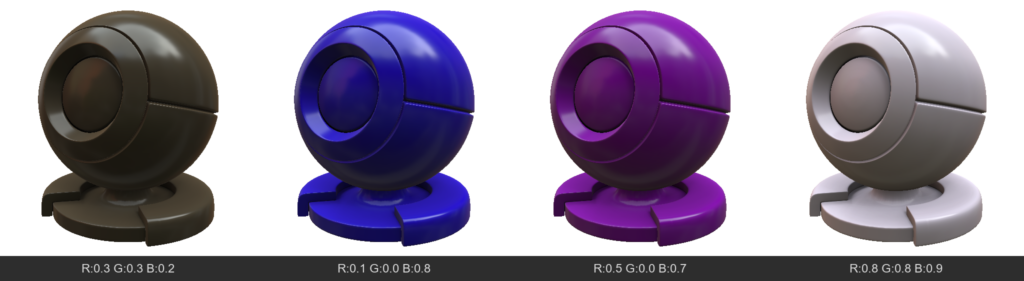
- Opacity
Determines how opaque a pixel is. Usually used for “CutOut” transparency (leaves, meshes), hiding geometry where the value is low. - Emissive
Adds self-illumination to the material. The surface will be bright even in complete darkness and can cast light on neighboring objects (via global illumination). - TSNormal (Tangent Space Normal)
A normal map that defines fine surface relief without altering the geometry itself. - AmbientOcclusion
Micro-shadowing in recesses. Darkens areas that are hard for diffuse light to reach, emphasizing the volume of the relief. - Mask
A general technical channel that can be used for layer blending logic or creating custom effects.
2. Specular & Metalness
- Metalness
Determines whether a material is a metal.0(Dielectric): Reflects only 4% of light at a direct angle (depends on IOR), albedo acts as the surface color.1(Metal): Albedo becomes the reflection color (e.g., yellow gold), and the diffuse color disappears.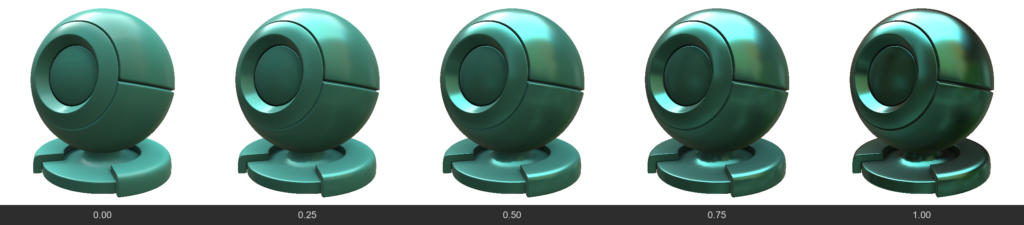
- Roughness / Gloss
Gloss = 1.0 - Roughness. Determines the “polish” of the surface. High Gloss gives sharp, mirror-like reflections, while high Roughness blurs reflections, making the surface matte.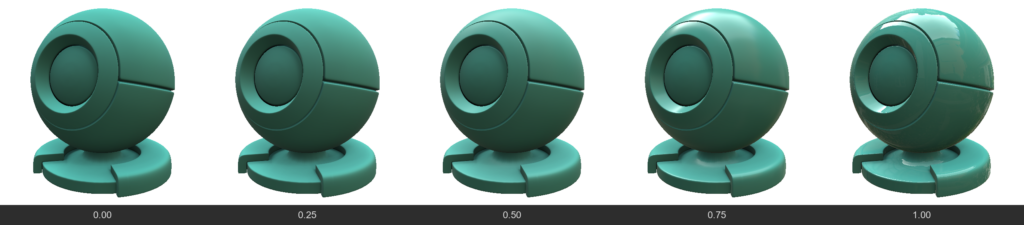
- IOR (Index of Refraction)
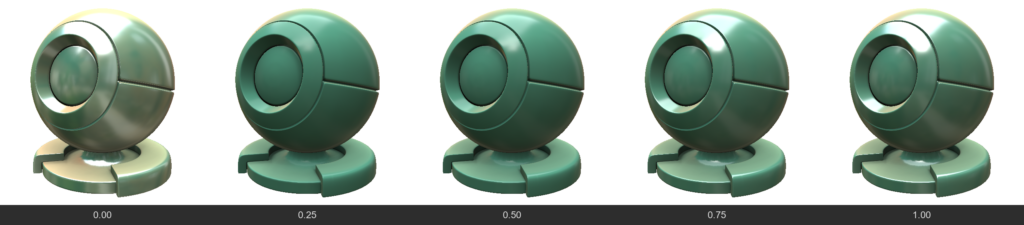
Determines the strength of the base reflection (F0) for non-metals. For example, water has an IOR ~1.33, glass ~1.5. Affects how strongly a surface reflects light when viewed at a direct angle.
For refractive materials, IOR affects the refractive power of the Fresnel, and for opaque materials, only the Fresnel
To enable control of this value via a brush, the internal parameter accepts values ranging from 0 to 1; however, it is applied as a value three times greater—meaning 0 corresponds to 1, 0.333 corresponds to 1, and 1 corresponds to 3. Nevertheless, individual nodes within the node editor will accept the actual physical IOR value.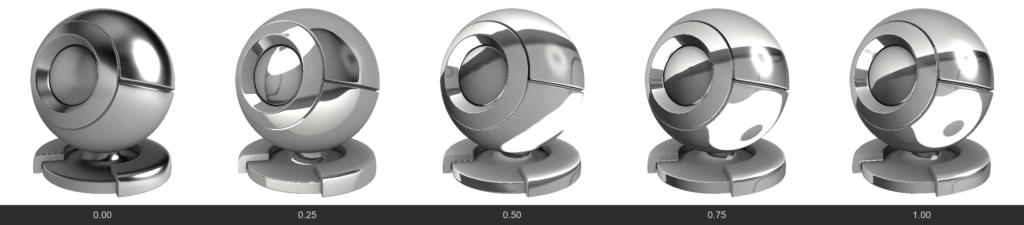
- ReflectionColor
Additional color control for reflection. Usually, reflection for non-metals is colorless, but this channel allows you to forcefully change its tint (e.g., for stylized materials).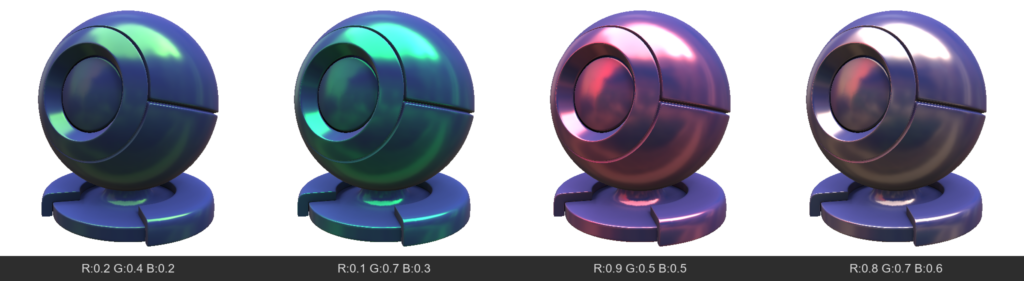
- SpecularEdgePower
Controls the Fresnel effect (how strongly a material reflects light when viewed at a grazing angle). Allows you to enhance or weaken highlights on the edges of an object. - FlatSpecular
Allows you to “flatten” reflections, ignoring fine irregularities from the normal map. Useful for stylization or avoiding “noisy” highlights on complex details.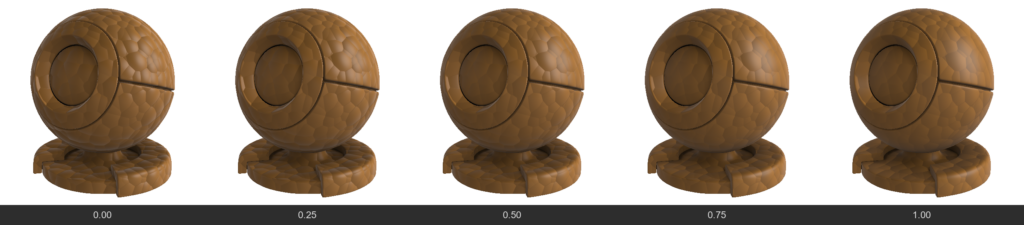
3. Refraction / Glass
- Refraction
UnlikeOpacity(which simply “cuts” a hole), this is physical material transparency (like glass or water). Light passes through the surface and refracts. The higher the value, the more transparent the material.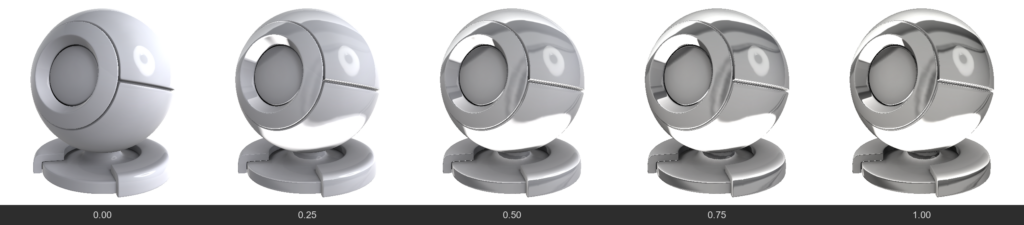
- RefractionBlur
Frosted glass. Blurs the background visible through a transparent object. Often linked to regularRoughnessbut allows controlling background blur separately.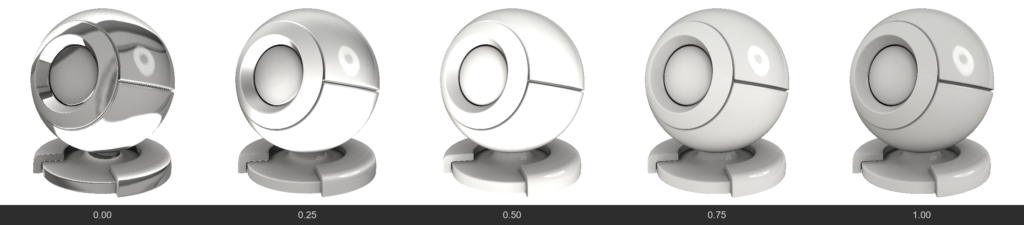
- RefractionMetalness
0 = refraction, 0.5 = dielectric, 1.0 = metalness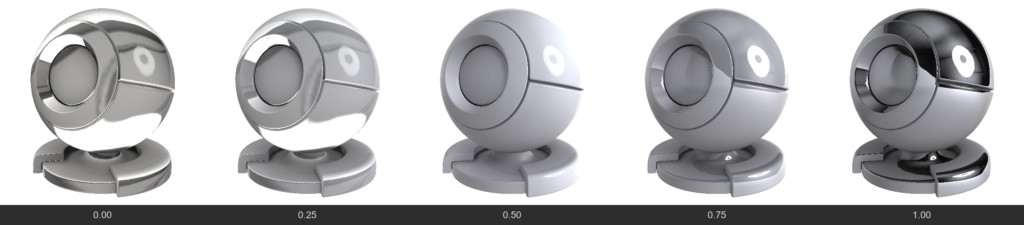
- RefractionChromatic (Chromatic Aberration)
Separates refracted light into a spectrum (like a prism), creating colored halos on the edges of thick glass.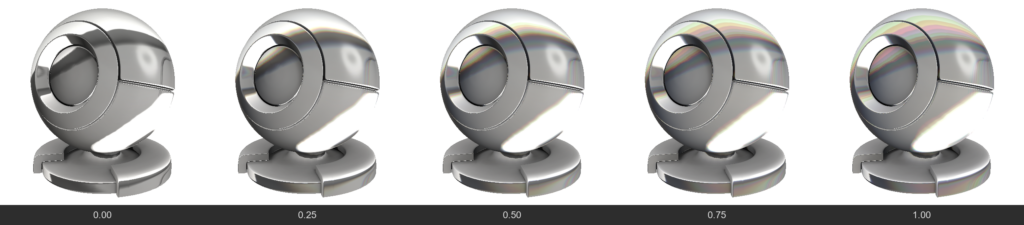
4. SubSurface Scattering (SSS & Volume)
Used for translucent materials (skin, wax, milk, plastic, jade).
- SubSurface / Volume
Determines how deep light penetrates into the material. This makes shadows softer and translucent edges brighter.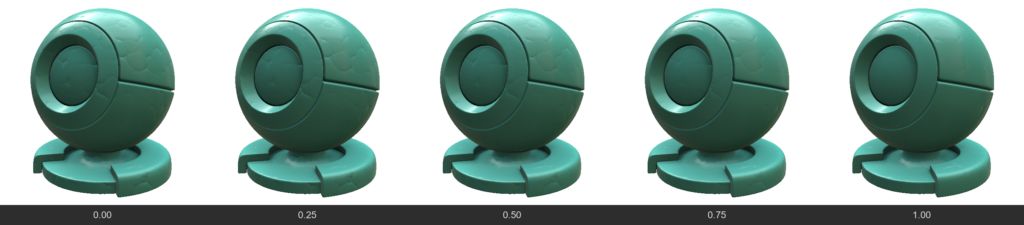
- SubSurfaceColor
The color of the light that scatters beneath the surface. For example, for human skin,AlbedoColorwould be flesh-toned, whileSubSurfaceColorwould be red (due to blood under the skin).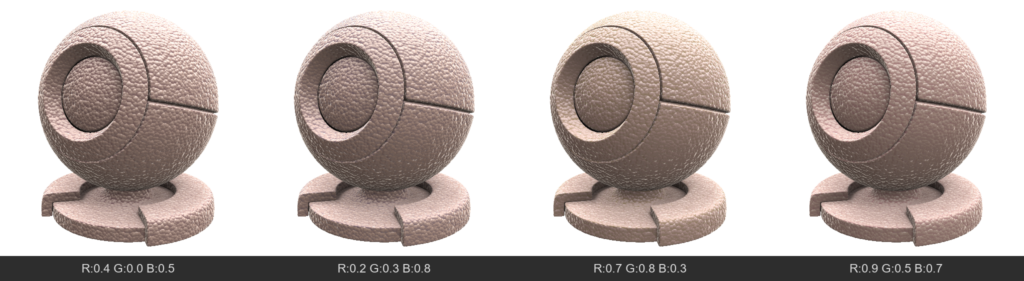
SubSurface Color also affects the refraction color.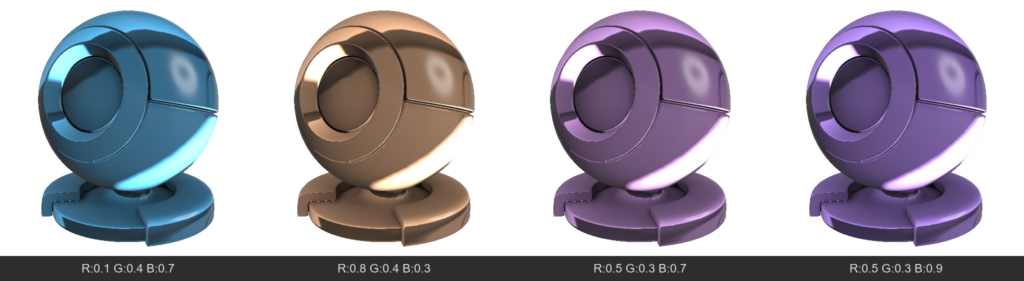
5. Special Surface Effects
- Anisotropy
Stretches the specular highlight in a specific direction. Characteristic of brushed metal (pots), hair, or silk.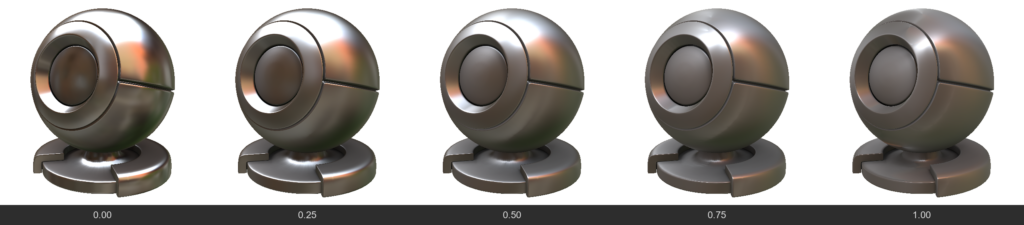
- Iridescence
Thin film interference effect. Creates rainbow shifting colors depending on the viewing angle (like on soap bubbles, insect wings, or spilled gasoline).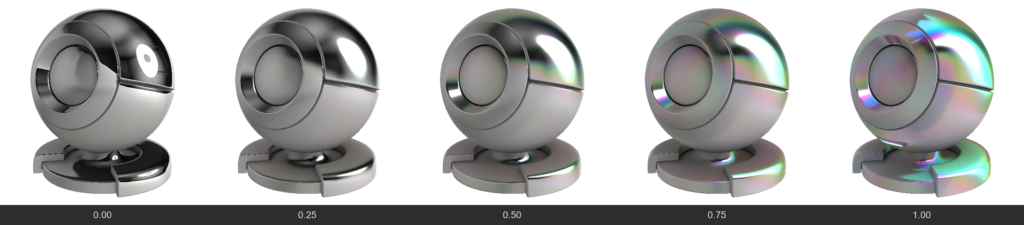
- EffectNormal
A color channel (vector direction) that defines the direction for stretching the anisotropic highlight and the direction for the iridescence gradient. - ClearCoat
Creates an additional transparent glossy layer on top of the existing material (like car paint or varnished wood). This layer has its own reflection, independent of the base material.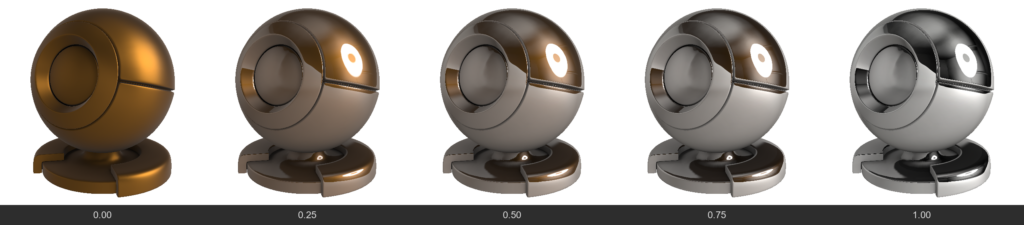
- ClearCoatGloss
Determines how smooth the clear coat layer is.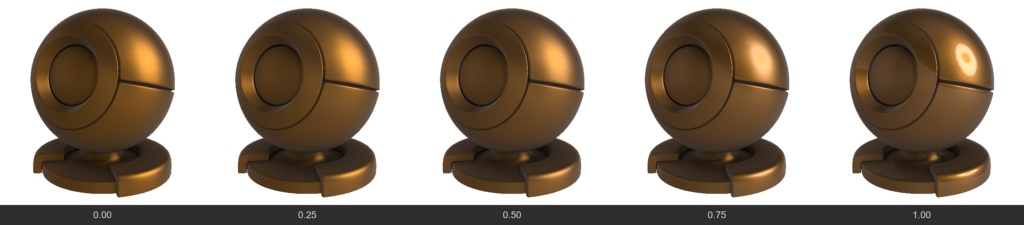
6. Fabrics, micro-protrusions and Fuzz
These channels are designed to simulate materials with complex microstructures on the surface (fabrics, dust).
- Sheen
Creates a soft highlight on the edges of an object. Characteristic of velvet, peach, suede. This is light reflecting from micro-fibers at grazing angles.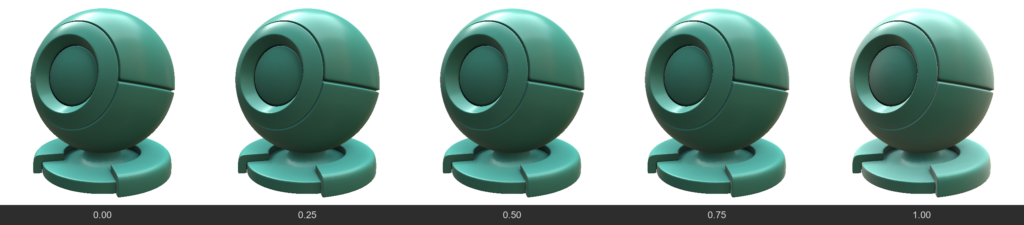
- SheenColor
Tints the fabric highlight a specific color.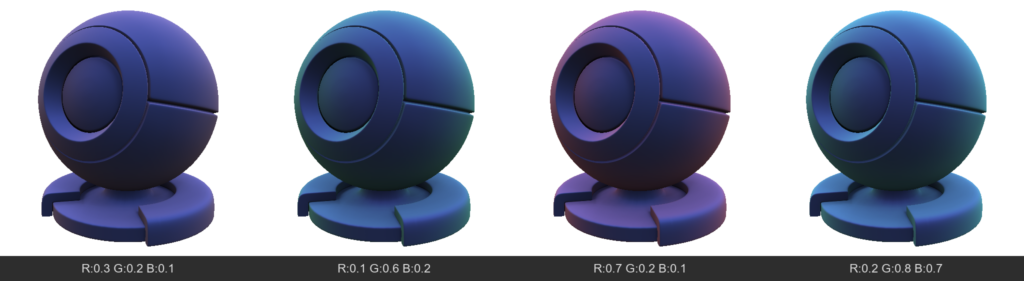
- Microprotrusions (Fuzz / Dust)
Simulates the presence of microscopic particles (or dust) on the surface that scatter light differently than the main surface. Can make the material “dusty”.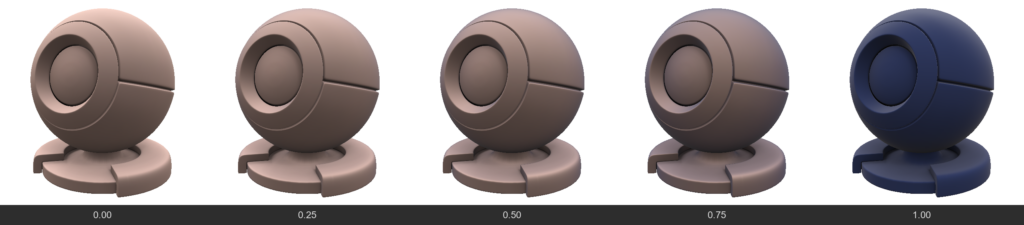
- MicroprotrusionsGloss
Controls how sharply these micro-fibers reflect light.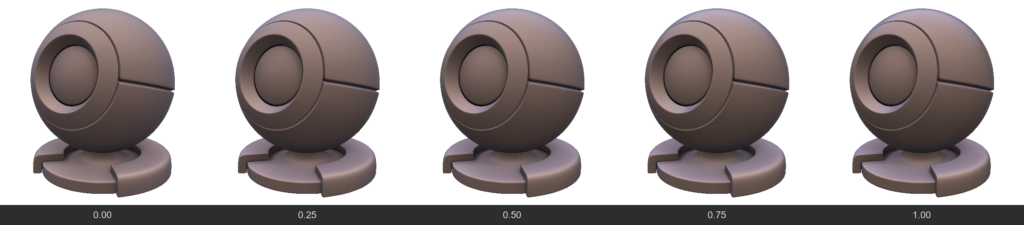
- MicroprotrusionsColor
The color of the dust or fuzz resting on the material.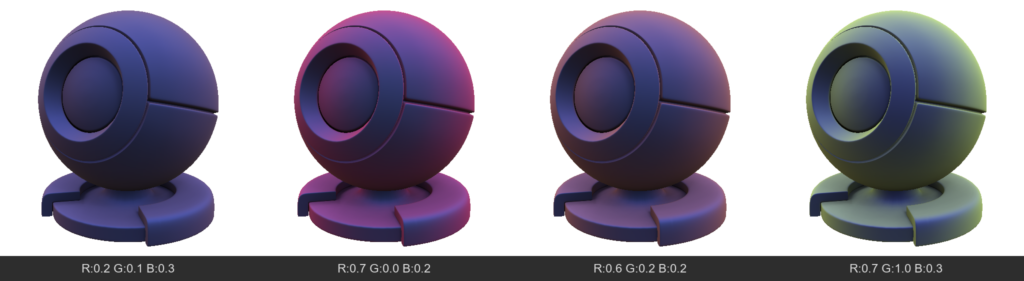
In 3DCoat, FWSNormal is a specific technical property used in node-based materials within the GPUPPP (GPU Per-Pixel Painting) mode.
It specifically functions as a combination map that defines the direction of fur and organic fibers when simulating complex, layered textures.
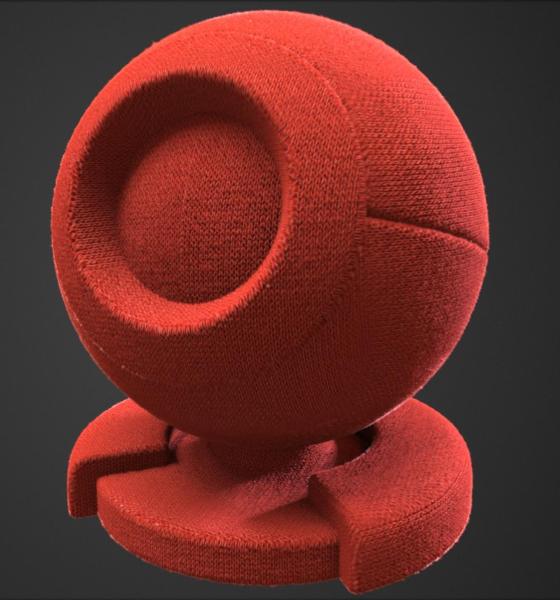
How it Works
The node-based system utilizes FWSNormal alongside two other crucial parameters to create realistic, dynamic fur surfaces:
- SoftDisplacement: Shifts the mesh vertices outwards to give the fur physical volume and height without ruining the underlying shading models.
- Sheen: Simulates the way light scatters softly across the micro-fibers or tiny hairs.
- FWSNormal: Acts as the directional map, telling the system exactly which way the fur or hair flows across the 3D surface.
How to Use It
To make sure properties like FWSNormal and SoftDisplacement function correctly during texturing, you need to ensure specific viewport settings are active:
- Navigate to the View Menu.
- Turn on “Show Displacement Mesh”.
- Ensure Tessellation is enabled and configured properly so the software has enough geometry to calculate the physical shift.