• Latviešu valoda
  • 3DCoat dokumentācija
  • Chapters
    • Ievads 3DCoat
    • Darba sākšana
    • Interfeiss un navigācija
    • Brush sastāvdaļas
    • Node System
    • GPU Texturing
    • Darba telpas Istabas
    • Scripting un Core API
    • Jautājumi/Atbildes
    • Licensing
  • Learn
    • Getting Started
    • Painting
    • Sculpt
    • Modeling
    • Retopology
    • UV
    • Smart Materials
    • Nodes
    • Photogrammetry
    • Render
    • Print
    • Learning
    • Apmācības pamācības
  • Blog
    • 2026 Key Features and Improvements
    • Texturing with nodes
    • Shader Nodes VS. a Material Nodes
    • Multiple UV Tiles/UDIMs to one single UV set ?
    • I want to create geometry only with displacement to be manufactured with a CNC machine
    • Creating 3D Character Using 3DCoat
    • DAZ Genesis models into 3DCoat
    • Cavity and Curvature maps
    • Types of normal maps
    • Texture painting pipeline
    • Load new UV layout After Model Changes
    • Import Zbrush Polygroups for UV mapping
  • Products
    • 3DCoat
    • 3DCoatTextura
    • 3DCoatPrint
    • PBRLibrary
  • Store
  • Pilgway
  • Latviešu valoda Latviešu valoda
    • Daudzvalodu pārslēdzējs
    • Daudzvalodu pārslēdzējs
    • Daudzvalodu pārslēdzējs
    • Daudzvalodu pārslēdzējs
    • Daudzvalodu pārslēdzējs
    • Daudzvalodu pārslēdzējs
    • Daudzvalodu pārslēdzējs
    • Daudzvalodu pārslēdzējs
    • Daudzvalodu pārslēdzējs
    • Daudzvalodu pārslēdzējs
    • Daudzvalodu pārslēdzējs
    • Daudzvalodu pārslēdzējs
    • Daudzvalodu pārslēdzējs
    • Daudzvalodu pārslēdzējs
    • Daudzvalodu pārslēdzējs
    • Daudzvalodu pārslēdzējs
    • Daudzvalodu pārslēdzējs
    • Daudzvalodu pārslēdzējs
    • Daudzvalodu pārslēdzējs
    • Daudzvalodu pārslēdzējs
    • Daudzvalodu pārslēdzējs
    • Daudzvalodu pārslēdzējs
    • Daudzvalodu pārslēdzējs
    • Daudzvalodu pārslēdzējs
    • Daudzvalodu pārslēdzējs
    • Daudzvalodu pārslēdzējs
    • Daudzvalodu pārslēdzējs
    • Daudzvalodu pārslēdzējs
    • Daudzvalodu pārslēdzējs
  • 3DCoat dokumentācija
  • Chapters
    • Ievads 3DCoat
    • Darba sākšana
    • Interfeiss un navigācija
    • Brush sastāvdaļas
    • Node System
    • GPU Texturing
    • Darba telpas Istabas
    • Scripting un Core API
    • Jautājumi/Atbildes
    • Licensing
  • Learn
    • Getting Started
    • Painting
    • Sculpt
    • Modeling
    • Retopology
    • UV
    • Smart Materials
    • Nodes
    • Photogrammetry
    • Render
    • Print
    • Learning
    • Apmācības pamācības
  • Blog
    • 2026 Key Features and Improvements
    • Texturing with nodes
    • Shader Nodes VS. a Material Nodes
    • Multiple UV Tiles/UDIMs to one single UV set ?
    • I want to create geometry only with displacement to be manufactured with a CNC machine
    • Creating 3D Character Using 3DCoat
    • DAZ Genesis models into 3DCoat
    • Cavity and Curvature maps
    • Types of normal maps
    • Texture painting pipeline
    • Load new UV layout After Model Changes
    • Import Zbrush Polygroups for UV mapping
  • Products
    • 3DCoat
    • 3DCoatTextura
    • 3DCoatPrint
    • PBRLibrary
  • Store
  • Pilgway
  • Latviešu valoda Latviešu valoda
    • Daudzvalodu pārslēdzējs
    • Daudzvalodu pārslēdzējs
    • Daudzvalodu pārslēdzējs
    • Daudzvalodu pārslēdzējs
    • Daudzvalodu pārslēdzējs
    • Daudzvalodu pārslēdzējs
    • Daudzvalodu pārslēdzējs
    • Daudzvalodu pārslēdzējs
    • Daudzvalodu pārslēdzējs
    • Daudzvalodu pārslēdzējs
    • Daudzvalodu pārslēdzējs
    • Daudzvalodu pārslēdzējs
    • Daudzvalodu pārslēdzējs
    • Daudzvalodu pārslēdzējs
    • Daudzvalodu pārslēdzējs
    • Daudzvalodu pārslēdzējs
    • Daudzvalodu pārslēdzējs
    • Daudzvalodu pārslēdzējs
    • Daudzvalodu pārslēdzējs
    • Daudzvalodu pārslēdzējs
    • Daudzvalodu pārslēdzējs
    • Daudzvalodu pārslēdzējs
    • Daudzvalodu pārslēdzējs
    • Daudzvalodu pārslēdzējs
    • Daudzvalodu pārslēdzējs
    • Daudzvalodu pārslēdzējs
    • Daudzvalodu pārslēdzējs
    • Daudzvalodu pārslēdzējs
    • Daudzvalodu pārslēdzējs
Expand All Collapse All
  • Ievads 3DCoat
  • Darba sākšana
    • System requirements
    • Why 3DCoat is Unique?
    • 3DCoat aktivizēšana
    • Startēšanas kļūda
      • Startup error Mac
    • Color management
    • Upgrading permanent license
    • Linux Setup
      • Linux initial setup per-user installation
      • Linux initial setup for system
      • Tablet setup
      • To GTK3 from GTK2
      • Error libicuuc.so.70
    • Mapju struktūra
      • Custom documents folder
    • Dažādas “izšķirtspējas” formas
    • Tablet on Window
    • Import un Export
    • Applinks 3DCoat
      • Blender lietotnes saite
        • Blender with the Applink in Linux
      • Blender 4.2/3/4/5 applink
      • Max Applink
      • Houdini applink
      • Lightwave uplink
  • Navigation
    • Atvēršanas dialoglodziņš (ātrā sākuma izvēlne)
    • Navigācijas panelis
    • Kamera un navigācija
      • Customize Navigation as Blender
    • Left tool panel
    •  Activity Bar
    • Navigācija, izmantojot 3DConnexion ierīces
      • How to compile Spacenavd on non Ubuntu distro
    • Quick Access Menu
    • Stylus doesn’t work in sculpting
    • Karstie taustiņi
  • Interfeiss un navigācija
    • Failu izvēlne
    • Rediģēt izvēlni
      • Bake Geometry Info
      • Calculate Occlusion
      • Calculate Curvature
      • Light Baking Tool
      • Preferences
    • Skatīšanas izvēlne
    • Simetrija
    • Textures
    • Calculate
    • Slāņu izvēlne
    • Iesaldēšanas izvēlne
    • Hide
    • Bake
    • Līknes 2022
      • Izvēlne Līknes
      • Curves Properties RMB
      • Piepildiet ar sieta slāni
      • Scale of imported curves
    • Windows izvēlne
      • Windows uznirstošie paneļi ar cilnēm
      • Slīdņi
    • Scripts
    • Addons
    • Capture
    • Palīdzības izvēlne
    • Pielāgošana
    • Mainiet vai izveidojiet jaunu telpu
  • Brush sastāvdaļas
    • Brush Top Bar
    • Birstes vispārējai lietošanai
      • Izveidojiet otas un uzlīmes
      • Alfa veidošana no pašreizējās skulptūras
      • Izveidojiet Brush no 3D objekta
      • Create brushes based on Curves
      • Load photoshop .abr brushes
    • Insulti
      • Līknes uznirstošā izvēlne
    • Brush iespējas
    • Nosacījumu ierobežotājs
    • Sloksnes panelis
    • Trafaretu panelis
    • Gudri materiāli
      • Pievienojiet jaunus attēlus vai materiālus
      • Pievienojiet viedo materiālu slānim
      • Import Quixel Megascans
    • Kā izveidot Brush sākotnējos iestatījumus
  • Node System
    • Node Editor
    • Node & Object Inspectors
    • Node Graph
    • NodeGraph Language (NGL)
    • GPU Nodes
      • Color
      • GeometryIn
      • In
      • Layer
      • Material
      • Math
      • Noise
      • Noise3D
      • Out
      • Pattern
      • Pattern3D
      • Shape
      • Texture
      • Tilable
      • UV
    • Filters
    • Masks
    • Materials
    • Modifiers
    • Volumes
  • Bezmaksas 3DCoatPrint
  • GPU Texturing
    • PBM Channels
    • Per-Pixel Painting
  • Darba telpas Istabas
    • Painting
      • Tekstūru Painting un režīmi
        • Painting uz Per-Pixel
        • Nobīdes Painting (mikrovirsotne)
        • Ptex Painting
        • Virsmas Painting (polikrāsošana)
      • Importēšana Painting telpā
        • Initial CC subdivision
        • UV Set smoothing
        • Sharp (hard) edge
        • Bloķēt Normals
        • Ielādēt jaunu UV izkārtojumu pēc modeļa izmaiņām
        • DAZ Genesis models into 3DCoat
        • ID map
      • Painting darbvietas izvēlnes
        • Edit menu
        • Tekstūru izvēlne
          • Tekstūras Baking rīki
        • Slēpt
        • Bake Paint ēdienkarte
        • Krāsu atlasītājs
      • Surface Materials
      • Painting augšējā josla
      • Slāņu panelis
        • Sajaukšanas panelis
        • Layer and Clipping Masks
      • Painting telpas rīki
      • Necaurredzamība — caurspīdīgums
      • Pielāgojiet darbvietu
        • Tweak Toolset
        • Eksportēšana no Tweak Room
      • Masku/materiālu priekšskatījuma panelis
      • Eksportēšana no Painting telpas
    • UV darbvieta
      • UV augšējā josla
      • UV Kreisais instrumentu panelis
      • UV priekšskatījuma panelis
      • UV darbplūsmas piemērs
      • Importēšana UV telpā
      • Eksportēšana no UV telpas
    • Retopoloģija
      • Importēšana Retopo istabā
      • Retopo Mesh Menu un Bake Menu
        • Virtuālais spoguļa režīms
      • Bake menu
        • Treat Poly Groups as Paint Objects
        • Baking guide
      • Strokes rīks retopoloģijā
      • Augšējā josla
        • Izvēlieties ģeometriju
      • Kreisais rīku panelis Retopoloģijas telpā
        • Kopējais mērķis un funkcija
        • Pievienojiet ģeometriju
        • Retopo Tweak Tools
        • UV instrumenti
        • Komandas retopoloģijas telpai
      • AUTORETOPO
        • Autopo guide
      • Poli grupas
    • Skulpt
      • Sculpt Layer
      • Veidot koku
      • Sculpt Brush iespējas
      • Top Bar
      • Brush dzinējs
      • Ģeometrijas apakšizvēlne
      • Veidojiet izvēlni “Ar peles labo pogu noklikšķiniet”.
      • Ēnotāji
      • Voxel režīms
        • Pure Voxel Sculpting
        • Blīvums un izšķirtspēja
        • Māla dzinējs
        • Voxel Tools
        • Virsmas rīki Voxels
        • Voxel Adjustment Tools
        • Volumetriskā Painting
        • Voxel Objects Tools
      • Virsmas režīms
        • Virsmas instrumenti
        • Virsmas pielāgoti rīki
        • Surface Layer
        • Virsmas regulēšanas instrumenti
        • Virsmu Painting
        • Daudzlīmeņu izšķirtspēja
          • Multires tools
          • Multires adjust
          • Multires commands
      • Skulptūras līknes
        • Spline līknes
        • Splines model creation
      • Vektoru nobīde
      • Virsmas transformācijas rīki
        • Voxel Transform Tools
        • Instancer
        • Move
        • Pose
        • Fit
        • Reproject
        • Surface Array
      • Voxel primitīvas un Import rīki
        • Hollow Box
      • Dzīvi Būla skaitļi
      • Komandas Sculpt telpai
      • Import uz Sculpt Room
      • Eksportēšana no Skulptūru telpas
    • Renderēt
      • Comparison of different roughness values
      • Renderēšanas paneļa funkcijas
      • Skaņas atskaņotājs
      • Fakebake apgaismojums — bez PBR—
    • Factures
      • Darbplūsma
    • Vienkāršākais
    • Modelēšana
      • Mesh Menu
      • Kreisais instrumentu panelis modelēšanas telpā
        • Pievienojiet ģeometriju
          • Make Joints
          • Atlasīts
        • Kniebiens
        • Smart Hybrid
        • UV
          • Komandas
        • Viss tīkls
      • Bēniņu virsmas piemērs no Fluffy
      • Poeboi bloķēšana
      • Import Zbrush Polygroups for UV mapping
    • Kitbash — ātra 3D modeļu izveide
      • Create kitbash
      • Left tool panel Kitbash
    • 3DPrint
    • Photogrammetry
      • How to install Reality Capture
      • Reality Capture doesn’t show up ?
    • Tīkls uz NURBS istabu
    • Nodes
      • Texturing with nodes
      • Sculpt shaders Nodes Library
      • Open PBR
  • Scripting un Core API
    • Core API
    • Python API
    • Extensions and Addons

PBM Channels

2260 views 3

Written by Volodymyr Makovetskyi
May 13, 2026

The 3DCoat render system supports an advanced physically based material (PBR/PBM) model. It includes not only standard channels but also specialized effects to create the most realistic surfaces possible.

Below is a detailed description of each channel and its impact on the material’s appearance, based on the internal shader architecture.


1. Base Channels

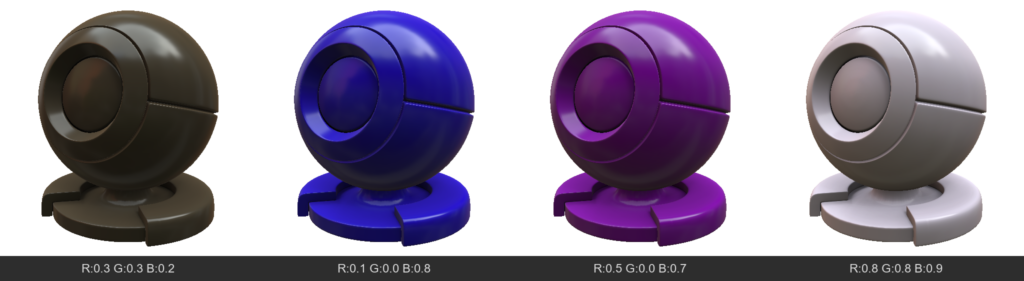
  • AlbedoColor (Albedo / Base Color)
    The main color of the surface. For dielectrics (non-metals), this is their own color. For metals, it’s their reflection color.
  • Opacity
    Determines how opaque a pixel is. Usually used for “CutOut” transparency (leaves, meshes), hiding geometry where the value is low.
  • Emissive
    Adds self-illumination to the material. The surface will be bright even in complete darkness and can cast light on neighboring objects (via global illumination).
  • TSNormal (Tangent Space Normal)
    A normal map that defines fine surface relief without altering the geometry itself.
  • AmbientOcclusion
    Micro-shadowing in recesses. Darkens areas that are hard for diffuse light to reach, emphasizing the volume of the relief.
  • Mask
    A general technical channel that can be used for layer blending logic or creating custom effects.

2. Specular & Metalness

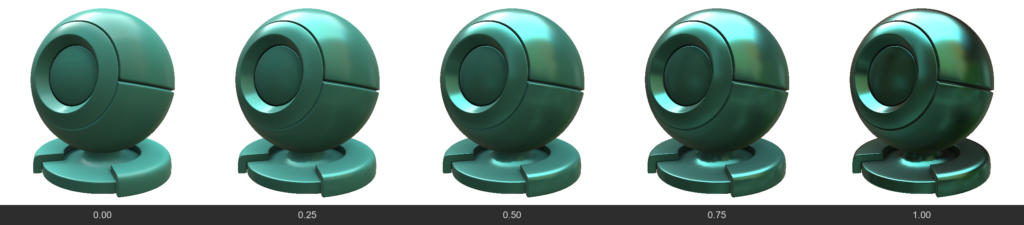
  • Metalness
    Determines whether a material is a metal.
    0 (Dielectric): Reflects only 4% of light at a direct angle (depends on IOR), albedo acts as the surface color.
    1 (Metal): Albedo becomes the reflection color (e.g., yellow gold), and the diffuse color disappears.
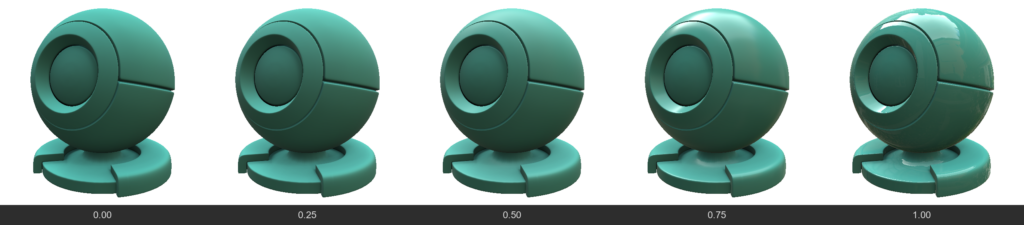
  • Roughness / Gloss
    Gloss = 1.0 - Roughness. Determines the “polish” of the surface. High Gloss gives sharp, mirror-like reflections, while high Roughness blurs reflections, making the surface matte.
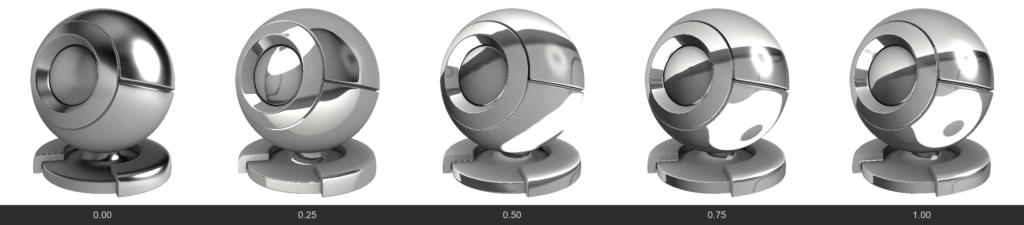
  • IOR (Index of Refraction)
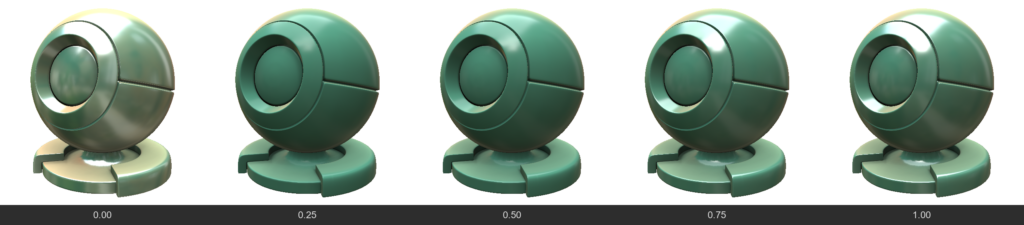
    Determines the strength of the base reflection (F0) for non-metals. For example, water has an IOR ~1.33, glass ~1.5. Affects how strongly a surface reflects light when viewed at a direct angle.
    For refractive materials, IOR affects the refractive power of the Fresnel, and for opaque materials, only the Fresnel
    To enable control of this value via a brush, the internal parameter accepts values ​​ranging from 0 to 1; however, it is applied as a value three times greater—meaning 0 corresponds to 1, 0.333 corresponds to 1, and 1 corresponds to 3. Nevertheless, individual nodes within the node editor will accept the actual physical IOR value.
  • ReflectionColor
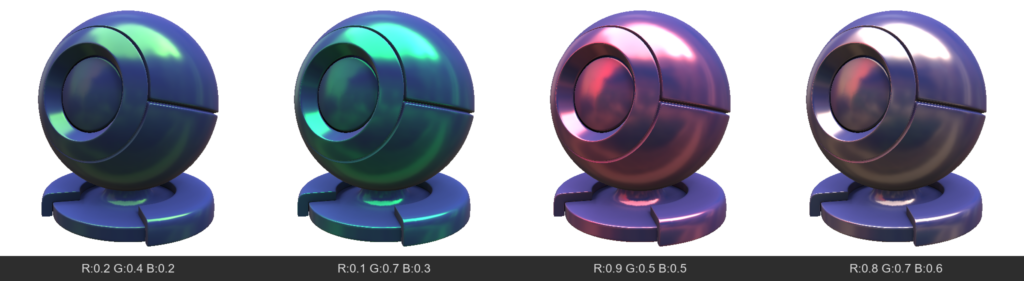
    Additional color control for reflection. Usually, reflection for non-metals is colorless, but this channel allows you to forcefully change its tint (e.g., for stylized materials).
  • SpecularEdgePower
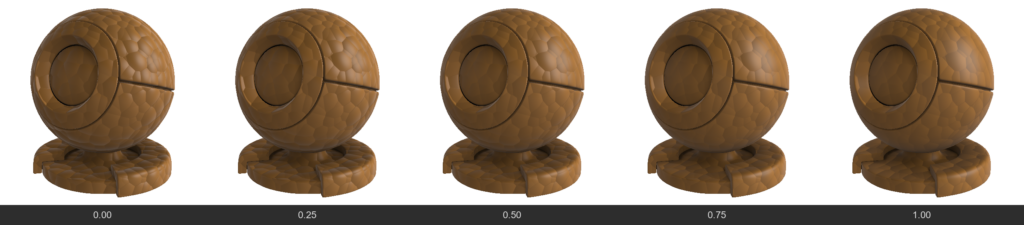
    Controls the Fresnel effect (how strongly a material reflects light when viewed at a grazing angle). Allows you to enhance or weaken highlights on the edges of an object.
  • FlatSpecular
    Allows you to “flatten” reflections, ignoring fine irregularities from the normal map. Useful for stylization or avoiding “noisy” highlights on complex details.

3. Refraction / Glass

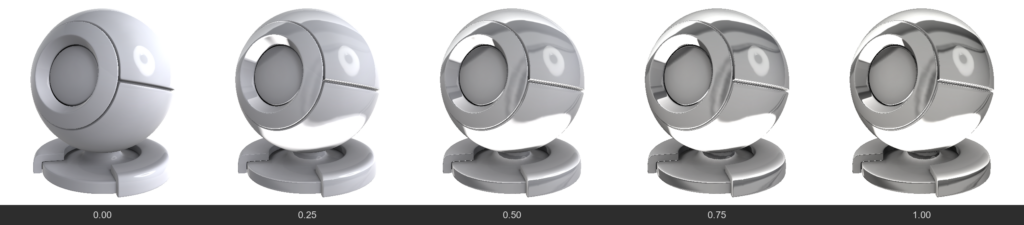
  • Refraction
    Unlike Opacity (which simply “cuts” a hole), this is physical material transparency (like glass or water). Light passes through the surface and refracts. The higher the value, the more transparent the material.
  • RefractionBlur
    Frosted glass. Blurs the background visible through a transparent object. Often linked to regular Roughness but allows controlling background blur separately.
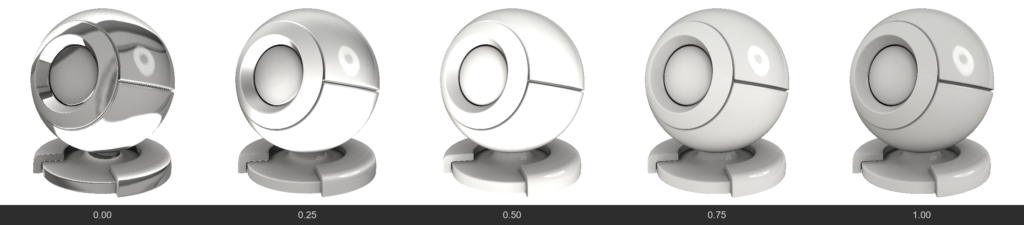
  • RefractionMetalness
    0 = refraction, 0.5 = dielectric, 1.0 = metalness
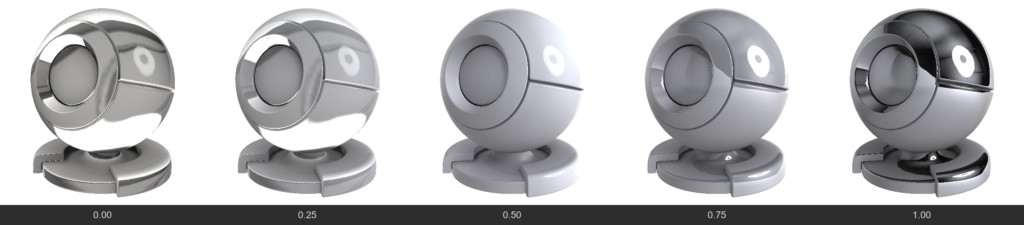
  • RefractionChromatic (Chromatic Aberration)
    Separates refracted light into a spectrum (like a prism), creating colored halos on the edges of thick glass.

4. SubSurface Scattering (SSS & Volume)

Used for translucent materials (skin, wax, milk, plastic, jade).

  • SubSurface / Volume
    Determines how deep light penetrates into the material. This makes shadows softer and translucent edges brighter.
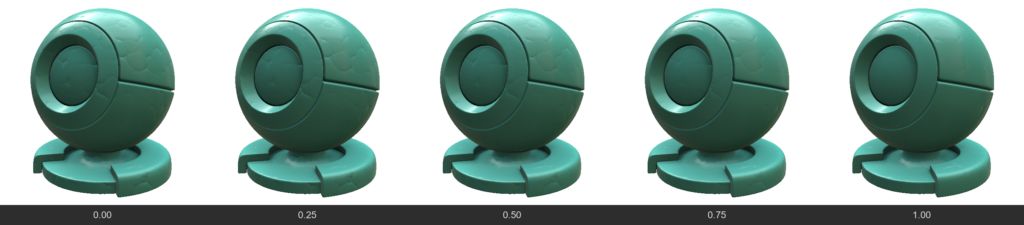
  • SubSurfaceColor
    The color of the light that scatters beneath the surface. For example, for human skin, AlbedoColor would be flesh-toned, while SubSurfaceColor would be red (due to blood under the skin).
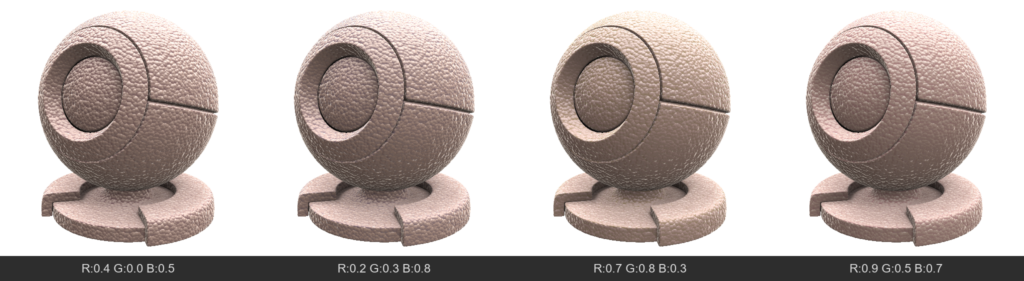
    SubSurface Color also affects the refraction color.

5. Special Surface Effects

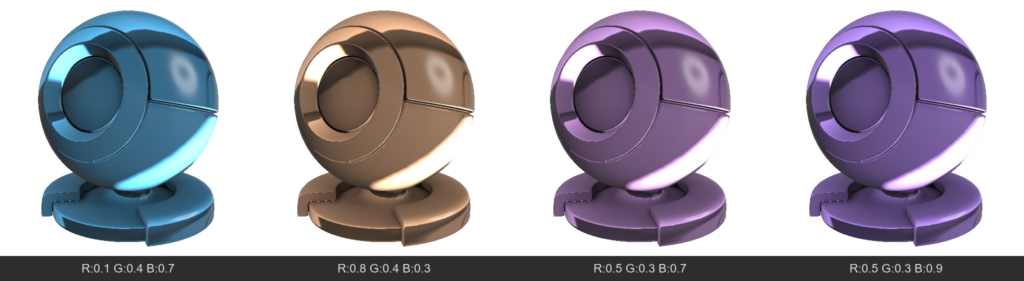
  • Anisotropy
    Stretches the specular highlight in a specific direction. Characteristic of brushed metal (pots), hair, or silk.
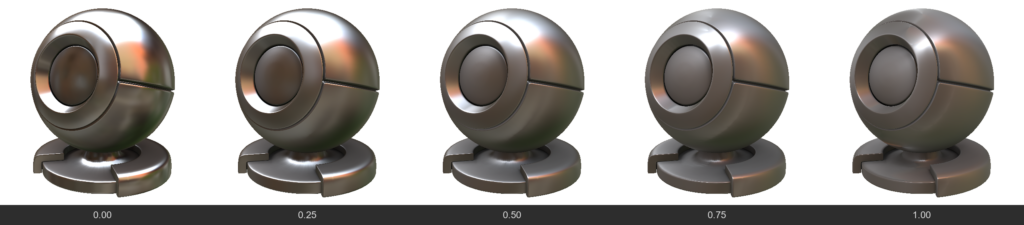
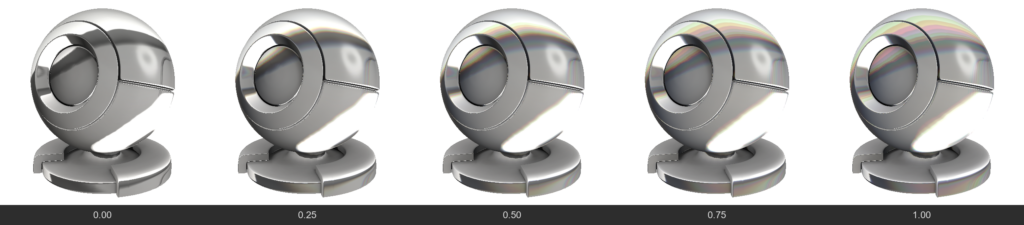
  • Iridescence
    Thin film interference effect. Creates rainbow shifting colors depending on the viewing angle (like on soap bubbles, insect wings, or spilled gasoline).
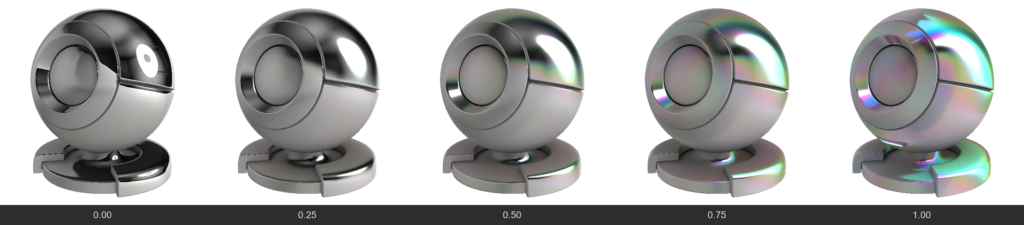
  • EffectNormal
    A color channel (vector direction) that defines the direction for stretching the anisotropic highlight and the direction for the iridescence gradient.
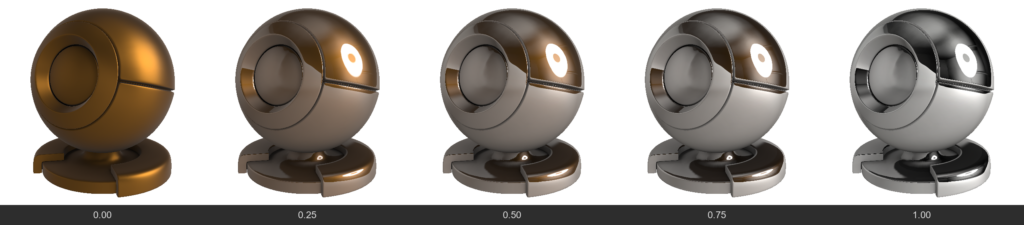
  • ClearCoat
    Creates an additional transparent glossy layer on top of the existing material (like car paint or varnished wood). This layer has its own reflection, independent of the base material.
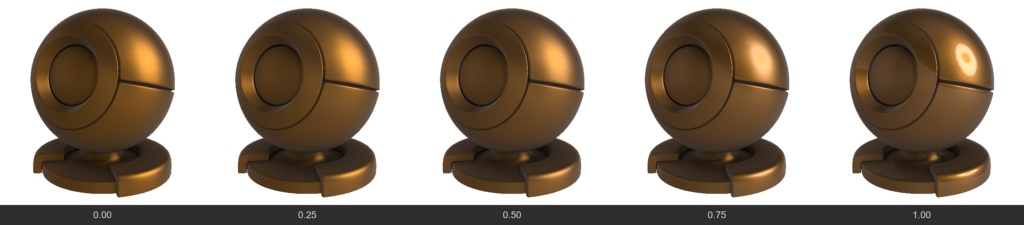
  • ClearCoatGloss
    Determines how smooth the clear coat layer is.
6. Fabrics, micro-protrusions and Fuzz

These channels are designed to simulate materials with complex microstructures on the surface (fabrics, dust).

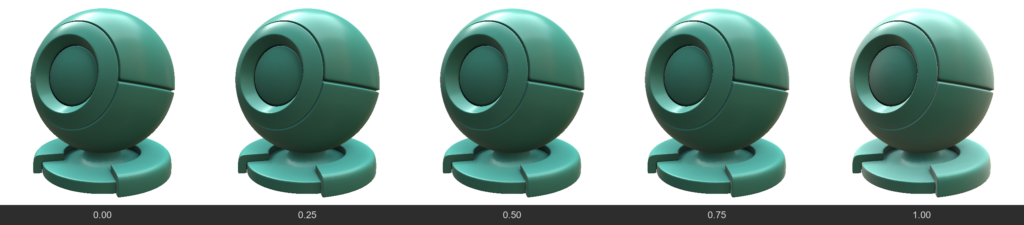
  • Sheen
    Creates a soft highlight on the edges of an object. Characteristic of velvet, peach, suede. This is light reflecting from micro-fibers at grazing angles.
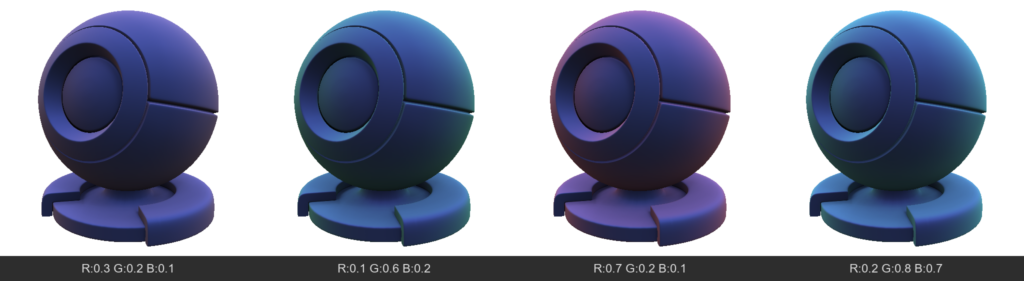
  • SheenColor
    Tints the fabric highlight a specific color.
  • Microprotrusions (Fuzz / Dust)
    Simulates the presence of microscopic particles (or dust) on the surface that scatter light differently than the main surface. Can make the material “dusty”.
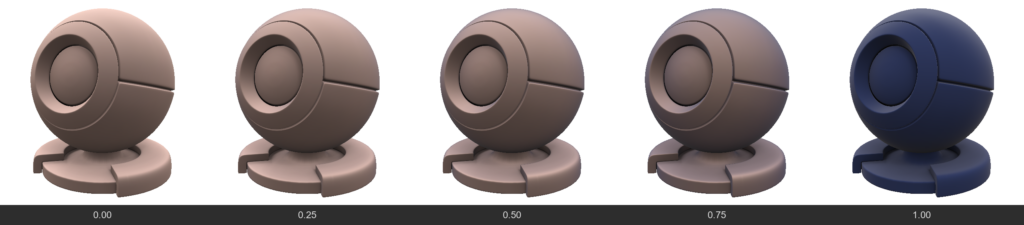
  • MicroprotrusionsGloss
    Controls how sharply these micro-fibers reflect light.
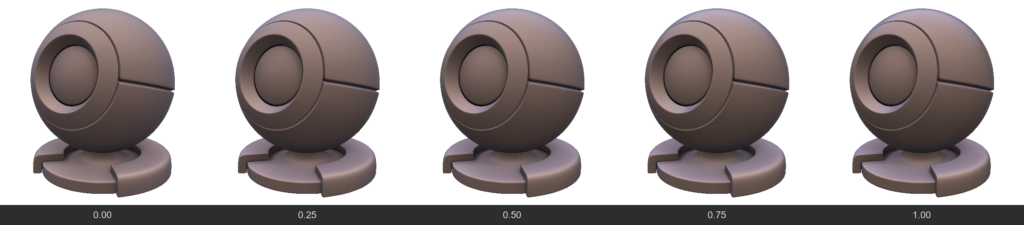
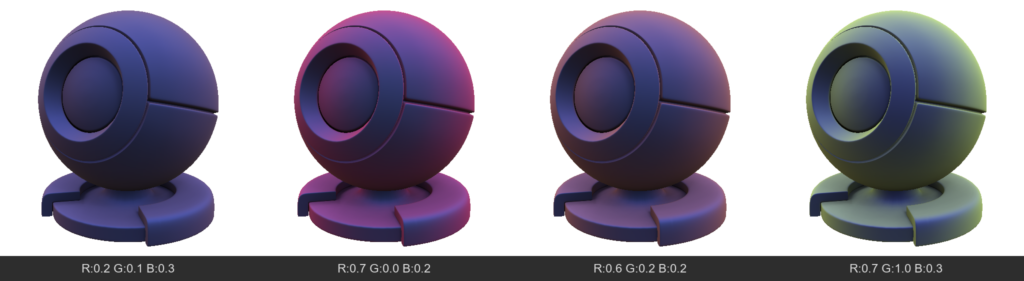
  • MicroprotrusionsColor
    The color of the dust or fuzz resting on the material.
In 3DCoat, FWSNormal is a specific technical property used in node-based materials within the GPUPPP (GPU Per-Pixel Painting) mode.
It specifically functions as a combination map that defines the direction of fur and organic fibers when simulating complex, layered textures.
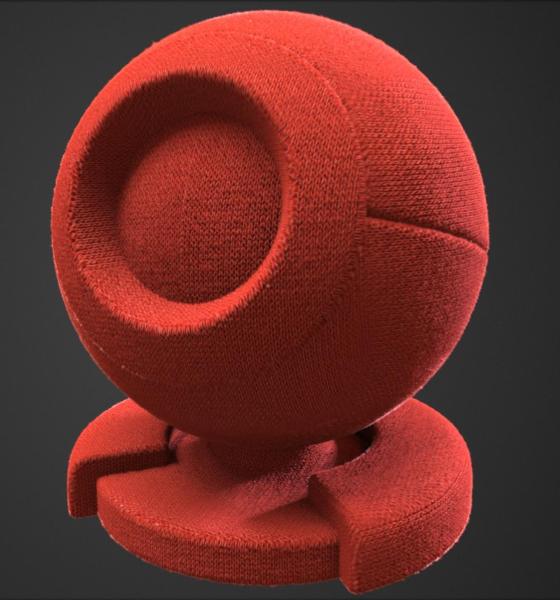

How it Works
The node-based system utilizes FWSNormal alongside two other crucial parameters to create realistic, dynamic fur surfaces:

  • SoftDisplacement: Shifts the mesh vertices outwards to give the fur physical volume and height without ruining the underlying shading models.
  • Sheen: Simulates the way light scatters softly across the micro-fibers or tiny hairs.
  • FWSNormal: Acts as the directional map, telling the system exactly which way the fur or hair flows across the 3D surface.

How to Use It
To make sure properties like FWSNormal and SoftDisplacement function correctly during texturing, you need to ensure specific viewport settings are active:

  • Navigate to the View Menu.
  • Turn on “Show Displacement Mesh”.
  • Ensure Tessellation is enabled and configured properly so the software has enough geometry to calculate the physical shift.

Was this helpful?

3 Yes  No
Related Articles
  • Noise3D
  • Noise
  • Bake Geometry Info
  • Make Joints
  • Texturing with nodes
  • Hollow Box
Previously
GPU Texturing
Up Next
Per-Pixel Painting
AI:
Hi! How can I help you?
Attention: This is a beta version of AI chat. Some answers may be wrong. See full version of AI chat