• Español
  • Documentación 3DCoat
  • Chapters
    • Introducción a 3DCoat
    • Empezando
    • Interfaz y Navegación
    • Componentes del Brush
    • Node System
    • Espacios de trabajo Habitaciones
    • Scripting y Core API
    • Preguntas y respuestas
    • licensing
    • Tutoriales de formación
  • Pilgway
  • Products
    • 3DCoat
    • 3DCoatTextura
    • 3DCoatPrint
    • PBRLibrary
  • Blog Posts
    • Creating 3D Character Using 3DCoat
  • Store
  • Español Español
    • English English
    • Українська Українська
    • Deutsch Deutsch
    • Français Français
    • 日本語 日本語
    • Русский Русский
    • 한국어 한국어
    • Polski Polski
    • 中文 (中国) 中文 (中国)
    • Português Português
    • Italiano Italiano
    • Suomi Suomi
    • Svenska Svenska
    • 中文 (台灣) 中文 (台灣)
    • Dansk Dansk
    • Slovenčina Slovenčina
    • Türkçe Türkçe
    • Nederlands Nederlands
    • Magyar Magyar
    • ไทย ไทย
    • हिन्दी हिन्दी
    • Ελληνικά Ελληνικά
    • Tiếng Việt Tiếng Việt
    • Lietuviškai Lietuviškai
    • Latviešu valoda Latviešu valoda
    • Eesti Eesti
    • Čeština Čeština
    • Română Română
    • Norsk Bokmål Norsk Bokmål
  • Documentación 3DCoat
  • Chapters
    • Introducción a 3DCoat
    • Empezando
    • Interfaz y Navegación
    • Componentes del Brush
    • Node System
    • Espacios de trabajo Habitaciones
    • Scripting y Core API
    • Preguntas y respuestas
    • licensing
    • Tutoriales de formación
  • Pilgway
  • Products
    • 3DCoat
    • 3DCoatTextura
    • 3DCoatPrint
    • PBRLibrary
  • Blog Posts
    • Creating 3D Character Using 3DCoat
  • Store
  • Español Español
    • English English
    • Українська Українська
    • Deutsch Deutsch
    • Français Français
    • 日本語 日本語
    • Русский Русский
    • 한국어 한국어
    • Polski Polski
    • 中文 (中国) 中文 (中国)
    • Português Português
    • Italiano Italiano
    • Suomi Suomi
    • Svenska Svenska
    • 中文 (台灣) 中文 (台灣)
    • Dansk Dansk
    • Slovenčina Slovenčina
    • Türkçe Türkçe
    • Nederlands Nederlands
    • Magyar Magyar
    • ไทย ไทย
    • हिन्दी हिन्दी
    • Ελληνικά Ελληνικά
    • Tiếng Việt Tiếng Việt
    • Lietuviškai Lietuviškai
    • Latviešu valoda Latviešu valoda
    • Eesti Eesti
    • Čeština Čeština
    • Română Română
    • Norsk Bokmål Norsk Bokmål
Expand All Collapse All
  • Introducción a 3DCoat
  • Empezando
    • System requirements
    • Why 3DCoat is Unique?
    • Activando 3DCoat
    • error de inicio
      • Startup error Mac
    • Color management
    • Upgrading permanent license
    • Linux Setup
      • Linux initial setup per-user installation
      • Linux initial setup for system
      • Tablet setup
      • To GTK3 from GTK2
      • Error libicuuc.so.70
    • Estructura de carpetas
      • Custom documents folder
    • Diferentes formas de “resolución”
    • Tablet on Window
    • Import y Export
    • Applinks en 3DCoat
      • Enlace de aplicación Blender
        • Blender with the Applink in Linux
      • Blender 4.2/3/4/5 applink
      • Max Applink
      • Houdini applink
      • Lightwave uplink
  • Node System
    • Node Editor
    • Node & Object Inspectors
    • Node Graph
    • NodeGraph Language (NGL)
    • GPU Nodes
      • Color
      • GeometryIn
      • In
      • Layer
      • Material
      • Out
      • Pattern
      • Pattern3D
      • ShaderToy
      • Shape
      • Texture
      • Tilable
      • UV
      • Vector
    • Filters
    • Masks
    • Materials
    • Modifiers
    • Volumes
  • GPU Texturing
    • PBM Channels
    • Per-Pixel Painting
  • Navigation
    • Diálogo de apertura (menú de inicio rápido)
    • Panel de navegación
    • Cámara y Navegación
      • Customize Navigation as Blender
    • Viewport Navigation Gizmo
    • Left tool panel
    •  Activity Bar
    • Navegación con dispositivos 3DConnexion
      • How to compile Spacenavd on non Ubuntu distro
    • Space Bar Menu
    • Stylus doesn’t work in sculpting
    • Teclas de acceso directo
  • Interfaz y Navegación
    • Menú Archivo
    • Menú de edición
      • Calculate Curvature
      • Calculate Occlusion
      • Light Baking Tool
      • preferencias
    • Ver menú
    • Simetría
    • Textures
    • Calculate
    • Menú de capas
    • Menú de congelación
    • Hide
    • Bake
    • Curvas 2022
      • Menú Curvas
      • Curves Properties RMB
      • Rellenar con capa de malla
      • Scale of imported curves
    • Menú de ventanas
      • Paneles emergentes de Windows con pestañas
      • Controles deslizantes
    • Scripts
    • Addons
    • Capture
    • Menú de ayuda
    • personalización
    • Modificar o Crear nueva Sala
  • Componentes del Brush
    • Barra superior de Brush
    • Cepillos uso general
      • Crear pinceles y calcomanías
      • Hacer alfa a partir de la escultura actual
      • Crear un Brush a partir de un objeto 3D
      • Create brushes based on Curves
      • Load photoshop .abr brushes
    • trazos
      • Menú emergente de curvas
    • Opciones de Brush
    • Limitador de condiciones
    • Panel de tiras
    • Panel de plantillas
    • Materiales inteligentes
      • Agregar nuevas imágenes o materiales
      • Adjuntar un material inteligente a una capa
      • Import Quixel Megascans
    • Cómo crear ajustes preestablecidos para Brush
  • Espacios de trabajo Habitaciones
    • Painting
      • Painting de texturas y modos
        • Painting Per-Pixel
        • Painting de desplazamiento (Micro-Vertex)
        • Painting Ptex
        • Painting de Superficies (Polipintura)
      • Importación a la sala de Painting
        • Initial CC subdivision
        • UV Set smoothing
        • Sharp (hard) edge
        • Bloquear normales
        • Cargar nuevo diseño UV después de cambios de modelo
        • DAZ Genesis models into 3DCoat
        • ID map
      • Menús del espacio de trabajo de Painting
        • Edit menu
        • Menú Texturas
          • Herramientas Baking texturas
        • Esconder
        • Menú para la Bake Paint
        • El selector de color
      • Surface Materials
      • Barra superior para la Painting
      • El panel de capas
        • El panel de fusión
        • Layer and Clipping Masks
      • Herramientas de la sala de Painting
      • Opacidad - Transparencia
      • Ajustar el espacio de trabajo
        • Conjunto de herramientas de ajuste
        • Exportación desde Tweak Room
      • Panel de vista previa de máscara/material
      • Exportación desde la sala de Painting
    • Espacio de trabajo UV
      • Barra superior UV
      • Panel de herramientas izquierdo UV
      • Panel de vista previa UV
      • Ejemplo de flujo de trabajo UV
      • Importación a la sala UV
      • Exportando desde la Sala UV
    • Retopología
      • Importando a la Sala Retopo
      • Menú Malla Retopo y Menú Hornear
        • Modo espejo virtual
      • Bake menu
        • Treat Poly Groups as Paint Objects
        • Baking guide
      • Herramienta Trazos en Retopología
      • Barra superior
        • Seleccionar geometría
      • Panel de herramientas izquierdo en la sala de Retopología
        • Propósito general y función
        • Agregar Geometría
        • Herramientas de ajuste Retopo
        • Herramientas UV
        • Comandos para sala de Retopología
      • AUTORETOPO
        • Autopo guide
      • Grupos polivinílicos
    • Esculpir
      • Sculpt Layer
      • Esculpir árbol
      • Opciones de Brush para esculpir
      • Top Bar
      • motor de Brush
      • Submenú Geometría
      • Esculpir menú de "clic derecho"
      • sombreadores
      • modo Voxel
        • Escultura pura de Voxel
        • Densidad y Resolución
        • Motor de arcilla
        • Herramientas de Voxel
        • Herramientas de superficie en Voxels
        • Herramientas de ajuste de Voxel
        • Painting volumétrica
        • Herramientas de objetos de Voxel
      • modo de superficie
        • Herramientas de superficie
        • Herramientas personalizadas de superficie
        • Surface Layer
        • Herramientas de ajuste de superficie
        • Painting de superficies
        • Herramientas de objetos de superficie
        • Resolución multinivel
          • Multires tools
          • Multires adjust
          • Multires commands
      • Esculpir curvas
        • Curvas Spline
        • Splines model creation
      • Desplazamiento vectorial
      • Herramientas de transformación de superficies
        • Herramientas de transformación de Voxel
        • Instancer
        • Move
        • Pose
        • Fit
        • Reproject
        • Surface Array
      • Primitivas de Voxel y herramientas de Import
      • Booleanos en vivo
      • Comandos para la sala Sculpt
      • Import a Sculpt Room
      • Exportación desde Sculpt Room
    • Prestar
      • Comparison of different roughness values
      • Funciones del panel de procesamiento
      • Placa giratoria
      • Fakebake la iluminación -sin PBR-
    • Factures
      • flujo de trabajo
    • más simple
    • Modelado
      • Mesh Menu
      • Panel de herramientas izquierdo en la sala de modelado
        • Agregar geometría
          • Seleccionado
        • Retocar
        • Smart Hybrid
        • UV
          • Comandos
        • Malla entera
      • Ejemplo de superficie loft de Fluffy
      • Bloqueo por Poeboi
      • Import Zbrush Polygroups for UV mapping
    • Kitbash - Creación rápida de modelos 3D
      • Create kitbash
      • Left tool panel Kitbash
    • 3DPrint
    • Photogrammetry
      • How to install Reality Capture
      • Reality Capture doesn’t show up ?
    • Malla a habitación NURBS
    • Nodes
      • Sculpt shaders Biblioteca de nodos
      • Open PBR
  • Scripting y Core API
    • Core API
    • API de Python
    • Extensions and Addons
  • 3DCoatPrint gratis

PBM Channels

154 views 0

Written by Volodymyr Makovetskyi
May 13, 2026

The 3DCoat render system supports an advanced physically based material (PBR/PBM) model. It includes not only standard channels but also specialized effects to create the most realistic surfaces possible.

Below is a detailed description of each channel and its impact on the material’s appearance, based on the internal shader architecture.


1. Base Channels

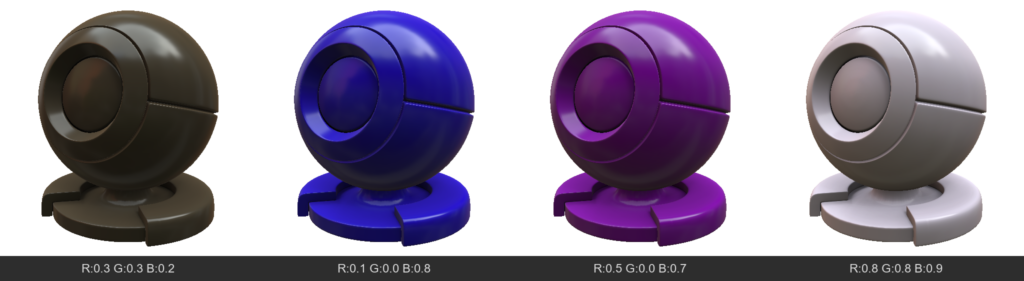
  • AlbedoColor (Albedo / Base Color)
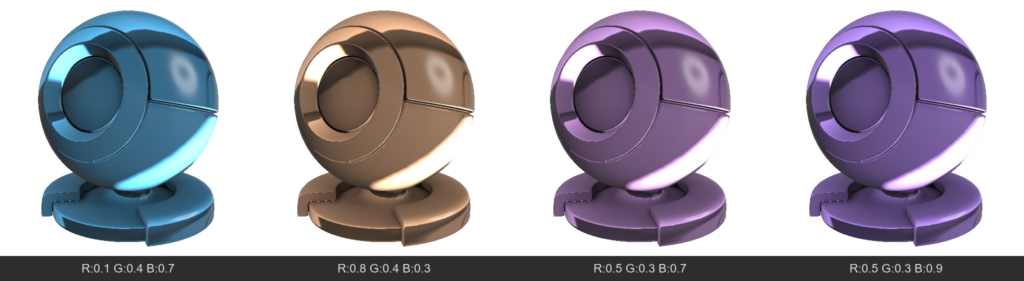
    The main color of the surface. For dielectrics (non-metals), this is their own color. For metals, it’s their reflection color.
  • Opacity
    Determines how opaque a pixel is. Usually used for “CutOut” transparency (leaves, meshes), hiding geometry where the value is low.
  • Emissive
    Adds self-illumination to the material. The surface will be bright even in complete darkness and can cast light on neighboring objects (via global illumination).
  • TSNormal (Tangent Space Normal)
    A normal map that defines fine surface relief without altering the geometry itself.
  • AmbientOcclusion
    Micro-shadowing in recesses. Darkens areas that are hard for diffuse light to reach, emphasizing the volume of the relief.
  • Mask
    A general technical channel that can be used for layer blending logic or creating custom effects.

2. Specular & Metalness

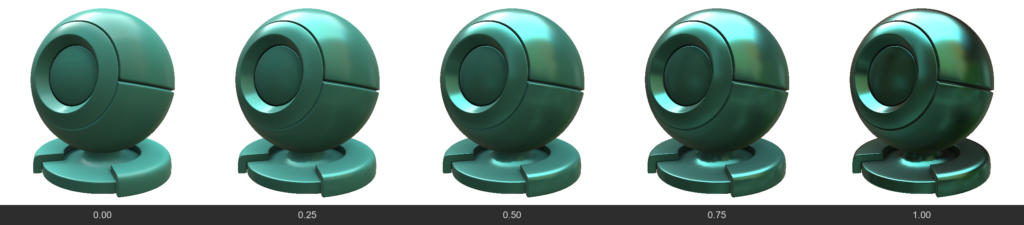
  • Metalness
    Determines whether a material is a metal.
  • 0 (Dielectric): Reflects only 4% of light at a direct angle (depends on IOR), albedo acts as the surface color.
  • 1 (Metal): Albedo becomes the reflection color (e.g., yellow gold), and the diffuse color disappears.
  • Roughness / Gloss
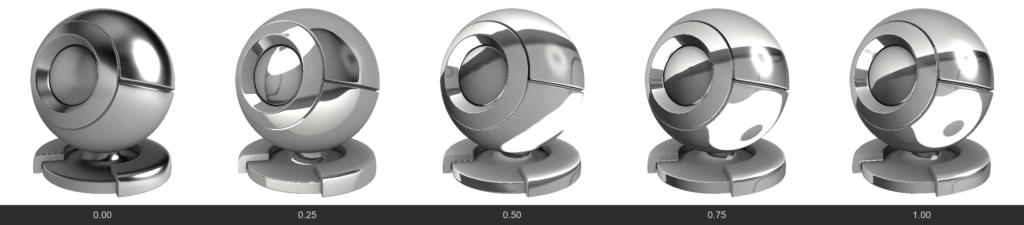
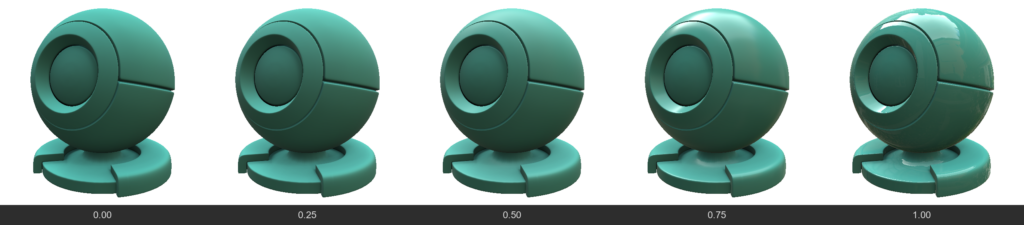
    Gloss = 1.0 - Roughness. Determines the “polish” of the surface. High Gloss gives sharp, mirror-like reflections, while high Roughness blurs reflections, making the surface matte.
  • IOR (Index of Refraction)
    Determines the strength of the base reflection (F0) for non-metals. For example, water has an IOR ~1.33, glass ~1.5. Affects how strongly a surface reflects light when viewed at a direct angle.
  • ReflectionColor
    Additional color control for reflection. Usually, reflection for non-metals is colorless, but this channel allows you to forcefully change its tint (e.g., for stylized materials).
  • SpecularEdgePower
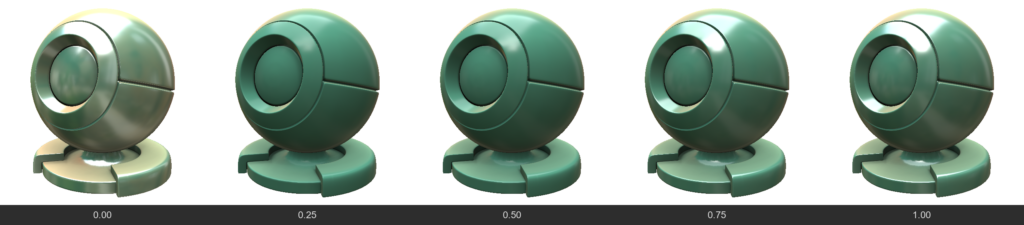
    Controls the Fresnel effect (how strongly a material reflects light when viewed at a grazing angle). Allows you to enhance or weaken highlights on the edges of an object.
  • FlatSpecular
    Allows you to “flatten” reflections, ignoring fine irregularities from the normal map. Useful for stylization or avoiding “noisy” highlights on complex details.
3. Refraction / Glass

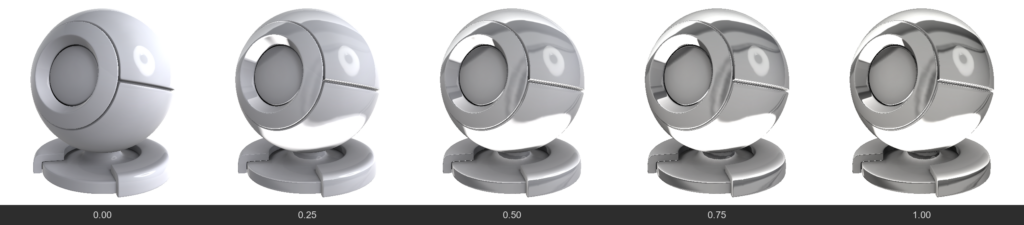
  • Refraction
    Unlike Opacity (which simply “cuts” a hole), this is physical material transparency (like glass or water). Light passes through the surface and refracts. The higher the value, the more transparent the material.
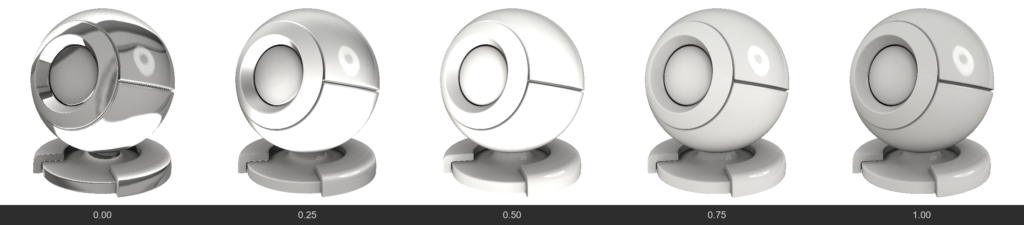
  • RefractionBlur
    Frosted glass. Blurs the background visible through a transparent object. Often linked to regular Roughness but allows controlling background blur separately.
  • RefractionMetalness
    Allows creating translucent metals (like thin gold foil or metallized films) while retaining transparency.
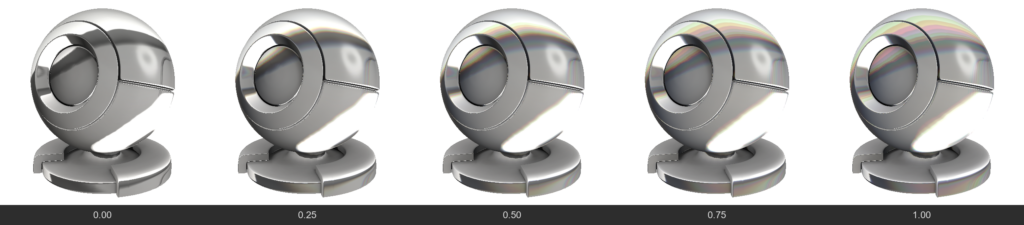
  • RefractionChromatic (Chromatic Aberration)
    Separates refracted light into a spectrum (like a prism), creating colored halos on the edges of thick glass.
4. SubSurface Scattering (SSS & Volume)

Used for translucent materials (skin, wax, milk, plastic, jade).

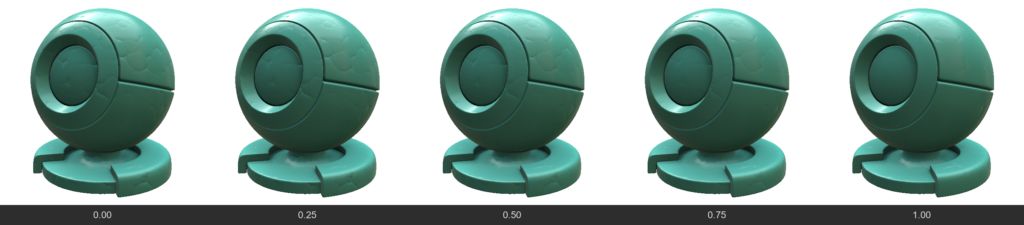
  • SubSurface / Volume
    Determines how deep light penetrates into the material. This makes shadows softer and translucent edges brighter.
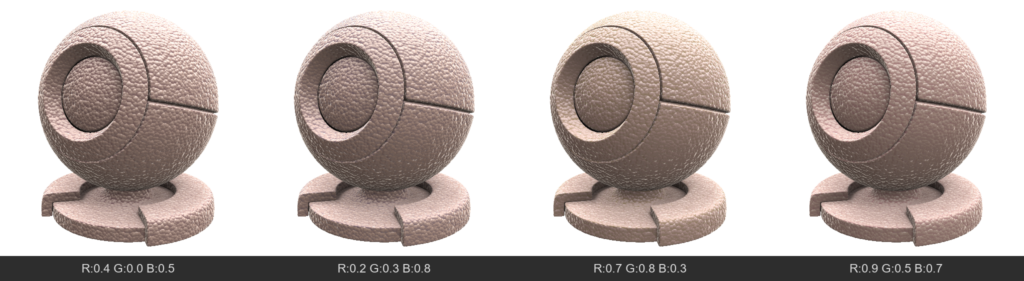
  • SubSurfaceColor
    The color of the light that scatters beneath the surface. For example, for human skin, AlbedoColor would be flesh-toned, while SubSurfaceColor would be red (due to blood under the skin).
5. Special Surface Effects

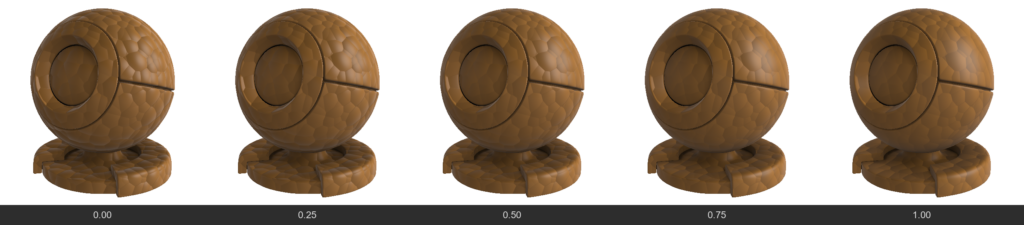
  • Anisotropy
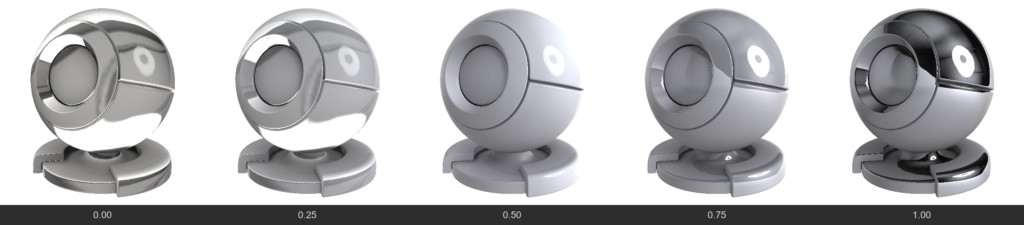
    Stretches the specular highlight in a specific direction. Characteristic of brushed metal (pots), hair, or silk.
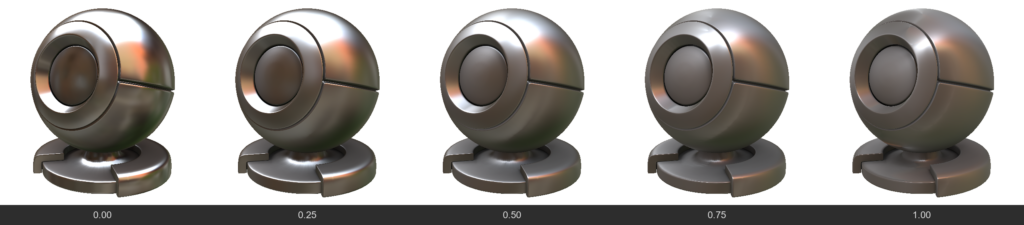
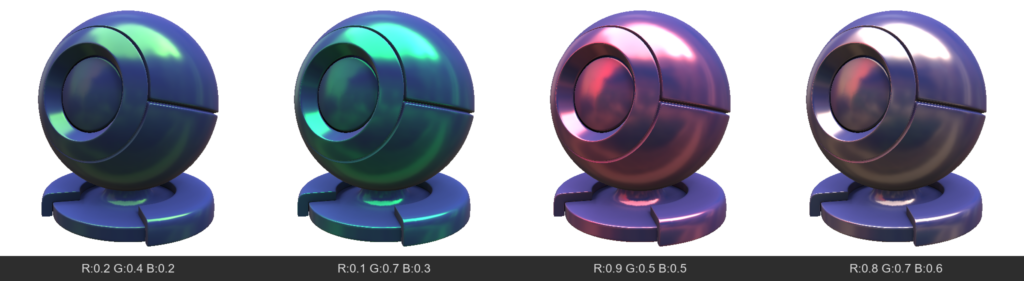
  • Iridescence
    Thin film interference effect. Creates rainbow shifting colors depending on the viewing angle (like on soap bubbles, insect wings, or spilled gasoline).
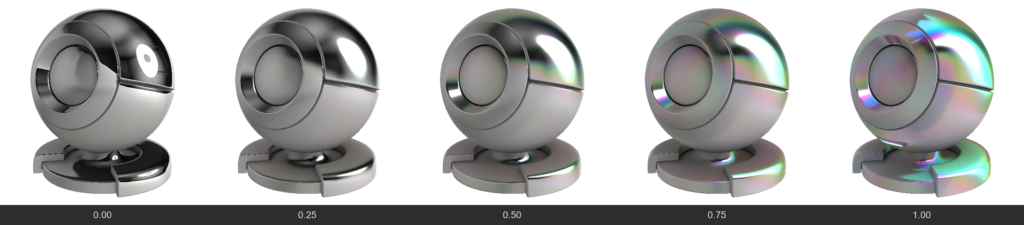
  • EffectNormal
    A color channel (vector direction) that defines the direction for stretching the anisotropic highlight and the direction for the iridescence gradient.
  • ClearCoat
    Creates an additional transparent glossy layer on top of the existing material (like car paint or varnished wood). This layer has its own reflection, independent of the base material.
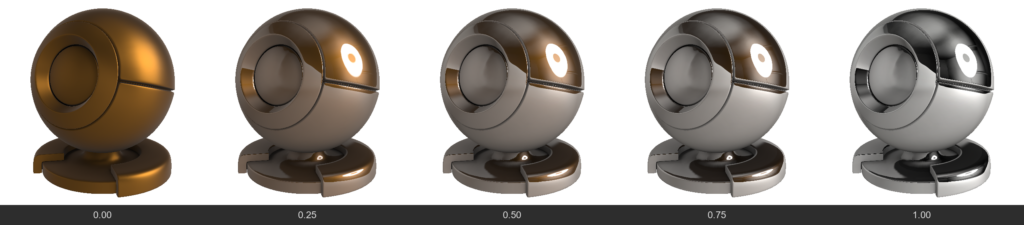
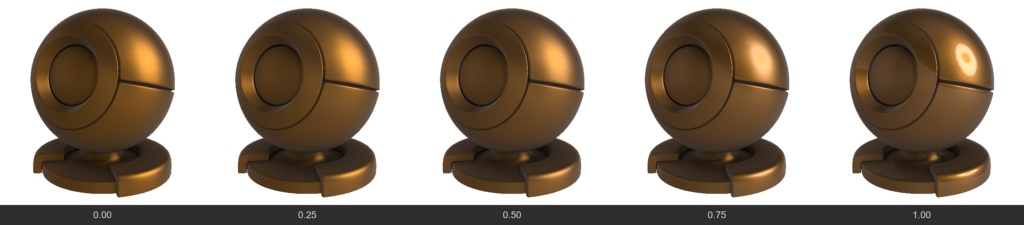
  • ClearCoatGloss
    Determines how smooth the clear coat layer is.
6. Fabrics, Micro-relief and Fuzz

These channels are designed to simulate materials with complex microstructures on the surface (fabrics, dust).

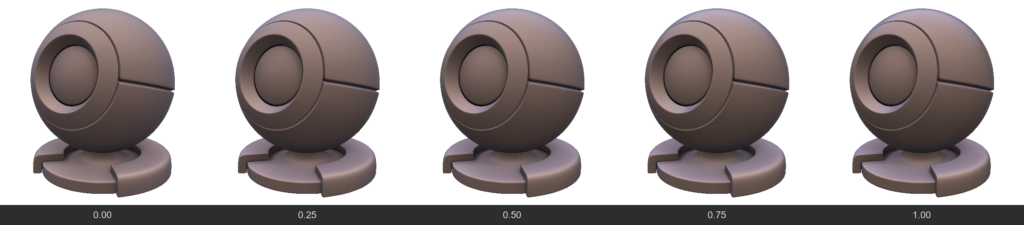
  • Velvet / Sheen
    Creates a soft highlight on the edges of an object. Characteristic of velvet, peach, suede. This is light reflecting from micro-fibers at grazing angles.
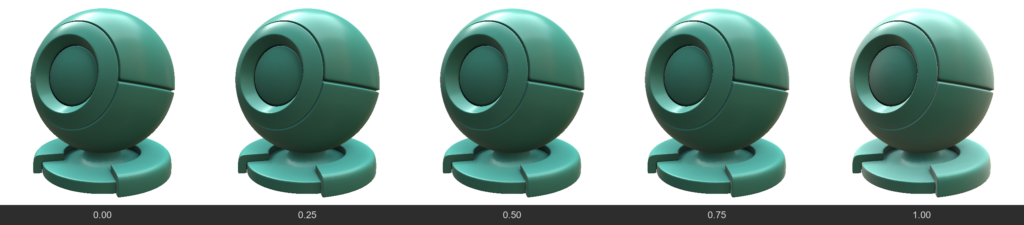
  • SheenColor
    Tints the fabric highlight a specific color.
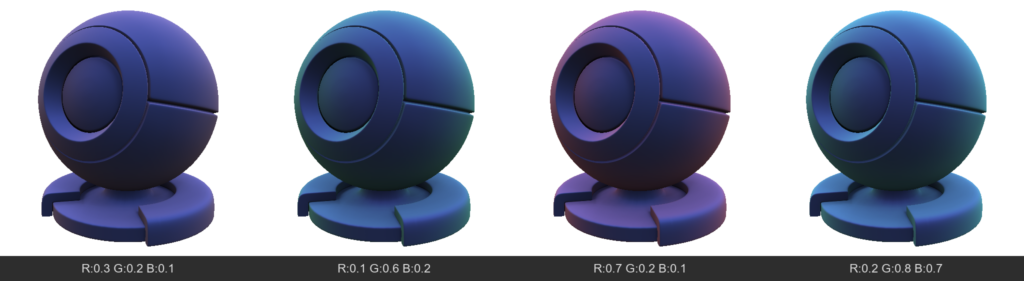
  • Microprotrusions (Fuzz / Dust)
    Simulates the presence of microscopic particles (or dust) on the surface that scatter light differently than the main surface. Can make the material “dusty”.
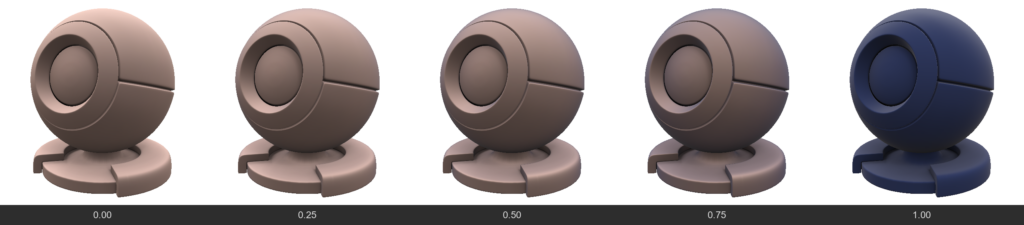
  • MicroprotrusionsGloss
    Controls how sharply these micro-fibers reflect light.
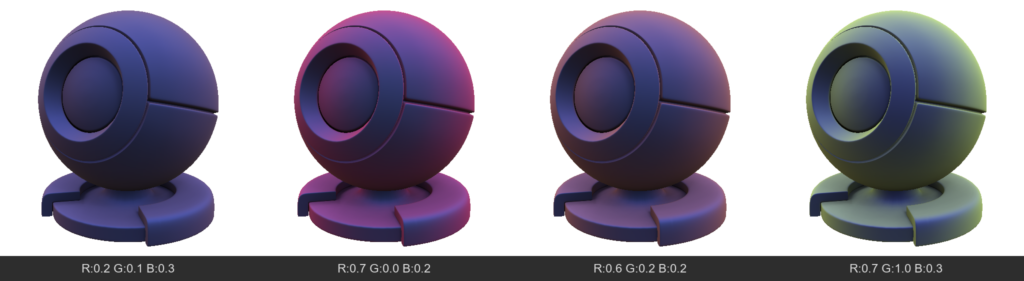
  • MicroprotrusionsColor
    The color of the dust or fuzz resting on the material.
Was this helpful?

Yes  No
Related Articles
  • GPU Texturing
  • Vector
  • Volumes
  • Modifiers
  • Materials
  • Masks
Previously
GPU Texturing
Up Next
Per-Pixel Painting
AI:
Hi! How can I help you?
Attention: This is a beta version of AI chat. Some answers may be wrong. See full version of AI chat