• हिन्दी
  • 3DCoat प्रलेखन
  • Chapters
    • 3DCoat का परिचय
    • शुरू करना
    • इंटरफ़ेस और नेविगेशन
    • Brush अवयव
    • कार्यक्षेत्र के कमरे
    • Scripting और Core API
    • प्रश्न और उत्तर
    • licensing
    • प्रशिक्षण ट्यूटोरियल
  • Pilgway
  • Products
    • 3DCoat
    • 3DCoatTextura
    • 3DCoatPrint
    • PBRLibrary
  • Blog Posts
  • Store
  • हिन्दी हिन्दी
    • English English
    • Українська Українська
    • Español Español
    • Deutsch Deutsch
    • Français Français
    • 日本語 日本語
    • Русский Русский
    • 한국어 한국어
    • Polski Polski
    • 中文 (中国) 中文 (中国)
    • Português Português
    • Italiano Italiano
    • Suomi Suomi
    • Svenska Svenska
    • 中文 (台灣) 中文 (台灣)
    • Dansk Dansk
    • Slovenčina Slovenčina
    • Türkçe Türkçe
    • Nederlands Nederlands
    • Magyar Magyar
    • ไทย ไทย
    • Ελληνικά Ελληνικά
    • Tiếng Việt Tiếng Việt
    • Lietuviškai Lietuviškai
    • Latviešu valoda Latviešu valoda
    • Eesti Eesti
    • Čeština Čeština
    • Română Română
    • Norsk Bokmål Norsk Bokmål
  • Creating 3D Character Using 3DCoat
  • 3DCoat प्रलेखन
  • Chapters
    • 3DCoat का परिचय
    • शुरू करना
    • इंटरफ़ेस और नेविगेशन
    • Brush अवयव
    • कार्यक्षेत्र के कमरे
    • Scripting और Core API
    • प्रश्न और उत्तर
    • licensing
    • प्रशिक्षण ट्यूटोरियल
  • Pilgway
  • Products
    • 3DCoat
    • 3DCoatTextura
    • 3DCoatPrint
    • PBRLibrary
  • Blog Posts
  • Store
  • हिन्दी हिन्दी
    • English English
    • Українська Українська
    • Español Español
    • Deutsch Deutsch
    • Français Français
    • 日本語 日本語
    • Русский Русский
    • 한국어 한국어
    • Polski Polski
    • 中文 (中国) 中文 (中国)
    • Português Português
    • Italiano Italiano
    • Suomi Suomi
    • Svenska Svenska
    • 中文 (台灣) 中文 (台灣)
    • Dansk Dansk
    • Slovenčina Slovenčina
    • Türkçe Türkçe
    • Nederlands Nederlands
    • Magyar Magyar
    • ไทย ไทย
    • Ελληνικά Ελληνικά
    • Tiếng Việt Tiếng Việt
    • Lietuviškai Lietuviškai
    • Latviešu valoda Latviešu valoda
    • Eesti Eesti
    • Čeština Čeština
    • Română Română
    • Norsk Bokmål Norsk Bokmål
  • Creating 3D Character Using 3DCoat
Expand All Collapse All
  • 3DCoat का परिचय
  • शुरू करना
    • System requirements
    • Why 3DCoat is Unique?
    • 3DCoat सक्रिय कर रहा है
    • स्टार्टअप त्रुटि
      • Startup error Mac
    • Color management
    • Upgrading permanent license
    • Linux Setup
      • Linux initial setup per-user installation
      • Linux initial setup for system
      • Tablet setup
      • To GTK3 from GTK2
    • फ़ोल्डर संरचना
      • Custom documents folder
    • "संकल्प" के विभिन्न रूप
    • Tablet on Window
    • Import और Export
    • 3DCoat में Applinks
      • Blender ऐपलिंक
        • Blender with the Applink in Linux
      • Blender 4.2/3/4/5 applink
      • Max Applink
      • Houdini applink
      • Lightwave uplink
  • Navigation
    • ओपनिंग डायलॉग (क्विक स्टार्ट मेन्यू)
    • नेविगेशन पैनल
    • कैमरा और नेविगेशन
      • Customize Navigation as Blender
    • Viewport Navigation Gizmo
    • Left tool panel
    •  Activity Bar
    • 3DConnection उपकरणों का उपयोग करके नेविगेशन
      • How to compile Spacenavd on non Ubuntu distro
    • Stylus doesn’t work in sculpting
    • हॉटकी
  • इंटरफ़ेस और नेविगेशन
    • फ़ाइल मेनू
    • संपादन मेनू
      • Calculate Curvature
      • Calculate Occlusion
      • Light Baking Tool
      • पसंद
    • मेनू देखें
    • समरूपता
    • Textures
    • Calculate
    • परत मेनू
    • फ्रीज मेनू
    • Hide
    • Bake
    • कर्व्स 2022
      • घटता मेनू
      • Curves Properties RMB
      • जालीदार परत से भरें
      • Scale of imported curves
    • विंडोज मेनू
      • टैब्ड विंडोज पॉपअप पैनल
      • स्लाइडर्स
    • Scripts
    • Addons
    • Capture
    • सहायता मेनू
    • अनुकूलन
    • संशोधित करें या नया कक्ष बनाएँ
  • Brush अवयव
    • Brush टॉप बार
    • ब्रश सामान्य उपयोग
      • ब्रश और डीकैल बनाएं
      • वर्तमान मूर्तिकला से अल्फा बनाना
      • 3डी ऑब्जेक्ट से Brush बनाएं
      • Create brushes based on Curves
      • Load photoshop .abr brushes
    • स्ट्रोक्स
      • वक्र पॉपअप मेनू
    • Brush विकल्प
    • शर्तें सीमक
    • स्ट्रिप्स पैनल
    • स्टेंसिल पैनल
    • स्मार्ट सामग्री
      • नई छवियां या सामग्रियां जोड़ें
      • एक परत में स्मार्ट सामग्री संलग्न करें
      • Import Quixel Material
    • Brush के लिए प्रीसेट कैसे बनाएं
  • कार्यक्षेत्र के कमरे
    • Painting
      • बनावट Painting और मोड
        • Per-Pixel Painting
        • विस्थापन Painting (माइक्रो-वर्टेक्स)
        • Ptex Painting
        • भूतल Painting (पॉलीपेंटिंग)
      • Painting कक्ष में आयात करना
        • Initial CC subdivision
        • UV Set smoothing
        • Sharp (hard) edge
        • सामान्य लॉक करें
        • मॉडल परिवर्तन के बाद नया UV लेआउट लोड करें
        • DAZ Genesis models into 3DCoat
        • ID map
      • Painting कार्यक्षेत्र का मेनू
        • Edit menu
        • बनावट मेनू
          • बनावट Baking उपकरण
        • छिपाना
        • Bake Paint के लिए मेनू
        • रंग बीनने वाला
      • Painting के लिए टॉप बार
      • परत पैनल
        • सम्मिश्रण पैनल
        • Layer and Clipping Masks
      • Painting कक्ष उपकरण
      • अपारदर्शिता - पारदर्शिता
      • कार्यक्षेत्र को ट्वीक करें
        • ट्वीक टूलसेट
        • ट्वीक रूम से निर्यात
      • मास्क/सामग्री पूर्वावलोकन पैनल
      • Painting कक्ष से निर्यात
    • UV कार्यक्षेत्र
      • UV टॉप बार
      • UV लेफ्ट टूल पैनल
      • UV पूर्वावलोकन पैनल
      • UV वर्कफ़्लो उदाहरण
      • UV कक्ष में आयात करना
      • UV रूम से निर्यात करना
    • रेटोपोलॉजी
      • Retopo कक्ष में आयात करना
      • Retopo मेश मेनू और बेक मेनू
        • वर्चुअल मिरर मोड
      • Bake menu
        • Treat Poly Groups as Paint Objects
        • Baking guide
      • शीश पट्टी
        • ज्यामिति का चयन करें
      • रेटोपोलॉजी रूम में लेफ्ट टूल पैनल
        • समग्र उद्देश्य और कार्य
        • ज्यामिति जोड़ें
          • रेटोपोलॉजी में स्ट्रोक टूल
        • Retopo ट्वीक टूल्स
        • UV उपकरण
        • रेटोपोलॉजी रूम के लिए कमांड
      • ऑटोरेटोपो
        • Autopo guide
      • पाली समूह
    • नकाशी
      • Sculpt Layer
      • मूर्ति वृक्ष
      • मूर्तिकला Brush विकल्प
      • Top Bar
      • Brush इंजन
      • ज्यामिति सबमेनू
      • मूर्तिकला "राइट-क्लिक" मेनू
      • शेडर्स
      • Voxel मोड
        • प्योर Voxel स्कल्प्टिंग
        • घनत्व और संकल्प
        • मिट्टी का इंजन
        • Voxel टूल्स
        • वोक्सल्स पर भूतल उपकरण
        • Voxel समायोजन उपकरण
        • वॉल्यूमेट्रिक Painting
        • Voxel ऑब्जेक्ट्स टूल्स
      • भूतल मोड
        • भूतल उपकरण
        • भूतल कस्टम उपकरण
        • भूतल समायोजन उपकरण
        • भूतल Painting
        • भूतल वस्तु उपकरण
        • बहुस्तरीय संकल्प
          • Multires tools
          • Multires adjust
          • Multires commands
      • मूर्तिकला वक्र
        • तख़्ता घटता है
        • Splines model creation
      • वेक्टर विस्थापन
      • भूतल रूपांतरण उपकरण
        • Voxel ट्रांसफ़ॉर्म टूल
        • Instancer
        • Move
        • Pose
        • Fit
        • Reproject
        • Surface Array
      • Voxel आदिम और Import उपकरण
      • लाइव बूलियन्स
      • मूर्तिकला कक्ष के लिए आदेश
      • मूर्तिकला कक्ष में Import
      • मूर्तिकला कक्ष से निर्यात
    • प्रदान करना
      • Comparison of different roughness values
      • रेंडर पैनल फ़ंक्शंस
      • टर्नटेबल
      • लाइटिंग को नकली बनाना - गैर PBR-
    • Factures
      • कार्यप्रवाह
    • सरल
    • मोडलिंग
      • Mesh Menu
      • मॉडलिंग रूम में लेफ्ट टूल पैनल
        • ज्यामिति जोड़ें
          • चयनित
        • सुधार
        • Smart Hybrid
        • UV
          • आदेश
        • संपूर्ण जाल
      • फ्लफी द्वारा मचान सतह का उदाहरण
      • पोएबोई द्वारा ब्लॉकआउट
      • Import Zbrush Polygroups for UV mapping
    • Kitbash - त्वरित 3D मॉडल निर्माण
      • Create kitbash
      • Left tool panel Kitbash
    • 3DPrint
    • Photogrammetry
      • How to install Reality Capture
      • Reality Capture doesn’t show up ?
    • NURBS कक्ष में जाली
    • Nodes
      • मूर्तिकला शेडर्स नोड्स लाइब्रेरी
  • Scripting और Core API
    • Scripting
    • Core API
    • पायथन एपीआई
  • नि:शुल्क 3DCoatPrint

3DPrint

453 views 1

Written by Carlos
March 21, 2025

3DPrint Room focus exclusively on quick voxel creation of 3D models for 3D printing.

Make your 3D models as easily as possible. Start with simple primitives and go as complex as you like and the mesh is smoothed specifically for 3D-Printing.
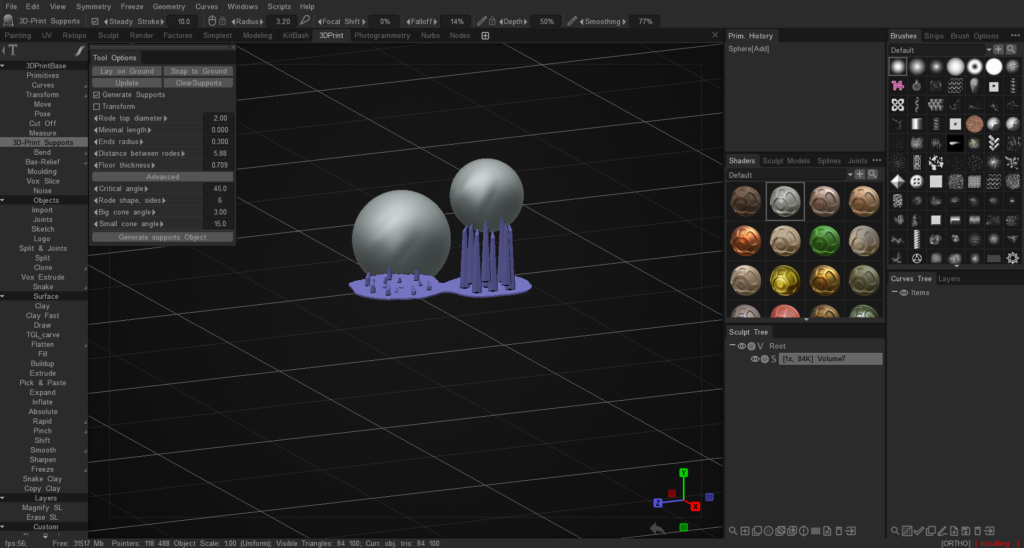
The tools integrated into 3DCoatprint allow the users to perform Voxel Modeling for extremely fast, flexible, and topology-free 3D model construction.

This is an intuitive and easy way of 3D modeling to create models rapidly, without having to piddle all day with the polys, edges and vertices of a traditional polygonal model, nor mess with the UV maps.

Make your 3D model starting from primitives.
Work with digital clay as Plasticine using various brushes.
You can cut off unnecessary parts to quickly get the desired form.
Render still images or movies or turntable sequences with 3DCoat’s default GPU render engine.
Create 3D Print supports for your model.
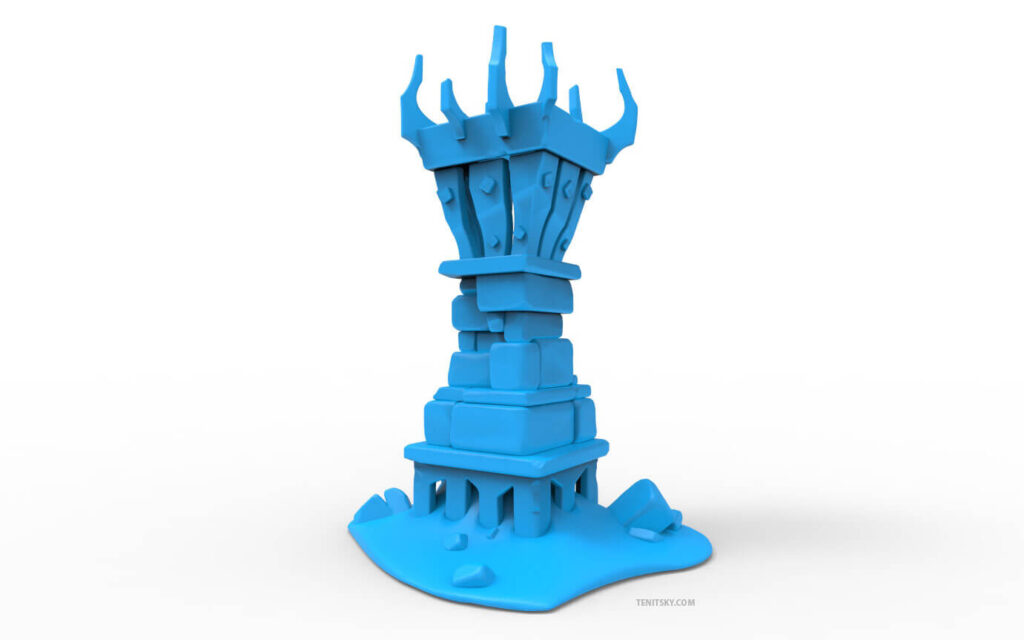
FEATURES


EASY VOXEL MODELING

  • Voxel modeling with no topological constraints
  • Various primitives for quick-start
  • Clean and compact UI
  • Complex boolean operations with crisp edges
  • Dozens of fast and fluid sculpting brushes
  • Import and view DICOM files (not for medical use). You can change and save the models in .stl format.
  • Splines and Joints – a cool way for fast modeling
  • Adaptive dynamic tesselation

PREPARATION OF THE MODEL FOR 3D PRINTING

  • Customizable Print area
  • Dedicated Export Menu
  • Create 3D Print supports
  • The mesh is smoothed specifically for 3D Printing

RENDERING

  • Physically Based Rendering
  • High Dynamic Range Lighting
  • Screen Space Reflections and Lights
  • Renderman support

Tutorials


Discover 3DCoat Print Learning Materials: On this video series you can watch how 3DCoat tools let you easily create and export your model to be ready for print.

Remove Intersections for 3D Printing: This video demonstrates the usage of a new feature in 3DCoat, largely for the purpose of 3D Printing, where a user specified gap needs to be created between two objects… such as a joint and socket.
This way, once both parts are 3D Printed, one part can properly fit within the other.

Sketch Tool. Create a model by drawing in three projections: This video demonstrates how easy it is to create a model by drawing in three projections with help of the Sketch Tool.
3DCoatPrint – a Completely Free application for fast and easy creation of 3D models ready to be 3D-printed.

Was this helpful?

1 Yes  No
Related Articles
  • Factures
  • ID map
  • Surface Array
  • Top Bar
  • Curves Properties RMB
  • Left tool panel Kitbash
Previously
Left tool panel Kitbash
Up Next
Photogrammetry
AI:
Hi! How can I help you?
Attention: This is a beta version of AI chat. Some answers may be wrong. See full version of AI chat