• 日本語
  • 3DCoatドキュメント
  • Chapters
    • 3DCoatの紹介
    • 入門
    • インターフェイスとナビゲーション
    • Brushコンポーネント
    • Node System
    • GPU Texturing
    • ワークスペース ルーム
    • ScriptingとCore API
    • 質問と回答
    • Licensing
  • Learn
    • Getting Started
    • Painting
    • Sculpt
    • Modeling
    • Retopology
    • UV
    • Smart Materials
    • Nodes
    • Photogrammetry
    • Render
    • Print
    • Learning
    • トレーニング チュートリアル
  • Blog
    • 2026 Key Features and Improvements
    • Texturing with nodes
    • Shader Nodes VS. a Material Nodes
    • Multiple UV Tiles/UDIMs to one single UV set ?
    • I want to create geometry only with displacement to be manufactured with a CNC machine
    • Creating 3D Character Using 3DCoat
    • DAZ Genesis models into 3DCoat
    • Cavity and Curvature maps
    • Types of normal maps
    • Texture painting pipeline
    • Load new UV layout After Model Changes
    • Import Zbrush Polygroups for UV mapping
  • Products
    • 3DCoat
    • 3DCoatTextura
    • 3DCoatPrint
    • PBRLibrary
  • Store
  • Pilgway
  • 日本語 日本語
    • 多言語スイッチャー
    • 多言語スイッチャー
    • 多言語スイッチャー
    • 多言語スイッチャー
    • 多言語スイッチャー
    • 多言語スイッチャー
    • 多言語スイッチャー
    • 多言語スイッチャー
    • 多言語スイッチャー
    • 多言語スイッチャー
    • 多言語スイッチャー
    • 多言語スイッチャー
    • 多言語スイッチャー
    • 多言語スイッチャー
    • 多言語スイッチャー
    • 多言語スイッチャー
    • 多言語スイッチャー
    • 多言語スイッチャー
    • 多言語スイッチャー
    • 多言語スイッチャー
    • 多言語スイッチャー
    • 多言語スイッチャー
    • 多言語スイッチャー
    • 多言語スイッチャー
    • 多言語スイッチャー
    • 多言語スイッチャー
    • 多言語スイッチャー
    • 多言語スイッチャー
    • 多言語スイッチャー
  • 3DCoatドキュメント
  • Chapters
    • 3DCoatの紹介
    • 入門
    • インターフェイスとナビゲーション
    • Brushコンポーネント
    • Node System
    • GPU Texturing
    • ワークスペース ルーム
    • ScriptingとCore API
    • 質問と回答
    • Licensing
  • Learn
    • Getting Started
    • Painting
    • Sculpt
    • Modeling
    • Retopology
    • UV
    • Smart Materials
    • Nodes
    • Photogrammetry
    • Render
    • Print
    • Learning
    • トレーニング チュートリアル
  • Blog
    • 2026 Key Features and Improvements
    • Texturing with nodes
    • Shader Nodes VS. a Material Nodes
    • Multiple UV Tiles/UDIMs to one single UV set ?
    • I want to create geometry only with displacement to be manufactured with a CNC machine
    • Creating 3D Character Using 3DCoat
    • DAZ Genesis models into 3DCoat
    • Cavity and Curvature maps
    • Types of normal maps
    • Texture painting pipeline
    • Load new UV layout After Model Changes
    • Import Zbrush Polygroups for UV mapping
  • Products
    • 3DCoat
    • 3DCoatTextura
    • 3DCoatPrint
    • PBRLibrary
  • Store
  • Pilgway
  • 日本語 日本語
    • 多言語スイッチャー
    • 多言語スイッチャー
    • 多言語スイッチャー
    • 多言語スイッチャー
    • 多言語スイッチャー
    • 多言語スイッチャー
    • 多言語スイッチャー
    • 多言語スイッチャー
    • 多言語スイッチャー
    • 多言語スイッチャー
    • 多言語スイッチャー
    • 多言語スイッチャー
    • 多言語スイッチャー
    • 多言語スイッチャー
    • 多言語スイッチャー
    • 多言語スイッチャー
    • 多言語スイッチャー
    • 多言語スイッチャー
    • 多言語スイッチャー
    • 多言語スイッチャー
    • 多言語スイッチャー
    • 多言語スイッチャー
    • 多言語スイッチャー
    • 多言語スイッチャー
    • 多言語スイッチャー
    • 多言語スイッチャー
    • 多言語スイッチャー
    • 多言語スイッチャー
    • 多言語スイッチャー
Expand All Collapse All
  • 3DCoatの紹介
  • 入門
    • System requirements
    • Why 3DCoat is Unique?
    • 3DCoatの有効化
    • 起動エラー
      • Startup error Mac
    • Color management
    • Upgrading permanent license
    • Linux Setup
      • Linux initial setup per-user installation
      • Linux initial setup for system
      • Tablet setup
      • To GTK3 from GTK2
      • Error libicuuc.so.70
    • フォルダ構造
      • Custom documents folder
    • さまざまな形の「解決」
    • Tablet on Window
    • Import&Export
    • 3DCoatのApplinks
      • Blenderアプリリンク
        • Blender with the Applink in Linux
      • Blender 4.2/3/4/5 applink
      • Max Applink
      • Houdini applink
      • Lightwave uplink
  • Navigation
    • オープニングダイアログ(クイックスタートメニュー)
    • ナビゲーションパネル
    • カメラとナビゲーション
      • Customize Navigation as Blender
    • Left tool panel
    •  Activity Bar
    • 3DConnexion デバイスを使用したナビゲーション
      • How to compile Spacenavd on non Ubuntu distro
    • Quick Access Menu
    • Stylus doesn’t work in sculpting
    • ホットキー
  • インターフェイスとナビゲーション
    • ファイルメニュー
    • 編集メニュー
      • Bake Geometry Info
      • Calculate Occlusion
      • Calculate Curvature
      • Light Baking Tool
      • 環境設定
    • メニューを見る
    • 対称
    • Textures
    • Calculate
    • レイヤーメニュー
    • フリーズメニュー
    • Hide
    • Bake
    • カーブス 2022
      • 曲線メニュー
      • Curves Properties RMB
      • メッシュレイヤーで塗りつぶす
      • Scale of imported curves
    • ウィンドウ メニュー
      • タブ付き Windows ポップアップ パネル
      • スライダー
    • Scripts
    • Addons
    • Capture
    • ヘルプメニュー
    • カスタマイズ
    • ルームの変更または新規作成
  • Brushコンポーネント
    • Brushトップバー
    • ブラシの一般的な使用
      • ブラシとデカールを作成する
      • 現在のスカルプトからアルファを作成する
      • 3D オブジェクトからBrushを作成する
      • Create brushes based on Curves
      • Load photoshop .abr brushes
    • ストローク
      • 曲線ポップアップメニュー
    • Brushオプション
    • 条件リミッター
    • ストリップパネル
    • ステンシル パネル
    • スマートマテリアル
      • 新しい画像や素材を追加する
      • スマートマテリアルをレイヤーにアタッチする
      • Import Quixel Megascans
    • Brushのプリセットを作成する方法
  • Node System
    • Node Editor
    • Node & Object Inspectors
    • Node Graph
    • NodeGraph Language (NGL)
    • GPU Nodes
      • Color
      • GeometryIn
      • In
      • Layer
      • Material
      • Math
      • Noise
      • Noise3D
      • Out
      • Pattern
      • Pattern3D
      • Shape
      • Texture
      • Tilable
      • UV
    • Filters
    • Masks
    • Materials
    • Modifiers
    • Volumes
  • 無料の3DCoatPrint
  • GPU Texturing
    • PBM Channels
    • Per-Pixel Painting
  • ワークスペース ルーム
    • Painting
      • テクスチャPaintingとモード
        • Per-PixelのPainting
        • ディスプレイスメントPainting(マイクロ頂点)
        • PtexPainting
        • 表面Painting(ポリペイント)
      • Paintingルームにインポートする
        • Initial CC subdivision
        • UV Set smoothing
        • Sharp (hard) edge
        • 法線をロックする
        • モデル変更後に新しいUVレイアウトをロードする
        • DAZ Genesis models into 3DCoat
        • ID map
      • Paintingワークスペースのメニュー
        • Edit menu
        • テクスチャメニュー
          • テクスチャBakingツール
        • 隠れる
        • Bake Paintのメニュー
        • カラーピッカー
      • Surface Materials
      • Paintingのトップバー
      • レイヤーパネル
        • ブレンディングパネル
        • Layer and Clipping Masks
      • Painting室ツール
      • 不透明度 - 透明度
      • ワークスペースを調整する
        • 微調整ツールセット
        • Tweak Room からのエクスポート
      • マスク/マテリアル プレビュー パネル
      • Paintingルームからのエクスポート
    • UVワークスペース
      • UVトップバー
      • UV左ツール パネル
      • UVプレビュー パネル
      • UVワークフローの例
      • UVルームへのインポート
      • UVルームからのエクスポート
    • リトポロジー
      • Retopoへのインポート
      • Retopo Mesh メニューと Bake メニュー
        • 仮想ミラーモード
      • Bake menu
        • Treat Poly Groups as Paint Objects
        • Baking guide
      • リトポロジーのストローク ツール
      • トップバー
        • ジオメトリを選択
      • リトポロジー ルームの左ツール パネル
        • 全体的な目的と機能
        • ジオメトリを追加
        • Retopo微調整ツール
        • UVツール
        • リトポロジ ルームのコマンド
      • オートレトポ
        • Autopo guide
      • ポリ グループ
    • スカルプ
      • Sculpt Layer
      • スカルプト ツリー
      • スカルプトBrushのオプション
      • Top Bar
      • Brushエンジン
      • 形状サブメニュー
      • スカルプトの「右クリック」メニュー
      • シェーダー
      • Voxelモード
        • ピュアVoxelスカルプティング
        • 密度と解像度
        • クレイエンジン
        • Voxelツール
        • ボクセルのサーフェス ツール
        • Voxel調整ツール
        • ボリュメトリックPainting
        • Voxelオブジェクト ツール
      • 表面モード
        • サーフェスツール
        • サーフェス カスタム ツール
        • Surface Layer
        • 表面調整ツール
        • 表面Painting
        • マルチレベル解像度
          • Multires tools
          • Multires adjust
          • Multires commands
      • スカルプト カーブ
        • スプライン曲線
        • Splines model creation
      • ベクトル変位
      • サーフェス変換ツール
        • Voxel変換ツール
        • Instancer
        • Move
        • Pose
        • Fit
        • Reproject
        • Surface Array
      • VoxelプリミティブとImportツール
        • Hollow Box
      • ライブブール値
      • スカルプト ルームのコマンド
      • スカルプト ルームにImport
      • スカルプト ルームからのエクスポート
    • 与える
      • Comparison of different roughness values
      • レンダリング パネル関数
      • ターンテーブル
      • ライティングをフェイクベイクする -non PBR-
    • Factures
      • ワークフロー
    • 最も単純な
    • モデリング
      • Mesh Menu
      • モデリング ルームの左ツール パネル
        • ジオメトリの追加
          • Make Joints
          • 選択済み
        • 微調整
        • Smart Hybrid
        • UV
          • コマンド
        • メッシュ全体
      • Fluffyによるロフト面の例
      • ポエボイによるブロックアウト
      • Import Zbrush Polygroups for UV mapping
    • Kitbash - クイック 3D モデル作成
      • Create kitbash
      • Left tool panel Kitbash
    • 3DPrint
    • Photogrammetry
      • How to install Reality Capture
      • Reality Capture doesn’t show up ?
    • NURBS ルームへのメッシュ
    • Nodes
      • Texturing with nodes
      • スカルプト シェーダ ノード ライブラリ
      • Open PBR
  • ScriptingとCore API
    • Core API
    • Python API
    • Extensions and Addons

Bake Geometry Info

377 views 1

Written by Carlos
August 2, 2026

Geometry baking info is the process of saving 3D surface details like normals, curvature, and ambient occlusion.

Geometry baking info is the process of saving physical shape details from a 3D model, such as surface curves, edges, and high-resolution details, into flat 2D image files called texture maps.
3D surface details like normals, curvature, and ambient occlusion are saved for internal calculations. This baking process is needed when you work using Material nodes.
How Baking Works

  • High and Low Models: You compare a very detailed high-polygon mesh with a simple low-polygon mesh.
  • Ray Casting: Software shoots invisible lines (rays) from the low-poly surface to find where the high-poly surface sits.
  • Data Saving: The captured depth and angle data are saved into maps like normal maps, displacement maps, or ambient occlusion maps

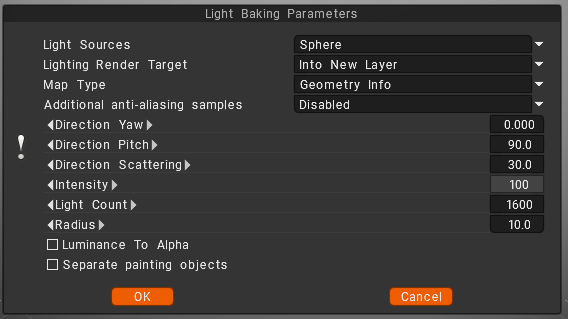
Light sources (distribution of lights)

  • over the hemisphere
  • over the sphere
  • over hemisphere + sphere

Lighting render target

You must choose a layer to which the occlusion calculation is placed. Can choose to add a new layer automatically or overwrite the current layer.
– In the first case, you do not forget to delete a new layer for light calculation. Also, a new color option, “To time,” is installed for a new layer.
– In the case of rendering the former layer, all its color information will be deleted.
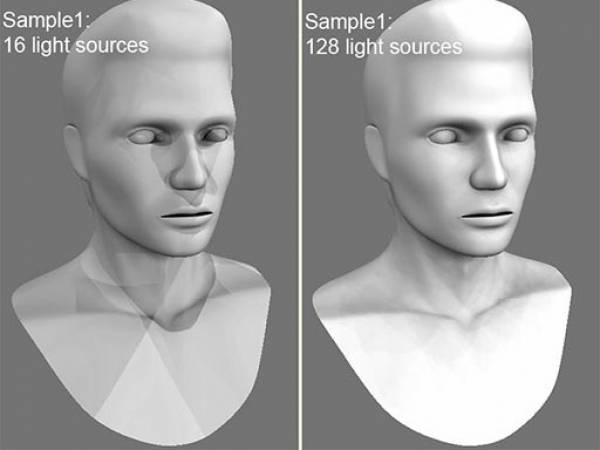
Lights count: The more lights, the longer the calculation. The more light sources there are the better the quality of lighting and the longer its calculation.
The maximum value is 256, and the minimum value is 16.

Additional anti-aliasing samples: Amount of post-smoothing steps after occlusion calculation. The calculation will be used the texture several times bigger. This allows you to get rid of some artifacts if there are too small UV islands or long pixels.
Warning: this function will slow down the calculation and consume more RAM and VRAM.

Direction Yaw: Yaw means turning or rotating an object left or right around a vertical axis (like shaking your head “no”). It defines the compass direction or heading that the front of an object is facing.
Direction Pitch: Pitch is the vertical tilt angle that determines if a direction or object points:

  • Up (positive tilt)
  • Down (negative tilt)
  • Flat/Horizontal (zero degrees)

Direction Scattering: Scattering, waves, light, or particles spread out in a full three-dimensional space (x, y, and z directions) after hitting an object.
Intensity: Intensity means the strength of the signal, light, or reflection returned at a specific 3D point or voxel (3D pixel).
Light count: is the total number of active light sources (like points, spots, or directional lights) illuminating a scene or allowed per object.
Radius: a light’s radius controls source size and falloff distance, which determine shadow softness and the area the light reaches.

Luminance to Alpha: turn the brightness (light and dark parts) of an image into a transparency mask.
Bright white areas become solid, dark black areas become see-through (transparent), and gray areas become partly see-through.
Separate paint objects: Explode the object on parts to avoid wrong AO contact projections.

Was this helpful?

1 Yes  No
Related Articles
  • Noise3D
  • Noise
  • Make Joints
  • Texturing with nodes
  • Hollow Box
  • GPU Texturing
Previously
編集メニュー
Up Next
Calculate Occlusion
AI:
Hi! How can I help you?
Attention: This is a beta version of AI chat. Some answers may be wrong. See full version of AI chat