• Latviešu valoda
  • 3DCoat dokumentācija
  • Chapters
    • Ievads 3DCoat
    • Darba sākšana
    • Interfeiss un navigācija
    • Brush sastāvdaļas
    • Node System
    • GPU Texturing
    • Darba telpas Istabas
    • Scripting un Core API
    • Jautājumi/Atbildes
    • Licensing
  • Learn
    • Getting Started
    • Painting
    • Sculpt
    • Modeling
    • Retopology
    • UV
    • Smart Materials
    • Nodes
    • Photogrammetry
    • Render
    • Print
    • Learning
    • Apmācības pamācības
  • Blog
    • 2026 Key Features and Improvements
    • Texturing with nodes
    • Shader Nodes VS. a Material Nodes
    • Multiple UV Tiles/UDIMs to one single UV set ?
    • I want to create geometry only with displacement to be manufactured with a CNC machine
    • Creating 3D Character Using 3DCoat
    • DAZ Genesis models into 3DCoat
    • Cavity and Curvature maps
    • Types of normal maps
    • Texture painting pipeline
    • Load new UV layout After Model Changes
    • Import Zbrush Polygroups for UV mapping
  • Products
    • 3DCoat
    • 3DCoatTextura
    • 3DCoatPrint
    • PBRLibrary
  • Store
  • Pilgway
  • Latviešu valoda Latviešu valoda
    • English English
    • Українська Українська
    • Español Español
    • Deutsch Deutsch
    • Français Français
    • 日本語 日本語
    • Русский Русский
    • 한국어 한국어
    • Polski Polski
    • 中文 (中国) 中文 (中国)
    • Português Português
    • Italiano Italiano
    • Suomi Suomi
    • Svenska Svenska
    • 中文 (台灣) 中文 (台灣)
    • Dansk Dansk
    • Slovenčina Slovenčina
    • Türkçe Türkçe
    • Nederlands Nederlands
    • Magyar Magyar
    • ไทย ไทย
    • हिन्दी हिन्दी
    • Ελληνικά Ελληνικά
    • Tiếng Việt Tiếng Việt
    • Lietuviškai Lietuviškai
    • Eesti Eesti
    • Čeština Čeština
    • Română Română
    • Norsk Bokmål Norsk Bokmål
  • 3DCoat dokumentācija
  • Chapters
    • Ievads 3DCoat
    • Darba sākšana
    • Interfeiss un navigācija
    • Brush sastāvdaļas
    • Node System
    • GPU Texturing
    • Darba telpas Istabas
    • Scripting un Core API
    • Jautājumi/Atbildes
    • Licensing
  • Learn
    • Getting Started
    • Painting
    • Sculpt
    • Modeling
    • Retopology
    • UV
    • Smart Materials
    • Nodes
    • Photogrammetry
    • Render
    • Print
    • Learning
    • Apmācības pamācības
  • Blog
    • 2026 Key Features and Improvements
    • Texturing with nodes
    • Shader Nodes VS. a Material Nodes
    • Multiple UV Tiles/UDIMs to one single UV set ?
    • I want to create geometry only with displacement to be manufactured with a CNC machine
    • Creating 3D Character Using 3DCoat
    • DAZ Genesis models into 3DCoat
    • Cavity and Curvature maps
    • Types of normal maps
    • Texture painting pipeline
    • Load new UV layout After Model Changes
    • Import Zbrush Polygroups for UV mapping
  • Products
    • 3DCoat
    • 3DCoatTextura
    • 3DCoatPrint
    • PBRLibrary
  • Store
  • Pilgway
  • Latviešu valoda Latviešu valoda
    • English English
    • Українська Українська
    • Español Español
    • Deutsch Deutsch
    • Français Français
    • 日本語 日本語
    • Русский Русский
    • 한국어 한국어
    • Polski Polski
    • 中文 (中国) 中文 (中国)
    • Português Português
    • Italiano Italiano
    • Suomi Suomi
    • Svenska Svenska
    • 中文 (台灣) 中文 (台灣)
    • Dansk Dansk
    • Slovenčina Slovenčina
    • Türkçe Türkçe
    • Nederlands Nederlands
    • Magyar Magyar
    • ไทย ไทย
    • हिन्दी हिन्दी
    • Ελληνικά Ελληνικά
    • Tiếng Việt Tiếng Việt
    • Lietuviškai Lietuviškai
    • Eesti Eesti
    • Čeština Čeština
    • Română Română
    • Norsk Bokmål Norsk Bokmål
Expand All Collapse All
  • Ievads 3DCoat
  • Darba sākšana
    • System requirements
    • Why 3DCoat is Unique?
    • 3DCoat aktivizēšana
    • Startēšanas kļūda
      • Startup error Mac
    • Color management
    • Upgrading permanent license
    • Linux Setup
      • Linux initial setup per-user installation
      • Linux initial setup for system
      • Tablet setup
      • To GTK3 from GTK2
      • Error libicuuc.so.70
    • Mapju struktūra
      • Custom documents folder
    • Dažādas “izšķirtspējas” formas
    • Tablet on Window
    • Import un Export
    • Applinks 3DCoat
      • Blender lietotnes saite
        • Blender with the Applink in Linux
      • Blender 4.2/3/4/5 applink
      • Max Applink
      • Houdini applink
      • Lightwave uplink
  • Navigation
    • Atvēršanas dialoglodziņš (ātrā sākuma izvēlne)
    • Navigācijas panelis
    • Kamera un navigācija
      • Customize Navigation as Blender
    • Left tool panel
    •  Activity Bar
    • Navigācija, izmantojot 3DConnexion ierīces
      • How to compile Spacenavd on non Ubuntu distro
    • Quick Access Menu
    • Stylus doesn’t work in sculpting
    • Karstie taustiņi
  • Interfeiss un navigācija
    • Failu izvēlne
    • Rediģēt izvēlni
      • Bake Geometry Info
      • Calculate Occlusion
      • Calculate Curvature
      • Light Baking Tool
      • Preferences
    • Skatīšanas izvēlne
    • Simetrija
    • Textures
    • Calculate
    • Slāņu izvēlne
    • Iesaldēšanas izvēlne
    • Hide
    • Bake
    • Līknes 2022
      • Izvēlne Līknes
      • Curves Properties RMB
      • Piepildiet ar sieta slāni
      • Scale of imported curves
    • Windows izvēlne
      • Windows uznirstošie paneļi ar cilnēm
      • Slīdņi
    • Scripts
    • Addons
    • Capture
    • Palīdzības izvēlne
    • Pielāgošana
    • Mainiet vai izveidojiet jaunu telpu
  • Brush sastāvdaļas
    • Brush Top Bar
    • Birstes vispārējai lietošanai
      • Izveidojiet otas un uzlīmes
      • Alfa veidošana no pašreizējās skulptūras
      • Izveidojiet Brush no 3D objekta
      • Create brushes based on Curves
      • Load photoshop .abr brushes
    • Insulti
      • Līknes uznirstošā izvēlne
    • Brush iespējas
    • Nosacījumu ierobežotājs
    • Sloksnes panelis
    • Trafaretu panelis
    • Gudri materiāli
      • Pievienojiet jaunus attēlus vai materiālus
      • Pievienojiet viedo materiālu slānim
      • Import Quixel Megascans
    • Kā izveidot Brush sākotnējos iestatījumus
  • Node System
    • Node Editor
    • Node & Object Inspectors
    • Node Graph
    • NodeGraph Language (NGL)
    • GPU Nodes
      • Color
      • GeometryIn
      • In
      • Layer
      • Material
      • Out
      • Pattern
      • Pattern3D
      • ShaderToy
      • Shape
      • Texture
      • Tilable
      • UV
      • Math
    • Filters
    • Masks
    • Materials
    • Modifiers
    • Volumes
  • Bezmaksas 3DCoatPrint
  • GPU Texturing
    • PBM Channels
    • Per-Pixel Painting
  • Darba telpas Istabas
    • Painting
      • Tekstūru Painting un režīmi
        • Painting uz Per-Pixel
        • Nobīdes Painting (mikrovirsotne)
        • Ptex Painting
        • Virsmas Painting (polikrāsošana)
      • Importēšana Painting telpā
        • Initial CC subdivision
        • UV Set smoothing
        • Sharp (hard) edge
        • Bloķēt Normals
        • Ielādēt jaunu UV izkārtojumu pēc modeļa izmaiņām
        • DAZ Genesis models into 3DCoat
        • ID map
      • Painting darbvietas izvēlnes
        • Edit menu
        • Tekstūru izvēlne
          • Tekstūras Baking rīki
        • Slēpt
        • Bake Paint ēdienkarte
        • Krāsu atlasītājs
      • Surface Materials
      • Painting augšējā josla
      • Slāņu panelis
        • Sajaukšanas panelis
        • Layer and Clipping Masks
      • Painting telpas rīki
      • Necaurredzamība — caurspīdīgums
      • Pielāgojiet darbvietu
        • Tweak Toolset
        • Eksportēšana no Tweak Room
      • Masku/materiālu priekšskatījuma panelis
      • Eksportēšana no Painting telpas
    • UV darbvieta
      • UV augšējā josla
      • UV Kreisais instrumentu panelis
      • UV priekšskatījuma panelis
      • UV darbplūsmas piemērs
      • Importēšana UV telpā
      • Eksportēšana no UV telpas
    • Retopoloģija
      • Importēšana Retopo istabā
      • Retopo Mesh Menu un Bake Menu
        • Virtuālais spoguļa režīms
      • Bake menu
        • Treat Poly Groups as Paint Objects
        • Baking guide
      • Strokes rīks retopoloģijā
      • Augšējā josla
        • Izvēlieties ģeometriju
      • Kreisais rīku panelis Retopoloģijas telpā
        • Kopējais mērķis un funkcija
        • Pievienojiet ģeometriju
        • Retopo Tweak Tools
        • UV instrumenti
        • Komandas retopoloģijas telpai
      • AUTORETOPO
        • Autopo guide
      • Poli grupas
    • Skulpt
      • Sculpt Layer
      • Veidot koku
      • Sculpt Brush iespējas
      • Top Bar
      • Brush dzinējs
      • Ģeometrijas apakšizvēlne
      • Veidojiet izvēlni “Ar peles labo pogu noklikšķiniet”.
      • Ēnotāji
      • Voxel režīms
        • Pure Voxel Sculpting
        • Blīvums un izšķirtspēja
        • Māla dzinējs
        • Voxel Tools
        • Virsmas rīki Voxels
        • Voxel Adjustment Tools
        • Volumetriskā Painting
        • Voxel Objects Tools
      • Virsmas režīms
        • Virsmas instrumenti
        • Virsmas pielāgoti rīki
        • Surface Layer
        • Virsmas regulēšanas instrumenti
        • Virsmu Painting
        • Daudzlīmeņu izšķirtspēja
          • Multires tools
          • Multires adjust
          • Multires commands
      • Skulptūras līknes
        • Spline līknes
        • Splines model creation
      • Vektoru nobīde
      • Virsmas transformācijas rīki
        • Voxel Transform Tools
        • Instancer
        • Move
        • Pose
        • Fit
        • Reproject
        • Surface Array
      • Voxel primitīvas un Import rīki
        • Hollow Box
      • Dzīvi Būla skaitļi
      • Komandas Sculpt telpai
      • Import uz Sculpt Room
      • Eksportēšana no Skulptūru telpas
    • Renderēt
      • Comparison of different roughness values
      • Renderēšanas paneļa funkcijas
      • Skaņas atskaņotājs
      • Fakebake apgaismojums — bez PBR—
    • Factures
      • Darbplūsma
    • Vienkāršākais
    • Modelēšana
      • Mesh Menu
      • Kreisais instrumentu panelis modelēšanas telpā
        • Pievienojiet ģeometriju
          • Make Joints
          • Atlasīts
        • Kniebiens
        • Smart Hybrid
        • UV
          • Komandas
        • Viss tīkls
      • Bēniņu virsmas piemērs no Fluffy
      • Poeboi bloķēšana
      • Import Zbrush Polygroups for UV mapping
    • Kitbash — ātra 3D modeļu izveide
      • Create kitbash
      • Left tool panel Kitbash
    • 3DPrint
    • Photogrammetry
      • How to install Reality Capture
      • Reality Capture doesn’t show up ?
    • Tīkls uz NURBS istabu
    • Nodes
      • Texturing with nodes
      • Sculpt shaders Nodes Library
      • Open PBR
  • Scripting un Core API
    • Core API
    • Python API
    • Extensions and Addons

Bake Geometry Info

23 views 0

Written by Carlos
August 2, 2026

Geometry baking info is the process of saving 3D surface details like normals, curvature, and ambient occlusion.

Geometry baking info is the process of saving physical shape details from a 3D model, such as surface curves, edges, and high-resolution details, into flat 2D image files called texture maps.
3D surface details like normals, curvature, and ambient occlusion are saved for internal calculations. This baking process is needed when you work using Material nodes.
How Baking Works

  • High and Low Models: You compare a very detailed high-polygon mesh with a simple low-polygon mesh.
  • Ray Casting: Software shoots invisible lines (rays) from the low-poly surface to find where the high-poly surface sits.
  • Data Saving: The captured depth and angle data are saved into maps like normal maps, displacement maps, or ambient occlusion maps

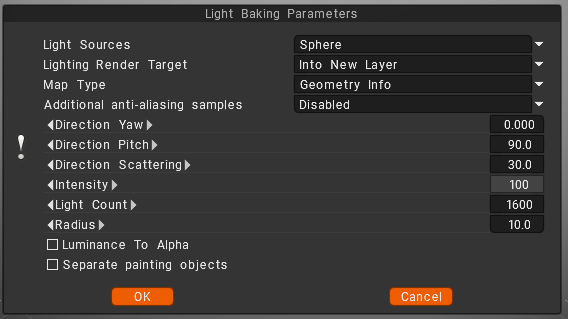
Light sources (distribution of lights)

  • over the hemisphere
  • over the sphere
  • over hemisphere + sphere

Lighting render target

You must choose a layer to which the occlusion calculation is placed. Can choose to add a new layer automatically or overwrite the current layer.
– In the first case, you do not forget to delete a new layer for light calculation. Also, a new color option, “To time,” is installed for a new layer.
– In the case of rendering the former layer, all its color information will be deleted.
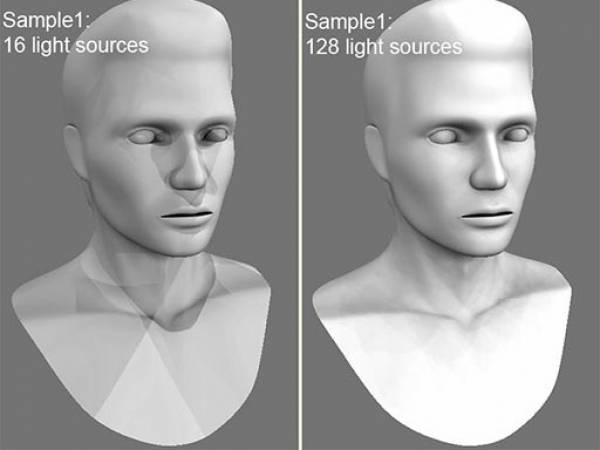
Lights count: The more lights, the longer the calculation. The more light sources there are the better the quality of lighting and the longer its calculation.
The maximum value is 256, and the minimum value is 16.

Additional anti-aliasing samples: Amount of post-smoothing steps after occlusion calculation. The calculation will be used the texture several times bigger. This allows you to get rid of some artifacts if there are too small UV islands or long pixels.
Warning: this function will slow down the calculation and consume more RAM and VRAM.

Direction Yaw: Yaw means turning or rotating an object left or right around a vertical axis (like shaking your head “no”). It defines the compass direction or heading that the front of an object is facing.
Direction Pitch: Pitch is the vertical tilt angle that determines if a direction or object points:

  • Up (positive tilt)
  • Down (negative tilt)
  • Flat/Horizontal (zero degrees)

Direction Scattering: Scattering, waves, light, or particles spread out in a full three-dimensional space (x, y, and z directions) after hitting an object.
Intensity: Intensity means the strength of the signal, light, or reflection returned at a specific 3D point or voxel (3D pixel).
Light count: is the total number of active light sources (like points, spots, or directional lights) illuminating a scene or allowed per object.
Radius: a light’s radius controls source size and falloff distance, which determine shadow softness and the area the light reaches.

Luminance to Alpha: turn the brightness (light and dark parts) of an image into a transparency mask.
Bright white areas become solid, dark black areas become see-through (transparent), and gray areas become partly see-through.
Separate paint objects: Explode the object on parts to avoid wrong AO contact projections.

Was this helpful?

Yes  No
Related Articles
  • Make Joints
  • Texturing with nodes
  • Hollow Box
  • GPU Texturing
  • Math
  • Volumes
Previously
Rediģēt izvēlni
Up Next
Calculate Occlusion
AI:
Hi! How can I help you?
Attention: This is a beta version of AI chat. Some answers may be wrong. See full version of AI chat