• Русский
  • Документация 3DCoat
  • Chapters
    • Введение в 3DCoat
    • Начиная
    • Интерфейс и навигация
    • Компоненты Brush
    • Node System
    • GPU Texturing
    • Рабочие помещения
    • Scripting и Core API
    • Вопросы и Ответы
    • Licensing
  • Learn
    • Getting Started
    • Painting
    • Sculpt
    • Modeling
    • Retopology
    • UV
    • Smart Materials
    • Nodes
    • Photogrammetry
    • Render
    • Print
    • Learning
    • Учебные пособия
  • Blog
    • 2026 Key Features and Improvements
    • Texturing with nodes
    • Shader Nodes VS. a Material Nodes
    • Multiple UV Tiles/UDIMs to one single UV set ?
    • I want to create geometry only with displacement to be manufactured with a CNC machine
    • Creating 3D Character Using 3DCoat
    • DAZ Genesis models into 3DCoat
    • Cavity and Curvature maps
    • Types of normal maps
    • Texture painting pipeline
    • Load new UV layout After Model Changes
    • Import Zbrush Polygroups for UV mapping
  • Products
    • 3DCoat
    • 3DCoatTextura
    • 3DCoatPrint
    • PBRLibrary
  • Store
  • Pilgway
  • Русский Русский
    • English English
    • Українська Українська
    • Español Español
    • Deutsch Deutsch
    • Français Français
    • 日本語 日本語
    • 한국어 한국어
    • Polski Polski
    • 中文 (中国) 中文 (中国)
    • Português Português
    • Italiano Italiano
    • Suomi Suomi
    • Svenska Svenska
    • 中文 (台灣) 中文 (台灣)
    • Dansk Dansk
    • Slovenčina Slovenčina
    • Türkçe Türkçe
    • Nederlands Nederlands
    • Magyar Magyar
    • ไทย ไทย
    • हिन्दी हिन्दी
    • Ελληνικά Ελληνικά
    • Tiếng Việt Tiếng Việt
    • Lietuviškai Lietuviškai
    • Latviešu valoda Latviešu valoda
    • Eesti Eesti
    • Čeština Čeština
    • Română Română
    • Norsk Bokmål Norsk Bokmål
  • Документация 3DCoat
  • Chapters
    • Введение в 3DCoat
    • Начиная
    • Интерфейс и навигация
    • Компоненты Brush
    • Node System
    • GPU Texturing
    • Рабочие помещения
    • Scripting и Core API
    • Вопросы и Ответы
    • Licensing
  • Learn
    • Getting Started
    • Painting
    • Sculpt
    • Modeling
    • Retopology
    • UV
    • Smart Materials
    • Nodes
    • Photogrammetry
    • Render
    • Print
    • Learning
    • Учебные пособия
  • Blog
    • 2026 Key Features and Improvements
    • Texturing with nodes
    • Shader Nodes VS. a Material Nodes
    • Multiple UV Tiles/UDIMs to one single UV set ?
    • I want to create geometry only with displacement to be manufactured with a CNC machine
    • Creating 3D Character Using 3DCoat
    • DAZ Genesis models into 3DCoat
    • Cavity and Curvature maps
    • Types of normal maps
    • Texture painting pipeline
    • Load new UV layout After Model Changes
    • Import Zbrush Polygroups for UV mapping
  • Products
    • 3DCoat
    • 3DCoatTextura
    • 3DCoatPrint
    • PBRLibrary
  • Store
  • Pilgway
  • Русский Русский
    • English English
    • Українська Українська
    • Español Español
    • Deutsch Deutsch
    • Français Français
    • 日本語 日本語
    • 한국어 한국어
    • Polski Polski
    • 中文 (中国) 中文 (中国)
    • Português Português
    • Italiano Italiano
    • Suomi Suomi
    • Svenska Svenska
    • 中文 (台灣) 中文 (台灣)
    • Dansk Dansk
    • Slovenčina Slovenčina
    • Türkçe Türkçe
    • Nederlands Nederlands
    • Magyar Magyar
    • ไทย ไทย
    • हिन्दी हिन्दी
    • Ελληνικά Ελληνικά
    • Tiếng Việt Tiếng Việt
    • Lietuviškai Lietuviškai
    • Latviešu valoda Latviešu valoda
    • Eesti Eesti
    • Čeština Čeština
    • Română Română
    • Norsk Bokmål Norsk Bokmål
Expand All Collapse All
  • Введение в 3DCoat
  • Начиная
    • System requirements
    • Why 3DCoat is Unique?
    • Активация 3DCoat
    • Ошибка запуска
      • Startup error Mac
    • Color management
    • Upgrading permanent license
    • Linux Setup
      • Linux initial setup per-user installation
      • Linux initial setup for system
      • Tablet setup
      • To GTK3 from GTK2
      • Error libicuuc.so.70
    • Структура папок
      • Custom documents folder
    • Различные формы «резолюции»
    • Tablet on Window
    • Import и Export
    • Applinks в 3DCoat
      • Ссылка на приложение Blender
        • Blender with the Applink in Linux
      • Blender 4.2/3/4/5 applink
      • Max Applink
      • Houdini applink
      • Lightwave uplink
  • Navigation
    • Открытие диалогового окна (меню быстрого запуска)
    • Панель навигации
    • Камера и навигация
      • Customize Navigation as Blender
    • Left tool panel
    •  Activity Bar
    • Навигация с использованием устройств 3DConnexion
      • How to compile Spacenavd on non Ubuntu distro
    • Quick Access Menu
    • Stylus doesn’t work in sculpting
    • Горячие клавиши
  • Интерфейс и навигация
    • Меню «Файл»
    • Меню редактирования
      • Bake Geometry Info
      • Calculate Occlusion
      • Calculate Curvature
      • Light Baking Tool
      • Настройки
    • Меню просмотра
    • Симметрия
    • Textures
    • Calculate
    • Меню слоев
    • Меню стоп-кадра
    • Hide
    • Bake
    • Кривые 2022
      • Меню кривых
      • Curves Properties RMB
      • Заполнить слоем сетки
      • Scale of imported curves
    • Меню Windows
      • Всплывающие панели Windows с вкладками
      • Слайдеры
    • Scripts
    • Addons
    • Capture
    • Меню справки
    • Настройка
    • Изменить или создать новую комнату
  • Компоненты Brush
    • Верхняя панель Brush
    • Кисти общего назначения
      • Создание кистей и декалей
      • Делаем альфу из текущего скульпта
      • Создайте Brush из 3D-объекта
      • Create brushes based on Curves
      • Load photoshop .abr brushes
    • Удары
      • Всплывающее меню кривых
    • Параметры Brush
    • Условия Ограничитель
    • Панель полос
    • Панель трафаретов
    • Умные материалы
      • Добавляйте новые изображения или материалы
      • Прикрепите смарт-материал к слою
      • Import Quixel Megascans
    • Как создать пресеты для Brush
  • Node System
    • Node Editor
    • Node & Object Inspectors
    • Node Graph
    • NodeGraph Language (NGL)
    • GPU Nodes
      • Color
      • GeometryIn
      • In
      • Layer
      • Material
      • Out
      • Pattern
      • Pattern3D
      • ShaderToy
      • Shape
      • Texture
      • Tilable
      • UV
      • Math
    • Filters
    • Masks
    • Materials
    • Modifiers
    • Volumes
  • Бесплатный 3DCoatPrint
  • GPU Texturing
    • PBM Channels
    • Per-Pixel Painting
  • Рабочие помещения
    • Painting
      • Painting текстур и режимы
        • Per-Pixel Painting
        • Painting смещения (Micro-Vertex)
        • Ptex Painting
        • Painting поверхности (полиокраска)
      • Импорт в комнату Painting
        • Initial CC subdivision
        • UV Set smoothing
        • Sharp (hard) edge
        • Блокировка нормалей
        • Загрузить новый UV макет после изменения модели
        • DAZ Genesis models into 3DCoat
        • ID map
      • Меню рабочей области Painting
        • Edit menu
        • Меню текстур
          • Инструменты для Baking текстуры
        • Скрывать
        • Меню для Bake Paint
        • Выбор цвета
      • Surface Materials
      • Верхняя планка для Painting
      • Панель слоев
        • Панель смешивания
        • Layer and Clipping Masks
      • Инструменты для Painting
      • Непрозрачность - Прозрачность
      • Настройка рабочего пространства
        • Набор инструментов настройки
        • Экспорт из Tweak Room
      • Панель предварительного просмотра маски/материала
      • Экспорт из студии Painting
    • UV рабочее пространство
      • UV верхняя полоса
      • UV Левая панель инструментов
      • Панель предварительного просмотра UV
      • Пример рабочего процесса UV
      • Импорт в UV комнату
      • Экспорт из UV комнаты
    • Ретопология
      • Импорт в комнату Retopo
      • Сетчатое меню Retopo и меню выпечки
        • Режим виртуального зеркала
      • Bake menu
        • Treat Poly Groups as Paint Objects
        • Baking guide
      • Инструмент «Штрихи» в ретопологии
      • Верхняя панель
        • Выберите геометрию
      • Левая панель инструментов в комнате ретопологии
        • Общая цель и функция
        • Добавить геометрию
        • Инструменты настройки Retopo
        • UV инструменты
        • Команды для комнаты ретопологии
      • АВТОРЕТОПО
        • Autopo guide
      • Полигруппы
    • Лепить
      • Sculpt Layer
      • Скульптурное дерево
      • Параметры скульптурной Brush
      • Top Bar
      • Brush двигатель
      • Подменю геометрии
      • Скульптурное меню «Правый клик»
      • Шейдеры
      • Voxel режим
        • Чистая Voxel скульптура
        • Плотность и разрешение
        • Глиняный двигатель
        • Voxel инструменты
        • Поверхностные инструменты на вокселах
        • Инструменты настройки Voxel
        • Объемная Painting
        • Инструменты Voxel объектов
      • Поверхностный режим
        • Инструменты поверхности
        • Пользовательские инструменты поверхности
        • Surface Layer
        • Инструменты настройки поверхности
        • Painting поверхности
        • Многоуровневое разрешение
          • Multires tools
          • Multires adjust
          • Multires commands
      • Скульптурные кривые
        • Сплайн-кривые
        • Splines model creation
      • Смещение вектора
      • Инструменты преобразования поверхности
        • Инструменты преобразования Voxel
        • Instancer
        • Move
        • Pose
        • Fit
        • Reproject
        • Surface Array
      • Voxel примитивы и инструменты Import
        • Hollow Box
      • Живые логические значения
      • Команды для скульптурной комнаты
      • Import в Sculpt Room
      • Экспорт из Sculpt Room
    • Оказывать
      • Comparison of different roughness values
      • Функции панели рендеринга
      • Проигрыватель
      • Поддельное освещение - без PBR-
    • Factures
      • Рабочий процесс
    • Самый простой
    • Моделирование
      • Mesh Menu
      • Левая панель инструментов в комнате моделирования
        • Добавить геометрию
          • Make Joints
          • Выбрано
        • Твик
        • Smart Hybrid
        • UV
          • Команды
        • Вся сетка
      • Пример лофтовой поверхности от Fluffy
      • Блокаут от Poeboi
      • Import Zbrush Polygroups for UV mapping
    • Kitbash - Быстрое создание 3D моделей
      • Create kitbash
      • Left tool panel Kitbash
    • 3DPrint
    • Photogrammetry
      • How to install Reality Capture
      • Reality Capture doesn’t show up ?
    • Сетка для комнаты NURBS
    • Nodes
      • Texturing with nodes
      • Библиотека узлов скульпт-шейдеров
      • Open PBR
  • Scripting и Core API
    • Core API
    • API Python
    • Extensions and Addons

Bake Geometry Info

23 views 0

Written by Carlos
August 2, 2026

Geometry baking info is the process of saving 3D surface details like normals, curvature, and ambient occlusion.

Geometry baking info is the process of saving physical shape details from a 3D model, such as surface curves, edges, and high-resolution details, into flat 2D image files called texture maps.
3D surface details like normals, curvature, and ambient occlusion are saved for internal calculations. This baking process is needed when you work using Material nodes.
How Baking Works

  • High and Low Models: You compare a very detailed high-polygon mesh with a simple low-polygon mesh.
  • Ray Casting: Software shoots invisible lines (rays) from the low-poly surface to find where the high-poly surface sits.
  • Data Saving: The captured depth and angle data are saved into maps like normal maps, displacement maps, or ambient occlusion maps

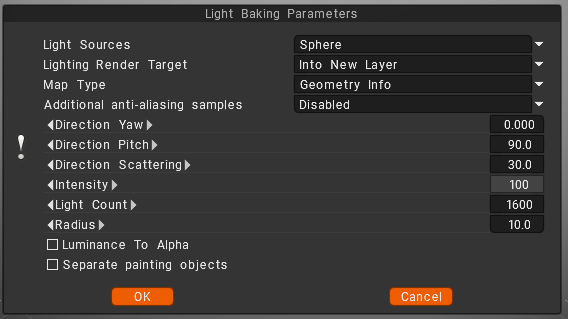
Light sources (distribution of lights)

  • over the hemisphere
  • over the sphere
  • over hemisphere + sphere

Lighting render target

You must choose a layer to which the occlusion calculation is placed. Can choose to add a new layer automatically or overwrite the current layer.
– In the first case, you do not forget to delete a new layer for light calculation. Also, a new color option, “To time,” is installed for a new layer.
– In the case of rendering the former layer, all its color information will be deleted.
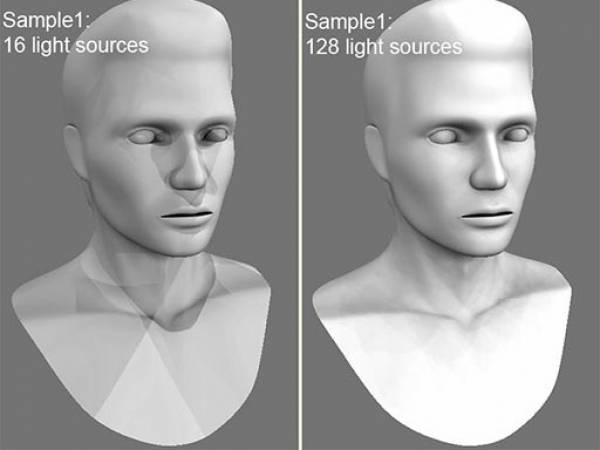
Lights count: The more lights, the longer the calculation. The more light sources there are the better the quality of lighting and the longer its calculation.
The maximum value is 256, and the minimum value is 16.

Additional anti-aliasing samples: Amount of post-smoothing steps after occlusion calculation. The calculation will be used the texture several times bigger. This allows you to get rid of some artifacts if there are too small UV islands or long pixels.
Warning: this function will slow down the calculation and consume more RAM and VRAM.

Direction Yaw: Yaw means turning or rotating an object left or right around a vertical axis (like shaking your head “no”). It defines the compass direction or heading that the front of an object is facing.
Direction Pitch: Pitch is the vertical tilt angle that determines if a direction or object points:

  • Up (positive tilt)
  • Down (negative tilt)
  • Flat/Horizontal (zero degrees)

Direction Scattering: Scattering, waves, light, or particles spread out in a full three-dimensional space (x, y, and z directions) after hitting an object.
Intensity: Intensity means the strength of the signal, light, or reflection returned at a specific 3D point or voxel (3D pixel).
Light count: is the total number of active light sources (like points, spots, or directional lights) illuminating a scene or allowed per object.
Radius: a light’s radius controls source size and falloff distance, which determine shadow softness and the area the light reaches.

Luminance to Alpha: turn the brightness (light and dark parts) of an image into a transparency mask.
Bright white areas become solid, dark black areas become see-through (transparent), and gray areas become partly see-through.
Separate paint objects: Explode the object on parts to avoid wrong AO contact projections.

Was this helpful?

Yes  No
Related Articles
  • Make Joints
  • Texturing with nodes
  • Hollow Box
  • GPU Texturing
  • Math
  • Volumes
Previously
Меню редактирования
Up Next
Calculate Occlusion
AI:
Hi! How can I help you?
Attention: This is a beta version of AI chat. Some answers may be wrong. See full version of AI chat