Suomi
Suomi 
You can use your Megascan library materials in 3DCoat by importing them as Smart Materials. First, download the materials from the Megascan library in a format compatible with 3DCoat, such as textures or images.
Fully Compatible With Quixel Materials
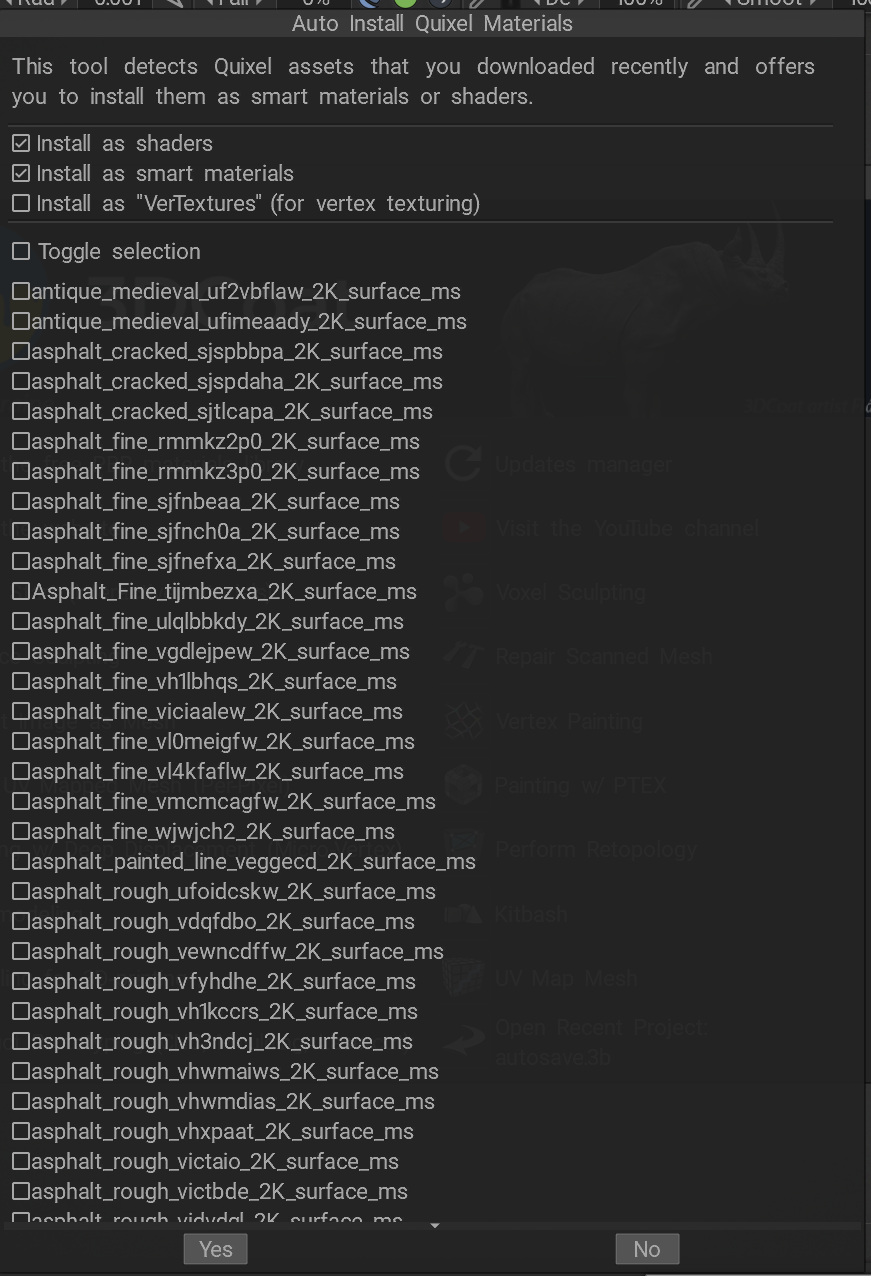
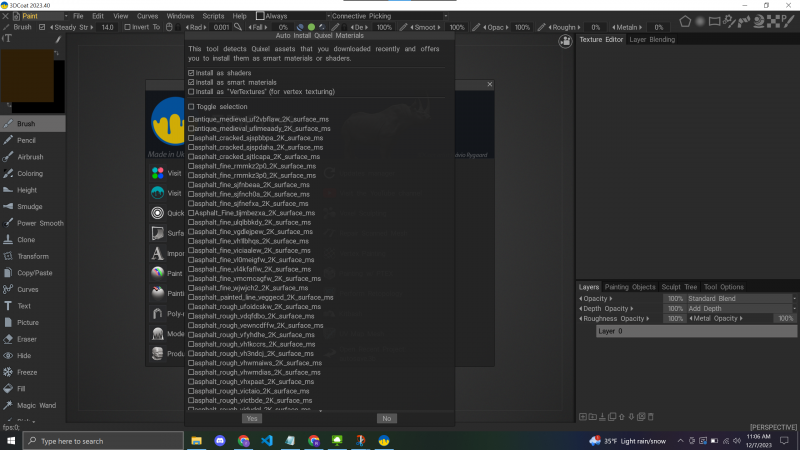
If you download a Quixel material into “Downloads”, 3DCoat will automatically notify you that new material has been downloaded and will offer you to install it as a material or shader.
Then, import these materials into 3DCoat using these steps:
If you download a zipped Quixel material into the default “Downloads” folder, 3DCoat will automatically notify you that a new material has been downloaded and will offer you to install it as a material or shader.
Or Import it using the command “File > Install > Install Quixel Asset as Smart Material.”
Once set up, you can apply these materials to your models using 3DCoat’s texturing tools.
Importing not zipped files
When you try to import material downloaded from Quixel, 3DCoat it is expecting a zip file, however the new downloaded Quixel material is not a zip file.
Now inside 3DCoat (from version 2023.40+), you can add the additional Quixel folder by following these steps:
1. Open 3DCoat.
2. Go to the Edit > Preferences.
3. Navigate to `Input/Output` tab.
4. Here, you should see an option for `Additional Quixel folder’

5. Set the path to where you’re Quixel folder materials are and hit apply and close.
If any map is named with a space in the name, the texture is assigned as new Smart Material.
Restart 3DCoat and you will be welcomed with the following:
Add existing materials folder
Also can use this other option for future needs.
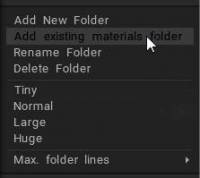
Add the Smart materials from an existing folder. A new Materials folder with the same name will be created. Select at least one file to automatically add all the files from the folder to the list.
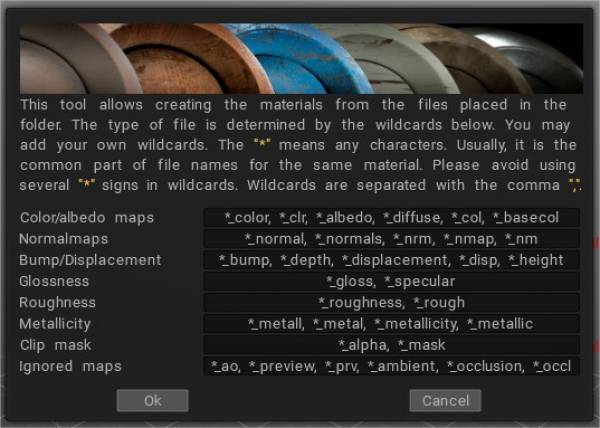
This is the complete list of aliases (at the end of the filename) used to recognize the texture usage:
Bump:
_DEPTH, _BUMP, _DEEP, _DISPL, _DISP, _DISPLACEMENT, _D
Normal map:
_NMAP, _NM, _NORMAL, _NORMALMAP, _NORM, _NORMALS, _N
Color:
_COLOR, _CLR, _DIFFUSE, _ALBEDO, _CL, _RGB, _DIF, _C
Gloss:
_SPEC, _GLOSS, _GLOSNESS, _GLOSINESS, _GLOSSNESS, _GLOSSINESS
Roughness:
_ROUGH, _ROUGHNESS, _R
Clip mask:
_MASK, _MSK, _MS, _CLIP, _ALPHA
Metalness:
_MET, _METAL, _METALL, _METALLICITY, _METALICITY, _METALNESS, _METALLNESS, _MT, _ME, _METL
Ignored:
_PREVIEW, _PREV, _TMB, _THUMBNAIL, _PRV, _AO, _OCCLUSION
The any of . – ~ may be used instead of the _ sign.