• Suomi
  • 3DCoat dokumentaatio
  • Chapters
    • Johdatus 3DCoat
    • Päästä alkuun
    • Käyttöliittymä ja navigointi
    • Brush osat
    • Node System
    • GPU Texturing
    • Työtilat Huoneet
    • Scripting & Core API
    • Kysymykset ja vastaukset
    • Licensing
  • Learn
    • Getting Started
    • Painting
    • Sculpt
    • Modeling
    • Retopology
    • UV
    • Smart Materials
    • Nodes
    • Photogrammetry
    • Render
    • Print
    • Learning
    • Koulutusopasteet
  • Blog
    • Creating 3D Character Using 3DCoat
    • DAZ Genesis models into 3DCoat
    • Cavity and Curvature maps
    • Types of normal maps
    • Texture painting pipeline
    • Load new UV layout After Model Changes
    • Import Zbrush Polygroups for UV mapping
  • Products
    • 3DCoat
    • 3DCoatTextura
    • 3DCoatPrint
    • PBRLibrary
  • Store
  • Pilgway
  • Suomi Suomi
    • English English
    • Українська Українська
    • Español Español
    • Deutsch Deutsch
    • Français Français
    • 日本語 日本語
    • Русский Русский
    • 한국어 한국어
    • Polski Polski
    • 中文 (中国) 中文 (中国)
    • Português Português
    • Italiano Italiano
    • Svenska Svenska
    • 中文 (台灣) 中文 (台灣)
    • Dansk Dansk
    • Slovenčina Slovenčina
    • Türkçe Türkçe
    • Nederlands Nederlands
    • Magyar Magyar
    • ไทย ไทย
    • हिन्दी हिन्दी
    • Ελληνικά Ελληνικά
    • Tiếng Việt Tiếng Việt
    • Lietuviškai Lietuviškai
    • Latviešu valoda Latviešu valoda
    • Eesti Eesti
    • Čeština Čeština
    • Română Română
    • Norsk Bokmål Norsk Bokmål
  • 3DCoat dokumentaatio
  • Chapters
    • Johdatus 3DCoat
    • Päästä alkuun
    • Käyttöliittymä ja navigointi
    • Brush osat
    • Node System
    • GPU Texturing
    • Työtilat Huoneet
    • Scripting & Core API
    • Kysymykset ja vastaukset
    • Licensing
  • Learn
    • Getting Started
    • Painting
    • Sculpt
    • Modeling
    • Retopology
    • UV
    • Smart Materials
    • Nodes
    • Photogrammetry
    • Render
    • Print
    • Learning
    • Koulutusopasteet
  • Blog
    • Creating 3D Character Using 3DCoat
    • DAZ Genesis models into 3DCoat
    • Cavity and Curvature maps
    • Types of normal maps
    • Texture painting pipeline
    • Load new UV layout After Model Changes
    • Import Zbrush Polygroups for UV mapping
  • Products
    • 3DCoat
    • 3DCoatTextura
    • 3DCoatPrint
    • PBRLibrary
  • Store
  • Pilgway
  • Suomi Suomi
    • English English
    • Українська Українська
    • Español Español
    • Deutsch Deutsch
    • Français Français
    • 日本語 日本語
    • Русский Русский
    • 한국어 한국어
    • Polski Polski
    • 中文 (中国) 中文 (中国)
    • Português Português
    • Italiano Italiano
    • Svenska Svenska
    • 中文 (台灣) 中文 (台灣)
    • Dansk Dansk
    • Slovenčina Slovenčina
    • Türkçe Türkçe
    • Nederlands Nederlands
    • Magyar Magyar
    • ไทย ไทย
    • हिन्दी हिन्दी
    • Ελληνικά Ελληνικά
    • Tiếng Việt Tiếng Việt
    • Lietuviškai Lietuviškai
    • Latviešu valoda Latviešu valoda
    • Eesti Eesti
    • Čeština Čeština
    • Română Română
    • Norsk Bokmål Norsk Bokmål
Expand All Collapse All
  • Johdatus 3DCoat
  • Päästä alkuun
    • System requirements
    • Why 3DCoat is Unique?
    • 3DCoat aktivointi
    • Käynnistysvirhe
      • Startup error Mac
    • Color management
    • Upgrading permanent license
    • Linux Setup
      • Linux initial setup per-user installation
      • Linux initial setup for system
      • Tablet setup
      • To GTK3 from GTK2
      • Error libicuuc.so.70
    • Kansioiden rakenne
      • Custom documents folder
    • "Resoluution" eri muodot
    • Tablet on Window
    • Import & Export
    • Applinks 3DCoat
      • Blender sovelluslinkki
        • Blender with the Applink in Linux
      • Blender 4.2/3/4/5 applink
      • Max Applink
      • Houdini applink
      • Lightwave uplink
  • Navigation
    • Avausikkuna (pikakäynnistysvalikko)
    • Navigointipaneeli
    • Kamera ja navigointi
      • Customize Navigation as Blender
    • Viewport Navigation Gizmo
    • Left tool panel
    •  Activity Bar
    • Navigointi 3DConnexion-laitteilla
      • How to compile Spacenavd on non Ubuntu distro
    • Space Bar Menu
    • Stylus doesn’t work in sculpting
    • Pikanäppäimet
  • Käyttöliittymä ja navigointi
    • Tiedosto-valikko
    • Muokkaa valikkoa
      • Calculate Curvature
      • Calculate Occlusion
      • Light Baking Tool
      • Asetukset
    • Näytä valikko
    • Symmetria
    • Textures
    • Calculate
    • Tasot-valikko
    • Jäädytä valikko
    • Hide
    • Bake
    • Käyrät 2022
      • Curves-valikko
      • Curves Properties RMB
      • Täytä verkkokerroksella
      • Scale of imported curves
    • Windows-valikko
      • Välilehdillä varustetut Windowsin ponnahdusikkunat
      • Liukusäätimet
    • Scripts
    • Addons
    • Capture
    • Ohje-valikko
    • Räätälöinti
    • Muokkaa tai luo uusi huone
  • Brush osat
    • Brush Top Bar
    • Harjat yleiskäyttöön
      • Luo siveltimiä ja tarroja
      • Alfan teko nykyisestä veistoksesta
      • Luo Brush 3D-objektista
      • Create brushes based on Curves
      • Load photoshop .abr brushes
    • Aivohalvaukset
      • Käyrät -ponnahdusvalikko
    • Brush
    • Ehtojen rajoitin
    • Nauhat paneeli
    • Stensiilit -paneeli
    • Älykkäät materiaalit
      • Lisää uusia kuvia tai materiaaleja
      • Kiinnitä Smart-materiaali kerrokseen
      • Import Quixel Megascans
    • Kuinka luoda esiasetuksia Brush
  • Node System
    • Node Editor
    • Node & Object Inspectors
    • Node Graph
    • NodeGraph Language (NGL)
    • GPU Nodes
      • Color
      • GeometryIn
      • In
      • Layer
      • Material
      • Out
      • Pattern
      • Pattern3D
      • ShaderToy
      • Shape
      • Texture
      • Tilable
      • UV
      • Vector
    • Filters
    • Masks
    • Materials
    • Modifiers
    • Volumes
  • Ilmainen 3DCoatPrint
  • GPU Texturing
    • PBM Channels
    • Per-Pixel Painting
  • Työtilat Huoneet
    • Painting
      • Painting ja tilat
        • Per-Pixel Painting
        • Painting (Micro-Vertex)
        • Ptex Painting
        • Painting (polymaalaus)
      • Painting tuonti
        • Initial CC subdivision
        • UV Set smoothing
        • Sharp (hard) edge
        • Lukitse normaalit
        • Lataa uusi UV asettelu mallin muutosten jälkeen
        • DAZ Genesis models into 3DCoat
        • ID map
      • Painting valikot
        • Edit menu
        • Tekstuurit-valikko
          • Texture Baking Tools
        • Piilottaa
        • Bake Paint -valikko
        • Värinvalitsin
      • Surface Materials
      • Painting yläpalkki
      • Tasot-paneeli
        • Sekoituspaneeli
        • Layer and Clipping Masks
      • Painting työkalut
      • Peittävyys – läpinäkyvyys
      • Säädä työtilaa
        • Tweak Toolset
        • Vienti Tweak Roomista
      • Maskin/materiaalin esikatselupaneeli
      • Vienti Painting
    • UV työtila
      • UV yläpalkki
      • UV Vasen työkalupaneeli
      • UV esikatselupaneeli
      • Esimerkki UV työnkulusta
      • Tuominen UV huoneeseen
      • Vienti UV -huoneesta
    • Retopologia
      • Tuonti Retopo huoneeseen
      • Retopo Mesh Menu ja Bake Menu
        • Virtuaalinen peilitila
      • Bake menu
        • Treat Poly Groups as Paint Objects
        • Baking guide
      • Vetojen työkalu Retopologiassa
      • Yläpalkki
        • Valitse geometria
      • Vasen työkalupaneeli Retopologia-huoneessa
        • Yleinen tarkoitus ja toiminta
        • Lisää geometria
        • Retopo Tweak Tools
        • UV työkalut
        • Retopologiahuoneen komennot
      • AUTORETOPO
        • Autopo guide
      • Poly-ryhmät
    • Veistää
      • Sculpt Layer
      • Veistos puu
      • Sculpt Brush -vaihtoehdot
      • Top Bar
      • Brush moottori
      • Geometria-alivalikko
      • Muokkaa hiiren kakkospainikkeella valikkoa
      • Varjostimet
      • Voxel tila
        • Pure Voxel Sculpting
        • Tiheys ja resoluutio
        • Savi moottori
        • Voxel työkalut
        • Pintatyökalut Voxelissa
        • Voxel Adjustment Tools
        • Volumetrinen Painting
        • Voxel objektien työkalut
      • Pintatila
        • Pintatyökalut
        • Pinta mukautetut työkalut
        • Surface Layer
        • Pinnansäätötyökalut
        • Painting
        • Monitasoinen resoluutio
          • Multires tools
          • Multires adjust
          • Multires commands
      • Veistokkaat kaaret
        • Spline-käyrät
        • Splines model creation
      • Vektorin siirtymä
      • Pintamuunnostyökalut
        • Voxel Transform Tools
        • Instancer
        • Move
        • Pose
        • Fit
        • Reproject
        • Surface Array
      • Voxel primitiivit ja Import
        • Eläviä booleaneja
        • Sculpt-huoneen komennot
        • Import Sculpt Roomiin
        • Vienti Sculpt Roomista
      • Renderöi
        • Comparison of different roughness values
        • Renderöintipaneelin toiminnot
        • Levysoitin
        • Fakebake valaistus - ei PBR-
      • Factures
        • Työnkulku
      • Yksinkertaisin
      • Mallintaminen
        • Mesh Menu
        • Vasen työkalupaneeli mallinnushuoneessa
          • Lisää geometria
            • Valittu
          • Nipistää
          • Smart Hybrid
          • UV
            • komennot
          • Koko verkko
        • Fluffyn esimerkki parvipinnasta
        • Poeboin esto
        • Import Zbrush Polygroups for UV mapping
      • Kitbash - Nopea 3D-mallien luominen
        • Create kitbash
        • Left tool panel Kitbash
      • 3DPrint
      • Photogrammetry
        • How to install Reality Capture
        • Reality Capture doesn’t show up ?
      • Verkko NURBS-huoneeseen
      • Nodes
        • Muokkaa varjostimia Nodes Library
        • Open PBR
    • Scripting & Core API
      • Core API
      • Python API
      • Extensions and Addons

    Tablet setup

    1489 views 0

    Written by Carlos
    June 21, 2024

    On start-up “3DCoat for Linux” automatically enables tablets which it is able to recognize.
    Otherwise the tablet should be enabled manually by defining the environment variable “COAT_PEN” equals the name of the input stylus device.

    Wacom


    For example:
    export COAT_PEN=”Wacom Intuos3 4×6 Pen stylus”

    Since “3DCoat 4.9.70 for Linux” it outputs into the Terminal the list of your input devices.

    Please see the attached screenshot as an example.

    You have to send a screenshot with the name of your input stylus device (similar screenshot as the attached) to me (support.linux@3dcoat.com).
    Then your input device name will be added into “3DCoat” to automatically enable it in the future builds.
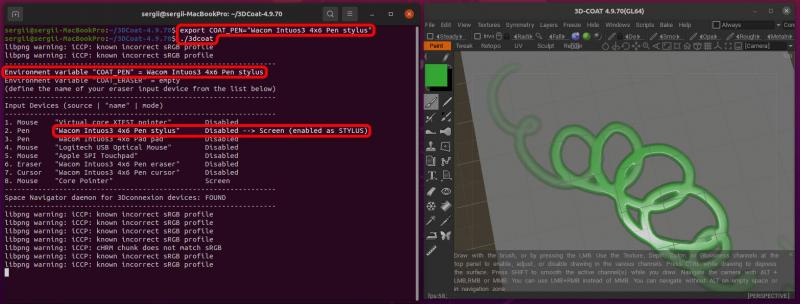
    You have to add the tablet name a first time before it revealed more input device names.
    One of the new ones revealed will be the correct one. As example  “XP-Pen Pen Pen (0)”.

    Sometimes adding the mouse device made the scroll wheel stop working inside 3DCoat – however leaving the mouse variable empty it work.

    X-Pen


    Start 3DCoat in terminal and see what Input devices it will give you. Than set environment variable according to that, before starting 3dcoat next time. 

    As example:
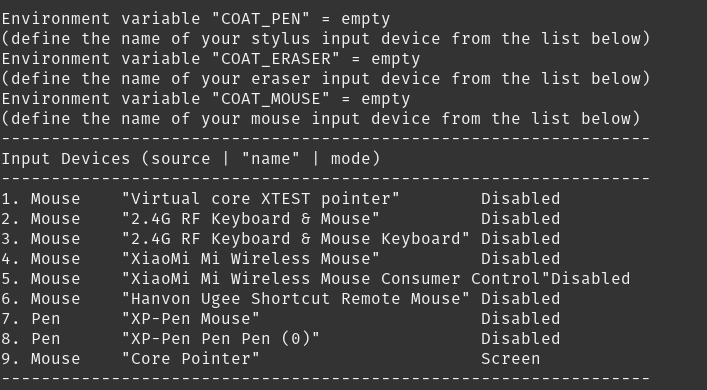
    image.png.d5711b17abd5b81565c349bb8eac266f.png

    So next time before starting 3DCoat from terminal, you will setup env variable by executing

    export COAT_PEN=”XP-Pen Pen (0)” 

    than start 3DCoat. 

    Tags:tablet linux

    Was this helpful?

    Yes  No
    Related Articles
    • GPU Texturing
    • Vector
    • Volumes
    • Modifiers
    • Materials
    • Masks
    Previously
    Linux initial setup for system
    Up Next
    To GTK3 from GTK2
    AI:
    Hi! How can I help you?
    Attention: This is a beta version of AI chat. Some answers may be wrong. See full version of AI chat