• Tiếng Việt
  • Tài liệu 3DCoat
  • Chapters
    • Giới thiệu về 3DCoat
    • Bắt đầu
    • Giao diện & Điều hướng
    • Thành phần Brush
    • Phòng làm việc
    • Scripting & Core API
    • Hỏi & Đáp
    • licensing
    • Hướng dẫn đào tạo
  • Pilgway
  • Products
    • 3DCoat
    • 3DCoatTextura
    • 3DCoatPrint
    • PBRLibrary
  • Blog Posts
  • Store
  • Tiếng Việt Tiếng Việt
    • English English
    • Українська Українська
    • Español Español
    • Deutsch Deutsch
    • Français Français
    • 日本語 日本語
    • Русский Русский
    • 한국어 한국어
    • Polski Polski
    • 中文 (中国) 中文 (中国)
    • Português Português
    • Italiano Italiano
    • Suomi Suomi
    • Svenska Svenska
    • 中文 (台灣) 中文 (台灣)
    • Dansk Dansk
    • Slovenčina Slovenčina
    • Türkçe Türkçe
    • Nederlands Nederlands
    • Magyar Magyar
    • ไทย ไทย
    • हिन्दी हिन्दी
    • Ελληνικά Ελληνικά
    • Lietuviškai Lietuviškai
    • Latviešu valoda Latviešu valoda
    • Eesti Eesti
    • Čeština Čeština
    • Română Română
    • Norsk Bokmål Norsk Bokmål
  • Creating 3D Character Using 3DCoat
  • Tài liệu 3DCoat
  • Chapters
    • Giới thiệu về 3DCoat
    • Bắt đầu
    • Giao diện & Điều hướng
    • Thành phần Brush
    • Phòng làm việc
    • Scripting & Core API
    • Hỏi & Đáp
    • licensing
    • Hướng dẫn đào tạo
  • Pilgway
  • Products
    • 3DCoat
    • 3DCoatTextura
    • 3DCoatPrint
    • PBRLibrary
  • Blog Posts
  • Store
  • Tiếng Việt Tiếng Việt
    • English English
    • Українська Українська
    • Español Español
    • Deutsch Deutsch
    • Français Français
    • 日本語 日本語
    • Русский Русский
    • 한국어 한국어
    • Polski Polski
    • 中文 (中国) 中文 (中国)
    • Português Português
    • Italiano Italiano
    • Suomi Suomi
    • Svenska Svenska
    • 中文 (台灣) 中文 (台灣)
    • Dansk Dansk
    • Slovenčina Slovenčina
    • Türkçe Türkçe
    • Nederlands Nederlands
    • Magyar Magyar
    • ไทย ไทย
    • हिन्दी हिन्दी
    • Ελληνικά Ελληνικά
    • Lietuviškai Lietuviškai
    • Latviešu valoda Latviešu valoda
    • Eesti Eesti
    • Čeština Čeština
    • Română Română
    • Norsk Bokmål Norsk Bokmål
  • Creating 3D Character Using 3DCoat
Expand All Collapse All
  • Giới thiệu về 3DCoat
  • Bắt đầu
    • System requirements
    • Why 3DCoat is Unique?
    • Kích hoạt 3DCoat
    • lỗi khởi động
      • Startup error Mac
    • Color management
    • Upgrading permanent license
    • Linux Setup
      • Linux initial setup per-user installation
      • Linux initial setup for system
      • Tablet setup
      • To GTK3 from GTK2
    • Cấu trúc thư mục
      • Custom documents folder
    • Các hình thức “Nghị quyết” khác nhau
    • Tablet on Window
    • Import Export
    • Applinks trong 3DCoat
      • Liên kết ứng dụng Blender
        • Blender with the Applink in Linux
      • Blender 4.2/3/4/5 applink
      • Max Applink
      • Houdini applink
      • Lightwave uplink
  • Navigation
    • Hộp thoại Mở (Menu Bắt đầu Nhanh)
    • Bảng điều hướng
    • Máy ảnh và Điều hướng
      • Customize Navigation as Blender
    • Viewport Navigation Gizmo
    • Left tool panel
    •  Activity Bar
    • Điều hướng bằng thiết bị 3DConnexion
      • How to compile Spacenavd on non Ubuntu distro
    • Stylus doesn’t work in sculpting
    • phím nóng
  • Giao diện & Điều hướng
    • Danh sách dữ liệu
    • Chỉnh sửa Menu
      • Calculate Curvature
      • Calculate Occlusion
      • Light Baking Tool
      • Sở thích
    • Xem thực đơn
    • Đối diện
    • Textures
    • Calculate
    • Menu lớp
    • Menu đóng băng
    • Hide
    • Bake
    • Đường cong 2022
      • thực đơn đường cong
      • Curves Properties RMB
      • Điền vào lớp lưới
      • Scale of imported curves
    • Menu cửa sổ
      • Bảng điều khiển cửa sổ bật lên được gắn thẻ
      • thanh trượt
    • Scripts
    • Addons
    • Capture
    • Danh sách trợ giúp
    • tùy biến
    • Sửa đổi hoặc tạo phòng mới
  • Thành phần Brush
    • Bàn Brush trên cùng
    • Bàn chải sử dụng chung
      • Tạo bàn chải & đề can
      • Tạo alpha từ tác phẩm điêu khắc hiện tại
      • Tạo Brush từ đối tượng 3D
      • Create brushes based on Curves
      • Load photoshop .abr brushes
    • đột quỵ
      • Menu bật lên đường cong
    • tùy chọn Brush
    • Giới hạn điều kiện
    • Bảng điều khiển dải
    • bảng giấy nến
    • Vật liệu thông minh
      • Thêm hình ảnh hoặc tài liệu mới
      • Đính kèm vật liệu thông minh vào một lớp
      • Import Quixel Material
    • Cách tạo Presets cho Brush
  • Phòng làm việc
    • Painting
      • Painting kết cấu & Chế độ
        • Per-Pixel Painting
        • Painting dịch chuyển (Micro-Vertex)
        • Painting Ptex
        • Painting bề mặt (Polypainting)
      • Nhập khẩu vào phòng Painting
        • Initial CC subdivision
        • UV Set smoothing
        • Sharp (hard) edge
        • Khóa định mức
        • Tải bố cục UV mới sau khi thay đổi mẫu
        • DAZ Genesis models into 3DCoat
        • ID map
      • Menu của Không gian làm việc Painting
        • Edit menu
        • Menu kết cấu
          • Công cụ Baking kết cấu
        • Trốn
        • Thực đơn cho Bake Paint
        • Bộ chọn màu
      • Thanh trên cùng cho Painting
      • Bảng điều khiển lớp
        • Bảng trộn
        • Layer and Clipping Masks
      • dụng cụ phòng Painting
      • Độ mờ - Độ trong suốt
      • Tinh chỉnh không gian làm việc
        • Bộ công cụ tinh chỉnh
        • Xuất từ Tweak Room
      • Bảng xem trước mặt nạ/vật liệu
      • Xuất khẩu từ phòng Painting
    • Không gian làm việc UV
      • Thanh trên cùng UV
      • Bảng công cụ UV Trái
      • Bảng xem trước UV
      • Ví dụ về quy trình làm việc UV
      • Nhập khẩu vào phòng UV
      • Xuất từ phòng UV
    • tái cấu trúc
      • Nhập vào phòng Retopo
      • Menu Retopo Lưới và Menu Nướng
        • Chế độ gương ảo
      • Bake menu
        • Treat Poly Groups as Paint Objects
        • Baking guide
      • thanh trên cùng
        • Chọn hình học
      • Bảng công cụ bên trái trong phòng Retopology
        • Mục đích & chức năng tổng thể
        • Thêm hình học
          • Công cụ Strokes trong Retopology
        • Công cụ tinh chỉnh Retopo
        • Công cụ UV
        • Lệnh cho phòng Retopology
      • AUTORETOPO
        • Autopo guide
      • Nhóm đa
    • điêu khắc
      • Sculpt Layer
      • cây điêu khắc
      • Tùy chọn Sculpt Brush
      • Top Bar
      • Brush
      • Menu con hình học
      • Menu Sculpt “Nhấp chuột phải”
      • Shader
      • chế độ điểm Voxel
        • Điêu khắc Voxel tinh khiết
        • Mật độ và độ phân giải
        • động cơ đất sét
        • Công cụ Voxel
        • Công cụ bề mặt trên Voxels
        • Công cụ điều chỉnh điểm Voxel
        • Painting thể tích
        • Công cụ Đối tượng Voxel
      • chế độ bề mặt
        • công cụ bề mặt
        • Công cụ tùy chỉnh bề mặt
        • Công cụ điều chỉnh bề mặt
        • Painting bề mặt
        • Công cụ đối tượng bề mặt
        • Độ phân giải đa cấp
          • Multires tools
          • Multires adjust
          • Multires commands
      • điêu khắc đường cong
        • Đường cong Spline
        • Splines model creation
      • Véc tơ dịch chuyển
      • Công cụ biến đổi bề mặt
        • Công cụ chuyển đổi Voxel
        • Instancer
        • Move
        • Pose
        • Fit
        • Reproject
        • Surface Array
      • Voxel Primitives & Công cụ Import
      • Boolean trực tiếp
      • Các lệnh cho phòng Sculpt
      • Import vào phòng điêu khắc
      • Xuất từ phòng điêu khắc
    • kết xuất
      • Comparison of different roughness values
      • Kết xuất các chức năng của bảng điều khiển
      • bàn xoay
      • Fakebake ánh sáng -non PBR-
    • Factures
      • quy trình làm việc
    • đơn giản nhất
    • người mẫu
      • Mesh Menu
      • Bảng công cụ bên trái trong phòng Modeling
        • Thêm hình học
          • Đã chọn
        • Tinh chỉnh
        • Smart Hybrid
        • UV
          • Lệnh
        • Toàn bộ lưới
      • Ví dụ bề mặt gác xép của Fluffy
      • Chặn bởi Poeboi
      • Import Zbrush Polygroups for UV mapping
    • Kitbash - Tạo mô hình 3D nhanh
      • Create kitbash
      • Left tool panel Kitbash
    • 3DPrint
    • Photogrammetry
      • How to install Reality Capture
      • Reality Capture doesn’t show up ?
    • Lưới tới phòng NURBS
    • Nodes
      • Thư viện Nodes shader Sculpt
  • Scripting & Core API
    • Scripting
    • Core API
    • API Python
  • 3DCoatPrint miễn phí

Sharp (hard) edge

1329 views 0

Written by Carlos
November 17, 2023

In order to successfully perform a normal bake as intended, there seems to be a trick to the UV development method and smoothing settings.

3DCoat preserves import/export of smoothing groups via normals.
Normals signal that some edge is sharp or smooth.

Smoothing groups are supported via OBJ format. But you need to export normals also from your 3D-model app.
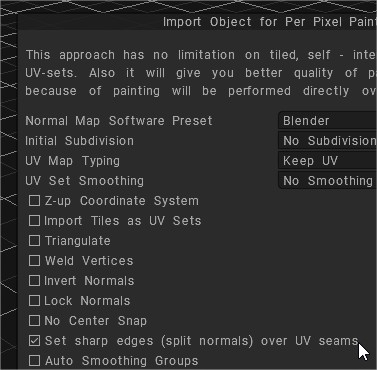
Set sharp edges: Whit this option you can set sharp edges (split normals) over UV seams.

3DCoat uses normals in OBJ file to recover smoothing groups.

It is better to avoid sharp angles between faces (like in example, retopo mesh between A and B), even angle a little less 90 degrees are not recommended, it will lead to problems if you are using 3DCoat’s method for calculating normals (Edit ->Preferences -> Normals calculation).

Maya normals calculation method will work correctly in this case, so if you need sharp angles, use Maya normals calculation in Preferences.

This is related to method of calculation. 3DCoat calculates normals as  weighted average of neighbor faces, weight is proportional to face square. It allows to display bevel between faces correctly.

But if there is sharp angle between big and small faces then vertex normal will be negative to small face normal and baking on that face will fail.
Maya’s method calculates vertex normal as arithmetical average of neighbor faces normals. It is more appropriate for baking, but not good to display meshes without normal map.

Generally we recommend to add bevel between sharp edges.

What does the “angle” in the automatic smoothing setting mean?


Each software has a setting item for automatically applying smoothness. Smoothing is applied to angles that are less than the specified value. So, if you want to avoid applying smoothness to a 90° corner, you will need to set a value smaller than 90°, such as “89°”, or if you want it to be more precise, you should set it to “89.9°”.

There are two main points necessary for normal baking.


Separate UVs with hard edges in UV expansion

On the low-poly side, decide “edges you want to have sharp edges” (hard edges) and “edges you want smoothed” (soft edges).

Avoid smoothing hard edges when baking

Set the value of “Setting items for automatic smoothing” of each software to “89.5°” etc. so that smoothing will not be applied to edges where the angle is 90° or more.

3DCoat can highlight hard edges during UV development

3DCoat has a function that helps you add seams to hard edges during UV development. *In 3DCOAT, “hard edge” is treated as “sharp edge” .

Settings required when importing a model for UV unfolding


In order to highlight hard edges in the “UV” room, you need to pay attention to the following settings when importing the model:

Set sharp edges (normal division) on UV seams: If checked, all “edges with seams” will be set to “also be highlighted as sharp edges” and imported. (This is added when importing a model that has already been UV-developed or to the UV-developed results using “auto mapping “, but I can’t think of a use for it at the moment.)
Auto smoothing group/max angle: The edges highlighted by “Show sharp edges” introduced below are set based on this value. A good value would be “89.5”.
Show Sharp edges: When checked, parts corresponding to sharp edges will be highlighted in red in the viewport. 
SharpSeams: When you use this tool, edges with angles greater than the value specified in “Fold Angle” will be judged as sharp edges, and if you press “OK”, a seam will be added automatically.

Tags:sharp eedge

Was this helpful?

Yes  1 No
Related Articles
  • Factures
  • ID map
  • Surface Array
  • Top Bar
  • Curves Properties RMB
  • Left tool panel Kitbash
Previously
UV Set smoothing
Up Next
Khóa định mức
AI:
Hi! How can I help you?
Attention: This is a beta version of AI chat. Some answers may be wrong. See full version of AI chat