• Eesti
  • 3DCoat dokumentatsioon
  • Chapters
    • 3DCoat tutvustus
    • Alustamine
    • Liides ja navigeerimine
    • Brush komponendid
    • Node System
    • GPU Texturing
    • Tööruumid Toad
    • Scripting ja Core API
    • Küsimused/Vastused
    • Licensing
  • Learn
    • Getting Started
    • Painting
    • Sculpt
    • Modeling
    • Retopology
    • UV
    • Smart Materials
    • Nodes
    • Photogrammetry
    • Render
    • Print
    • Learning
    • Koolitusõpetused
  • Blog
    • Texturing with nodes
    • Shader Nodes VS. a Material Nodes
    • Multiple UV Tiles/UDIMs to one single UV set ?
    • I want to create geometry only with displacement to be manufactured with a CNC machine
    • Creating 3D Character Using 3DCoat
    • DAZ Genesis models into 3DCoat
    • Cavity and Curvature maps
    • Types of normal maps
    • Texture painting pipeline
    • Load new UV layout After Model Changes
    • Import Zbrush Polygroups for UV mapping
  • Products
    • 3DCoat
    • 3DCoatTextura
    • 3DCoatPrint
    • PBRLibrary
  • Store
  • Pilgway
  • Eesti Eesti
    • English English
    • Українська Українська
    • Español Español
    • Deutsch Deutsch
    • Français Français
    • 日本語 日本語
    • Русский Русский
    • 한국어 한국어
    • Polski Polski
    • 中文 (中国) 中文 (中国)
    • Português Português
    • Italiano Italiano
    • Suomi Suomi
    • Svenska Svenska
    • 中文 (台灣) 中文 (台灣)
    • Dansk Dansk
    • Slovenčina Slovenčina
    • Türkçe Türkçe
    • Nederlands Nederlands
    • Magyar Magyar
    • ไทย ไทย
    • हिन्दी हिन्दी
    • Ελληνικά Ελληνικά
    • Tiếng Việt Tiếng Việt
    • Lietuviškai Lietuviškai
    • Latviešu valoda Latviešu valoda
    • Čeština Čeština
    • Română Română
    • Norsk Bokmål Norsk Bokmål
  • 3DCoat dokumentatsioon
  • Chapters
    • 3DCoat tutvustus
    • Alustamine
    • Liides ja navigeerimine
    • Brush komponendid
    • Node System
    • GPU Texturing
    • Tööruumid Toad
    • Scripting ja Core API
    • Küsimused/Vastused
    • Licensing
  • Learn
    • Getting Started
    • Painting
    • Sculpt
    • Modeling
    • Retopology
    • UV
    • Smart Materials
    • Nodes
    • Photogrammetry
    • Render
    • Print
    • Learning
    • Koolitusõpetused
  • Blog
    • Texturing with nodes
    • Shader Nodes VS. a Material Nodes
    • Multiple UV Tiles/UDIMs to one single UV set ?
    • I want to create geometry only with displacement to be manufactured with a CNC machine
    • Creating 3D Character Using 3DCoat
    • DAZ Genesis models into 3DCoat
    • Cavity and Curvature maps
    • Types of normal maps
    • Texture painting pipeline
    • Load new UV layout After Model Changes
    • Import Zbrush Polygroups for UV mapping
  • Products
    • 3DCoat
    • 3DCoatTextura
    • 3DCoatPrint
    • PBRLibrary
  • Store
  • Pilgway
  • Eesti Eesti
    • English English
    • Українська Українська
    • Español Español
    • Deutsch Deutsch
    • Français Français
    • 日本語 日本語
    • Русский Русский
    • 한국어 한국어
    • Polski Polski
    • 中文 (中国) 中文 (中国)
    • Português Português
    • Italiano Italiano
    • Suomi Suomi
    • Svenska Svenska
    • 中文 (台灣) 中文 (台灣)
    • Dansk Dansk
    • Slovenčina Slovenčina
    • Türkçe Türkçe
    • Nederlands Nederlands
    • Magyar Magyar
    • ไทย ไทย
    • हिन्दी हिन्दी
    • Ελληνικά Ελληνικά
    • Tiếng Việt Tiếng Việt
    • Lietuviškai Lietuviškai
    • Latviešu valoda Latviešu valoda
    • Čeština Čeština
    • Română Română
    • Norsk Bokmål Norsk Bokmål
Expand All Collapse All
  • 3DCoat tutvustus
  • Alustamine
    • System requirements
    • Why 3DCoat is Unique?
    • 3DCoat aktiveerimine
    • Käivitusviga
      • Startup error Mac
    • Color management
    • Upgrading permanent license
    • Linux Setup
      • Linux initial setup per-user installation
      • Linux initial setup for system
      • Tablet setup
      • To GTK3 from GTK2
      • Error libicuuc.so.70
    • Kaustade struktuur
      • Custom documents folder
    • "Resolutsiooni" erinevad vormid
    • Tablet on Window
    • Import ja Export
    • Applinks 3DCoat
      • Blender rakenduse link
        • Blender with the Applink in Linux
      • Blender 4.2/3/4/5 applink
      • Max Applink
      • Houdini applink
      • Lightwave uplink
  • Navigation
    • Dialoogi avamine (kiirmenüü)
    • Navigeerimispaneel
    • Kaamera ja navigeerimine
      • Customize Navigation as Blender
    • Viewport Navigation Gizmo
    • Left tool panel
    •  Activity Bar
    • Navigeerimine 3DConnexion seadmete abil
      • How to compile Spacenavd on non Ubuntu distro
    • Space Bar Menu
    • Stylus doesn’t work in sculpting
    • Kiirklahvid
  • Liides ja navigeerimine
    • Menüü Fail
    • Redigeeri menüü
      • Calculate Curvature
      • Calculate Occlusion
      • Light Baking Tool
      • Eelistused
    • Kuva menüü
    • Sümmeetria
    • Textures
    • Calculate
    • Kihtide menüü
    • Menüü külmutamine
    • Hide
    • Bake
    • Kurvid 2022
      • Kurvide menüü
      • Curves Properties RMB
      • Täida võrkkihiga
      • Scale of imported curves
    • Windowsi menüü
      • Vahelehtedega Windowsi hüpikaknapaneelid
      • Liugurid
    • Scripts
    • Addons
    • Capture
    • Abi menüü
    • Kohandamine
    • Muutke või looge uus tuba
  • Brush komponendid
    • Brush ülemine riba
    • Harjad üldkasutatav
      • Looge pintsleid ja kleebiseid
      • Alfa valmistamine praegusest skulptuurist
      • Looge 3D-objektist Brush
      • Create brushes based on Curves
      • Load photoshop .abr brushes
    • Insuldid
      • Curves hüpikmenüü
    • Brush valikud
    • Tingimuste piiraja
    • Ribade paneel
    • Šabloonide paneel
    • Nutikad materjalid
      • Lisage uusi pilte või materjale
      • Kinnitage Smart materjal kihile
      • Import Quixel Megascans
    • Brush eelseadistuste loomine
  • Node System
    • Node Editor
    • Node & Object Inspectors
    • Node Graph
    • NodeGraph Language (NGL)
    • GPU Nodes
      • Color
      • GeometryIn
      • In
      • Layer
      • Material
      • Out
      • Pattern
      • Pattern3D
      • ShaderToy
      • Shape
      • Texture
      • Tilable
      • UV
      • Vector
    • Filters
    • Masks
    • Materials
    • Modifiers
    • Volumes
  • Tasuta 3DCoatPrint
  • GPU Texturing
    • PBM Channels
    • Per-Pixel Painting
  • Tööruumid Toad
    • Painting
      • Tekstuuri Painting ja režiimid
        • Per-Pixel Painting
        • Painting (mikrotipp)
        • Ptex Painting
        • Painting (polüvärvimine)
      • Painting tuppa importimine
        • Initial CC subdivision
        • UV Set smoothing
        • Sharp (hard) edge
        • Lukusta normaalsed
        • Laadige pärast mudeli muudatusi uus UV paigutus
        • DAZ Genesis models into 3DCoat
        • ID map
      • Painting tööruumi menüüd
        • Edit menu
        • Tekstuuride menüü
          • Tekstuuriga Baking tööriistad
        • Peida
        • Bake Paint menüü
        • Värvivalija
      • Surface Materials
      • Ülemine riba Painting jaoks
      • Kihtide paneel
        • Segamispaneel
        • Layer and Clipping Masks
      • Painting tööriistad
      • Läbipaistmatus – läbipaistvus
      • Kohandage tööruumi
        • Tweak Toolset
        • Eksportimine Tweak Roomist
      • Maski/materjali eelvaate paneel
      • Eksport Painting
    • UV tööruum
      • UV ülemine riba
      • UV Vasak tööriistapaneel
      • UV eelvaate paneel
      • UV töövoo näide
      • Importimine UV -ruumi
      • Eksportimine UV ruumist
    • Retopoloogia
      • Importimine Retopo ruumi
      • Retopo võrgumenüü ja küpsetusmenüü
        • Virtuaalne peegelrežiim
      • Bake menu
        • Treat Poly Groups as Paint Objects
        • Baking guide
      • Löökide tööriist retopoloogias
      • Ülemine riba
        • Valige geomeetria
      • Vasakpoolne tööriistapaneel retopoloogiaruumis
        • Üldine eesmärk ja funktsioon
        • Lisage geomeetria
        • Retopo Tweak Tools
        • UV tööriistad
        • Retopoloogia ruumi käsud
      • AUTORETOPO
        • Autopo guide
      • Polügrupid
    • Skulptuur
      • Sculpt Layer
      • Skulptuuripuu
      • Brush valikud
      • Top Bar
      • Brush mootor
      • Geomeetria alammenüü
      • Kujundage "Paremklõpsu" menüü
      • Varjutajad
      • Voxel režiim
        • Puhas Voxel
        • Tihedus ja eraldusvõime
        • Savi mootor
        • Voxel tööriistad
        • Pinnatööriistad vokslitel
        • Voxel Adjustment Tools
        • Volumetriline Painting
        • Voxel Objects Tools
      • Pinnarežiim
        • Pinnapealsed tööriistad
        • Pinna kohandatud tööriistad
        • Surface Layer
        • Pinna reguleerimise tööriistad
        • Painting
        • Mitmetasandiline eraldusvõime
          • Multires tools
          • Multires adjust
          • Multires commands
      • Skulptuurid kõverad
        • Spline kõverad
        • Splines model creation
      • Vektori nihe
      • Pinna teisendamise tööriistad
        • Voxel teisendustööriistad
        • Instancer
        • Move
        • Pose
        • Fit
        • Reproject
        • Surface Array
      • Voxel primitiivid ja Import
        • Hollow Box
      • Live Booleanid
      • Sculpti ruumi käsud
      • Import skulptuuriruumi
      • Eksportimine skulptuuriruumist
    • Renderda
      • Comparison of different roughness values
      • Renderduspaneeli funktsioonid
      • Plaadimängija
      • Valgustuse võltsing – mitte PBR–
    • Factures
      • Töövoog
    • Lihtsaim
    • Modelleerimine
      • Mesh Menu
      • Vasakpoolne tööriistapaneel modelleerimisruumis
        • Lisage geomeetria
          • Valitud
        • Näpistada
        • Smart Hybrid
        • UV
          • Käsklused
        • Kogu võrk
      • Loft pinna näide Fluffy poolt
      • Blokeerimine Poeboi poolt
      • Import Zbrush Polygroups for UV mapping
    • Kitbash – kiire 3D-mudelite loomine
      • Create kitbash
      • Left tool panel Kitbash
    • 3DPrint
    • Photogrammetry
      • How to install Reality Capture
      • Reality Capture doesn’t show up ?
    • Võrk NURBS-i ruumi külge
    • Nodes
      • Texturing with nodes
      • Skulptuuride varjutajad Nodes Library
      • Open PBR
  • Scripting ja Core API
    • Core API
    • Pythoni API
    • Extensions and Addons

Tablet on Window

1156 views 0

Written by Carlos
June 7, 2025

Because of the drastic increase to the of Wacom stylus pressure levels in recent versions of Wacom tablets, an important adjustment needs to be made in the PREFERENCES panel of 3D Coat, regarding the pressure sensitivity.

Go to Preferences >Tablet Library

This option let you select input used by “3DCoat”. Switch between two tablet libraries: “WinTab” and “Tablet PC”.
Currently “3DCoat” uses “WinTab” which will work only if you will install Wacom “WinTab” driver.
When using “Tablet PC” library which should work without additional Wacom “WinTab” driver. 
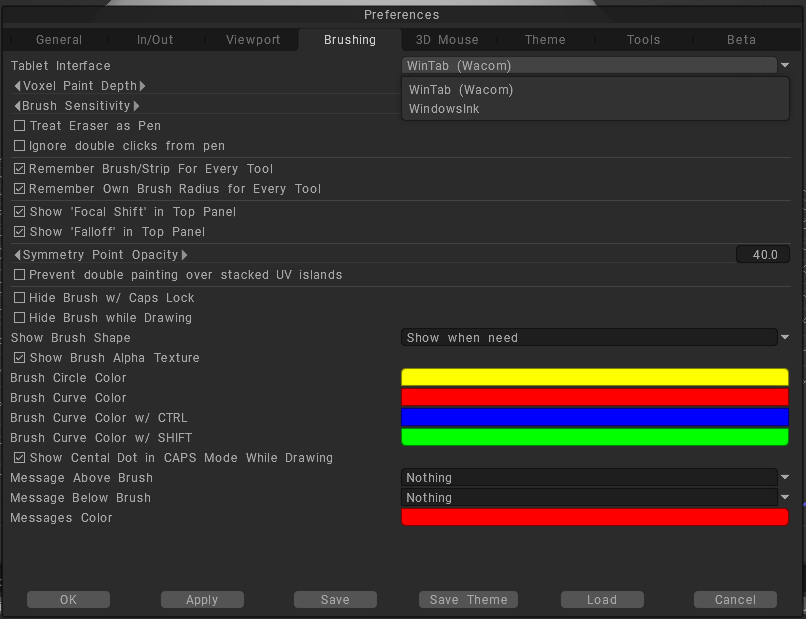
TabletLibrary.jpg

Also remember switching this icon to pen (pressing LMB over the icon) 
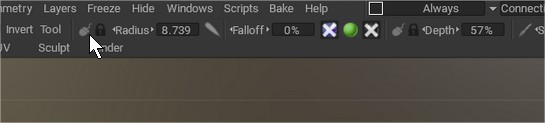
Pen.jpg


Pressure Sensitivity

To adjust your tablet’s pressure sensitivity in 3DCoat, you can fine-tune the app’s global preferences and also toggle the pen mode directly from the workspace for optimal stroke control.

1. Adjust Global Sensitivity in Preferences

If your strokes don’t feel responsive—especially with modern tablets that have 8,192 pressure levels—you can adjust the global sensitivity curve.

  • Open 3DCoat and navigate to Edit > Preferences.
  • Go to the Brushing tab and locate the Brush Sensitivity setting.
  • Change the value (e.g., lowering it to 0.1 will make the brush respond more noticeably to light pressure compared to the default 1 setting).

If your stylus is not responding at all, try switching the tablet library located in Edit > Preferences > Brushing > Tablet Interface (or Tablet Library). You can toggle between WinTab and Tablet PC (Windows Ink) to see which one works best for your specific tablet driver.

2. Configure Your Tablet Driver

If adjusting 3DCoat’s preferences isn’t enough, you may need to calibrate the physical pressure curve in your tablet’s native control panel:

  • Wacom: Open the Wacom Center or Wacom Tablet Properties, select your device, and go to the Pen tab to adjust the Tip Feel slider (Soft to Firm) or customize the pressure curve graph.
  • Huion: Open the Huion app, go to Digital Pen, and click Pressure Sensitivity Adjustment to adjust the curve or apply a soft/hard preset.

3. Toggle Pressure Modes in the Top Bar

You can quickly change how individual brushes react to your stylus using the icons next to the Radius/Depth sliders in the top toolbar:

  • Pen Icon: Turns pen pressure ON (your brush will dynamically change based on how hard you press).
  • Mouse Icon: Turns pen pressure OFF and applies constant pressure throughout the entire stroke.

For a visual walkthrough of these adjustments, including how to set up brush libraries for newer drawing tablets:


Tutorial

This old video show how to setup Tablet sensitivity on Preferences

Was this helpful?

Yes  No
Related Articles
  • Texturing with nodes
  • Hollow Box
  • GPU Texturing
  • Vector
  • Volumes
  • Modifiers
Previously
"Resolutsiooni" erinevad vormid
Up Next
Import ja Export
AI:
Hi! How can I help you?
Attention: This is a beta version of AI chat. Some answers may be wrong. See full version of AI chat