• Magyar
  • 3DCoat dokumentáció
  • Chapters
    • A 3DCoat bemutatása
    • Elkezdeni
    • Interfész és navigáció
    • Brush alkatrészek
    • Node System
    • GPU Texturing
    • Munkaterületek Szobák
    • Scripting & Core API
    • Kérdések és válaszok
    • Licensing
  • Learn
    • Getting Started
    • Painting
    • Sculpt
    • Modeling
    • Retopology
    • UV
    • Smart Materials
    • Nodes
    • Photogrammetry
    • Render
    • Print
    • Learning
    • Képzési oktatóanyagok
  • Blog
    • Creating 3D Character Using 3DCoat
    • DAZ Genesis models into 3DCoat
    • Cavity and Curvature maps
    • Types of normal maps
    • Texture painting pipeline
    • Load new UV layout After Model Changes
    • Import Zbrush Polygroups for UV mapping
  • Products
    • 3DCoat
    • 3DCoatTextura
    • 3DCoatPrint
    • PBRLibrary
  • Store
  • Pilgway
  • Magyar Magyar
    • English English
    • Українська Українська
    • Español Español
    • Deutsch Deutsch
    • Français Français
    • 日本語 日本語
    • Русский Русский
    • 한국어 한국어
    • Polski Polski
    • 中文 (中国) 中文 (中国)
    • Português Português
    • Italiano Italiano
    • Suomi Suomi
    • Svenska Svenska
    • 中文 (台灣) 中文 (台灣)
    • Dansk Dansk
    • Slovenčina Slovenčina
    • Türkçe Türkçe
    • Nederlands Nederlands
    • ไทย ไทย
    • हिन्दी हिन्दी
    • Ελληνικά Ελληνικά
    • Tiếng Việt Tiếng Việt
    • Lietuviškai Lietuviškai
    • Latviešu valoda Latviešu valoda
    • Eesti Eesti
    • Čeština Čeština
    • Română Română
    • Norsk Bokmål Norsk Bokmål
  • 3DCoat dokumentáció
  • Chapters
    • A 3DCoat bemutatása
    • Elkezdeni
    • Interfész és navigáció
    • Brush alkatrészek
    • Node System
    • GPU Texturing
    • Munkaterületek Szobák
    • Scripting & Core API
    • Kérdések és válaszok
    • Licensing
  • Learn
    • Getting Started
    • Painting
    • Sculpt
    • Modeling
    • Retopology
    • UV
    • Smart Materials
    • Nodes
    • Photogrammetry
    • Render
    • Print
    • Learning
    • Képzési oktatóanyagok
  • Blog
    • Creating 3D Character Using 3DCoat
    • DAZ Genesis models into 3DCoat
    • Cavity and Curvature maps
    • Types of normal maps
    • Texture painting pipeline
    • Load new UV layout After Model Changes
    • Import Zbrush Polygroups for UV mapping
  • Products
    • 3DCoat
    • 3DCoatTextura
    • 3DCoatPrint
    • PBRLibrary
  • Store
  • Pilgway
  • Magyar Magyar
    • English English
    • Українська Українська
    • Español Español
    • Deutsch Deutsch
    • Français Français
    • 日本語 日本語
    • Русский Русский
    • 한국어 한국어
    • Polski Polski
    • 中文 (中国) 中文 (中国)
    • Português Português
    • Italiano Italiano
    • Suomi Suomi
    • Svenska Svenska
    • 中文 (台灣) 中文 (台灣)
    • Dansk Dansk
    • Slovenčina Slovenčina
    • Türkçe Türkçe
    • Nederlands Nederlands
    • ไทย ไทย
    • हिन्दी हिन्दी
    • Ελληνικά Ελληνικά
    • Tiếng Việt Tiếng Việt
    • Lietuviškai Lietuviškai
    • Latviešu valoda Latviešu valoda
    • Eesti Eesti
    • Čeština Čeština
    • Română Română
    • Norsk Bokmål Norsk Bokmål
Expand All Collapse All
  • A 3DCoat bemutatása
  • Elkezdeni
    • System requirements
    • Why 3DCoat is Unique?
    • A 3DCoat aktiválása
    • Indítási hiba
      • Startup error Mac
    • Color management
    • Upgrading permanent license
    • Linux Setup
      • Linux initial setup per-user installation
      • Linux initial setup for system
      • Tablet setup
      • To GTK3 from GTK2
      • Error libicuuc.so.70
    • Mappák szerkezete
      • Custom documents folder
    • A „felbontás” különböző formái
    • Tablet on Window
    • Import & Export
    • Applinks 3DCoat
      • Blender alkalmazáslink
        • Blender with the Applink in Linux
      • Blender 4.2/3/4/5 applink
      • Max Applink
      • Houdini applink
      • Lightwave uplink
  • Navigation
    • Párbeszédpanel megnyitása (Gyorsindítás menü)
    • Navigációs panel
    • Kamera és navigáció
      • Customize Navigation as Blender
    • Viewport Navigation Gizmo
    • Left tool panel
    •  Activity Bar
    • Navigáció 3DConnexion eszközökkel
      • How to compile Spacenavd on non Ubuntu distro
    • Space Bar Menu
    • Stylus doesn’t work in sculpting
    • Gyorsbillentyűk
  • Interfész és navigáció
    • Fájl menü
    • Szerkesztés menü
      • Calculate Curvature
      • Calculate Occlusion
      • Light Baking Tool
      • preferenciák
    • Nézet menü
    • Szimmetria
    • Textures
    • Calculate
    • Rétegek menü
    • Menü befagyasztása
    • Hide
    • Bake
    • Görbék 2022
      • Görbék menü
      • Curves Properties RMB
      • Töltsük meg hálós réteggel
      • Scale of imported curves
    • Windows menü
      • Lapos Windows előugró panelek
      • Csúszkák
    • Scripts
    • Addons
    • Capture
    • Súgó menü
    • Testreszabás
    • Módosítás vagy új szoba létrehozása
  • Brush alkatrészek
    • Brush Top Bar
    • Kefék általános használatra
      • Készítsen ecsetet és matricákat
      • Alfa készítése a jelenlegi szoborból
      • Brush létrehozása 3D objektumból
      • Create brushes based on Curves
      • Load photoshop .abr brushes
    • Strokes
      • Curves felugró menü
    • Brush opciók
    • Feltételek korlátozója
    • Strips Panel
    • Stencilek panel
    • Intelligens anyagok
      • Új képek vagy anyagok hozzáadása
      • Rögzítsen egy Smart anyagot egy réteghez
      • Import Quixel Megascans
    • Hogyan készítsünk előbeállításokat az Brush
  • Node System
    • Node Editor
    • Node & Object Inspectors
    • Node Graph
    • NodeGraph Language (NGL)
    • GPU Nodes
      • Color
      • GeometryIn
      • In
      • Layer
      • Material
      • Out
      • Pattern
      • Pattern3D
      • ShaderToy
      • Shape
      • Texture
      • Tilable
      • UV
      • Vector
    • Filters
    • Masks
    • Materials
    • Modifiers
    • Volumes
  • Ingyenes 3DCoatPrint
  • GPU Texturing
    • PBM Channels
    • Per-Pixel Painting
  • Munkaterületek Szobák
    • Painting
      • Textúra Painting és módok
        • Per-Pixel Painting
        • Eltolásos Painting (Micro-Vertex)
        • Ptex Painting
        • Painting (polifestés)
      • Importálás a Painting
        • Initial CC subdivision
        • UV Set smoothing
        • Sharp (hard) edge
        • Normál zárolás
        • Új UV elrendezés betöltése a modellváltások után
        • DAZ Genesis models into 3DCoat
        • ID map
      • A Painting munkaterület menüi
        • Edit menu
        • Textúrák menü
          • Textúra Baking
        • Elrejt
        • Menü a Bake Paint
        • A Színválasztó
      • Surface Materials
      • Felső sáv a Painting
      • A Rétegek panel
        • A keverési panel
        • Layer and Clipping Masks
      • Painting Eszközök
      • Átlátszatlanság – Átlátszóság
      • A munkaterület finomítása
        • Tweak Toolset
        • Exportálás a Tweak Room-ból
      • Maszk/anyag előnézeti panel
      • Exportálás a Painting
    • UV munkaterület
      • UV felső sáv
      • UV Bal oldali szerszám panel
      • UV előnézeti panel
      • UV munkafolyamat példa
      • Importálás az UV szobába
      • Exportálás az UV teremből
    • Retopológia
      • Importálás a Retopo szobába
      • Retopo Mesh Menu és Bake Menu
        • Virtuális tükör mód
      • Bake menu
        • Treat Poly Groups as Paint Objects
        • Baking guide
      • Strokes eszköz a retopológiában
      • Legjobb bár
        • Válassza ki a geometriát
      • Bal oldali eszközpanel a Retopológia szobában
        • Általános cél és funkció
        • Geometria hozzáadása
        • Retopo Tweak Tools
        • UV eszközök
        • Parancsok a Retopológiai szoba számára
      • AUTORETOPO
        • Autopo guide
      • Poli csoportok
    • Farag
      • Sculpt Layer
      • Sculp Tree
      • Sculpt Brush opciók
      • Top Bar
      • Brush motor
      • Geometria almenü
      • Alakítsa ki a „jobb gombbal” menüt
      • Árnyékolók
      • Voxel mód
        • Pure Voxel Sculpting
        • Sűrűség és felbontás
        • Clay Engine
        • Voxel eszközök
        • Felületi eszközök a Voxeleken
        • Voxel beállítási eszközök
        • Volumetrikus Painting
        • Voxel objektumok eszközök
      • Felszíni mód
        • Felületi szerszámok
        • Felületi egyedi szerszámok
        • Surface Layer
        • Felületbeállító eszközök
        • Painting
        • Többszintű felbontás
          • Multires tools
          • Multires adjust
          • Multires commands
      • Faragni görbék
        • Spline görbék
        • Splines model creation
      • vektor elmozdulás
      • Felületátalakítási eszközök
        • Voxel transzformációs eszközök
        • Instancer
        • Move
        • Pose
        • Fit
        • Reproject
        • Surface Array
      • Voxel primitívek és Import eszközök
        • Hollow Box
      • Élő logikai értékek
      • Parancsok a Sculpt szobához
      • Import a Sculpt Roomba
      • Exportálás a Szobrászteremből
    • Vakol
      • Comparison of different roughness values
      • Render Panel Funkciók
      • Lemezjátszó
      • Fakebake a világítás - nem PBR-
    • Factures
      • Munkafolyamat
    • A legegyszerűbb
    • Modellezés
      • Mesh Menu
      • Bal oldali eszközpanel a modellező szobában
        • Geometria hozzáadása
          • Kiválasztott
        • Csípés
        • Smart Hybrid
        • UV
          • Parancsok
        • Teljes háló
      • Példa a tetőtéri felületre a Fluffy által
      • Blokkolás Poeboi által
      • Import Zbrush Polygroups for UV mapping
    • Kitbash – Gyors 3D modellek létrehozása
      • Create kitbash
      • Left tool panel Kitbash
    • 3DPrint
    • Photogrammetry
      • How to install Reality Capture
      • Reality Capture doesn’t show up ?
    • Háló a NURBS szobához
    • Nodes
      • Sculp shader Nodes Library
      • Open PBR
  • Scripting & Core API
    • Core API
    • Python API
    • Extensions and Addons

Tablet on Window

1118 views 0

Written by Carlos
June 7, 2025

Because of the drastic increase to the of Wacom stylus pressure levels in recent versions of Wacom tablets, an important adjustment needs to be made in the PREFERENCES panel of 3D Coat, regarding the pressure sensitivity.

Go to Preferences >Tablet Library

This option let you select input used by “3DCoat”. Switch between two tablet libraries: “WinTab” and “Tablet PC”.
Currently “3DCoat” uses “WinTab” which will work only if you will install Wacom “WinTab” driver.
When using “Tablet PC” library which should work without additional Wacom “WinTab” driver. 
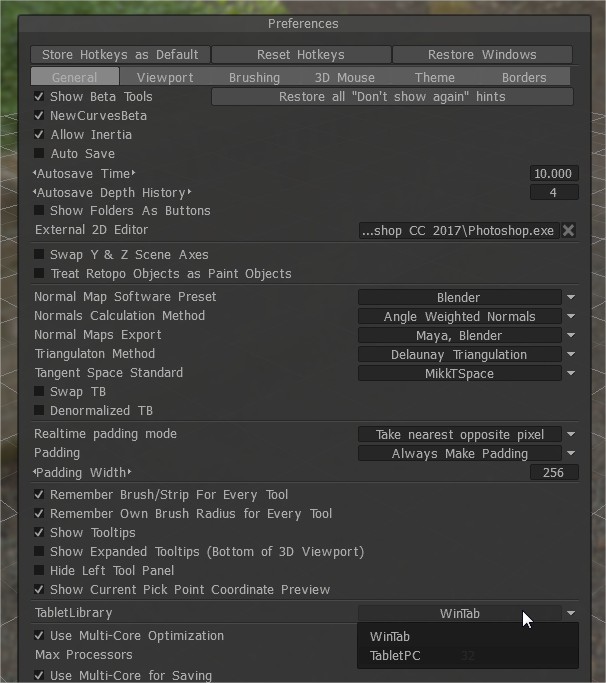
TabletLibrary.jpg

Also remember switching this icon to pen (pressing LMB over the icon) 
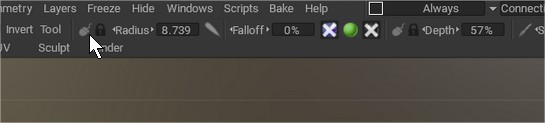
Pen.jpg


Pressure Sensitivity

To adjust your tablet’s pressure sensitivity in 3DCoat, you can fine-tune the app’s global preferences and also toggle the pen mode directly from the workspace for optimal stroke control.

1. Adjust Global Sensitivity in Preferences

If your strokes don’t feel responsive—especially with modern tablets that have 8,192 pressure levels—you can adjust the global sensitivity curve.

  • Open 3DCoat and navigate to Edit > Preferences.
  • Go to the Brushing tab and locate the Brush Sensitivity setting.
  • Change the value (e.g., lowering it to 0.1 will make the brush respond more noticeably to light pressure compared to the default 1 setting).

If your stylus is not responding at all, try switching the tablet library located in Edit > Preferences > Brushing > Tablet Interface (or Tablet Library). You can toggle between WinTab and Tablet PC (Windows Ink) to see which one works best for your specific tablet driver.

2. Configure Your Tablet Driver

If adjusting 3DCoat’s preferences isn’t enough, you may need to calibrate the physical pressure curve in your tablet’s native control panel:

  • Wacom: Open the Wacom Center or Wacom Tablet Properties, select your device, and go to the Pen tab to adjust the Tip Feel slider (Soft to Firm) or customize the pressure curve graph.
  • Huion: Open the Huion app, go to Digital Pen, and click Pressure Sensitivity Adjustment to adjust the curve or apply a soft/hard preset.

3. Toggle Pressure Modes in the Top Bar

You can quickly change how individual brushes react to your stylus using the icons next to the Radius/Depth sliders in the top toolbar:

  • Pen Icon: Turns pen pressure ON (your brush will dynamically change based on how hard you press).
  • Mouse Icon: Turns pen pressure OFF and applies constant pressure throughout the entire stroke.

For a visual walkthrough of these adjustments, including how to set up brush libraries for newer drawing tablets:


Tutorial

This old video show how to setup Tablet sensitivity on Preferences

Was this helpful?

Yes  No
Related Articles
  • Hollow Box
  • GPU Texturing
  • Vector
  • Volumes
  • Modifiers
  • Materials
Previously
A „felbontás” különböző formái
Up Next
Import & Export
AI:
Hi! How can I help you?
Attention: This is a beta version of AI chat. Some answers may be wrong. See full version of AI chat