• Latviešu valoda
  • 3DCoat dokumentācija
  • Chapters
    • Ievads 3DCoat
    • Darba sākšana
    • Interfeiss un navigācija
    • Brush sastāvdaļas
    • Darba telpas Istabas
    • Scripting un Core API
    • Jautājumi/Atbildes
    • licensing
    • Apmācības pamācības
  • Pilgway
  • Products
    • 3DCoat
    • 3DCoatTextura
    • 3DCoatPrint
    • PBRLibrary
  • Blog Posts
  • Store
  • Latviešu valoda Latviešu valoda
    • English English
    • Українська Українська
    • Español Español
    • Deutsch Deutsch
    • Français Français
    • 日本語 日本語
    • Русский Русский
    • 한국어 한국어
    • Polski Polski
    • 中文 (中国) 中文 (中国)
    • Português Português
    • Italiano Italiano
    • Suomi Suomi
    • Svenska Svenska
    • 中文 (台灣) 中文 (台灣)
    • Dansk Dansk
    • Slovenčina Slovenčina
    • Türkçe Türkçe
    • Nederlands Nederlands
    • Magyar Magyar
    • ไทย ไทย
    • हिन्दी हिन्दी
    • Ελληνικά Ελληνικά
    • Tiếng Việt Tiếng Việt
    • Lietuviškai Lietuviškai
    • Eesti Eesti
    • Čeština Čeština
    • Română Română
    • Norsk Bokmål Norsk Bokmål
  • Creating 3D Character Using 3DCoat
  • 3DCoat dokumentācija
  • Chapters
    • Ievads 3DCoat
    • Darba sākšana
    • Interfeiss un navigācija
    • Brush sastāvdaļas
    • Darba telpas Istabas
    • Scripting un Core API
    • Jautājumi/Atbildes
    • licensing
    • Apmācības pamācības
  • Pilgway
  • Products
    • 3DCoat
    • 3DCoatTextura
    • 3DCoatPrint
    • PBRLibrary
  • Blog Posts
  • Store
  • Latviešu valoda Latviešu valoda
    • English English
    • Українська Українська
    • Español Español
    • Deutsch Deutsch
    • Français Français
    • 日本語 日本語
    • Русский Русский
    • 한국어 한국어
    • Polski Polski
    • 中文 (中国) 中文 (中国)
    • Português Português
    • Italiano Italiano
    • Suomi Suomi
    • Svenska Svenska
    • 中文 (台灣) 中文 (台灣)
    • Dansk Dansk
    • Slovenčina Slovenčina
    • Türkçe Türkçe
    • Nederlands Nederlands
    • Magyar Magyar
    • ไทย ไทย
    • हिन्दी हिन्दी
    • Ελληνικά Ελληνικά
    • Tiếng Việt Tiếng Việt
    • Lietuviškai Lietuviškai
    • Eesti Eesti
    • Čeština Čeština
    • Română Română
    • Norsk Bokmål Norsk Bokmål
  • Creating 3D Character Using 3DCoat
Expand All Collapse All
  • Ievads 3DCoat
  • Darba sākšana
    • System requirements
    • Why 3DCoat is Unique?
    • 3DCoat aktivizēšana
    • Startēšanas kļūda
      • Startup error Mac
    • Color management
    • Upgrading permanent license
    • Linux Setup
      • Linux initial setup per-user installation
      • Linux initial setup for system
      • Tablet setup
      • To GTK3 from GTK2
    • Mapju struktūra
      • Custom documents folder
    • Dažādas “izšķirtspējas” formas
    • Tablet on Window
    • Import un Export
    • Applinks 3DCoat
      • Blender lietotnes saite
        • Blender with the Applink in Linux
      • Blender 4.2/3/4/5 applink
      • Max Applink
      • Houdini applink
      • Lightwave uplink
  • Navigation
    • Atvēršanas dialoglodziņš (ātrā sākuma izvēlne)
    • Navigācijas panelis
    • Kamera un navigācija
      • Customize Navigation as Blender
    • Viewport Navigation Gizmo
    • Left tool panel
    •  Activity Bar
    • Navigācija, izmantojot 3DConnexion ierīces
      • How to compile Spacenavd on non Ubuntu distro
    • Stylus doesn’t work in sculpting
    • Karstie taustiņi
  • Interfeiss un navigācija
    • Failu izvēlne
    • Rediģēt izvēlni
      • Calculate Curvature
      • Calculate Occlusion
      • Light Baking Tool
      • Preferences
    • Skatīšanas izvēlne
    • Simetrija
    • Textures
    • Calculate
    • Slāņu izvēlne
    • Iesaldēšanas izvēlne
    • Hide
    • Bake
    • Līknes 2022
      • Izvēlne Līknes
      • Curves Properties RMB
      • Piepildiet ar sieta slāni
      • Scale of imported curves
    • Windows izvēlne
      • Windows uznirstošie paneļi ar cilnēm
      • Slīdņi
    • Scripts
    • Addons
    • Capture
    • Palīdzības izvēlne
    • Pielāgošana
    • Mainiet vai izveidojiet jaunu telpu
  • Brush sastāvdaļas
    • Brush Top Bar
    • Birstes vispārējai lietošanai
      • Izveidojiet otas un uzlīmes
      • Alfa veidošana no pašreizējās skulptūras
      • Izveidojiet Brush no 3D objekta
      • Create brushes based on Curves
      • Load photoshop .abr brushes
    • Insulti
      • Līknes uznirstošā izvēlne
    • Brush iespējas
    • Nosacījumu ierobežotājs
    • Sloksnes panelis
    • Trafaretu panelis
    • Gudri materiāli
      • Pievienojiet jaunus attēlus vai materiālus
      • Pievienojiet viedo materiālu slānim
      • Import Quixel Material
    • Kā izveidot Brush sākotnējos iestatījumus
  • Darba telpas Istabas
    • Painting
      • Tekstūru Painting un režīmi
        • Painting uz Per-Pixel
        • Nobīdes Painting (mikrovirsotne)
        • Ptex Painting
        • Virsmas Painting (polikrāsošana)
      • Importēšana Painting telpā
        • Initial CC subdivision
        • UV Set smoothing
        • Sharp (hard) edge
        • Bloķēt Normals
        • Ielādēt jaunu UV izkārtojumu pēc modeļa izmaiņām
        • DAZ Genesis models into 3DCoat
      • Painting darbvietas izvēlnes
        • Edit menu
        • Tekstūru izvēlne
          • Tekstūras Baking rīki
        • Slēpt
        • Bake Paint ēdienkarte
        • Krāsu atlasītājs
      • Painting augšējā josla
      • Slāņu panelis
        • Sajaukšanas panelis
        • Layer and Clipping Masks
      • Painting telpas rīki
      • Necaurredzamība — caurspīdīgums
      • Pielāgojiet darbvietu
        • Tweak Toolset
        • Eksportēšana no Tweak Room
      • Masku/materiālu priekšskatījuma panelis
      • Eksportēšana no Painting telpas
    • UV darbvieta
      • UV augšējā josla
      • UV Kreisais instrumentu panelis
      • UV priekšskatījuma panelis
      • UV darbplūsmas piemērs
      • Importēšana UV telpā
      • Eksportēšana no UV telpas
    • Retopoloģija
      • Importēšana Retopo istabā
      • Retopo Mesh Menu un Bake Menu
        • Virtuālais spoguļa režīms
      • Bake menu
        • Treat Poly Groups as Paint Objects
        • Baking guide
      • Augšējā josla
        • Izvēlieties ģeometriju
      • Kreisais rīku panelis Retopoloģijas telpā
        • Kopējais mērķis un funkcija
        • Pievienojiet ģeometriju
          • Strokes rīks retopoloģijā
        • Retopo Tweak Tools
        • UV instrumenti
        • Komandas retopoloģijas telpai
      • AUTORETOPO
        • Autopo guide
      • Poli grupas
    • Skulpt
      • Sculpt Layer
      • Veidot koku
      • Sculpt Brush iespējas
      • Top Bar
      • Brush dzinējs
      • Ģeometrijas apakšizvēlne
      • Veidojiet izvēlni “Ar peles labo pogu noklikšķiniet”.
      • Ēnotāji
      • Voxel režīms
        • Pure Voxel Sculpting
        • Blīvums un izšķirtspēja
        • Māla dzinējs
        • Voxel Tools
        • Virsmas rīki Voxels
        • Voxel Adjustment Tools
        • Volumetriskā Painting
        • Voxel Objects Tools
      • Virsmas režīms
        • Virsmas instrumenti
        • Virsmas pielāgoti rīki
        • Virsmas regulēšanas instrumenti
        • Virsmu Painting
        • Virsmas objektu rīki
        • Daudzlīmeņu izšķirtspēja
          • Multires tools
          • Multires adjust
          • Multires commands
      • Skulptūras līknes
        • Spline līknes
        • Splines model creation
      • Vektoru nobīde
      • Virsmas transformācijas rīki
        • Voxel Transform Tools
        • Instancer
        • Move
        • Pose
        • Fit
        • Reproject
        • Surface Array
      • Voxel primitīvas un Import rīki
      • Dzīvi Būla skaitļi
      • Komandas Sculpt telpai
      • Import uz Sculpt Room
      • Eksportēšana no Skulptūru telpas
    • Renderēt
      • Comparison of different roughness values
      • Renderēšanas paneļa funkcijas
      • Skaņas atskaņotājs
      • Fakebake apgaismojums — bez PBR—
    • Factures
      • Darbplūsma
    • Vienkāršākais
    • Modelēšana
      • Mesh Menu
      • Kreisais instrumentu panelis modelēšanas telpā
        • Pievienojiet ģeometriju
          • Atlasīts
        • Kniebiens
        • Smart Hybrid
        • UV
          • Komandas
        • Viss tīkls
      • Bēniņu virsmas piemērs no Fluffy
      • Poeboi bloķēšana
      • Import Zbrush Polygroups for UV mapping
    • Kitbash — ātra 3D modeļu izveide
      • Create kitbash
      • Left tool panel Kitbash
    • 3DPrint
    • Photogrammetry
      • How to install Reality Capture
      • Reality Capture doesn’t show up ?
    • Tīkls uz NURBS istabu
    • Nodes
      • Sculpt shaders Nodes Library
  • Scripting un Core API
    • Scripting
    • Core API
    • Python API
  • Bezmaksas 3DCoatPrint

Autopo guide

603 views 0

Written by Carlos
January 11, 2025

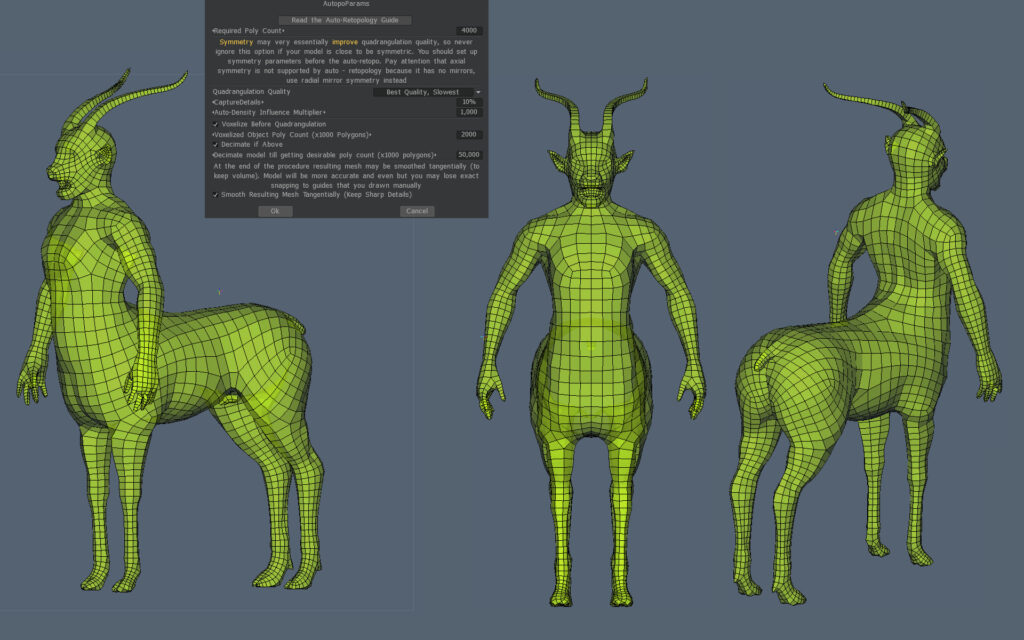
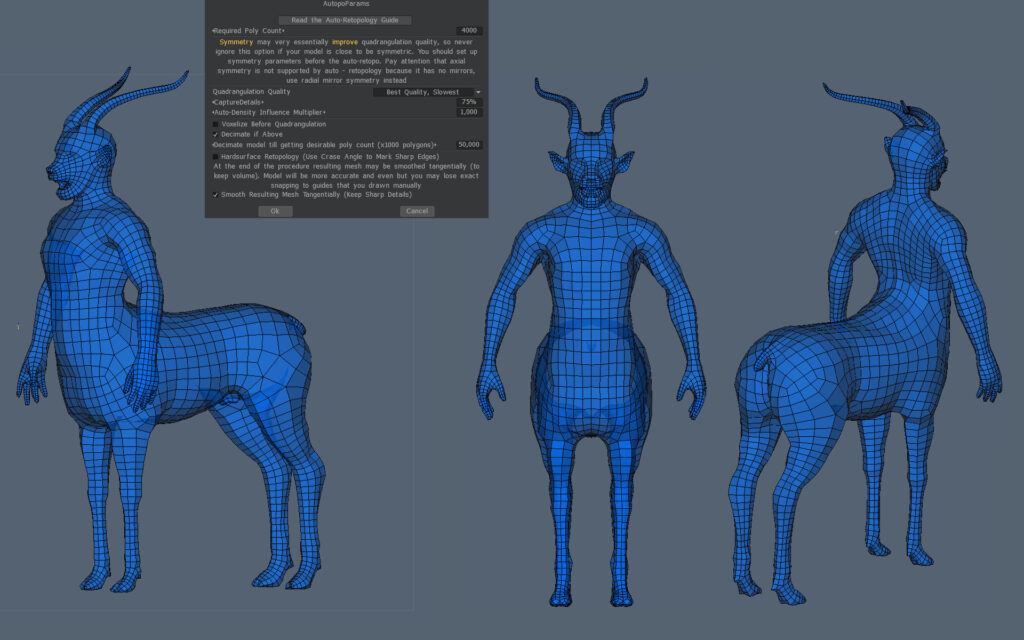
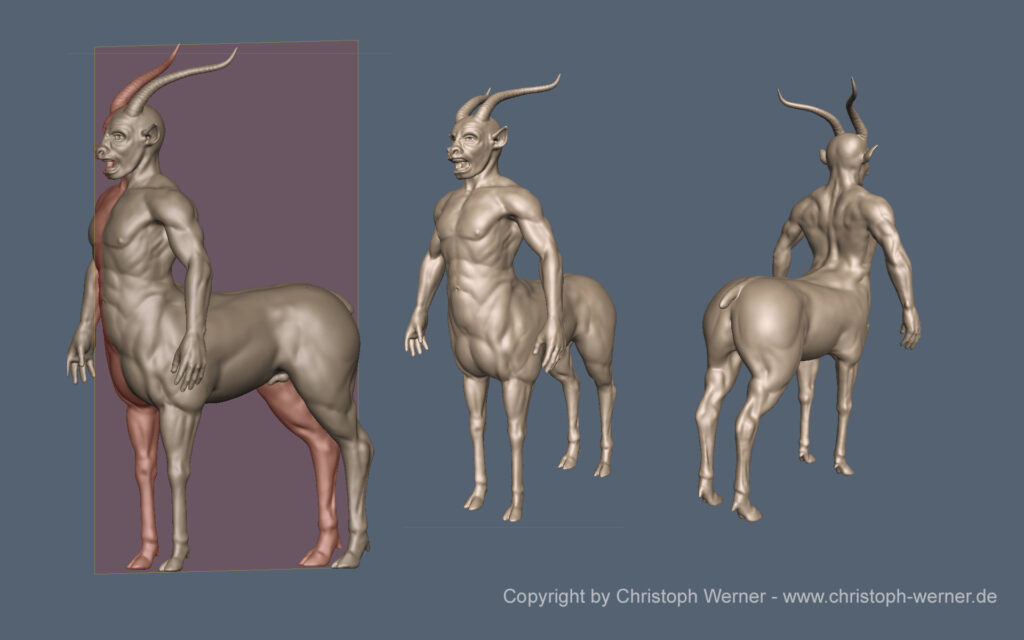
3DCoat Autopo test session By Christoph Werner


Hello friends.

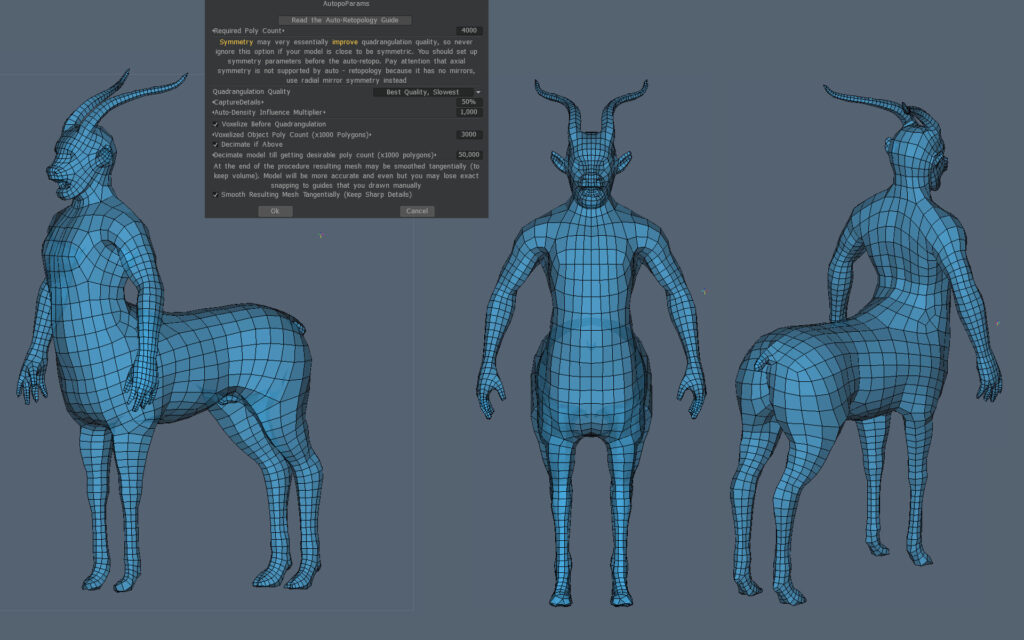
I took some hours to prepare a big autopo test for 3DCoats last Autopo routine update. It was a lot of work to make all the tests and get a good settings result. But it was worth the time.

I have made more than 20 calculations! In the gallery you will find the very best settings I worked out in my tests.
So you may save a lot of time for your own work and just take the setting you think you need. Of course there are more ways to test, but I think my results are good for the most situations.

All tests were done without guide lines or density areas.

The basic rules for using Autopo in 3DCoat


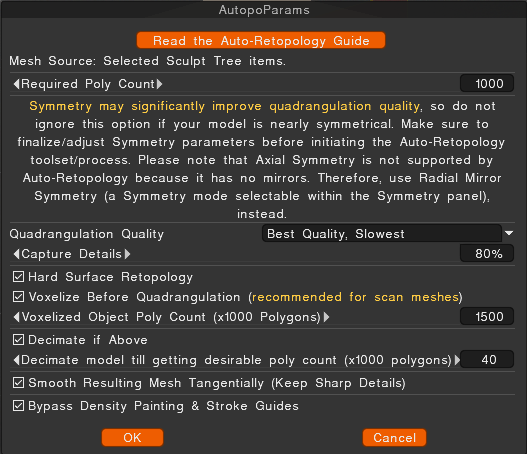
  • If your model is symmetrical then switch scene symmetry ON. It increases the Autopo quality result a lot.
  • Start with small values for Capture Details and Decimate if Above. The most scenes don’t need more than a value of 50 in both options.
  • The higher the Capture Details value, the more poly stars can appear in the Autopo mesh.
  • The higher the Decimate if Above value, the more render time is used.
  • Switching Voxelise Before Quadrangulation to OFF leads often to better quality. If you have snapping problems in the autopo mesh, then switch it ON.
  • Try not to use Voxelise Before Quadrangulation value higher than 50% of your whole template model poly amount.
    Example: A sculpt model with 2.000.000 polys needs a value of “1.000”. (1000 x 1000=1.000.000=50% of 2 M.)
  • To disable the Decimate if Above option can lead to very long render times.
    (3D Coat is not crashed. You just need a lot of patience… It could result in an hour and more.)
  • Hardsurface retopology Crease Angle: I have not tested it in detail. But my test experience  resulted in ignoring this value. If you have hints where this option is good to have, drop me a line here please.
  • Smooth Resulting Mesh Tangentially can be set ON.

Density


When using density just mark the areas that have to be created with more polygons. The value describes the target amount of polygins in this areas. A value of 2 will lead to a double amount of the actually created polygons.

Don’t forget: Density will always “move” polygons from one area to increase another. So you will have less polygons at some model parts.

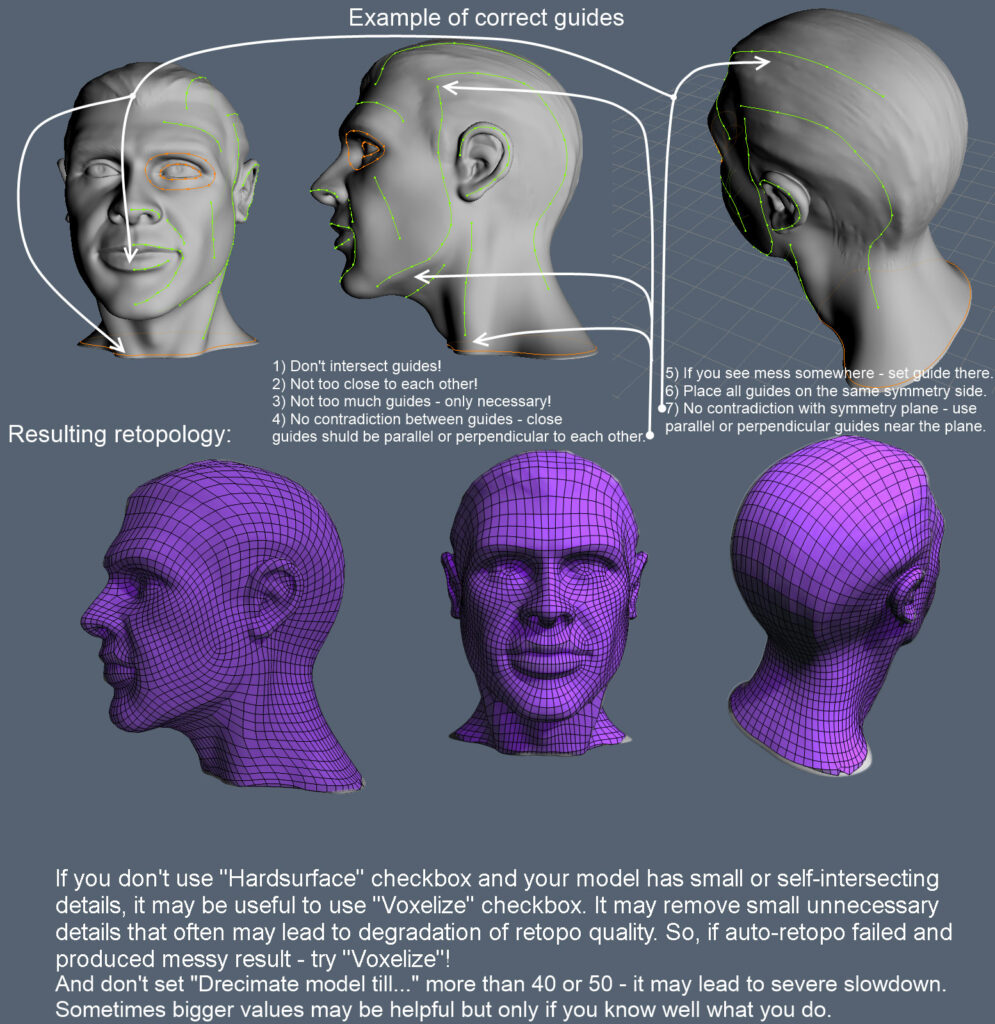
Guide lines


Hand painted guide lines help the Autopo routine to distribute the right polyflow. 3DCoat will try to follow your settings but this is only a approximation. There are some rules before using guide lines. Wrong usage can results in mesh problems.

  • Set less guide lines.
  • Don’t set lines too tight. Keep enough room inbetween.
  • Try to use rings at areas like eyes or similar.
  • Don’t cross lines.

The following official documentation image describes it well:
Test results with ratings for my settings


The more stars I gave the better the autopo result was. The result depends on the type of model used for retopology, for which there is no fixed guide.
Everything translates to trial and error for each circumstance.
Testing settings for Hard Surface models


Autopo, or automatic retopology, for hard surface models is the process of automatically converting a high-polygon, inorganic model into a clean, low-polygon mesh with all-quad topology. While traditionally difficult for automated algorithms, modern software offers specialized features to produce a clean, usable mesh that respects the model’s sharp edges and flat planes. 
This workflow is crucial for optimizing models for video games and other real-time applications, where performance is critical. It allows artists to create complex, high-detail concepts without worrying about topology, then automatically generate a simplified, animation-ready version later. 

How hard surface auto-retopology works


Standard automatic retopology tools prioritize an even distribution of polygons, which works well for smooth, organic surfaces. Hard surface models, with their distinct angles and precise shapes, require a more advanced approach. Modern auto-retopology algorithms address this by: 

  • Edge detection: The software analyzes the mesh’s curvature to identify sharp edges, rather than relying on a simple crease angle. This allows it to preserve the hard edges of the model.
    User guidance: Many tools allow artists to add “stroke guides” or “density painting” to direct the algorithm. This gives manual control over areas where specific edge loops are critical for function or detail.
    Parameter adjustment: Specific settings can be tweaked to favor hard surface models. In Maya, for instance, high “Topology Regularity” and “Face Uniformity” values can be used to convert a mesh into quads while preserving hard edges. 

Limitations and workflow tips


Hard surface autopo is a hard task whose result depends on the complexity of the model.

  • Not perfect: While automated tools have become extremely powerful, they rarely produce a perfect mesh for complex models, especially for animation. Some manual cleanup is almost always required.
  • Clean source mesh: Ensure your high-poly sculpt is free of errors, such as non-manifold edges or overlapping vertices, as these can cause problems for the auto-retopology algorithm.
  • Separate parts: For very complex models with distinct, connected parts, better results can be achieved by separating the objects into individual components before running the auto-retopology routine.
  • Baking details: Following retopology, high-frequency details from the original model are “baked” into a normal map. This allows the low-poly mesh to retain the appearance of the original’s surface complexity

Was this helpful?

Yes  No
Related Articles
  • Surface Array
  • Top Bar
  • Curves Properties RMB
  • Left tool panel Kitbash
  • Create kitbash
  • Color management
Previously
AUTORETOPO
Up Next
Poli grupas
AI:
Hi! How can I help you?
Attention: This is a beta version of AI chat. Some answers may be wrong. See full version of AI chat