• Português
  • Documentação 3DCoat
  • Chapters
    • Introdução ao 3DCoat
    • Começando
    • Interface e Navegação
    • Componentes do Brush
    • Espaços de Trabalho Salas
    • API de Scripting e Core API
    • Perguntas e Respostas
    • licensing
    • Tutoriais de treinamento
  • Pilgway
  • Products
    • 3DCoat
    • 3DCoatTextura
    • 3DCoatPrint
    • PBRLibrary
  • Blog Posts
  • Store
  • Português Português
    • English English
    • Українська Українська
    • Español Español
    • Deutsch Deutsch
    • Français Français
    • 日本語 日本語
    • Русский Русский
    • 한국어 한국어
    • Polski Polski
    • 中文 (中国) 中文 (中国)
    • Italiano Italiano
    • Suomi Suomi
    • Svenska Svenska
    • 中文 (台灣) 中文 (台灣)
    • Dansk Dansk
    • Slovenčina Slovenčina
    • Türkçe Türkçe
    • Nederlands Nederlands
    • Magyar Magyar
    • ไทย ไทย
    • हिन्दी हिन्दी
    • Ελληνικά Ελληνικά
    • Tiếng Việt Tiếng Việt
    • Lietuviškai Lietuviškai
    • Latviešu valoda Latviešu valoda
    • Eesti Eesti
    • Čeština Čeština
    • Română Română
    • Norsk Bokmål Norsk Bokmål
  • Creating 3D Character Using 3DCoat
  • Documentação 3DCoat
  • Chapters
    • Introdução ao 3DCoat
    • Começando
    • Interface e Navegação
    • Componentes do Brush
    • Espaços de Trabalho Salas
    • API de Scripting e Core API
    • Perguntas e Respostas
    • licensing
    • Tutoriais de treinamento
  • Pilgway
  • Products
    • 3DCoat
    • 3DCoatTextura
    • 3DCoatPrint
    • PBRLibrary
  • Blog Posts
  • Store
  • Português Português
    • English English
    • Українська Українська
    • Español Español
    • Deutsch Deutsch
    • Français Français
    • 日本語 日本語
    • Русский Русский
    • 한국어 한국어
    • Polski Polski
    • 中文 (中国) 中文 (中国)
    • Italiano Italiano
    • Suomi Suomi
    • Svenska Svenska
    • 中文 (台灣) 中文 (台灣)
    • Dansk Dansk
    • Slovenčina Slovenčina
    • Türkçe Türkçe
    • Nederlands Nederlands
    • Magyar Magyar
    • ไทย ไทย
    • हिन्दी हिन्दी
    • Ελληνικά Ελληνικά
    • Tiếng Việt Tiếng Việt
    • Lietuviškai Lietuviškai
    • Latviešu valoda Latviešu valoda
    • Eesti Eesti
    • Čeština Čeština
    • Română Română
    • Norsk Bokmål Norsk Bokmål
  • Creating 3D Character Using 3DCoat
Expand All Collapse All
  • Introdução ao 3DCoat
  • Começando
    • System requirements
    • Why 3DCoat is Unique?
    • Ativando 3DCoat
    • erro de inicialização
      • Startup error Mac
    • Color management
    • Upgrading permanent license
    • Linux Setup
      • Linux initial setup per-user installation
      • Linux initial setup for system
      • Tablet setup
      • To GTK3 from GTK2
    • Estrutura de Pastas
      • Custom documents folder
    • Diferentes formas de “resolução”
    • Tablet on Window
    • Import e Export
    • Applinks em 3DCoat
      • Link do aplicativo Blender
        • Blender with the Applink in Linux
      • Blender 4.2/3/4/5 applink
      • Max Applink
      • Houdini applink
      • Lightwave uplink
  • Navigation
    • Diálogo de abertura (Menu de início rápido)
    • Painel de navegação
    • Câmera e navegação
      • Customize Navigation as Blender
    • Viewport Navigation Gizmo
    • Left tool panel
    •  Activity Bar
    • Navegação usando dispositivos 3DConnexion
      • How to compile Spacenavd on non Ubuntu distro
    • Stylus doesn’t work in sculpting
    • Teclas de atalho
  • Interface e Navegação
    • Menu de arquivo
    • Editar menu
      • Calculate Curvature
      • Calculate Occlusion
      • Light Baking Tool
      • Preferências
    • Ver Menu
    • Simetria
    • Textures
    • Calculate
    • Menu de Camadas
    • Menu Congelar
    • Hide
    • Bake
    • Curvas 2022
      • Menu de Curvas
      • Curves Properties RMB
      • Preencher com camada de malha
      • Scale of imported curves
    • Menu do Windows
      • Painéis pop-up do Windows com guias
      • Controles deslizantes
    • Scripts
    • Addons
    • Capture
    • menu de ajuda
    • Costumização
    • Modifique ou crie uma nova sala
  • Componentes do Brush
    • Brush Barra Superior
    • Pincéis de uso geral
      • Crie pincéis e decalques
      • Fazendo alfa a partir da escultura atual
      • Crie um Brush a partir de um objeto 3D
      • Create brushes based on Curves
      • Load photoshop .abr brushes
    • Strokes
      • Menu pop-up Curvas
    • Opções de Brush
    • Limitador de Condições
    • Painel de tiras
    • Painel de estênceis
    • Materiais Inteligentes
      • Adicione novas imagens ou materiais
      • Anexe um material inteligente a uma camada
      • Import Quixel Material
    • Como criar predefinições para Brush
  • Espaços de Trabalho Salas
    • Painting
      • Painting de texturas e modos
        • Painting por Per-Pixel
        • Painting de Deslocamento (Micro-Vértice)
        • Painting Ptex
        • Painting de Superfície (Polipintura)
      • Importando para a sala de Painting
        • Initial CC subdivision
        • UV Set smoothing
        • Sharp (hard) edge
        • Bloquear normais
        • Carregar novo layout UV após alterações no modelo
        • DAZ Genesis models into 3DCoat
      • Menus da área de trabalho de Painting
        • Edit menu
        • Menu de Texturas
          • Ferramentas de Baking de textura
        • Esconder
        • Menu para o Bake Paint
        • O seletor de cores
      • Barra superior para a Painting
      • O Painel de Camadas
        • O Painel de Mistura
        • Layer and Clipping Masks
      • Ferramentas da sala de Painting
      • Opacidade - Transparência
      • Ajustar espaço de trabalho
        • Ajuste o conjunto de ferramentas
        • Exportando da Tweak Room
      • Painel de visualização de máscara/material
      • Exportando da sala de Painting
    • espaço de trabalho UV
      • Barra Superior UV
      • Painel de ferramentas UV Esquerda
      • Painel de visualização UV
      • exemplo de fluxo de trabalho UV
      • Importando para a sala UV
      • Exportando da Sala UV
    • Retopologia
      • Importando para a sala Retopo
      • Menu Retopo Mesh e Menu Bake
        • Modo Espelho Virtual
      • Bake menu
        • Treat Poly Groups as Paint Objects
        • Baking guide
      • Barra superior
        • Selecione a geometria
      • Painel de ferramentas esquerdo na sala de Retopologia
        • Objetivo geral e função
        • Adicionar geometria
          • Ferramenta Strokes em Retopologia
        • Ferramentas de ajuste de Retopo
        • Ferramentas UV
        • Comandos para sala de Retopologia
      • AUTORETOPO
        • Autopo guide
      • Grupos poli
    • Esculpir
      • Sculpt Layer
      • esculpir árvore
      • Opções de Brush de escultura
      • Top Bar
      • Motor de Brush
      • Submenu Geometria
      • Esculpir o menu “Clique com o botão direito”
      • Shaders
      • modo Voxel
        • Escultura Pura de Voxel
        • Densidade e resolução
        • Máquina de Barro
        • Ferramentas Voxel
        • Ferramentas de superfície em Voxels
        • Ferramentas de ajuste de Voxel
        • Painting Volumétrica
        • Ferramentas de Objetos Voxel
      • Modo de superfície
        • Ferramentas de superfície
        • Ferramentas personalizadas de superfície
        • Ferramentas de ajuste de superfície
        • Painting de superfície
        • Ferramentas de Objetos de Superfície
        • Resolução multinível
          • Multires tools
          • Multires adjust
          • Multires commands
      • Esculpir curvas
        • Curvas Spline
        • Splines model creation
      • Deslocamento do Vetor
      • Ferramentas de transformação de superfície
        • Ferramentas de Transformação Voxel
        • Instancer
        • Move
        • Pose
        • Fit
        • Reproject
        • Surface Array
      • Primitivos Voxel e Ferramentas de Import
      • Booleanos ativos
      • Comandos para a sala Sculpt
      • Import para Sala de Escultura
      • Exportando da sala de esculpir
    • Renderizar
      • Comparison of different roughness values
      • Funções do painel de renderização
      • toca discos
      • Fakebake a iluminação -não PBR-
    • Factures
      • fluxo de trabalho
    • mais simples
    • Modelagem
      • Mesh Menu
      • Painel de ferramentas esquerdo na sala de modelagem
        • Adicionar geometria
          • Selecionado
        • Puxão
        • Smart Hybrid
        • UV
          • Comandos
        • Malha inteira
      • Exemplo de superfície de loft por Fluffy
      • Bloqueio por Poeboi
      • Import Zbrush Polygroups for UV mapping
    • Kitbash - Criação Rápida de Modelos 3D
      • Create kitbash
      • Left tool panel Kitbash
    • 3DPrint
    • Photogrammetry
      • How to install Reality Capture
      • Reality Capture doesn’t show up ?
    • Malha para sala NURBS
    • Nodes
      • Biblioteca de nós de shaders de esculpir
  • API de Scripting e Core API
    • Scripting
    • Core API
    • API do Python
  • 3DCoatPrint gratuita

DAZ Genesis models into 3DCoat

988 views 0

Written by Carlos
June 13, 2024

3DCoat version 2024.22 and above add a new option “Edit->Prefs->Tools->Don’t group vertices per objects in OBJ files (like ZB)” for better compatibility when you need to keep the vertex order in OBJ files.
Anyway, 3DCoat preserved vertices order, but in some case it is not enough, and vertices should not be grouped.
In this case you need his option.

For texture painting


To export DAZ figures on 3DC for painting, you need first to follow some steps to get it working without issues.

On DAZ you need to export G3 figures or G8 figures without eyelashes.
G8 has its eyelashes as a separate piece of geometry and when you export that out the eyelashes actually gets merged with the face and that causes issues with painting.
But with G3 there is not separate piece of geometry over here for separate eyelashes. 

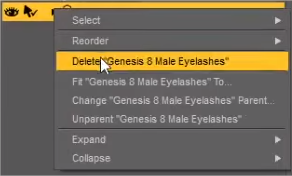
If you like to use G8 figures before exporting the model remember to delete eyelashes pressing RMB over the model layer and select Delete G8 eyelashes.
Remember to export the base mesh without SubDiv.

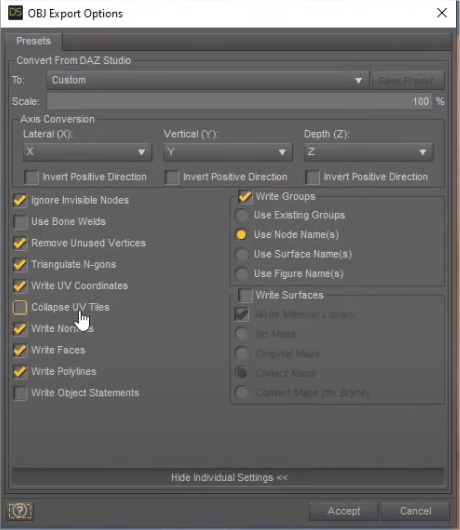
– To export the model without textures be ready that Collapse UV tiles and and Write surfaces are not enabled.
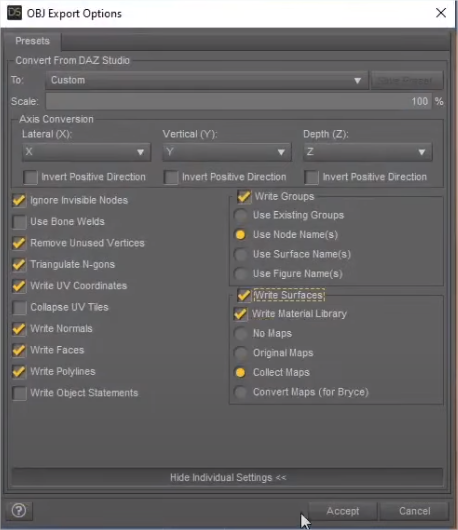
– To export the model with textures be ready that Collapse UV tiles is not enabled and Write surfaces is enabled.
Preserve uDim tiles


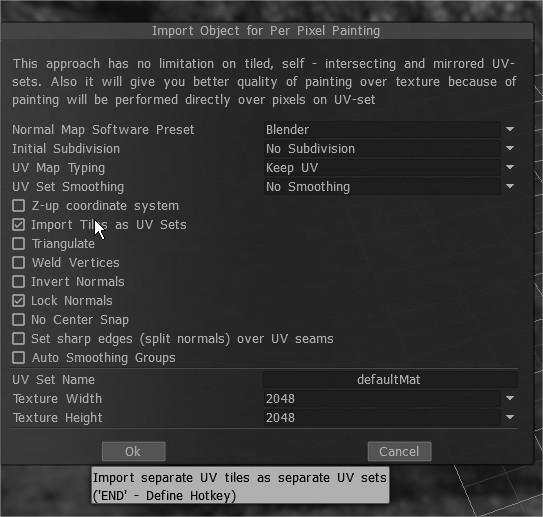
As Genesis3 uses UDIM tiling, you need to import with UV tiles support on 3DC.
This option, paint DAZ characters with UDIM workflow allows you to paint seamlessly anywhere on your character with no limitations, and to avoid the old method of paint objects layers on by one.

So import the Daz figure Turning on Import Tiles as UVset.
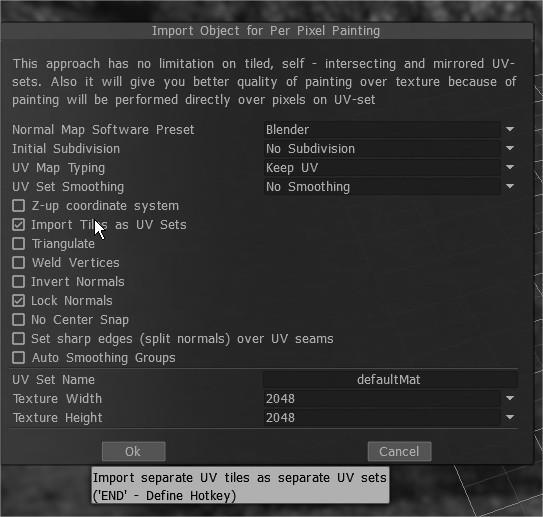
The model is imported into 3DCoat with all the udims uv layouts preserved.
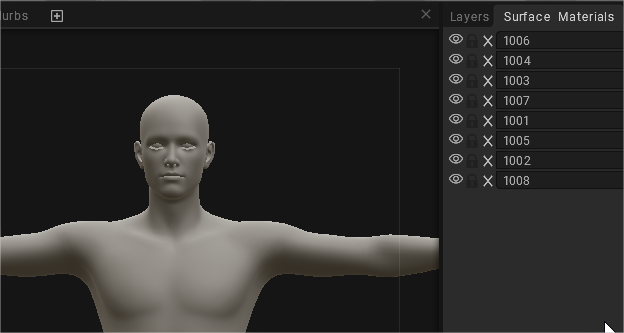
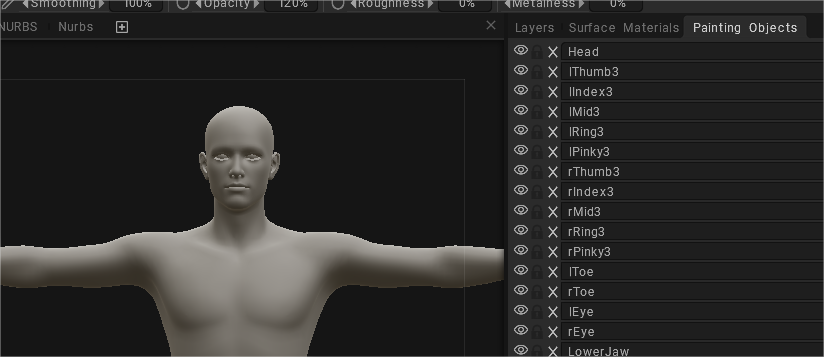
with the model objects zones
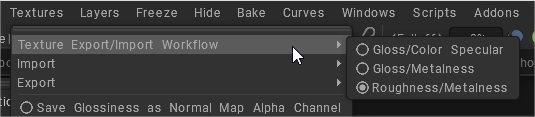
Iray shader use both types of shader mixing:

  • PBR Metallicity/Roughness
  • PBR Specular/Glossiness

To select the correct workflow select it on Textures Menu.
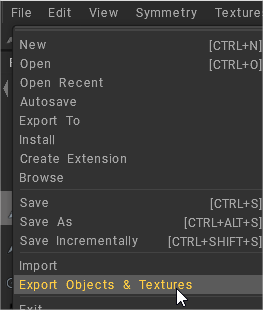
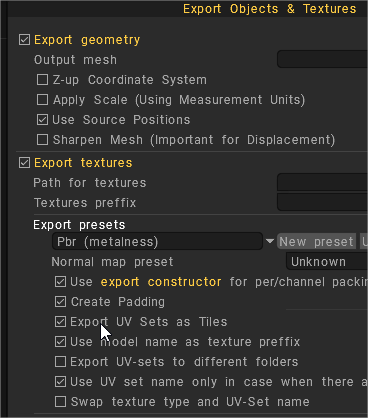
Once you finished painting, export the texture maps from File > Export Objects and Textures.
Remember on export panel turn ON Export UVsets as tiles.
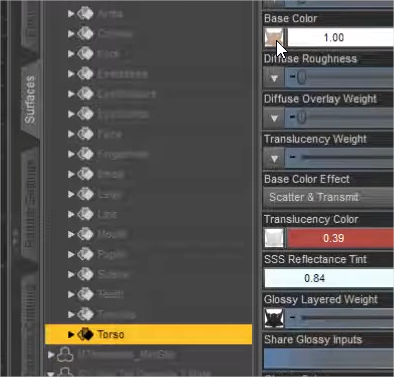
After export all the texture maps to a folder, on DAZ locate every model surface and press image icon to load the new texture map.
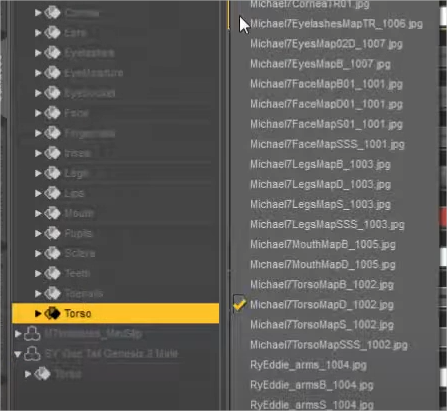
Browse an go to the folder where you exported that maps from 3DCoat.
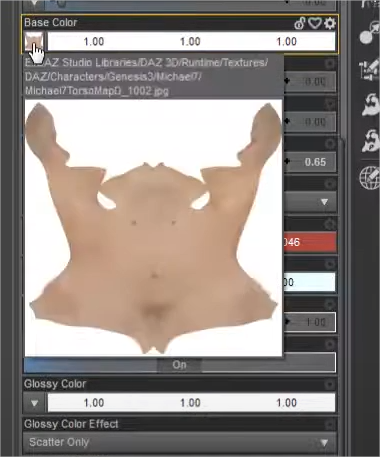
You also have to do every map that DAZ figure have selecting it after upload into DAZ.
For Genesis 2 models


For Genesis 2 models there’s an option in your DAZ obj export dialogue to collapse the UVs, which is an alternative to previous suggestion.
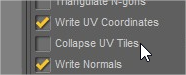
It would also give you a collapsed set of UVs to import into Genesis within DAZ Studio, provided you export the base mesh -without SubDiv-.

Creating Morph Targets


This video covers the updated process of creating Morph Targets or Blend Shapes in 3DCoat, with the purpose of exporting to a major 3D Animation application.

UV tile support and usage of multiple UV


This videos covers (in more detail) the addition of UV tile support and usage of multiple UV:
Tags:daz

Was this helpful?

Yes  No
Related Articles
  • Surface Array
  • Top Bar
  • Curves Properties RMB
  • Left tool panel Kitbash
  • Create kitbash
  • Color management
Previously
Carregar novo layout UV após alterações no modelo
Up Next
Menus da área de trabalho de Painting
AI:
Hi! How can I help you?
Attention: This is a beta version of AI chat. Some answers may be wrong. See full version of AI chat