• 한국어
  • 3DCoat 설명서
  • Chapters
    • 3DCoat 소개
    • 시작하기
    • 인터페이스 및 탐색
    • Brush 구성 요소
    • 작업 공간 방
    • Scripting 및 Core API
    • 질문과 답변
    • licensing
    • 교육 자습서
  • Pilgway
  • Products
    • 3DCoat
    • 3DCoatTextura
    • 3DCoatPrint
    • PBRLibrary
  • Blog Posts
  • Store
  • 한국어 한국어
    • English English
    • Українська Українська
    • Español Español
    • Deutsch Deutsch
    • Français Français
    • 日本語 日本語
    • Русский Русский
    • Polski Polski
    • 中文 (中国) 中文 (中国)
    • Português Português
    • Italiano Italiano
    • Suomi Suomi
    • Svenska Svenska
    • 中文 (台灣) 中文 (台灣)
    • Dansk Dansk
    • Slovenčina Slovenčina
    • Türkçe Türkçe
    • Nederlands Nederlands
    • Magyar Magyar
    • ไทย ไทย
    • हिन्दी हिन्दी
    • Ελληνικά Ελληνικά
    • Tiếng Việt Tiếng Việt
    • Lietuviškai Lietuviškai
    • Latviešu valoda Latviešu valoda
    • Eesti Eesti
    • Čeština Čeština
    • Română Română
    • Norsk Bokmål Norsk Bokmål
  • Creating 3D Character Using 3DCoat
  • 3DCoat 설명서
  • Chapters
    • 3DCoat 소개
    • 시작하기
    • 인터페이스 및 탐색
    • Brush 구성 요소
    • 작업 공간 방
    • Scripting 및 Core API
    • 질문과 답변
    • licensing
    • 교육 자습서
  • Pilgway
  • Products
    • 3DCoat
    • 3DCoatTextura
    • 3DCoatPrint
    • PBRLibrary
  • Blog Posts
  • Store
  • 한국어 한국어
    • English English
    • Українська Українська
    • Español Español
    • Deutsch Deutsch
    • Français Français
    • 日本語 日本語
    • Русский Русский
    • Polski Polski
    • 中文 (中国) 中文 (中国)
    • Português Português
    • Italiano Italiano
    • Suomi Suomi
    • Svenska Svenska
    • 中文 (台灣) 中文 (台灣)
    • Dansk Dansk
    • Slovenčina Slovenčina
    • Türkçe Türkçe
    • Nederlands Nederlands
    • Magyar Magyar
    • ไทย ไทย
    • हिन्दी हिन्दी
    • Ελληνικά Ελληνικά
    • Tiếng Việt Tiếng Việt
    • Lietuviškai Lietuviškai
    • Latviešu valoda Latviešu valoda
    • Eesti Eesti
    • Čeština Čeština
    • Română Română
    • Norsk Bokmål Norsk Bokmål
  • Creating 3D Character Using 3DCoat
Expand All Collapse All
  • 3DCoat 소개
  • 시작하기
    • System requirements
    • Why 3DCoat is Unique?
    • 3DCoat 활성화
    • 시작 오류
      • Startup error Mac
    • Color management
    • Upgrading permanent license
    • Linux Setup
      • Linux initial setup per-user installation
      • Linux initial setup for system
      • Tablet setup
      • To GTK3 from GTK2
    • 폴더 구조
      • Custom documents folder
    • 다양한 형태의 "결의안"
    • Tablet on Window
    • Import 및 Export
    • 3DCoat 의 Applinks
      • Blender 앱link
        • Blender with the Applink in Linux
      • Blender 4.2/3/4/5 applink
      • Max Applink
      • Houdini applink
      • Lightwave uplink
  • Navigation
    • 열기 대화 상자(빠른 시작 메뉴)
    • 탐색 패널
    • 카메라 및 내비게이션
      • Customize Navigation as Blender
    • Viewport Navigation Gizmo
    • Left tool panel
    •  Activity Bar
    • 3DConnexion 장치를 사용한 탐색
      • How to compile Spacenavd on non Ubuntu distro
    • Stylus doesn’t work in sculpting
    • 단축키
  • 인터페이스 및 탐색
    • 파일 메뉴
    • 편집 메뉴
      • Calculate Curvature
      • Calculate Occlusion
      • Light Baking Tool
      • 기본 설정
    • 메뉴 보기
    • 대칭
    • Textures
    • Calculate
    • 레이어 메뉴
    • 정지 메뉴
    • Hide
    • Bake
    • 곡선 2022
      • 곡선 메뉴
      • Curves Properties RMB
      • 메쉬 레이어로 채우기
      • Scale of imported curves
    • 윈도우 메뉴
      • 탭 Windows 팝업 패널
      • 슬라이더
    • Scripts
    • Addons
    • Capture
    • 도움말 메뉴
    • 커스터마이징
    • 새 방 수정 또는 만들기
  • Brush 구성 요소
    • Brush 상단 바
    • 브러쉬 일반 사용
      • 브러시 및 데칼 만들기
      • 현재 조각에서 알파 만들기
      • 3D 개체에서 Brush 만들기
      • Create brushes based on Curves
      • Load photoshop .abr brushes
    • 스트로크
      • 곡선 팝업 메뉴
    • Brush 옵션
    • 조건 제한기
    • 스트립 패널
    • 스텐실 패널
    • 스마트 소재
      • 새로운 이미지 또는 자료 추가
      • 스마트 재료를 레이어에 연결
      • Import Quixel Material
    • Brush 용 사전 설정을 만드는 방법
  • 작업 공간 방
    • Painting
      • 텍스처 Painting 및 모드
        • Per-Pixel Painting
        • 변위 Painting (Micro-Vertex)
        • Ptex Painting
        • 표면 Painting (폴리페인팅)
      • Painting 룸으로 가져오기
        • Initial CC subdivision
        • UV Set smoothing
        • Sharp (hard) edge
        • 법선 잠금
        • 모델 변경 후 새 UV 레이아웃 로드
        • DAZ Genesis models into 3DCoat
      • Painting 작업 영역의 메뉴
        • Edit menu
        • 텍스처 메뉴
          • 텍스처 Baking 도구
        • 숨다
        • Bake Paint 용 메뉴
        • 색상 선택기
      • Painting 위한 상단 바
      • 레이어 패널
        • 블렌딩 패널
        • Layer and Clipping Masks
      • Painting 룸 도구
      • 불투명도 - 투명도
      • 작업 공간 조정
        • 조정 도구 세트
        • Tweak Room에서 내보내기
      • 마스크/재료 미리보기 패널
      • Painting 룸에서 내보내기
    • UV 작업 공간
      • UV 탑 바
      • UV 왼쪽 도구 패널
      • UV 미리보기 패널
      • UV 워크플로우 예시
      • UV 룸으로 가져오기
      • UV Room에서 내보내기
    • 리토폴로지
      • Retopo Room으로 가져오기
      • Retopo Mesh 메뉴 및 Bake 메뉴
        • 가상 미러 모드
      • Bake menu
        • Treat Poly Groups as Paint Objects
        • Baking guide
      • 탑바
        • 지오메트리 선택
      • 리토폴로지 룸의 왼쪽 도구 패널
        • 전반적인 목적 및 기능
        • 형상 추가
          • 리토폴로지의 스트로크 도구
        • Retopo 조정 도구
        • UV 도구
        • 리토폴로지 룸 명령
      • 오토레토포
        • Autopo guide
      • 폴리 그룹
    • 조각하다
      • Sculpt Layer
      • 조각 나무
      • 조각 Brush 옵션
      • Top Bar
      • Brush 엔진
      • 형상 하위 메뉴
      • 조각 "오른쪽 클릭" 메뉴
      • 셰이더
      • Voxel 모드
        • 순수한 Voxel 조각
        • 밀도 및 해상도
        • 클레이 엔진
        • Voxel 도구
        • 복셀의 표면 도구
        • Voxel 조정 도구
        • 볼륨 Painting
        • Voxel 개체 도구
      • 표면 모드
        • 표면 도구
        • 표면 맞춤 도구
        • 표면 조정 도구
        • 표면 Painting
        • 표면 개체 도구
        • 다중 레벨 해상도
          • Multires tools
          • Multires adjust
          • Multires commands
      • 조각 곡선
        • 스플라인 곡선
        • Splines model creation
      • 벡터 변위
      • 표면 변환 도구
        • Voxel 변환 도구
        • Instancer
        • Move
        • Pose
        • Fit
        • Reproject
        • Surface Array
      • Voxel 프리미티브 및 Import 도구
      • 라이브 부울
      • 조각실 명령
      • 조각실로 Import
      • 조각실에서 내보내기
    • 세우다
      • Comparison of different roughness values
      • 렌더 패널 기능
      • 턴테이블
      • 조명을 페이크 베이크 -비 PBR-
    • Factures
      • 워크플로우
    • 가장 단순함
    • 모델링
      • Mesh Menu
      • 모델링 룸의 왼쪽 도구 패널
        • 형상 추가
          • 선택된
        • 비틀기
        • Smart Hybrid
        • UV
          • 명령
        • 전체 메시
      • Fluffy의 로프트 표면 예
      • Poeboi의 블록아웃
      • Import Zbrush Polygroups for UV mapping
    • Kitbash - 빠른 3D 모델 생성
      • Create kitbash
      • Left tool panel Kitbash
    • 3DPrint
    • Photogrammetry
      • How to install Reality Capture
      • Reality Capture doesn’t show up ?
    • 메시를 NURBS 룸으로
    • Nodes
      • 조각 셰이더 노드 라이브러리
  • Scripting 및 Core API
    • Scripting
    • Core API
    • 파이썬 API
  • 무료 3DCoatPrint

Autopo guide

603 views 0

Written by Carlos
January 11, 2025

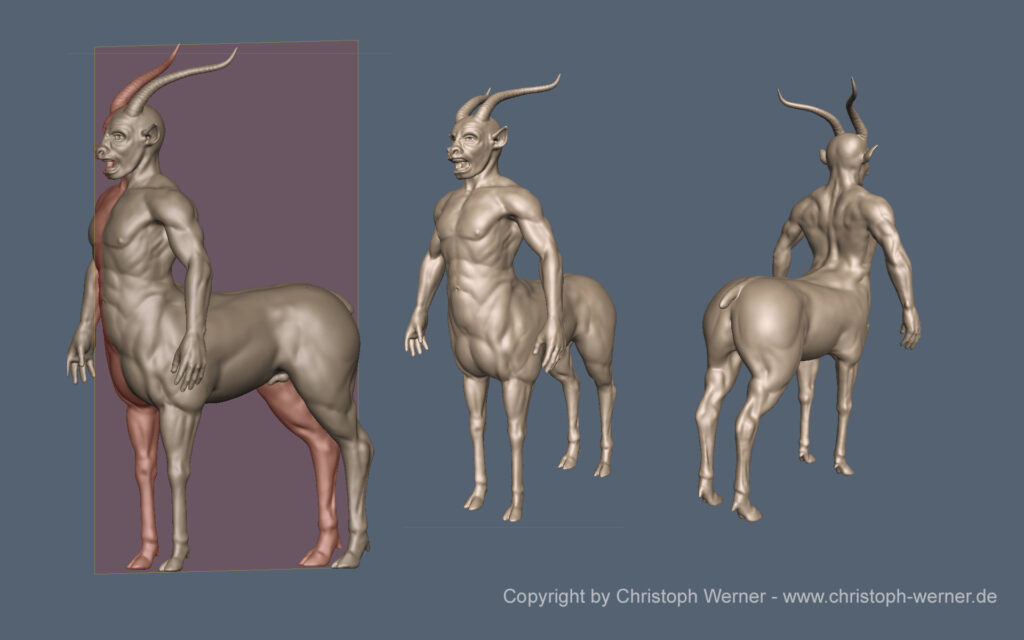
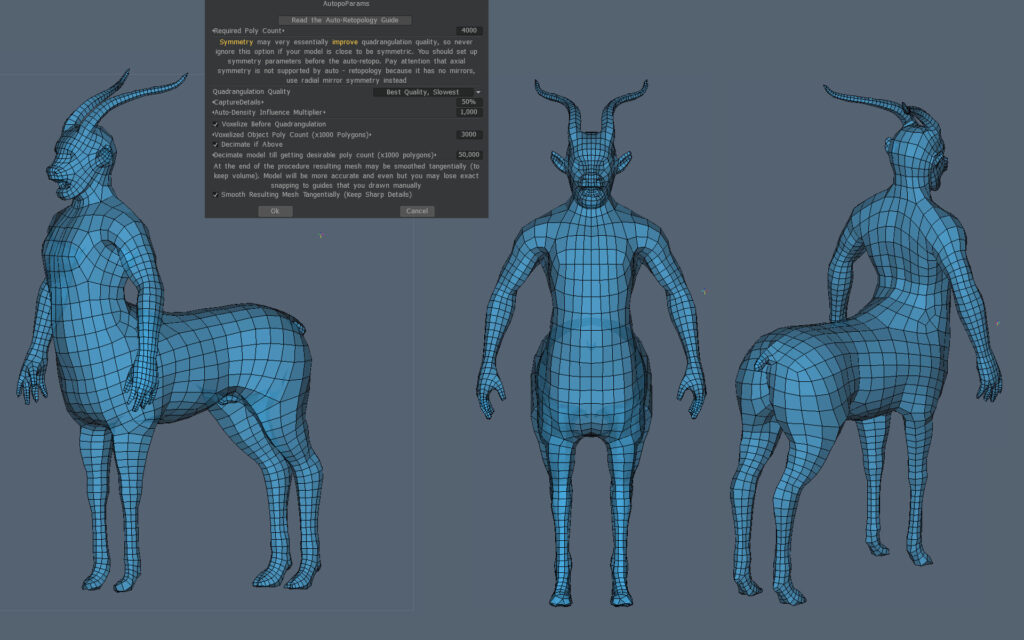
3DCoat Autopo test session By Christoph Werner


Hello friends.

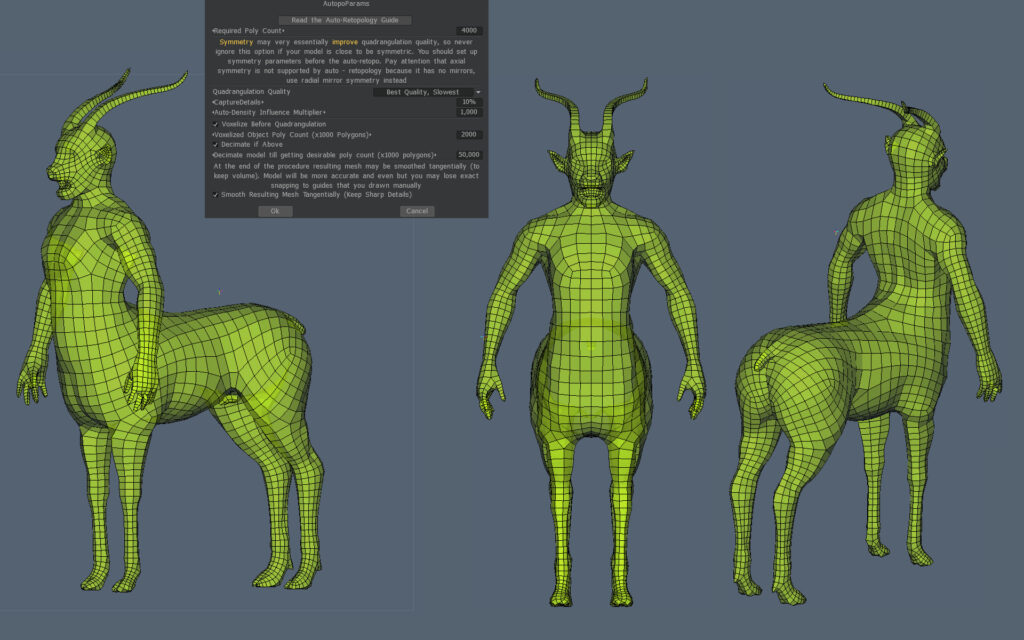
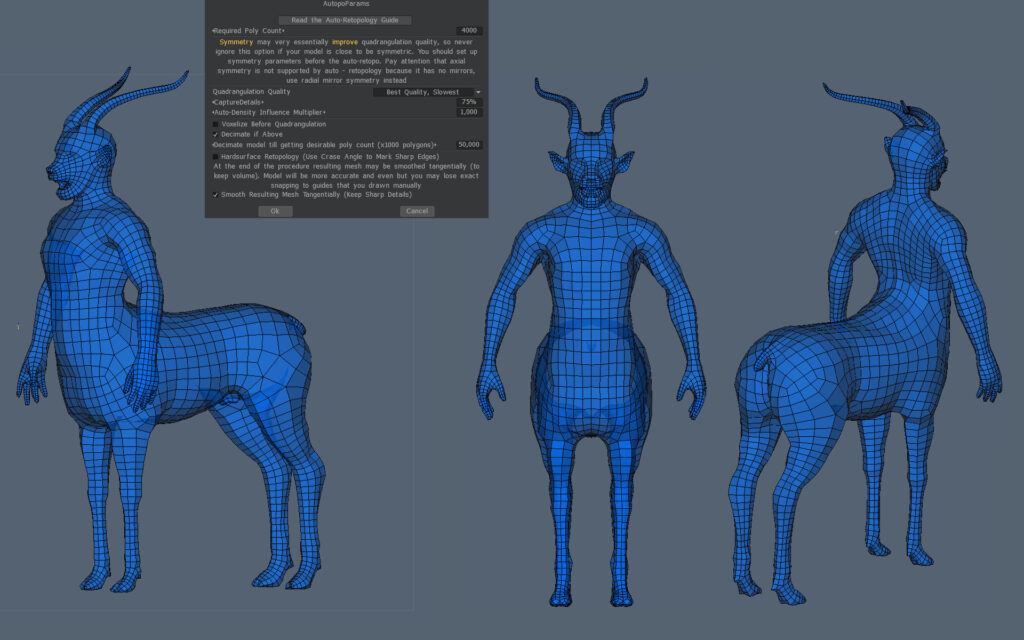
I took some hours to prepare a big autopo test for 3DCoats last Autopo routine update. It was a lot of work to make all the tests and get a good settings result. But it was worth the time.

I have made more than 20 calculations! In the gallery you will find the very best settings I worked out in my tests.
So you may save a lot of time for your own work and just take the setting you think you need. Of course there are more ways to test, but I think my results are good for the most situations.

All tests were done without guide lines or density areas.

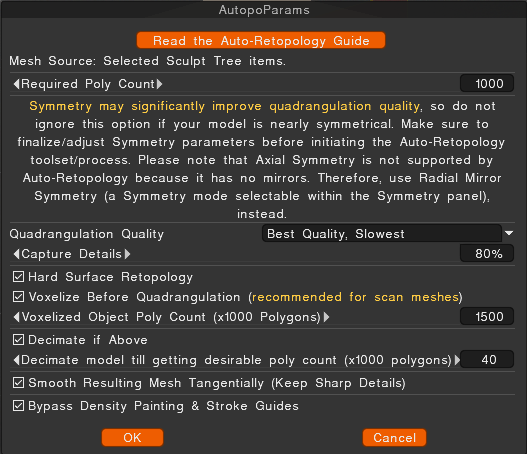
The basic rules for using Autopo in 3DCoat


  • If your model is symmetrical then switch scene symmetry ON. It increases the Autopo quality result a lot.
  • Start with small values for Capture Details and Decimate if Above. The most scenes don’t need more than a value of 50 in both options.
  • The higher the Capture Details value, the more poly stars can appear in the Autopo mesh.
  • The higher the Decimate if Above value, the more render time is used.
  • Switching Voxelise Before Quadrangulation to OFF leads often to better quality. If you have snapping problems in the autopo mesh, then switch it ON.
  • Try not to use Voxelise Before Quadrangulation value higher than 50% of your whole template model poly amount.
    Example: A sculpt model with 2.000.000 polys needs a value of “1.000”. (1000 x 1000=1.000.000=50% of 2 M.)
  • To disable the Decimate if Above option can lead to very long render times.
    (3D Coat is not crashed. You just need a lot of patience… It could result in an hour and more.)
  • Hardsurface retopology Crease Angle: I have not tested it in detail. But my test experience  resulted in ignoring this value. If you have hints where this option is good to have, drop me a line here please.
  • Smooth Resulting Mesh Tangentially can be set ON.

Density


When using density just mark the areas that have to be created with more polygons. The value describes the target amount of polygins in this areas. A value of 2 will lead to a double amount of the actually created polygons.

Don’t forget: Density will always “move” polygons from one area to increase another. So you will have less polygons at some model parts.

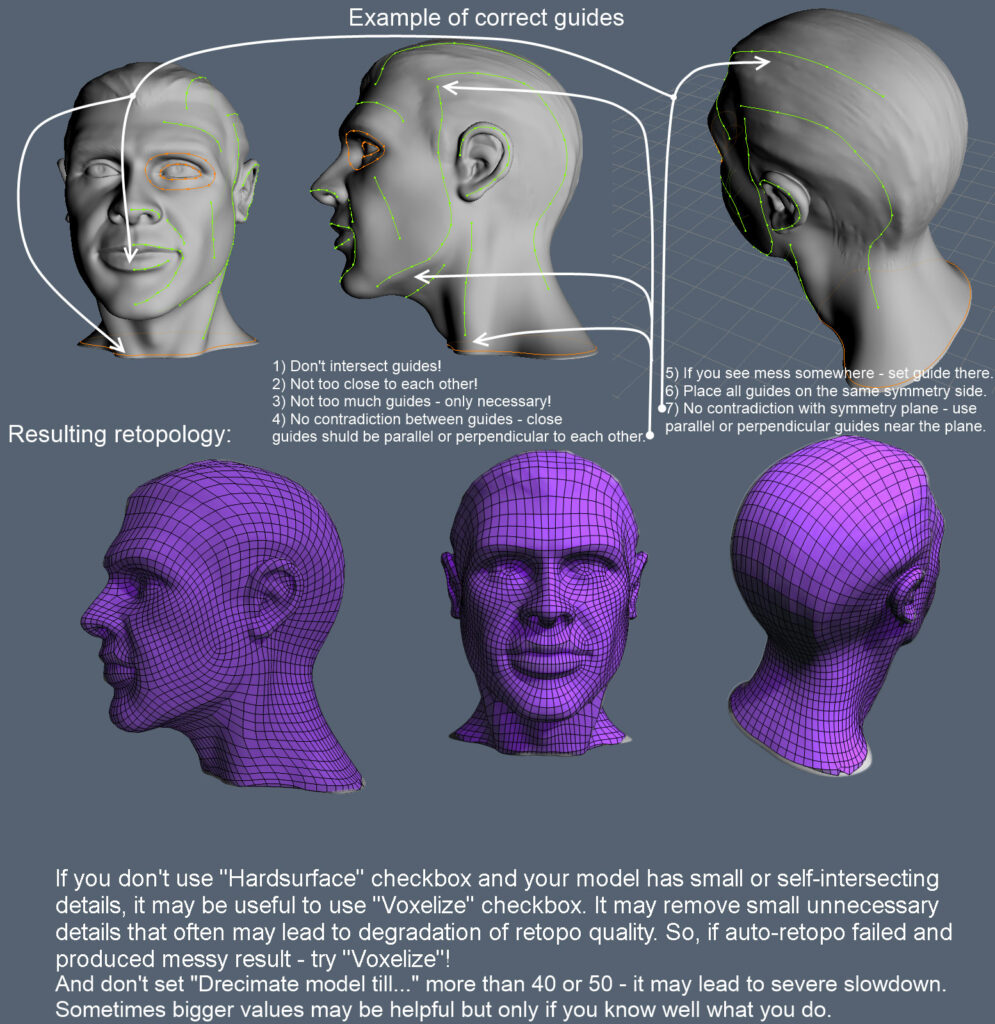
Guide lines


Hand painted guide lines help the Autopo routine to distribute the right polyflow. 3DCoat will try to follow your settings but this is only a approximation. There are some rules before using guide lines. Wrong usage can results in mesh problems.

  • Set less guide lines.
  • Don’t set lines too tight. Keep enough room inbetween.
  • Try to use rings at areas like eyes or similar.
  • Don’t cross lines.

The following official documentation image describes it well:
Test results with ratings for my settings


The more stars I gave the better the autopo result was. The result depends on the type of model used for retopology, for which there is no fixed guide.
Everything translates to trial and error for each circumstance.
Testing settings for Hard Surface models


Autopo, or automatic retopology, for hard surface models is the process of automatically converting a high-polygon, inorganic model into a clean, low-polygon mesh with all-quad topology. While traditionally difficult for automated algorithms, modern software offers specialized features to produce a clean, usable mesh that respects the model’s sharp edges and flat planes. 
This workflow is crucial for optimizing models for video games and other real-time applications, where performance is critical. It allows artists to create complex, high-detail concepts without worrying about topology, then automatically generate a simplified, animation-ready version later. 

How hard surface auto-retopology works


Standard automatic retopology tools prioritize an even distribution of polygons, which works well for smooth, organic surfaces. Hard surface models, with their distinct angles and precise shapes, require a more advanced approach. Modern auto-retopology algorithms address this by: 

  • Edge detection: The software analyzes the mesh’s curvature to identify sharp edges, rather than relying on a simple crease angle. This allows it to preserve the hard edges of the model.
    User guidance: Many tools allow artists to add “stroke guides” or “density painting” to direct the algorithm. This gives manual control over areas where specific edge loops are critical for function or detail.
    Parameter adjustment: Specific settings can be tweaked to favor hard surface models. In Maya, for instance, high “Topology Regularity” and “Face Uniformity” values can be used to convert a mesh into quads while preserving hard edges. 

Limitations and workflow tips


Hard surface autopo is a hard task whose result depends on the complexity of the model.

  • Not perfect: While automated tools have become extremely powerful, they rarely produce a perfect mesh for complex models, especially for animation. Some manual cleanup is almost always required.
  • Clean source mesh: Ensure your high-poly sculpt is free of errors, such as non-manifold edges or overlapping vertices, as these can cause problems for the auto-retopology algorithm.
  • Separate parts: For very complex models with distinct, connected parts, better results can be achieved by separating the objects into individual components before running the auto-retopology routine.
  • Baking details: Following retopology, high-frequency details from the original model are “baked” into a normal map. This allows the low-poly mesh to retain the appearance of the original’s surface complexity

Was this helpful?

Yes  No
Related Articles
  • Surface Array
  • Top Bar
  • Curves Properties RMB
  • Left tool panel Kitbash
  • Create kitbash
  • Color management
Previously
오토레토포
Up Next
폴리 그룹
AI:
Hi! How can I help you?
Attention: This is a beta version of AI chat. Some answers may be wrong. See full version of AI chat