• Türkçe
  • 3DCoat Belgeleri
  • Chapters
    • 3DCoat Giriş
    • Başlarken
    • Arayüz ve Navigasyon
    • Brush Bileşenleri
    • Node System
    • GPU Texturing
    • Çalışma Alanları Odalar
    • Scripting ve Core API
    • Sorular
    • licensing
    • Eğitim Öğreticileri
    • New Library
  • New Library
    • Getting Started
    • Painting
    • Sculpt
    • Modeling
    • Retopology
    • UV
    • Smart Materials
    • Nodes
    • Print
  • Blog Posts
    • Creating 3D Character Using 3DCoat
    • DAZ Genesis models into 3DCoat
    • Cavity and Curvature maps
    • Types of normal maps
    • Texture painting pipeline
    • Load new UV layout After Model Changes
    • Import Zbrush Polygroups for UV mapping
  • Products
    • 3DCoat
    • 3DCoatTextura
    • 3DCoatPrint
    • PBRLibrary
  • Store
  • Pilgway
  • Türkçe Türkçe
    • English English
    • Українська Українська
    • Español Español
    • Deutsch Deutsch
    • Français Français
    • 日本語 日本語
    • Русский Русский
    • 한국어 한국어
    • Polski Polski
    • 中文 (中国) 中文 (中国)
    • Português Português
    • Italiano Italiano
    • Suomi Suomi
    • Svenska Svenska
    • 中文 (台灣) 中文 (台灣)
    • Dansk Dansk
    • Slovenčina Slovenčina
    • Nederlands Nederlands
    • Magyar Magyar
    • ไทย ไทย
    • हिन्दी हिन्दी
    • Ελληνικά Ελληνικά
    • Tiếng Việt Tiếng Việt
    • Lietuviškai Lietuviškai
    • Latviešu valoda Latviešu valoda
    • Eesti Eesti
    • Čeština Čeština
    • Română Română
    • Norsk Bokmål Norsk Bokmål
  • 3DCoat Belgeleri
  • Chapters
    • 3DCoat Giriş
    • Başlarken
    • Arayüz ve Navigasyon
    • Brush Bileşenleri
    • Node System
    • GPU Texturing
    • Çalışma Alanları Odalar
    • Scripting ve Core API
    • Sorular
    • licensing
    • Eğitim Öğreticileri
    • New Library
  • New Library
    • Getting Started
    • Painting
    • Sculpt
    • Modeling
    • Retopology
    • UV
    • Smart Materials
    • Nodes
    • Print
  • Blog Posts
    • Creating 3D Character Using 3DCoat
    • DAZ Genesis models into 3DCoat
    • Cavity and Curvature maps
    • Types of normal maps
    • Texture painting pipeline
    • Load new UV layout After Model Changes
    • Import Zbrush Polygroups for UV mapping
  • Products
    • 3DCoat
    • 3DCoatTextura
    • 3DCoatPrint
    • PBRLibrary
  • Store
  • Pilgway
  • Türkçe Türkçe
    • English English
    • Українська Українська
    • Español Español
    • Deutsch Deutsch
    • Français Français
    • 日本語 日本語
    • Русский Русский
    • 한국어 한국어
    • Polski Polski
    • 中文 (中国) 中文 (中国)
    • Português Português
    • Italiano Italiano
    • Suomi Suomi
    • Svenska Svenska
    • 中文 (台灣) 中文 (台灣)
    • Dansk Dansk
    • Slovenčina Slovenčina
    • Nederlands Nederlands
    • Magyar Magyar
    • ไทย ไทย
    • हिन्दी हिन्दी
    • Ελληνικά Ελληνικά
    • Tiếng Việt Tiếng Việt
    • Lietuviškai Lietuviškai
    • Latviešu valoda Latviešu valoda
    • Eesti Eesti
    • Čeština Čeština
    • Română Română
    • Norsk Bokmål Norsk Bokmål
Expand All Collapse All
  • 3DCoat Giriş
  • Başlarken
    • System requirements
    • Why 3DCoat is Unique?
    • 3DCoat Etkinleştirme
    • Başlatma hatası
      • Startup error Mac
    • Color management
    • Upgrading permanent license
    • Linux Setup
      • Linux initial setup per-user installation
      • Linux initial setup for system
      • Tablet setup
      • To GTK3 from GTK2
      • Error libicuuc.so.70
    • Klasör Yapısı
      • Custom documents folder
    • “Çözüm”ün Farklı Biçimleri
    • Tablet on Window
    • Import ve Export
    • 3DCoat Applinks
      • Blender uygulama bağlantısı
        • Blender with the Applink in Linux
      • Blender 4.2/3/4/5 applink
      • Max Applink
      • Houdini applink
      • Lightwave uplink
  • Node System
    • Node Editor
    • Node & Object Inspectors
    • Node Graph
    • NodeGraph Language (NGL)
    • GPU Nodes
      • Color
      • GeometryIn
      • In
      • Layer
      • Material
      • Out
      • Pattern
      • Pattern3D
      • ShaderToy
      • Shape
      • Texture
      • Tilable
      • UV
      • Vector
    • Filters
    • Masks
    • Materials
    • Modifiers
    • Volumes
  • GPU Texturing
    • PBM Channels
    • Per-Pixel Painting
  • Navigation
    • Açılış İletişim Kutusu (Hızlı Başlat Menüsü)
    • Gezinme Paneli
    • Kamera ve Navigasyon
      • Customize Navigation as Blender
    • Viewport Navigation Gizmo
    • Left tool panel
    •  Activity Bar
    • 3DConnexion cihazlarını kullanarak gezinme
      • How to compile Spacenavd on non Ubuntu distro
    • Space Bar Menu
    • Stylus doesn’t work in sculpting
    • kısayol tuşları
  • Arayüz ve Navigasyon
    • Dosya menüsü
    • Düzenle Menüsü
      • Calculate Curvature
      • Calculate Occlusion
      • Light Baking Tool
      • Tercihler
    • Menüyü Görüntüle
    • Simetri
    • Textures
    • Calculate
    • Katmanlar Menüsü
    • Menüyü Dondur
    • Hide
    • Bake
    • Eğriler 2022
      • Eğriler Menüsü
      • Curves Properties RMB
      • Kafes katmanı ile doldurun
      • Scale of imported curves
    • Windows Menüsü
      • Sekmeli Windows Açılır Panelleri
      • Kaydırıcılar
    • Scripts
    • Addons
    • Capture
    • Yardım menüsü
    • özelleştirme
    • Yeni Odayı Değiştirin veya Oluşturun
  • Brush Bileşenleri
    • Brush Üst Çubuğu
    • Fırçalar genel kullanım
      • Fırçalar ve çıkartmalar oluşturun
      • Mevcut heykelden alfa yapma
      • 3B Nesneden Brush Oluşturma
      • Create brushes based on Curves
      • Load photoshop .abr brushes
    • Vuruşlar
      • Eğriler Açılır Menüsü
    • Brush seçenekleri
    • Koşullar Sınırlayıcı
    • Şerit Paneli
    • Şablonlar Paneli
    • Akıllı Malzemeler
      • Yeni görseller veya materyaller ekleyin
      • Akıllı malzemeyi katmana ekleme
      • Import Quixel Megascans
    • Brush için Hazır Ayarlar nasıl oluşturulur?
  • Çalışma Alanları Odalar
    • Painting
      • Doku Painting ve Modlar
        • Per-Pixel Painting
        • Yer Değiştirme Painting (Mikro-Köşe)
        • Ptex Painting
        • Yüzey Painting (Polypainting)
      • Painting Odasına Aktarma
        • Initial CC subdivision
        • UV Set smoothing
        • Sharp (hard) edge
        • Normalleri Kilitle
        • Model Değişikliklerinden Sonra Yeni UV Düzenini Yükle
        • DAZ Genesis models into 3DCoat
        • ID map
      • Painting Çalışma Alanı Menüleri
        • Edit menu
        • Dokular Menüsü
          • Doku Baking Araçları
        • Saklamak
        • Bake Paint Menüsü
        • Renk Seçici
      • Surface Materials
      • Painting için Üst Çubuk
      • Katmanlar Paneli
        • Karıştırma Paneli
        • Layer and Clipping Masks
      • Painting Odası Araçları
      • Opaklık - Şeffaflık
      • Çalışma alanını ince ayarla
        • İnce Ayar Araç Seti
        • İnce Ayar Odasından Dışa Aktarma
      • Maske/Malzeme Önizleme Paneli
      • Painting Odasından Dışa Aktarma
    • UV Çalışma Alanı
      • UV Üst Çubuk
      • UV Sol araç paneli
      • UV Önizleme Paneli
      • UV iş akışı örneği
      • UV Odasına Aktarma
      • UV Odasından Dışarı Aktarma
    • retopoloji
      • Retopo Odasına Aktarma
      • Retopo Mesh Menüsü ve Fırında Pişirme Menüsü
        • Sanal Ayna Modu
      • Bake menu
        • Treat Poly Groups as Paint Objects
        • Baking guide
      • Retopology'deki Vuruşlar aracı
      • Üst Çubuk
        • Geometri seçin
      • Retopology odasında sol araç paneli
        • Genel Amaç ve İşlev
        • Geometri Ekle
        • Retopo İnce Ayar Araçları
        • UV Araçları
        • Retopoloji odası için komutlar
      • OTORETOPO
        • Autopo guide
      • Çoklu Gruplar
    • Şekil vermek
      • Sculpt Layer
      • Heykel Ağacı
      • Şekillendirme Brush seçenekleri
      • Top Bar
      • Brush motoru
      • Geometri Alt Menüsü
      • “Sağ Tıklama” Menüsünü Şekillendirme
      • gölgelendiriciler
      • Voxel modu
        • Saf Voxel Şekillendirme
        • Yoğunluk ve Çözünürlük
        • Kil Motoru
        • Voxel Araçları
        • Voksellerde yüzey araçları
        • Voxel Ayarlama Araçları
        • Hacimsel Painting
        • Voxel Nesneleri Araçları
      • Yüzey modu
        • Yüzey araçları
        • Yüzey özel araçları
        • Surface Layer
        • Yüzey ayarlama araçları
        • Yüzey Painting
        • Yüzey Nesneleri Araçları
        • Çok Seviyeli Çözünürlük
          • Multires tools
          • Multires adjust
          • Multires commands
      • Eğrileri şekillendirin
        • Spline Eğrileri
        • Splines model creation
      • Vektör Yer Değiştirme
      • Yüzey dönüştürme araçları
        • Voxel Dönüştürme Araçları
        • Instancer
        • Move
        • Pose
        • Fit
        • Reproject
        • Surface Array
      • Voxel Primitifleri ve Import Araçları
      • Canlı Boole'lar
      • Şekillendirme odası için komutlar
      • Heykel Odasına Import
      • Heykel Odasından Dışarı Aktarma
    • render
      • Comparison of different roughness values
      • İşleme Paneli İşlevleri
      • pikap
      • Aydınlatmayı sahte olarak pişirin PBR olmayan -
    • Factures
      • iş akışı
    • en basit
    • modelleme
      • Mesh Menu
      • Modelleme odasında sol araç paneli
        • Geometri Ekle
          • Seçildi
        • Çimdik
        • Smart Hybrid
        • UV
          • Komutlar
        • Tüm Mesh
      • Fluffy'den loft yüzey örneği
      • Poeboi tarafından blokaj
      • Import Zbrush Polygroups for UV mapping
    • Kitbash - Hızlı 3D Model Oluşturma
      • Create kitbash
      • Left tool panel Kitbash
    • 3DPrint
    • Photogrammetry
      • How to install Reality Capture
      • Reality Capture doesn’t show up ?
    • NURBS odasına ağ bağlantısı
    • Nodes
      • Şekillendirici gölgelendiriciler Düğüm Kitaplığı
      • Open PBR
  • Scripting ve Core API
    • Core API
    • Python API'si
    • Extensions and Addons
  • Ücretsiz 3DCoatPrint

Materials

476 views 0

Written by Volodymyr Makovetskyi
May 14, 2026

NGMaterials: Procedural Smart Materials (Preset Window)

What is NGMaterials?

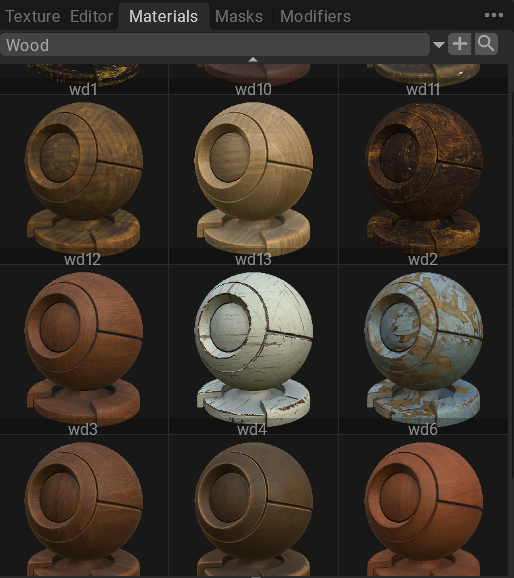
NGMaterials (Node Graph Materials) is a window containing full procedural materials created in the node editor. It is an analog of the standard 3DCoat Smart Materials, but instead of a classic layer system with raster textures, they are entirely based on mathematical calculations and nodes.

Such materials generate the final PBR channels: Albedo (Color), Gloss/Roughness, Metalness, and Displacement (Depth).
How it works

  1. Application: Open the NGMaterials window. Click on any material to make it the active drawing tool, or drag and drop it onto a model or layer.
  2. Editing in Node Editor: Right-click on the material and select edit, or simply open the Node Editor after applying the material. You will see the entire graph that makes up the material.

Preset Examples

The library (in the UserPrefs\NodeGraphs\NGMaterials folder) already has powerful examples:

  • JamaClay / JamaClay2: Procedural clay. This material demonstrates how to simulate sculpting and surface imperfections using only nodes.
  • Metal: Universal procedural metal.
  • Tile: Tile material created using pattern generation nodes (e.g., SimpleTile).
  • Wood: Procedural wood (based on the SimpleWood node).
  • cheese: Procedural cheese material (demonstrates working with volumetric noise and cavities).

Creating your own NGMaterial

  1. In the Node Editor, create your material graph. Use the SimpleMaterial node or individual output nodes (outAlbedoColor, outGloss, outMetalness).
  2. Adjust all parameters, output the necessary sliders to the Inspector using NGL properties.
  3. In the Node Editor menu, choose to save as a material preset.
  4. The material (the .ng file and icons) will be saved in UserPrefs\NodeGraphs\NGMaterials, and it will immediately appear in the NGMaterials window for further use.

Was this helpful?

Yes  No
Related Articles
  • GPU Texturing
  • Vector
  • Volumes
  • Modifiers
  • Masks
  • Filters
Previously
Masks
Up Next
Modifiers
AI:
Hi! How can I help you?
Attention: This is a beta version of AI chat. Some answers may be wrong. See full version of AI chat