 Español
The Capture menu in 3DCoat lets you record and export your workflow directly from the interface.
- Record Timelapse: Takes automated screenshots of your viewport at a set interval while smoothly moving the camera. It records your sculpting or painting process without displaying the UI elements, speeding up the action for a clean presentation.
- Camera Motion Smoothing: Adds stabilization to camera movement so the final time-lapse does not flicker or jerk.
- Snapshot Interval: Sets the precise time in seconds between each background capture.
- Hide Visual Guides: Toggles visibility for helper elements like the 3D grid, symmetry planes, and axis lines during recording.
- Show Timelapse Folder: Opens the system directory where raw image snapshots and compiled videos are saved.
- Convert Snapshots to Video: Compiles your sequence of captured images into a finalized video file.
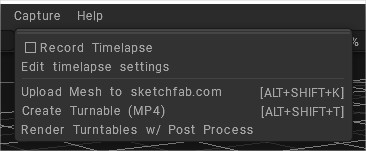
All capture possibilities (including the time-lapse) gathered into the “Capture” menu.
Record Timelapse: timelapse recording tool takes a screenshot of your work at a specified interval by smoothly moving the camera and then converting it to video. Recording a timelapse of the process of working on a model without an interface.
That allows you to record the process of sculpting by speed up of a hundred times and smooth camera movement, which is a pleasure to look at.
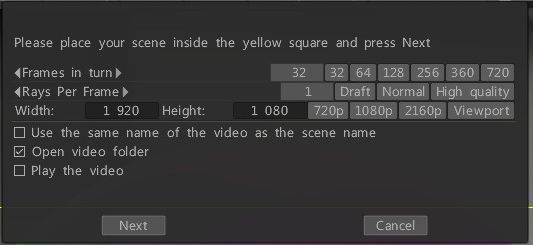
Render Turntables: You can use the render turnable under the Capture menu.
Pressing NEXT an explorer popups asking for a folder for mp4 file location, you need to select a folder and to assign a name.
Edit timelapse settings

Record timelapse: Recording a timelapse of the process of working on a model without an interface.
Camera Motion Smoothing: To prevent camera movement from flickering during timelapse, camera movement will be additionally smoothed to the specified degree.
Snapshot interval: How often to take one snapshot of your work in seconds.
Hide visual guides: Hide symmetry plane, 3D-grid and axis.
Show timelapse folder: Open the folder in Explorer where screenshots and time-lapse videos are saved.
Convert snapshots to video: Converts all screenshots to a video file and opens the folder with the result.
- This options also can be found on Edit > Preferences > Tools tab

Upload Mesh to sketchfab.com: Upload your painting/voxel/retopo model model to sketchfab.com. In dependence on your current room the corresponding mesh will be uploaded.
Create Turnable (MP4): Create turnable render images.
Render Turntables w/ Post Process: Create turnable render images w/ Post Process.