• Nederlands
  • 3DCoat documentatie
  • Chapters
    • Inleiding tot 3DCoat
    • Aan de slag
    • Interface & Navigatie
    • Brush Componenten
    • Werkruimten Kamers
    • Scripting en Core API
    • Vragen
    • licensing
    • Trainingshandleidingen
  • Pilgway
  • Products
    • 3DCoat
    • 3DCoatTextura
    • 3DCoatPrint
    • PBRLibrary
  • Blog Posts
  • Store
  • Nederlands Nederlands
    • English English
    • Українська Українська
    • Español Español
    • Deutsch Deutsch
    • Français Français
    • 日本語 日本語
    • Русский Русский
    • 한국어 한국어
    • Polski Polski
    • 中文 (中国) 中文 (中国)
    • Português Português
    • Italiano Italiano
    • Suomi Suomi
    • Svenska Svenska
    • 中文 (台灣) 中文 (台灣)
    • Dansk Dansk
    • Slovenčina Slovenčina
    • Türkçe Türkçe
    • Magyar Magyar
    • ไทย ไทย
    • हिन्दी हिन्दी
    • Ελληνικά Ελληνικά
    • Tiếng Việt Tiếng Việt
    • Lietuviškai Lietuviškai
    • Latviešu valoda Latviešu valoda
    • Eesti Eesti
    • Čeština Čeština
    • Română Română
    • Norsk Bokmål Norsk Bokmål
  • Creating 3D Character Using 3DCoat
  • 3DCoat documentatie
  • Chapters
    • Inleiding tot 3DCoat
    • Aan de slag
    • Interface & Navigatie
    • Brush Componenten
    • Werkruimten Kamers
    • Scripting en Core API
    • Vragen
    • licensing
    • Trainingshandleidingen
  • Pilgway
  • Products
    • 3DCoat
    • 3DCoatTextura
    • 3DCoatPrint
    • PBRLibrary
  • Blog Posts
  • Store
  • Nederlands Nederlands
    • English English
    • Українська Українська
    • Español Español
    • Deutsch Deutsch
    • Français Français
    • 日本語 日本語
    • Русский Русский
    • 한국어 한국어
    • Polski Polski
    • 中文 (中国) 中文 (中国)
    • Português Português
    • Italiano Italiano
    • Suomi Suomi
    • Svenska Svenska
    • 中文 (台灣) 中文 (台灣)
    • Dansk Dansk
    • Slovenčina Slovenčina
    • Türkçe Türkçe
    • Magyar Magyar
    • ไทย ไทย
    • हिन्दी हिन्दी
    • Ελληνικά Ελληνικά
    • Tiếng Việt Tiếng Việt
    • Lietuviškai Lietuviškai
    • Latviešu valoda Latviešu valoda
    • Eesti Eesti
    • Čeština Čeština
    • Română Română
    • Norsk Bokmål Norsk Bokmål
  • Creating 3D Character Using 3DCoat
Expand All Collapse All
  • Inleiding tot 3DCoat
  • Aan de slag
    • System requirements
    • Why 3DCoat is Unique?
    • 3DCoat activeren
    • Opstartfout
      • Startup error Mac
    • Color management
    • Upgrading permanent license
    • Linux Setup
      • Linux initial setup per-user installation
      • Linux initial setup for system
      • Tablet setup
      • To GTK3 from GTK2
    • Mappen structuur
      • Custom documents folder
    • Verschillende vormen van "oplossing"
    • Tablet on Window
    • Import en Export
    • Applinks in 3DCoat
      • Blender -applink
        • Blender with the Applink in Linux
      • Blender 4.2/3/4/5 applink
      • Max Applink
      • Houdini applink
      • Lightwave uplink
  • Navigation
    • Dialoogvenster openen (snelstartmenu)
    • Navigatiepaneel
    • Camera en navigatie
      • Customize Navigation as Blender
    • Viewport Navigation Gizmo
    • Left tool panel
    •  Activity Bar
    • Navigatie met behulp van 3DConnexion-apparaten
      • How to compile Spacenavd on non Ubuntu distro
    • Stylus doesn’t work in sculpting
    • Sneltoetsen
  • Interface & Navigatie
    • Bestandsmenu
    • Menu bewerken
      • Calculate Curvature
      • Calculate Occlusion
      • Light Baking Tool
      • Voorkeuren
    • Menu bekijken
    • Symmetrie
    • Textures
    • Calculate
    • Lagen-menu
    • Menu bevriezen
    • Hide
    • Bake
    • Bochten 2022
      • Curven-menu
      • Curves Properties RMB
      • Vul met mesh-laag
      • Scale of imported curves
    • Windows-menu
      • Windows-pop-upvensters met tabbladen
      • Schuifregelaars
    • Scripts
    • Addons
    • Capture
    • Help-menu
    • Maatwerk
    • Wijzig of maak een nieuwe kamer
  • Brush Componenten
    • Brush bovenste balk
    • Borstels algemeen gebruik
      • Borstels en emblemen maken
      • Alfa maken van huidige beeldhouwkunst
      • Maak een Brush van een 3D-object
      • Create brushes based on Curves
      • Load photoshop .abr brushes
    • Beroertes
      • Pop-upmenu Curven
    • Brush opties
    • Voorwaarden Begrenzer
    • Strips-paneel
    • Stencils paneel
    • Slimme materialen
      • Voeg nieuwe afbeeldingen of materialen toe
      • Bevestig een Smart-materiaal aan een laag
      • Import Quixel Material
    • Voorinstellingen voor Brush maken
  • Werkruimten Kamers
    • Painting
      • Textuur Painting en modi
        • Per-Pixel Painting
        • Verplaatsing Painting (Micro-Vertex)
        • Ptex Painting
        • Oppervlakte Painting (Polypainting)
      • Importeren in de Painting
        • Initial CC subdivision
        • UV Set smoothing
        • Sharp (hard) edge
        • Normalen vergrendelen
        • Laad een nieuwe UV indeling na modelwijzigingen
        • DAZ Genesis models into 3DCoat
      • Menu's van de Painting
        • Edit menu
        • Texturen-menu
          • Textuur Baking
        • Verbergen
        • Menu voor de Bake Paint
        • De kleurkiezer
      • Bovenste balk voor het Painting
      • Het Lagenpaneel
        • Het mengpaneel
        • Layer and Clipping Masks
      • Gereedschap voor het Painting van kamers
      • Dekking - Transparantie
      • Tweak werkruimte
        • Tweak-toolset
        • Exporteren vanuit de Tweak Room
      • Voorbeeldvenster masker/materiaal
      • Exporteren vanuit de Painting
    • UV werkruimte
      • UV bovenbalk
      • UV Linker gereedschapspaneel
      • UV voorbeeldpaneel
      • UV workflow voorbeeld
      • Importeren in de UV kamer
      • Exporteren vanuit de UV kamer
    • Retopologie
      • Importeren in de Retopo Room
      • Retopo Mesh-menu en bakmenu
        • Virtuele spiegelmodus
      • Bake menu
        • Treat Poly Groups as Paint Objects
        • Baking guide
      • Bovenste balk
        • Selecteer geometrie
      • Linker gereedschapspaneel in Retopology-kamer
        • Algemeen doel en functie
        • Geometrie toevoegen
          • Strokes-tool in Retopology
        • Retopo Tweak-tools
        • UV hulpmiddelen
        • Commando's voor Retopologie kamer
      • AUTORETOPO
        • Autopo guide
      • Polygroepen
    • Beeldhouwen
      • Sculpt Layer
      • Boom beeldhouwen
      • Beeldhouwen Brush opties
      • Top Bar
      • Brush
      • Submenu Geometrie
      • Beeldhouwen "Rechtsklik" -menu
      • Schaduwen
      • Voxel modus
        • Pure Voxel -beeldhouwkunst
        • Dichtheid en resolutie
        • Clay-motor
        • Voxel tools
        • Oppervlaktetools op Voxels
        • Voxel aanpassingstools
        • Volumetrisch Painting
        • Hulpmiddelen voor Voxel objecten
      • Oppervlakte-modus
        • Oppervlak gereedschap
        • Oppervlak aangepaste tools
        • Hulpmiddelen voor het aanpassen van oppervlakken
        • Oppervlakte Painting
        • Hulpmiddelen voor oppervlakteobjecten
        • Resolutie op meerdere niveaus
          • Multires tools
          • Multires adjust
          • Multires commands
      • Bochten beeldhouwen
        • Spline-curven
        • Splines model creation
      • Vectorverplaatsing
      • Hulpmiddelen voor oppervlaktetransformatie
        • Hulpmiddelen voor Voxel transformatie
        • Instancer
        • Move
        • Pose
        • Fit
        • Reproject
        • Surface Array
      • Voxel primitieven en Import
      • Levende booleans
      • Opdrachten voor beeldhouwkamer
      • Import naar beeldhouwkamer
      • Exporteren vanuit de beeldhouwkamer
    • Veroorzaken
      • Comparison of different roughness values
      • Paneelfuncties renderen
      • Draaitafel
      • Fakebake de verlichting -niet PBR
    • Factures
      • Werkstroom
    • eenvoudigste
    • Modellering
      • Mesh Menu
      • Linker gereedschapspaneel in de modelleerkamer
        • Geometrie toevoegen
          • Geselecteerd
        • Aanpassing
        • Smart Hybrid
        • UV
          • Commando's
        • Geheel gaas
      • Voorbeeld loftoppervlak van Fluffy
      • Blokkade door Poeboi
      • Import Zbrush Polygroups for UV mapping
    • Kitbash - Snelle creatie van 3D-modellen
      • Create kitbash
      • Left tool panel Kitbash
    • 3DPrint
    • Photogrammetry
      • How to install Reality Capture
      • Reality Capture doesn’t show up ?
    • Mesh naar NURBS-kamer
    • Nodes
      • Sculpt shaders Nodes-bibliotheek
  • Scripting en Core API
    • Scripting
    • Core API
    • Python-API
  • Gratis 3DCoatPrint

Create kitbash

145 views 0

Written by Carlos
October 21, 2025

Let’s take a more detailed look at this feature. (Thanks to our users Tinker and Daniel Yarmak for the descriptions).
Greebles or Nurnies can be created in any 3D modeling application, usually with arbitrary extrusions.
This method was referred to as “kit-bashing”.

This short tutorial demonstrates features of the version of Import tool


As far as we’ll work with Import tool we’ll need greebles (small details that helps models to look more ‘technical’).
It can be created in any application for 3D modeling, usually with a series of arbitrary extrusions. You can download greebles using link at the bottom of this tutorial.

To make your models look more interesting and unique you would probably want to create your own greebles.

Details with angled surface look better than with parallel to horizon:
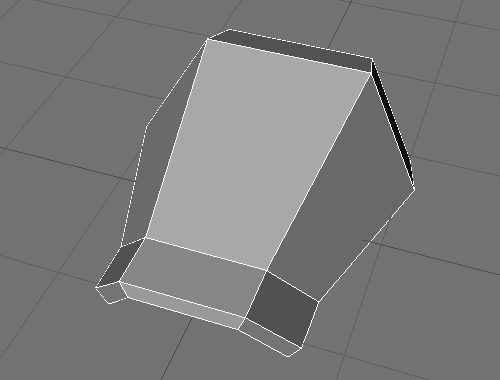
For easier placing of details on a model create a contour for the detail (that’s an object with a name “_negative” which excludes from the model automatically and leaves a slot for the detail.)
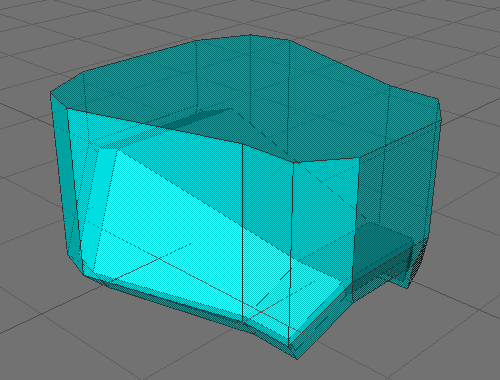
Details with angled surfaces look better than surfaces that are all parallel.
For easier placement of details on a model, create a contour for the detail, an object with the name “_negative,” which subtracts automatically from the model and leaves a slot for the detail.
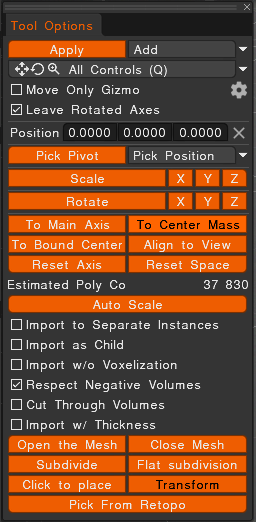
Turning on “Respect negative volume” in the Import Tool Panel is important to permit contour exclusion. Because the “negative volume” width is larger than the width of the detail, we get an interesting effect.
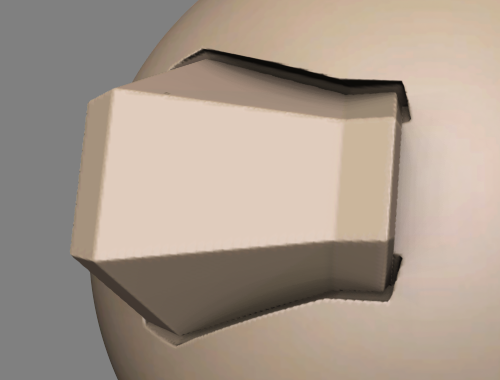
There is a joint between the body and the object. The detail looks as if it stands right on its place, and the body looks as if it has a special slot for the detail. Such joints look good with ambient occlusion.
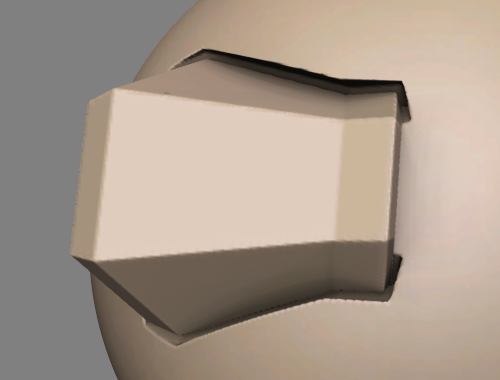
Here is an example of how would it look without that effect. Looks not so interesting, and also there is a problem that was caused by different curvatures of the body and the detail – the detail looks tumbled down (it wouldn’t happen with negative volume).
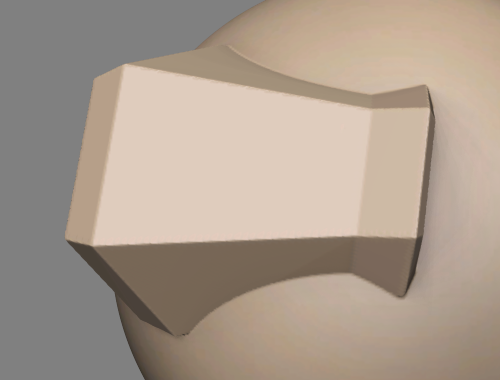
Negative volume shouldn’t have the exact form of the body. You may change its form to get various effects.
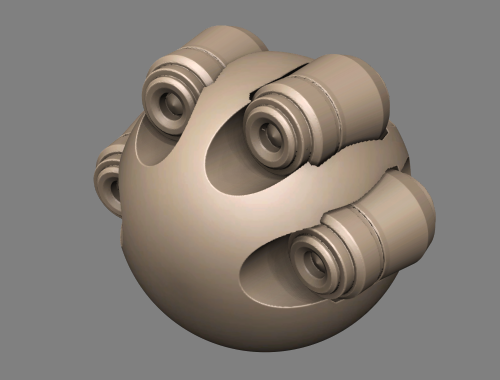
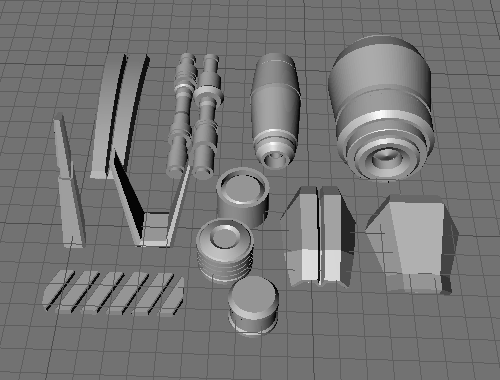
It’s time to detail the object. For this tutorial I’ve made a small set of details, they all have “negative volume” (it can’t be seen on a screenshot).
We’ll also need a base to which we will attach all the details, of course if you don’t want to attach it to a default sphere :-). The Import tool will also help us here.
With such a concave surface you can make facets on objects.
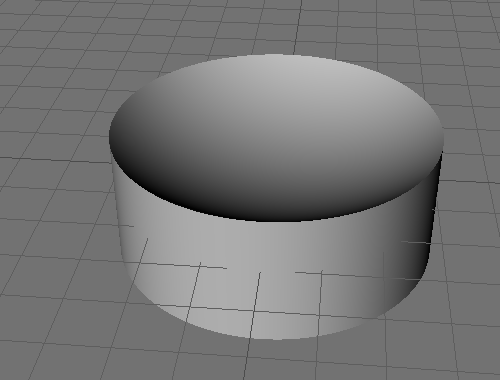
Load the Greebles using the “Import” tool.
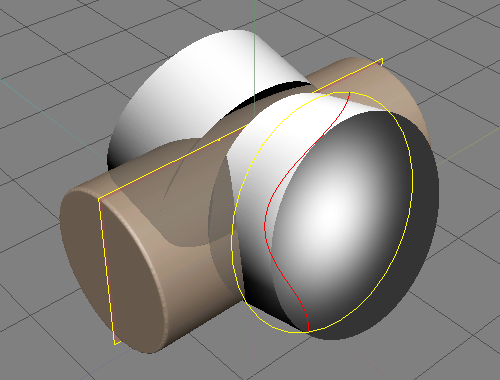
In transform regime cut any shape from a primitive.
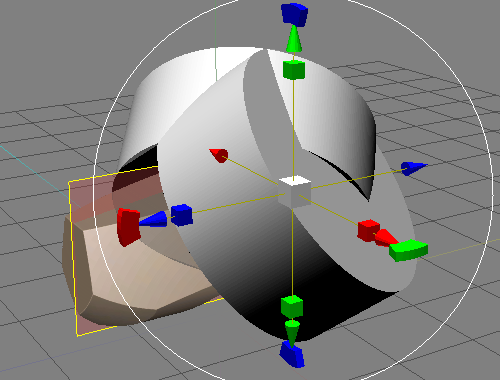
You can also use frame for cutting but cuts made with Import tool looks more interesting than those made with a frame.
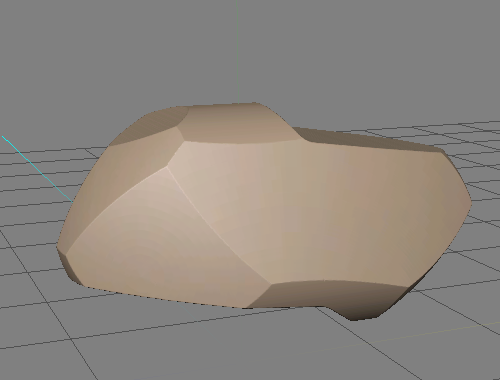
It’s time to detail the object. Load the greebles using Import tool. Use ‘on pen’ mode. Use ‘9’ and ‘0’ keys to rotate the brush.
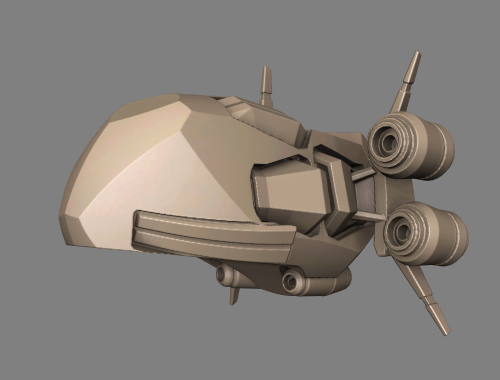
That’s all
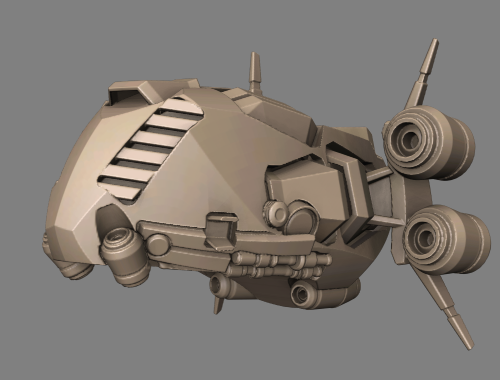
Primitives Library from Tinker

How to make ‘negative volume’


Steps:

1) On Modeling Room or your 3D app make a greeble.
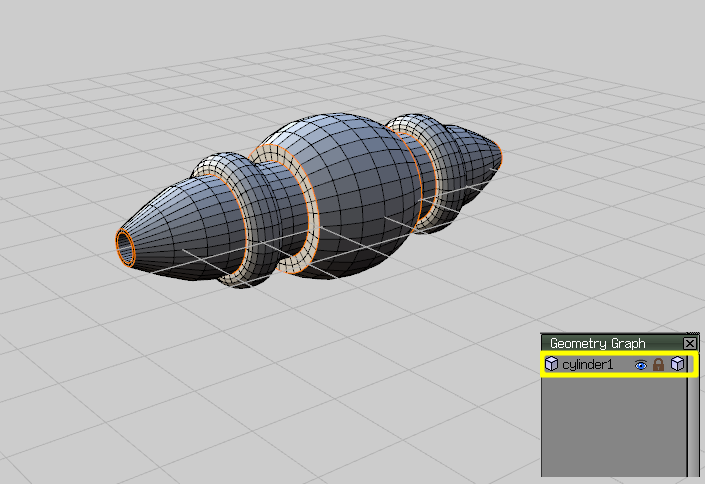
Create another object in the same scene (that object will be ‘negative volume’)
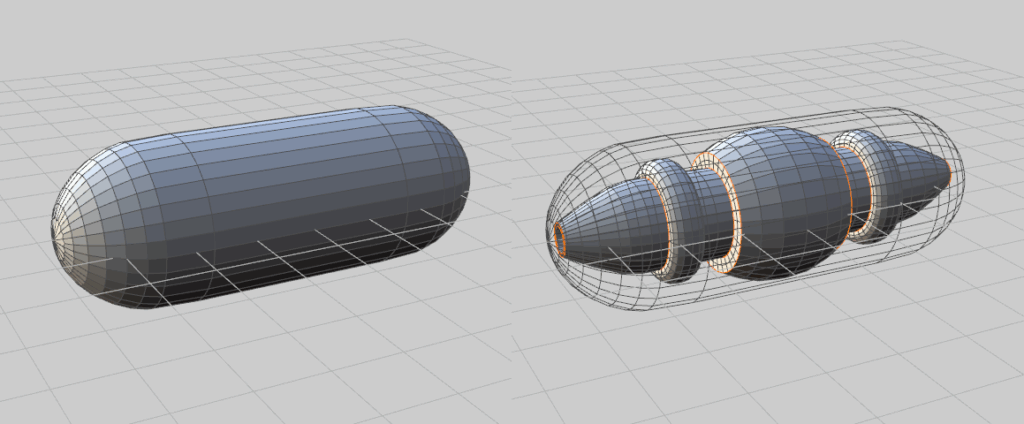
As you can see the detail locates inside the capsule (’cause I’m gonna use capsule as ‘negative volume’):

Rename the second object (capsule in this case) as you like BUT (!!!) add “_negative” in the end. Like this:
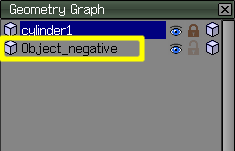
Export in Wavefront (.obj) format.

Do everything as below is explained. And… enjoy the results:
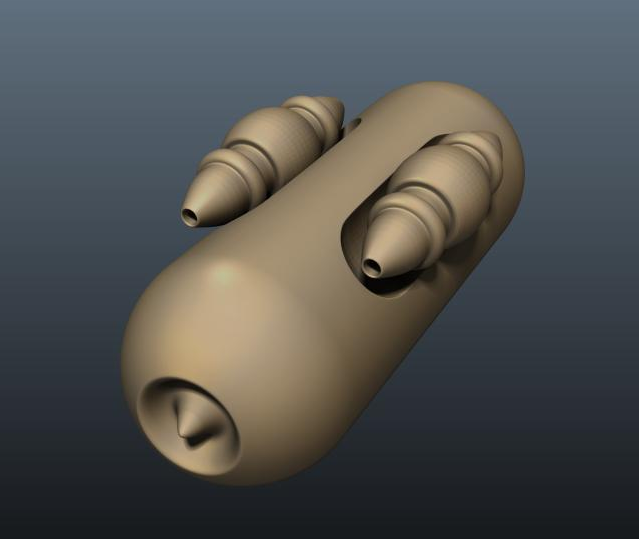
If you export the model from Blender. Rename one object with _negative, but then you have to make sure you select “groups” in the export settings.

Was this helpful?

Yes  No
Related Articles
  • Surface Array
  • Top Bar
  • Curves Properties RMB
  • Left tool panel Kitbash
  • Color management
  • Treat Poly Groups as Paint Objects
Previously
Kitbash - Snelle creatie van 3D-modellen
Up Next
Left tool panel Kitbash
AI:
Hi! How can I help you?
Attention: This is a beta version of AI chat. Some answers may be wrong. See full version of AI chat