• Nederlands
  • 3DCoat documentatie
  • Chapters
    • Inleiding tot 3DCoat
    • Aan de slag
    • Interface & Navigatie
    • Brush Componenten
    • Werkruimten Kamers
    • Scripting en Core API
    • Vragen
    • licensing
    • Trainingshandleidingen
  • Pilgway
  • Products
    • 3DCoat
    • 3DCoatTextura
    • 3DCoatPrint
    • PBRLibrary
  • Blog Posts
  • Store
  • Nederlands Nederlands
    • English English
    • Українська Українська
    • Español Español
    • Deutsch Deutsch
    • Français Français
    • 日本語 日本語
    • Русский Русский
    • 한국어 한국어
    • Polski Polski
    • 中文 (中国) 中文 (中国)
    • Português Português
    • Italiano Italiano
    • Suomi Suomi
    • Svenska Svenska
    • 中文 (台灣) 中文 (台灣)
    • Dansk Dansk
    • Slovenčina Slovenčina
    • Türkçe Türkçe
    • Magyar Magyar
    • ไทย ไทย
    • हिन्दी हिन्दी
    • Ελληνικά Ελληνικά
    • Tiếng Việt Tiếng Việt
    • Lietuviškai Lietuviškai
    • Latviešu valoda Latviešu valoda
    • Eesti Eesti
    • Čeština Čeština
    • Română Română
    • Norsk Bokmål Norsk Bokmål
  • Creating 3D Character Using 3DCoat
  • 3DCoat documentatie
  • Chapters
    • Inleiding tot 3DCoat
    • Aan de slag
    • Interface & Navigatie
    • Brush Componenten
    • Werkruimten Kamers
    • Scripting en Core API
    • Vragen
    • licensing
    • Trainingshandleidingen
  • Pilgway
  • Products
    • 3DCoat
    • 3DCoatTextura
    • 3DCoatPrint
    • PBRLibrary
  • Blog Posts
  • Store
  • Nederlands Nederlands
    • English English
    • Українська Українська
    • Español Español
    • Deutsch Deutsch
    • Français Français
    • 日本語 日本語
    • Русский Русский
    • 한국어 한국어
    • Polski Polski
    • 中文 (中国) 中文 (中国)
    • Português Português
    • Italiano Italiano
    • Suomi Suomi
    • Svenska Svenska
    • 中文 (台灣) 中文 (台灣)
    • Dansk Dansk
    • Slovenčina Slovenčina
    • Türkçe Türkçe
    • Magyar Magyar
    • ไทย ไทย
    • हिन्दी हिन्दी
    • Ελληνικά Ελληνικά
    • Tiếng Việt Tiếng Việt
    • Lietuviškai Lietuviškai
    • Latviešu valoda Latviešu valoda
    • Eesti Eesti
    • Čeština Čeština
    • Română Română
    • Norsk Bokmål Norsk Bokmål
  • Creating 3D Character Using 3DCoat
Expand All Collapse All
  • Inleiding tot 3DCoat
  • Aan de slag
    • System requirements
    • Why 3DCoat is Unique?
    • 3DCoat activeren
    • Opstartfout
      • Startup error Mac
    • Color management
    • Upgrading permanent license
    • Linux Setup
      • Linux initial setup per-user installation
      • Linux initial setup for system
      • Tablet setup
      • To GTK3 from GTK2
    • Mappen structuur
      • Custom documents folder
    • Verschillende vormen van "oplossing"
    • Tablet on Window
    • Import en Export
    • Applinks in 3DCoat
      • Blender -applink
        • Blender with the Applink in Linux
      • Blender 4.2/3/4/5 applink
      • Max Applink
      • Houdini applink
      • Lightwave uplink
  • Navigation
    • Dialoogvenster openen (snelstartmenu)
    • Navigatiepaneel
    • Camera en navigatie
      • Customize Navigation as Blender
    • Viewport Navigation Gizmo
    • Left tool panel
    •  Activity Bar
    • Navigatie met behulp van 3DConnexion-apparaten
      • How to compile Spacenavd on non Ubuntu distro
    • Stylus doesn’t work in sculpting
    • Sneltoetsen
  • Interface & Navigatie
    • Bestandsmenu
    • Menu bewerken
      • Calculate Curvature
      • Calculate Occlusion
      • Light Baking Tool
      • Voorkeuren
    • Menu bekijken
    • Symmetrie
    • Textures
    • Calculate
    • Lagen-menu
    • Menu bevriezen
    • Hide
    • Bake
    • Bochten 2022
      • Curven-menu
      • Curves Properties RMB
      • Vul met mesh-laag
      • Scale of imported curves
    • Windows-menu
      • Windows-pop-upvensters met tabbladen
      • Schuifregelaars
    • Scripts
    • Addons
    • Capture
    • Help-menu
    • Maatwerk
    • Wijzig of maak een nieuwe kamer
  • Brush Componenten
    • Brush bovenste balk
    • Borstels algemeen gebruik
      • Borstels en emblemen maken
      • Alfa maken van huidige beeldhouwkunst
      • Maak een Brush van een 3D-object
      • Create brushes based on Curves
      • Load photoshop .abr brushes
    • Beroertes
      • Pop-upmenu Curven
    • Brush opties
    • Voorwaarden Begrenzer
    • Strips-paneel
    • Stencils paneel
    • Slimme materialen
      • Voeg nieuwe afbeeldingen of materialen toe
      • Bevestig een Smart-materiaal aan een laag
      • Import Quixel Material
    • Voorinstellingen voor Brush maken
  • Werkruimten Kamers
    • Painting
      • Textuur Painting en modi
        • Per-Pixel Painting
        • Verplaatsing Painting (Micro-Vertex)
        • Ptex Painting
        • Oppervlakte Painting (Polypainting)
      • Importeren in de Painting
        • Initial CC subdivision
        • UV Set smoothing
        • Sharp (hard) edge
        • Normalen vergrendelen
        • Laad een nieuwe UV indeling na modelwijzigingen
        • DAZ Genesis models into 3DCoat
      • Menu's van de Painting
        • Edit menu
        • Texturen-menu
          • Textuur Baking
        • Verbergen
        • Menu voor de Bake Paint
        • De kleurkiezer
      • Bovenste balk voor het Painting
      • Het Lagenpaneel
        • Het mengpaneel
        • Layer and Clipping Masks
      • Gereedschap voor het Painting van kamers
      • Dekking - Transparantie
      • Tweak werkruimte
        • Tweak-toolset
        • Exporteren vanuit de Tweak Room
      • Voorbeeldvenster masker/materiaal
      • Exporteren vanuit de Painting
    • UV werkruimte
      • UV bovenbalk
      • UV Linker gereedschapspaneel
      • UV voorbeeldpaneel
      • UV workflow voorbeeld
      • Importeren in de UV kamer
      • Exporteren vanuit de UV kamer
    • Retopologie
      • Importeren in de Retopo Room
      • Retopo Mesh-menu en bakmenu
        • Virtuele spiegelmodus
      • Bake menu
        • Treat Poly Groups as Paint Objects
        • Baking guide
      • Bovenste balk
        • Selecteer geometrie
      • Linker gereedschapspaneel in Retopology-kamer
        • Algemeen doel en functie
        • Geometrie toevoegen
          • Strokes-tool in Retopology
        • Retopo Tweak-tools
        • UV hulpmiddelen
        • Commando's voor Retopologie kamer
      • AUTORETOPO
        • Autopo guide
      • Polygroepen
    • Beeldhouwen
      • Sculpt Layer
      • Boom beeldhouwen
      • Beeldhouwen Brush opties
      • Top Bar
      • Brush
      • Submenu Geometrie
      • Beeldhouwen "Rechtsklik" -menu
      • Schaduwen
      • Voxel modus
        • Pure Voxel -beeldhouwkunst
        • Dichtheid en resolutie
        • Clay-motor
        • Voxel tools
        • Oppervlaktetools op Voxels
        • Voxel aanpassingstools
        • Volumetrisch Painting
        • Hulpmiddelen voor Voxel objecten
      • Oppervlakte-modus
        • Oppervlak gereedschap
        • Oppervlak aangepaste tools
        • Hulpmiddelen voor het aanpassen van oppervlakken
        • Oppervlakte Painting
        • Hulpmiddelen voor oppervlakteobjecten
        • Resolutie op meerdere niveaus
          • Multires tools
          • Multires adjust
          • Multires commands
      • Bochten beeldhouwen
        • Spline-curven
        • Splines model creation
      • Vectorverplaatsing
      • Hulpmiddelen voor oppervlaktetransformatie
        • Hulpmiddelen voor Voxel transformatie
        • Instancer
        • Move
        • Pose
        • Fit
        • Reproject
        • Surface Array
      • Voxel primitieven en Import
      • Levende booleans
      • Opdrachten voor beeldhouwkamer
      • Import naar beeldhouwkamer
      • Exporteren vanuit de beeldhouwkamer
    • Veroorzaken
      • Comparison of different roughness values
      • Paneelfuncties renderen
      • Draaitafel
      • Fakebake de verlichting -niet PBR
    • Factures
      • Werkstroom
    • eenvoudigste
    • Modellering
      • Mesh Menu
      • Linker gereedschapspaneel in de modelleerkamer
        • Geometrie toevoegen
          • Geselecteerd
        • Aanpassing
        • Smart Hybrid
        • UV
          • Commando's
        • Geheel gaas
      • Voorbeeld loftoppervlak van Fluffy
      • Blokkade door Poeboi
      • Import Zbrush Polygroups for UV mapping
    • Kitbash - Snelle creatie van 3D-modellen
      • Create kitbash
      • Left tool panel Kitbash
    • 3DPrint
    • Photogrammetry
      • How to install Reality Capture
      • Reality Capture doesn’t show up ?
    • Mesh naar NURBS-kamer
    • Nodes
      • Sculpt shaders Nodes-bibliotheek
  • Scripting en Core API
    • Scripting
    • Core API
    • Python-API
  • Gratis 3DCoatPrint

Multires adjust

620 views 0

Written by Carlos
November 27, 2023

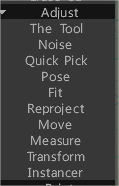
Noise: Allows you to generate procedural noise on an entire Sculpt layer or a masked selection.
Close Hole
– Reconstruct: Reconstructs Mesh locally, beneath the brush, generally to repair flaws in the mesh.
– Mesh Doctor
– Clean Clay
Quick Pick: Pick the current Sculpt Object. Click on the object to choose the current object. Another way is to use the ‘H’ hotkey in any other tool to pick the current object. Sometimes when you have more than one object in the VoxTree, it can become a tad cumbersome to know which layer has what object. With the Pick tool, you can visually select the object (and, therefore, the VoxTree layer) simply by clicking on the one you wish to work on.
Pose: Pose object using partial object selection.
Fit: Fit one object to other one. You may mark corresponding features and place objects together. After approximate placing you may do placing precisely, corresponding features will stitch to each other.
Reproject: Allows the user to reproject the details and vertex paint from one or more meshes in the scene, to another mesh. Either to the entire mesh or locally using a brush.
Move: Move a surface area. Press and drag LMB to move the surface within the cursor, relative to the screen view. Use CTRL to move surface along the normal. Different Alphas give different results.
Measure: Click to add points. Use SHIFT to align lines horizontally, vertically or diagonally. Press ESC to stop measure guide creation. New click will start new guide. Click on lines and points to split lines or drag points. Measure guides may be used in other tools as visual markers or snapping guides. Doubleclick to erase point. Move nearby points together to erase captured point. Use CTRL to avoid snapping to existing points or lines, for example when you need to start new line from existing point or line.
Transform: Transform object as a entire. Click on object to transform.
Instancer: This tool will help to make instances. Instances are references to existing objects, so they take almost zero memory. If you have some element that may be used multiple time a separate volume you may use it as instance. For example it may be brick or some mechanical detail. You may create mirrored instances, for example left and right arms.

Tags:multires

Was this helpful?

Yes  No
Related Articles
  • Surface Array
  • Top Bar
  • Curves Properties RMB
  • Left tool panel Kitbash
  • Create kitbash
  • Color management
Previously
Multires tools
Up Next
Multires commands
AI:
Hi! How can I help you?
Attention: This is a beta version of AI chat. Some answers may be wrong. See full version of AI chat