• Tiếng Việt
  • Tài liệu 3DCoat
  • Chapters
    • Giới thiệu về 3DCoat
    • Bắt đầu
    • Giao diện & Điều hướng
    • Thành phần Brush
    • Node System
    • Phòng làm việc
    • Scripting & Core API
    • Hỏi & Đáp
    • licensing
    • Hướng dẫn đào tạo
  • Pilgway
  • Products
    • 3DCoat
    • 3DCoatTextura
    • 3DCoatPrint
    • PBRLibrary
  • Blog Posts
    • Creating 3D Character Using 3DCoat
  • Store
  • Tiếng Việt Tiếng Việt
    • English English
    • Українська Українська
    • Español Español
    • Deutsch Deutsch
    • Français Français
    • 日本語 日本語
    • Русский Русский
    • 한국어 한국어
    • Polski Polski
    • 中文 (中国) 中文 (中国)
    • Português Português
    • Italiano Italiano
    • Suomi Suomi
    • Svenska Svenska
    • 中文 (台灣) 中文 (台灣)
    • Dansk Dansk
    • Slovenčina Slovenčina
    • Türkçe Türkçe
    • Nederlands Nederlands
    • Magyar Magyar
    • ไทย ไทย
    • हिन्दी हिन्दी
    • Ελληνικά Ελληνικά
    • Lietuviškai Lietuviškai
    • Latviešu valoda Latviešu valoda
    • Eesti Eesti
    • Čeština Čeština
    • Română Română
    • Norsk Bokmål Norsk Bokmål
  • Tài liệu 3DCoat
  • Chapters
    • Giới thiệu về 3DCoat
    • Bắt đầu
    • Giao diện & Điều hướng
    • Thành phần Brush
    • Node System
    • Phòng làm việc
    • Scripting & Core API
    • Hỏi & Đáp
    • licensing
    • Hướng dẫn đào tạo
  • Pilgway
  • Products
    • 3DCoat
    • 3DCoatTextura
    • 3DCoatPrint
    • PBRLibrary
  • Blog Posts
    • Creating 3D Character Using 3DCoat
  • Store
  • Tiếng Việt Tiếng Việt
    • English English
    • Українська Українська
    • Español Español
    • Deutsch Deutsch
    • Français Français
    • 日本語 日本語
    • Русский Русский
    • 한국어 한국어
    • Polski Polski
    • 中文 (中国) 中文 (中国)
    • Português Português
    • Italiano Italiano
    • Suomi Suomi
    • Svenska Svenska
    • 中文 (台灣) 中文 (台灣)
    • Dansk Dansk
    • Slovenčina Slovenčina
    • Türkçe Türkçe
    • Nederlands Nederlands
    • Magyar Magyar
    • ไทย ไทย
    • हिन्दी हिन्दी
    • Ελληνικά Ελληνικά
    • Lietuviškai Lietuviškai
    • Latviešu valoda Latviešu valoda
    • Eesti Eesti
    • Čeština Čeština
    • Română Română
    • Norsk Bokmål Norsk Bokmål
Expand All Collapse All
  • Giới thiệu về 3DCoat
  • Bắt đầu
    • System requirements
    • Why 3DCoat is Unique?
    • Kích hoạt 3DCoat
    • lỗi khởi động
      • Startup error Mac
    • Color management
    • Upgrading permanent license
    • Linux Setup
      • Linux initial setup per-user installation
      • Linux initial setup for system
      • Tablet setup
      • To GTK3 from GTK2
      • Error libicuuc.so.70
    • Cấu trúc thư mục
      • Custom documents folder
    • Các hình thức “Nghị quyết” khác nhau
    • Tablet on Window
    • Import Export
    • Applinks trong 3DCoat
      • Liên kết ứng dụng Blender
        • Blender with the Applink in Linux
      • Blender 4.2/3/4/5 applink
      • Max Applink
      • Houdini applink
      • Lightwave uplink
  • Node System
    • Node Editor
    • Node & Object Inspectors
    • Node Graph
    • NodeGraph Language (NGL)
    • GPU Nodes
      • Color
      • GeometryIn
      • In
      • Layer
      • Material
      • Out
      • Pattern
      • Pattern3D
      • ShaderToy
      • Shape
      • Texture
      • Tilable
      • UV
      • Vector
    • Filters
    • Masks
    • Materials
    • Modifiers
    • Volumes
  • GPU Texturing
    • PBM Channels
    • Per-Pixel Painting
  • Navigation
    • Hộp thoại Mở (Menu Bắt đầu Nhanh)
    • Bảng điều hướng
    • Máy ảnh và Điều hướng
      • Customize Navigation as Blender
    • Viewport Navigation Gizmo
    • Left tool panel
    •  Activity Bar
    • Điều hướng bằng thiết bị 3DConnexion
      • How to compile Spacenavd on non Ubuntu distro
    • Space Bar Menu
    • Stylus doesn’t work in sculpting
    • phím nóng
  • Giao diện & Điều hướng
    • Danh sách dữ liệu
    • Chỉnh sửa Menu
      • Calculate Curvature
      • Calculate Occlusion
      • Light Baking Tool
      • Sở thích
    • Xem thực đơn
    • Đối diện
    • Textures
    • Calculate
    • Menu lớp
    • Menu đóng băng
    • Hide
    • Bake
    • Đường cong 2022
      • thực đơn đường cong
      • Curves Properties RMB
      • Điền vào lớp lưới
      • Scale of imported curves
    • Menu cửa sổ
      • Bảng điều khiển cửa sổ bật lên được gắn thẻ
      • thanh trượt
    • Scripts
    • Addons
    • Capture
    • Danh sách trợ giúp
    • tùy biến
    • Sửa đổi hoặc tạo phòng mới
  • Thành phần Brush
    • Bàn Brush trên cùng
    • Bàn chải sử dụng chung
      • Tạo bàn chải & đề can
      • Tạo alpha từ tác phẩm điêu khắc hiện tại
      • Tạo Brush từ đối tượng 3D
      • Create brushes based on Curves
      • Load photoshop .abr brushes
    • đột quỵ
      • Menu bật lên đường cong
    • tùy chọn Brush
    • Giới hạn điều kiện
    • Bảng điều khiển dải
    • bảng giấy nến
    • Vật liệu thông minh
      • Thêm hình ảnh hoặc tài liệu mới
      • Đính kèm vật liệu thông minh vào một lớp
      • Import Quixel Megascans
    • Cách tạo Presets cho Brush
  • Phòng làm việc
    • Painting
      • Painting kết cấu & Chế độ
        • Per-Pixel Painting
        • Painting dịch chuyển (Micro-Vertex)
        • Painting Ptex
        • Painting bề mặt (Polypainting)
      • Nhập khẩu vào phòng Painting
        • Initial CC subdivision
        • UV Set smoothing
        • Sharp (hard) edge
        • Khóa định mức
        • Tải bố cục UV mới sau khi thay đổi mẫu
        • DAZ Genesis models into 3DCoat
        • ID map
      • Menu của Không gian làm việc Painting
        • Edit menu
        • Menu kết cấu
          • Công cụ Baking kết cấu
        • Trốn
        • Thực đơn cho Bake Paint
        • Bộ chọn màu
      • Surface Materials
      • Thanh trên cùng cho Painting
      • Bảng điều khiển lớp
        • Bảng trộn
        • Layer and Clipping Masks
      • dụng cụ phòng Painting
      • Độ mờ - Độ trong suốt
      • Tinh chỉnh không gian làm việc
        • Bộ công cụ tinh chỉnh
        • Xuất từ Tweak Room
      • Bảng xem trước mặt nạ/vật liệu
      • Xuất khẩu từ phòng Painting
    • Không gian làm việc UV
      • Thanh trên cùng UV
      • Bảng công cụ UV Trái
      • Bảng xem trước UV
      • Ví dụ về quy trình làm việc UV
      • Nhập khẩu vào phòng UV
      • Xuất từ phòng UV
    • tái cấu trúc
      • Nhập vào phòng Retopo
      • Menu Retopo Lưới và Menu Nướng
        • Chế độ gương ảo
      • Bake menu
        • Treat Poly Groups as Paint Objects
        • Baking guide
      • Công cụ Strokes trong Retopology
      • thanh trên cùng
        • Chọn hình học
      • Bảng công cụ bên trái trong phòng Retopology
        • Mục đích & chức năng tổng thể
        • Thêm hình học
        • Công cụ tinh chỉnh Retopo
        • Công cụ UV
        • Lệnh cho phòng Retopology
      • AUTORETOPO
        • Autopo guide
      • Nhóm đa
    • điêu khắc
      • Sculpt Layer
      • cây điêu khắc
      • Tùy chọn Sculpt Brush
      • Top Bar
      • Brush
      • Menu con hình học
      • Menu Sculpt “Nhấp chuột phải”
      • Shader
      • chế độ điểm Voxel
        • Điêu khắc Voxel tinh khiết
        • Mật độ và độ phân giải
        • động cơ đất sét
        • Công cụ Voxel
        • Công cụ bề mặt trên Voxels
        • Công cụ điều chỉnh điểm Voxel
        • Painting thể tích
        • Công cụ Đối tượng Voxel
      • chế độ bề mặt
        • công cụ bề mặt
        • Công cụ tùy chỉnh bề mặt
        • Surface Layer
        • Công cụ điều chỉnh bề mặt
        • Painting bề mặt
        • Công cụ đối tượng bề mặt
        • Độ phân giải đa cấp
          • Multires tools
          • Multires adjust
          • Multires commands
      • điêu khắc đường cong
        • Đường cong Spline
        • Splines model creation
      • Véc tơ dịch chuyển
      • Công cụ biến đổi bề mặt
        • Công cụ chuyển đổi Voxel
        • Instancer
        • Move
        • Pose
        • Fit
        • Reproject
        • Surface Array
      • Voxel Primitives & Công cụ Import
      • Boolean trực tiếp
      • Các lệnh cho phòng Sculpt
      • Import vào phòng điêu khắc
      • Xuất từ phòng điêu khắc
    • kết xuất
      • Comparison of different roughness values
      • Kết xuất các chức năng của bảng điều khiển
      • bàn xoay
      • Fakebake ánh sáng -non PBR-
    • Factures
      • quy trình làm việc
    • đơn giản nhất
    • người mẫu
      • Mesh Menu
      • Bảng công cụ bên trái trong phòng Modeling
        • Thêm hình học
          • Đã chọn
        • Tinh chỉnh
        • Smart Hybrid
        • UV
          • Lệnh
        • Toàn bộ lưới
      • Ví dụ bề mặt gác xép của Fluffy
      • Chặn bởi Poeboi
      • Import Zbrush Polygroups for UV mapping
    • Kitbash - Tạo mô hình 3D nhanh
      • Create kitbash
      • Left tool panel Kitbash
    • 3DPrint
    • Photogrammetry
      • How to install Reality Capture
      • Reality Capture doesn’t show up ?
    • Lưới tới phòng NURBS
    • Nodes
      • Thư viện Nodes shader Sculpt
      • Open PBR
  • Scripting & Core API
    • Core API
    • API Python
    • Extensions and Addons
  • 3DCoatPrint miễn phí

Node Editor

84 views 0

Written by Volodymyr Makovetskyi
May 14, 2026

The Node Editor in 3DCoat is a powerful tool for visual programming of materials, textures, and masks using interconnecting blocks (nodes). This guide will help you understand the core UI elements and learn how to effectively work with node graphs.
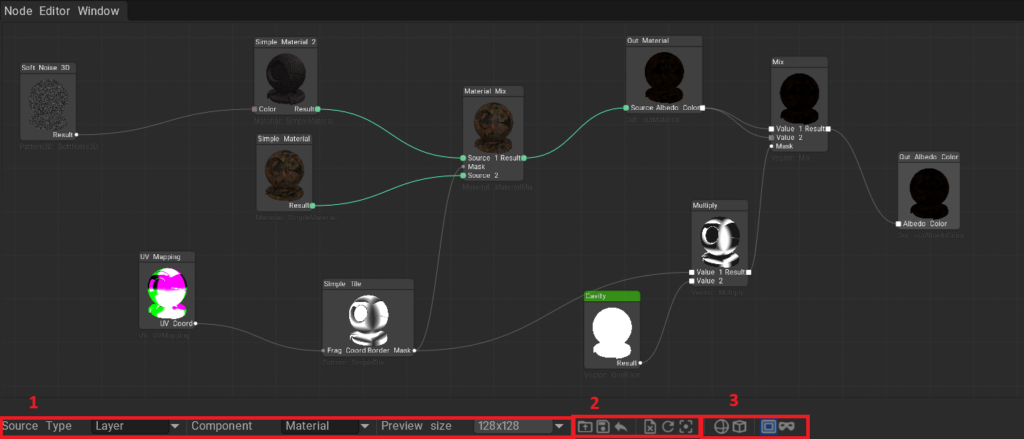

1. Main Settings Panel (Interface)

On the Node Editor Window panel, you will find the main parameters for managing the display and type of the current graph.

  • Node Graph Source (NGSourceType):
    Determines what the current node graph is applied to. It can be:
    • Layer: Nodes operate within the currently selected layer (e.g., generating a texture or a mask for the layer).
    • Object: Nodes operate globally for the entire object or material.
  • Graph Component (NGComponent):
    Allows switching between different components of the node graph (default is Main).
  • Preview Size:
    Determines the resolution of thumbnail previews inside the nodes themselves.
    • Disable: Turns off result visualization on nodes (speeds up the system).
    • 64, 128, 256: Preview size in pixels. A larger size provides better quality but requires more graphics card resources.

2. Toolbar (Buttons)

The top row of buttons in the editor provides quick access to basic graph operations:

  • 📂 Load: Opens a dialog to load a node graph from a .ng file.
  • 💾 Save: Saves your current graph to the internal 3DCoat preset library (with an option to choose a category and folder).
  • 📤 Export: Allows you to save the node graph to an external .ng file on your hard drive for future sharing or backup.
  • 🗑️ Clear: Completely clears the current workspace (deletes all nodes).
  • 🔄 Refresh: Forces a recalculation of all nodes. Useful if the visualization didn’t update automatically.
  • 🎯 Recenter: Instantly focuses the camera on all created nodes, centering them on the screen. Convenient if you get “lost” on an infinite canvas.

Variable Visibility Management

  • 🌐 Show/Hide Global Variables: Shows or hides global variables that can be used across different graphs.
  • 🧊 Show/Hide Object Variables: Shows or hides variables specific to the current object.

Layer Mask Operations (for Layer mode)

  • 🎭 Toggle Mask: Enables or disables filling the current layer with the node material (FillNGLayer).
  • 👁️ Toggle Mask Preview: Enables or disables the layer mask preview.

3. Working with Nodes and Links

The workspace (canvas) allows you to place nodes, connect them, and configure their properties.

Nodes

Each node is a distinct mathematical or graphical operation.

  • Selection: Left Mouse Button (LMB) click selects a node. Hold Ctrl or Shift to select multiple nodes.
  • Double Click: Depending on settings, it may expand/collapse the list of internal variables (Defines) of a node to save space.
  • Preview (Center Image): If Preview Size is enabled, the center of the node will display the result of its operation.

Knots & Links

  • Inputs and Outputs: Located on the edges of the node. Outputs are usually on the right, inputs on the left.
  • Creating a Link: LMB click on an output knot and drag the line to an input knot of another node.
  • Reconnecting (Flying knots): If a knot is already connected, you can click on it and “tear off” the link, dragging it to another node.
  • The system automatically checks data type compatibility. For example, it’s not always possible to directly connect a Color to a Vector3D without conversion, but the editor tries to do automatic type casting where possible (via compatible class masks).

Node Properties

Most nodes have settings that can be changed in the properties panel or directly on the node:

  • Numerical Values (Float / Vector): Entering specific values.
  • Color: Calls the standard 3DCoat color picker dialog.
  • Curves/Ramps: Some parameters allow editing a curve (ShowCurveUI). This is useful for creating gradients, adjusting levels, or remapping color/contrast.

4. Hotkeys and Navigation

  • Mouse Wheel: Canvas scaling (Zoom in / Zoom out).
  • Middle Mouse Button (or Right Mouse Button) + drag: Panning (moving) across the canvas.
  • Shift + LMB: Add a node to the selection.
  • LMB on an empty space + drag: Box selection of nodes.

Was this helpful?

Yes  No
Related Articles
  • GPU Texturing
  • Vector
  • Volumes
  • Modifiers
  • Materials
  • Masks
Previously
Node System
Up Next
Node & Object Inspectors
AI:
Hi! How can I help you?
Attention: This is a beta version of AI chat. Some answers may be wrong. See full version of AI chat