• Tiếng Việt
  • Tài liệu 3DCoat
  • Chapters
    • Giới thiệu về 3DCoat
    • Bắt đầu
    • Giao diện & Điều hướng
    • Thành phần Brush
    • Node System
    • Phòng làm việc
    • Scripting & Core API
    • Hỏi & Đáp
    • licensing
    • Hướng dẫn đào tạo
  • Pilgway
  • Products
    • 3DCoat
    • 3DCoatTextura
    • 3DCoatPrint
    • PBRLibrary
  • Blog Posts
    • Creating 3D Character Using 3DCoat
  • Store
  • Tiếng Việt Tiếng Việt
    • English English
    • Українська Українська
    • Español Español
    • Deutsch Deutsch
    • Français Français
    • 日本語 日本語
    • Русский Русский
    • 한국어 한국어
    • Polski Polski
    • 中文 (中国) 中文 (中国)
    • Português Português
    • Italiano Italiano
    • Suomi Suomi
    • Svenska Svenska
    • 中文 (台灣) 中文 (台灣)
    • Dansk Dansk
    • Slovenčina Slovenčina
    • Türkçe Türkçe
    • Nederlands Nederlands
    • Magyar Magyar
    • ไทย ไทย
    • हिन्दी हिन्दी
    • Ελληνικά Ελληνικά
    • Lietuviškai Lietuviškai
    • Latviešu valoda Latviešu valoda
    • Eesti Eesti
    • Čeština Čeština
    • Română Română
    • Norsk Bokmål Norsk Bokmål
  • Tài liệu 3DCoat
  • Chapters
    • Giới thiệu về 3DCoat
    • Bắt đầu
    • Giao diện & Điều hướng
    • Thành phần Brush
    • Node System
    • Phòng làm việc
    • Scripting & Core API
    • Hỏi & Đáp
    • licensing
    • Hướng dẫn đào tạo
  • Pilgway
  • Products
    • 3DCoat
    • 3DCoatTextura
    • 3DCoatPrint
    • PBRLibrary
  • Blog Posts
    • Creating 3D Character Using 3DCoat
  • Store
  • Tiếng Việt Tiếng Việt
    • English English
    • Українська Українська
    • Español Español
    • Deutsch Deutsch
    • Français Français
    • 日本語 日本語
    • Русский Русский
    • 한국어 한국어
    • Polski Polski
    • 中文 (中国) 中文 (中国)
    • Português Português
    • Italiano Italiano
    • Suomi Suomi
    • Svenska Svenska
    • 中文 (台灣) 中文 (台灣)
    • Dansk Dansk
    • Slovenčina Slovenčina
    • Türkçe Türkçe
    • Nederlands Nederlands
    • Magyar Magyar
    • ไทย ไทย
    • हिन्दी हिन्दी
    • Ελληνικά Ελληνικά
    • Lietuviškai Lietuviškai
    • Latviešu valoda Latviešu valoda
    • Eesti Eesti
    • Čeština Čeština
    • Română Română
    • Norsk Bokmål Norsk Bokmål
Expand All Collapse All
  • Giới thiệu về 3DCoat
  • Bắt đầu
    • System requirements
    • Why 3DCoat is Unique?
    • Kích hoạt 3DCoat
    • lỗi khởi động
      • Startup error Mac
    • Color management
    • Upgrading permanent license
    • Linux Setup
      • Linux initial setup per-user installation
      • Linux initial setup for system
      • Tablet setup
      • To GTK3 from GTK2
      • Error libicuuc.so.70
    • Cấu trúc thư mục
      • Custom documents folder
    • Các hình thức “Nghị quyết” khác nhau
    • Tablet on Window
    • Import Export
    • Applinks trong 3DCoat
      • Liên kết ứng dụng Blender
        • Blender with the Applink in Linux
      • Blender 4.2/3/4/5 applink
      • Max Applink
      • Houdini applink
      • Lightwave uplink
  • Node System
    • PBM Channels
    • Node Editor
    • Node & Object Inspectors
    • Per-Pixel Painting
    • Node Graph
    • NodeGraph Language (NGL)
    • GPU Nodes
      • Color
      • GeometryIn
      • In
      • Layer
      • Material
      • Out
      • Pattern
      • Pattern3D
      • ShaderToy
      • Shape
      • Texture
      • Tilable
      • UV
    • Filters
    • Masks
    • Materials
    • Modifiers
    • Volumes
  • Navigation
    • Hộp thoại Mở (Menu Bắt đầu Nhanh)
    • Bảng điều hướng
    • Máy ảnh và Điều hướng
      • Customize Navigation as Blender
    • Viewport Navigation Gizmo
    • Left tool panel
    •  Activity Bar
    • Điều hướng bằng thiết bị 3DConnexion
      • How to compile Spacenavd on non Ubuntu distro
    • Space Bar Menu
    • Stylus doesn’t work in sculpting
    • phím nóng
  • Giao diện & Điều hướng
    • Danh sách dữ liệu
    • Chỉnh sửa Menu
      • Calculate Curvature
      • Calculate Occlusion
      • Light Baking Tool
      • Sở thích
    • Xem thực đơn
    • Đối diện
    • Textures
    • Calculate
    • Menu lớp
    • Menu đóng băng
    • Hide
    • Bake
    • Đường cong 2022
      • thực đơn đường cong
      • Curves Properties RMB
      • Điền vào lớp lưới
      • Scale of imported curves
    • Menu cửa sổ
      • Bảng điều khiển cửa sổ bật lên được gắn thẻ
      • thanh trượt
    • Scripts
    • Addons
    • Capture
    • Danh sách trợ giúp
    • tùy biến
    • Sửa đổi hoặc tạo phòng mới
  • Thành phần Brush
    • Bàn Brush trên cùng
    • Bàn chải sử dụng chung
      • Tạo bàn chải & đề can
      • Tạo alpha từ tác phẩm điêu khắc hiện tại
      • Tạo Brush từ đối tượng 3D
      • Create brushes based on Curves
      • Load photoshop .abr brushes
    • đột quỵ
      • Menu bật lên đường cong
    • tùy chọn Brush
    • Giới hạn điều kiện
    • Bảng điều khiển dải
    • bảng giấy nến
    • Vật liệu thông minh
      • Thêm hình ảnh hoặc tài liệu mới
      • Đính kèm vật liệu thông minh vào một lớp
      • Import Quixel Megascans
    • Cách tạo Presets cho Brush
  • Phòng làm việc
    • Painting
      • Painting kết cấu & Chế độ
        • Per-Pixel Painting
        • Painting dịch chuyển (Micro-Vertex)
        • Painting Ptex
        • Painting bề mặt (Polypainting)
      • Nhập khẩu vào phòng Painting
        • Initial CC subdivision
        • UV Set smoothing
        • Sharp (hard) edge
        • Khóa định mức
        • Tải bố cục UV mới sau khi thay đổi mẫu
        • DAZ Genesis models into 3DCoat
        • ID map
      • Menu của Không gian làm việc Painting
        • Edit menu
        • Menu kết cấu
          • Công cụ Baking kết cấu
        • Trốn
        • Thực đơn cho Bake Paint
        • Bộ chọn màu
      • Surface Materials
      • Thanh trên cùng cho Painting
      • Bảng điều khiển lớp
        • Bảng trộn
        • Layer and Clipping Masks
      • dụng cụ phòng Painting
      • Độ mờ - Độ trong suốt
      • Tinh chỉnh không gian làm việc
        • Bộ công cụ tinh chỉnh
        • Xuất từ Tweak Room
      • Bảng xem trước mặt nạ/vật liệu
      • Xuất khẩu từ phòng Painting
    • Không gian làm việc UV
      • Thanh trên cùng UV
      • Bảng công cụ UV Trái
      • Bảng xem trước UV
      • Ví dụ về quy trình làm việc UV
      • Nhập khẩu vào phòng UV
      • Xuất từ phòng UV
    • tái cấu trúc
      • Nhập vào phòng Retopo
      • Menu Retopo Lưới và Menu Nướng
        • Chế độ gương ảo
      • Bake menu
        • Treat Poly Groups as Paint Objects
        • Baking guide
      • Công cụ Strokes trong Retopology
      • thanh trên cùng
        • Chọn hình học
      • Bảng công cụ bên trái trong phòng Retopology
        • Mục đích & chức năng tổng thể
        • Thêm hình học
        • Công cụ tinh chỉnh Retopo
        • Công cụ UV
        • Lệnh cho phòng Retopology
      • AUTORETOPO
        • Autopo guide
      • Nhóm đa
    • điêu khắc
      • Sculpt Layer
      • cây điêu khắc
      • Tùy chọn Sculpt Brush
      • Top Bar
      • Brush
      • Menu con hình học
      • Menu Sculpt “Nhấp chuột phải”
      • Shader
      • chế độ điểm Voxel
        • Điêu khắc Voxel tinh khiết
        • Mật độ và độ phân giải
        • động cơ đất sét
        • Công cụ Voxel
        • Công cụ bề mặt trên Voxels
        • Công cụ điều chỉnh điểm Voxel
        • Painting thể tích
        • Công cụ Đối tượng Voxel
      • chế độ bề mặt
        • công cụ bề mặt
        • Công cụ tùy chỉnh bề mặt
        • Surface Layer
        • Công cụ điều chỉnh bề mặt
        • Painting bề mặt
        • Công cụ đối tượng bề mặt
        • Độ phân giải đa cấp
          • Multires tools
          • Multires adjust
          • Multires commands
      • điêu khắc đường cong
        • Đường cong Spline
        • Splines model creation
      • Véc tơ dịch chuyển
      • Công cụ biến đổi bề mặt
        • Công cụ chuyển đổi Voxel
        • Instancer
        • Move
        • Pose
        • Fit
        • Reproject
        • Surface Array
      • Voxel Primitives & Công cụ Import
      • Boolean trực tiếp
      • Các lệnh cho phòng Sculpt
      • Import vào phòng điêu khắc
      • Xuất từ phòng điêu khắc
    • kết xuất
      • Comparison of different roughness values
      • Kết xuất các chức năng của bảng điều khiển
      • bàn xoay
      • Fakebake ánh sáng -non PBR-
    • Factures
      • quy trình làm việc
    • đơn giản nhất
    • người mẫu
      • Mesh Menu
      • Bảng công cụ bên trái trong phòng Modeling
        • Thêm hình học
          • Đã chọn
        • Tinh chỉnh
        • Smart Hybrid
        • UV
          • Lệnh
        • Toàn bộ lưới
      • Ví dụ bề mặt gác xép của Fluffy
      • Chặn bởi Poeboi
      • Import Zbrush Polygroups for UV mapping
    • Kitbash - Tạo mô hình 3D nhanh
      • Create kitbash
      • Left tool panel Kitbash
    • 3DPrint
    • Photogrammetry
      • How to install Reality Capture
      • Reality Capture doesn’t show up ?
    • Lưới tới phòng NURBS
    • Nodes
      • Thư viện Nodes shader Sculpt
      • Open PBR
  • Scripting & Core API
    • Core API
    • API Python
    • Extensions and Addons
  • 3DCoatPrint miễn phí

Node Graph

41 views 0

Written by Volodymyr Makovetskyi
May 14, 2026

1. What is a Node Graph?

A NodeGraph is a single, separate node scheme that you can open and edit in the node editor. As a rule, a node system consists of objects, objects consist of components, and components consist of Behaviors and Node Graphs. Node graphs consist of nodes, and nodes consist of source codes, properties, defines, and the connections between them. Moreover, properties and defines can form connections with nodes of other schemes, and even any other objects 
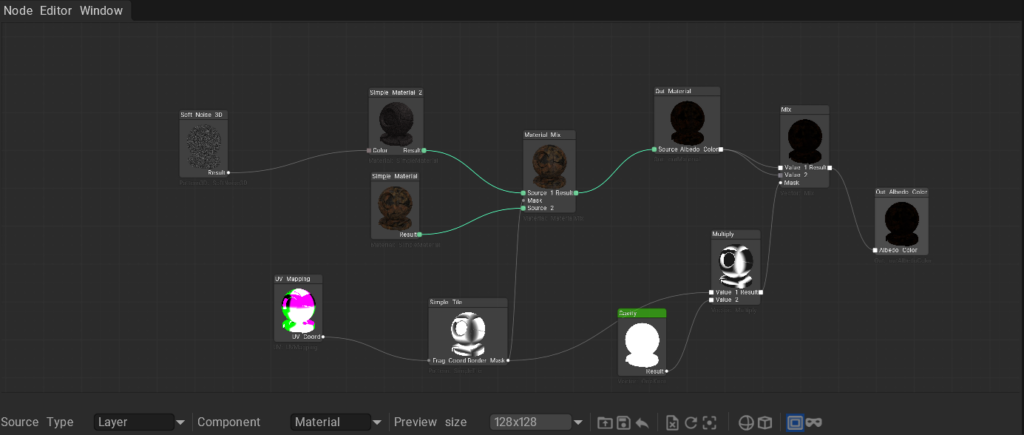
2. Advanced Work with Nodes and Properties

Working in the Node Editor (`Windows -> Panels -> Node Editor`) has a number of hidden functions that significantly speed up the artist’s work.

2.1. Micro-preview of any property (Ctrl + Hover)

This is one of the most important features for debugging complex materials.

When your graph grows, it can sometimes be difficult to understand exactly what a specific node is doing somewhere in the middle of the chain.

– Press and hold the `Ctrl` key and simply hover the mouse cursor over any pin (input/output) or property of a node in the node editor (by hovering the cursor over an incoming link, you will see the result with the influence of expressions and modifiers).

– 3DCoat will instantly render an isolated preview of exactly this stage of the graph directly on your model in the viewport (or as a pop-up hint).

– *Example:* You have mixed a *Curvature* map with *Fractal Noise*. By holding `Ctrl` over the output of this node, you will see the black and white dirt mask as it currently looks, before applying color or normals.

– To finely tune the output or input data of a connection, hover the mouse over it, hold `Ctrl`, and left-click. You will see the result of this specific connection until you press Esc.

2.2. Preview of the material on the entire model (Without mask)

When you are adjusting smart material parameters (e.g., brick tiling or skin texture), you often need to see the big picture on the entire object to correctly assess the scale.

– In the Node Editor interface (or on the tool panel), there is a global preview button (often indicated by an eye icon or the `Preview Material` mode).

– When pressed, the current node material temporarily covers the entire model completely, ignoring your current mask, layer conditions, or brush area.

– This allows you to perfectly adjust the scale and parameters of the material in the context of the entire object. As soon as you start painting or turn off this button, the material will return to its boundaries (mask).

3. Data Management: GlobalVars and LocalVars

For your node materials not to be just static images, 3DCoat uses a system of Variables. They can be configured in the Object Inspector.

3.1. LocalVars

– These are parameters that belong exclusively to the current material, layer, or node.

– For example: rust color, size of a specific scratch.

– If you copy a material, its local variables will be independent of the original.

– You can make each property visible or invisible in the Object Inspector. To do this, select the desired node and change its visibility state in the Node Inspector.

3.2. GlobalVars and ObjectVars

This is an incredibly powerful tool for large scenes and complex assets that allows a single variable in the Object Inspector to affect different node schemes simultaneously!

– The simplest way to link properties between different node systems is to click the button with the Link icon to the right of the incoming property, then open the node scheme and select the node with which you want to establish a link, and in the Node Inspector or Object Inspector, click the “Establish Link” button located to the right of the property.

– The second way to establish a link between different node schemes is to add the “GlobalVars” or “ObjectVars” behavior to the component in which it is located and enable their display in the node editor. GlobalVars will be visible in all node systems, while ObjectVars will only be visible in node systems located within a common object.

– How it works: You create a `GlobalVar` (for example, a Float type parameter named `DamageLevel`). Then you connect this variable inside 5 different smart materials (paint, metal, rubber, etc.).

– Result: By changing the `DamageLevel` value in only one place (in the global settings), all 5 materials instantly update the level of wear across the entire model. This is the ideal way to synchronize wear, wetness, or dirt across the entire object!

– Since the approach combines not just uniform values, but the output values of some node systems with others, global variables can be not only numbers but also any procedural maps.

—

5. Defines and Dynamic Node Properties

The internal architecture of 3DCoat (NGL language) uses special macros—Defines—which generate the node interface and can drastically change its logic on the fly. For the artist, these defines appear as control elements in the upper part of the *Object Inspector* panel for the selected node.

5.1. What are Defines?

Each node can have a set of basic settings that compile it differently:

– #enum (Dropdown lists): For example, selecting the layer blending mode (`Normal`, `Multiply`, `Screen`, etc.) or selecting the noise type.

– #bool (Checkboxes / Ticks): For example, enabling `Enable Shadows` or `Use Custom Mask`.

– #int (Integer sliders): Used for steps or iterations (e.g., `Iterations` from 1 to 10).

– #sampler (Texture loading): Direct loading of a raster image into the node without the need to create a separate `Texture` node.

5.2. Influence on the number of properties (pins)

The most powerful property of defines is that they are capable of dynamically changing the number of Inputs and Outputs of your node!

> [!TIP]

> **Practical Example:** Imagine you are using a procedural effect node. In the inspector, you see a checkbox (define) `#bool USE_CUSTOM_MASK`.

> As soon as you check this box, 3DCoat instantly recompiles the node on the fly, and a new physical input pin (e.g., `MaskInput`) appears on the node itself in the graph. If the checkbox is unchecked, the pin disappears.

**Why is this important for the artist?**

This allows you to keep node graphs extremely clean. Instead of having a giant universal node with 20 pins (of which you only use 3), you see a compact node with a minimum of inputs. By enabling a specific define in the settings (e.g., enabling support for transparency or normals), you instantly add the necessary pins to the node and connect the required links to them.

5.3. Links between Defines

Defines can also create links with other similar defines, analogous to variable properties:

– By creating a link between several defines, when one define changes, all those linked to it will take the same value.

– For example, if you have many nodes that apply a texture to the model and you want to choose the type of texture projection from one dropdown list, you can simply unify the corresponding define in all relevant nodes.

– Defines can also be unified between different node schemes that have the GlobalVars or LocalVars behavior type.

—

6. Layer Components — Pipeline Change

GPUPPP technology is most vividly demonstrated in the classic Layers panel. Now, layers are containers for node logic.

– Adding effects (Filters and Modifiers): Component icons have appeared in the Layers panel. By clicking them, you can assign a procedural modifier to the entire layer (e.g., node-based Displacement or Color Correction).

– Live Transformation: If previously you couldn’t undo an Adjust filter after applying it, now, by adding a node-based `NGFilter`, you can change the blur radius in the Object Inspector at any stage of work.

– Node Masks: Create layer masks using nodes. Instead of manual erasing, blend a noise node with Ambient Occlusion, and the mask will adapt to the model dynamically. By hovering the cursor over the mask in the layer and holding `Ctrl`, you will get an instant preview of the mask (black and white display on the model).

7. Quick Tips for Professionals

– Use Frame / Group: To avoid getting lost in a large graph, select blocks of nodes and create a `Frame`. Give it a clear name (e.g., “Base Color” or “Rust Normals”) and a color.

– Mathematics is your helper: The `Multiply` node is the fastest way to make mask edges look more ragged if you multiply it by `Fractal Noise`.

– Drag & Drop textures: Simply holding `Ctrl`, drag the texture from the Stencils, Strips, Masks window directly onto any field for texture selection, and you will automatically get the path to the corresponding file.

– Monitor speed (Profiler): All nodes run on the GPU, but excessive use of dozens of real-time noise generators can slow down the preview on weaker graphics cards. Use Baking to fix complex sections of the graph.

3. Node Anatomy and the Basics of Visual Programming

To create your own materials in the Node Room, you need to understand how nodes work. The node graph (your working canvas) is built from blocks. Information always flows from left to right.

Structural elementRole and significance for the artist
Knots (Pins)Connectors on the left (Input) and right (Output) sides of the node. The left receives data (e.g., mask or material), the right transmits the processed data further. Only one line can be connected to one input, but you can output as many lines as you want from one output.
(Links / Lines)Flexible curved lines along which your paint, mask, or mathematical value “flows” from one node to another.
Default Inputs (Base Values)Fields for manual number entry. If no input link is connected to the Roughness port, you can simply enter a number there (e.g., 0.4). If a link is established in the pin, the entered value will be multiplied by the input value by default, unless otherwise specified in the expression.
Color codingFloat: Black and white data (masks, roughness, relief height). Values from 0 to 1.Vector: A set of coordinates (X, Y, Z, W). Used for scaling or rotating a texture; a vector can have from 2 to 4 scalars.Color: Color in RGBA format (red, green, blue + transparency). Used for entering and transmitting colors, in which case a dialog for selecting a color will open for editing the value.

(Note: A protection system is in place in the program—it will physically not allow you to connect incompatible ports, for example, material directly into vector coordinates. However, values of types Float, Vector, and Color will automatically convert and can form links between each other).

All simple types of input properties, such as Float, Vector, and Color, have integrated modifiers such as Simple, Levels, Curves, or Gradient, so there is no need to create separate nodes for simple modifications. Simple Modifier is the fastest but provides less control, Curves and Gradient are the slowest but provide the most control, including control of each color channel separately and many key points.

4. Node Library: Your Toolkit

All tools are grouped by their visual purpose. Here are the most important categories:

  • Color: Standard nodes for color processing
  • Geometry In: Nodes for obtaining information about the model’s geometry, such as the normal, position of each pixel, etc.
  • In: This is where all nodes that transmit data received by the node scheme at the input are located, such as material, its separate channels and properties, baked maps such as Occlusion, Cavity, GeometryInfo, or coordinates such as UV.
  • Layer: This is where nodes are located that provide information about what was painted with the brush on the given layer and which brush properties were set. This data allows you to create materials that are generated depending on the brush’s property and color.
  • Material: Nodes intended for convenient work with materials. Since materials contain dozens of channels, creating or processing each of them separately is difficult. These nodes help work with entire materials or their individual properties.
  • Out: Values that the node scheme transmits to the output; this can be a mask or a material, or object deformation.
  • Pattern (Patterns): Generators of procedural noise and patterns. Patterns 3D / 2D (Perlin, Simplex) generate basic natural dirt textures. Voronoi creates a structure similar to cells, scales, or cracked earth. Hexagon / SimpleWood are ready-made shapes for a quick start.
  • Variables: Allow you to move material settings to a convenient slider panel (Node Inspector). For example, by creating a Float Variable and naming it “Amount of Dirt,” you can change this parameter with a single slider movement without delving into the graph itself.
  • ShaderToy: Examples of how to transfer shaders from ShaderToy to 3DCoat nodes; this is done very simply because 3DCoat nodes are written in a language based on GLSL.
  • Texture: Nodes intended for reading texture images from files and applying them in the node system.
  • Vector (Mathematics): Various nodes for working with vectors, including float, Vector2, Vector3, Vector4, Color (this list includes types like float and Color; although they are not formally called vectors, they are compatible with them and can work without additional conversions).

5. Practical Masterclass: Creating the “Water Droplets” Material

Nothing explains node logic better than practice. Let’s create the effect of volumetric water droplets on a metal surface:

  1. Base (Metal): In the Node Room, create a Color Variable node, choose a dark gray color, and connect it to the Color port of the IO Albedo Color node. Create a Float Variable, name it “Gloss,” set it to 0.85, and connect it to the Gloss input of the IO Glass node.
  2. Generating Droplets: Add a Voronoi 2D node (Patterns category). It will create spherical areas, ideal for droplets. To control the size, connect a new Float Variable (“Droplet Size”) to the Scale port of this noise.
  3. Profiling (Lens): If you connect the noise directly to the relief, the droplets will be blurry. Insert a Curve node between them. In the curve settings, make the left part of the graph flat (dry metal), then make a sharp vertical rise (droplet edge) and a smooth rounding at the top.
  4. Displacement (Relief): Connect the output from Curve to the Displacement port in Material IO. Thanks to GPU acceleration, volumetric, physically correct water droplets that perfectly reflect light will instantly grow on your model.

Was this helpful?

Yes  No
Related Articles
  • Volumes
  • Modifiers
  • Materials
  • Masks
  • Filters
  • UV
Previously
Per-Pixel Painting
Up Next
NodeGraph Language (NGL)
AI:
Hi! How can I help you?
Attention: This is a beta version of AI chat. Some answers may be wrong. See full version of AI chat