• Français
  • Documentation 3DCoat
  • Chapters
    • Présentation de 3DCoat
    • Commencer
    • Interface et navigation
    • Composants de la Brush
    • Salles d’espaces de travail
    • Core API de Scripting et de base
    • Questions et réponses
    • licensing
    • Tutoriels de formation
  • Pilgway
  • Products
    • 3DCoat
    • 3DCoatTextura
    • 3DCoatPrint
    • PBRLibrary
  • Blog Posts
  • Store
  • Français Français
    • English English
    • Українська Українська
    • Español Español
    • Deutsch Deutsch
    • 日本語 日本語
    • Русский Русский
    • 한국어 한국어
    • Polski Polski
    • 中文 (中国) 中文 (中国)
    • Português Português
    • Italiano Italiano
    • Suomi Suomi
    • Svenska Svenska
    • 中文 (台灣) 中文 (台灣)
    • Dansk Dansk
    • Slovenčina Slovenčina
    • Türkçe Türkçe
    • Nederlands Nederlands
    • Magyar Magyar
    • ไทย ไทย
    • हिन्दी हिन्दी
    • Ελληνικά Ελληνικά
    • Tiếng Việt Tiếng Việt
    • Lietuviškai Lietuviškai
    • Latviešu valoda Latviešu valoda
    • Eesti Eesti
    • Čeština Čeština
    • Română Română
    • Norsk Bokmål Norsk Bokmål
  • Creating 3D Character Using 3DCoat
  • Documentation 3DCoat
  • Chapters
    • Présentation de 3DCoat
    • Commencer
    • Interface et navigation
    • Composants de la Brush
    • Salles d’espaces de travail
    • Core API de Scripting et de base
    • Questions et réponses
    • licensing
    • Tutoriels de formation
  • Pilgway
  • Products
    • 3DCoat
    • 3DCoatTextura
    • 3DCoatPrint
    • PBRLibrary
  • Blog Posts
  • Store
  • Français Français
    • English English
    • Українська Українська
    • Español Español
    • Deutsch Deutsch
    • 日本語 日本語
    • Русский Русский
    • 한국어 한국어
    • Polski Polski
    • 中文 (中国) 中文 (中国)
    • Português Português
    • Italiano Italiano
    • Suomi Suomi
    • Svenska Svenska
    • 中文 (台灣) 中文 (台灣)
    • Dansk Dansk
    • Slovenčina Slovenčina
    • Türkçe Türkçe
    • Nederlands Nederlands
    • Magyar Magyar
    • ไทย ไทย
    • हिन्दी हिन्दी
    • Ελληνικά Ελληνικά
    • Tiếng Việt Tiếng Việt
    • Lietuviškai Lietuviškai
    • Latviešu valoda Latviešu valoda
    • Eesti Eesti
    • Čeština Čeština
    • Română Română
    • Norsk Bokmål Norsk Bokmål
  • Creating 3D Character Using 3DCoat
Expand All Collapse All
  • Présentation de 3DCoat
  • Commencer
    • System requirements
    • Why 3DCoat is Unique?
    • Activation de 3DCoat
    • Erreur de démarrage
      • Startup error Mac
    • Color management
    • Upgrading permanent license
    • Linux Setup
      • Linux initial setup per-user installation
      • Linux initial setup for system
      • Tablet setup
      • To GTK3 from GTK2
    • Structure des dossiers
      • Custom documents folder
    • Différentes formes de « résolution »
    • Tablet on Window
    • Import et Export
    • Applinks dans 3DCoat
      • Lien de l'application Blender
        • Blender with the Applink in Linux
      • Blender 4.2/3/4/5 applink
      • Max Applink
      • Houdini applink
      • Lightwave uplink
  • Navigation
    • Boîte de dialogue d'ouverture (menu de démarrage rapide)
    • Panneau de navigation
    • Caméra et Navigation
      • Customize Navigation as Blender
    • Viewport Navigation Gizmo
    • Left tool panel
    •  Activity Bar
    • Navigation à l'aide d'appareils 3DConnexion
      • How to compile Spacenavd on non Ubuntu distro
    • Stylus doesn’t work in sculpting
    • Raccourcis
  • Interface et navigation
    • Menu Fichier
    • Modifier le menu
      • Calculate Curvature
      • Calculate Occlusion
      • Light Baking Tool
      • Préférences
    • Afficher le menu
    • Symétrie
    • Textures
    • Calculate
    • Menu Couches
    • Geler le menu
    • Hide
    • Bake
    • Courbes 2022
      • Menu Courbes
      • Curves Properties RMB
      • Remplir avec une couche de maille
      • Scale of imported curves
    • Menu Fenêtres
      • Panneaux contextuels Windows à onglets
      • Curseurs
    • Scripts
    • Addons
    • Capture
    • Menu d'aide
    • Personnalisation
    • Modifier ou créer une nouvelle pièce
  • Composants de la Brush
    • Barre supérieure de la Brush
    • Brosses usage général
      • Créer des pinceaux et des décalcomanies
      • Faire de l'alpha à partir de la sculpture actuelle
      • Créer un Brush à partir d'un objet 3D
      • Create brushes based on Curves
      • Load photoshop .abr brushes
    • Coups
      • Menu contextuel Courbes
    • Options de Brush
    • Limiteur de conditions
    • Panneau de bandes
    • Panneau Pochoirs
    • Matériaux intelligents
      • Ajouter de nouvelles images ou matériaux
      • Attacher un matériau intelligent à un calque
      • Import Quixel Material
    • Comment créer des préréglages pour le Brush
  • Salles d'espaces de travail
    • Painting
      • Painting de texture et modes
        • Painting par Per-Pixel
        • Painting par déplacement (Micro-Vertex)
        • Painting Ptex
        • Painting de surface (polypeinture)
      • Importation dans la salle de Painting
        • Initial CC subdivision
        • UV Set smoothing
        • Sharp (hard) edge
        • Verrouiller les normales
        • Charger une nouvelle présentation UV après les modifications du modèle
        • DAZ Genesis models into 3DCoat
      • Menus de l'espace de travail de Painting
        • Edit menu
        • Menu Textures
          • Outils de Baking de textures
        • Cacher
        • Menu pour la Bake Paint
        • Le sélecteur de couleurs
      • Barre supérieure pour la Painting
      • Le panneau Calques
        • Le panneau de fusion
        • Layer and Clipping Masks
      • Outils de salle de Painting
      • Opacité - Transparence
      • Ajuster l'espace de travail
        • Ensemble d'outils d'ajustement
        • Exportation à partir de la salle de réglages
      • Panneau de prévisualisation de masque/matériau
      • Exportation depuis la salle de Painting
    • Espace de travail UV
      • Barre supérieure UV
      • Panneau d'outils UV gauche
      • Panneau de prévisualisation UV
      • Exemple de flux de travail UV
      • Importation dans la chambre UV
      • Exportation depuis la chambre UV
    • Retopologie
      • Importation dans la salle Retopo
      • Menu Retopo Mesh et Menu Bake
        • Mode miroir virtuel
      • Bake menu
        • Treat Poly Groups as Paint Objects
        • Baking guide
      • Barre du haut
        • Sélectionnez la géométrie
      • Panneau d'outils de gauche dans la salle de retopologie
        • Objectif général et fonction
        • Ajouter une géométrie
          • Outil Traits en Retopologie
        • Outils d'ajustement Retopo
        • Outils UV
        • Commandes pour la salle de retopologie
      • AUTORETOPO
        • Autopo guide
      • Groupes poly
    • Sculpter
      • Sculpt Layer
      • Sculpter l'arbre
      • Options de Brush de sculpture
      • Top Bar
      • Moteur de Brush
      • Sous-menu Géométrie
      • Sculptez le menu "clic droit"
      • Shaders
      • Mode Voxel
        • Sculpture de Voxel purs
        • Densité et résolution
        • Moteur d'argile
        • Outils Voxel
        • Outils de surface sur Voxels
        • Outils de réglage des Voxel
        • Painting volumétrique
        • Outils d'objets Voxel
      • Mode surface
        • Outils de surface
        • Outils personnalisés de surface
        • Outils de réglage de surface
        • Painting de surface
        • Outils Objets surfaciques
        • Résolution à plusieurs niveaux
          • Multires tools
          • Multires adjust
          • Multires commands
      • Sculpter les courbes
        • Courbes splines
        • Splines model creation
      • Déplacement vectoriel
      • Outils de transformation de surface
        • Outils de transformation de Voxel
        • Instancer
        • Move
        • Pose
        • Fit
        • Reproject
        • Surface Array
      • Primitives Voxel et outils Import
      • Booléens en direct
      • Commandes pour la salle Sculpt
      • Import dans la salle de sculpture
      • Exportation depuis la salle Sculpt
    • Rendre
      • Comparison of different roughness values
      • Fonctions du panneau de rendu
      • Plaque tournante
      • Fakebake l'éclairage - non PBR-
    • Factures
      • Flux de travail
    • Le plus simple
    • La modélisation
      • Mesh Menu
      • Panneau d'outils de gauche dans la salle de modélisation
        • Ajouter une géométrie
          • Choisi
        • tordre
        • Smart Hybrid
        • UV
          • Commandes
        • Maillage entier
      • Exemple de surface de loft par Fluffy
      • Blocage par Poeboi
      • Import Zbrush Polygroups for UV mapping
    • Kitbash - Création rapide de modèles 3D
      • Create kitbash
      • Left tool panel Kitbash
    • 3DPrint
    • Photogrammetry
      • How to install Reality Capture
      • Reality Capture doesn’t show up ?
    • Maillage vers la salle NURBS
    • Nodes
      • Sculpt shaders Bibliothèque de nœuds
  • Core API de Scripting et de base
    • Scripting
    • Core API
    • API Python
  • 3DCoatPrint gratuit

Navigation

822 views 1

Written by Carlos
March 2, 2024

Interface


Top menus are always available on all workspaces:
File, Edit, View, Curves, Windows, Scripts, Addons, Capture and Help.
All other menus change depending on the Workspace you select. Each menu set is designed to support a particular workflow.
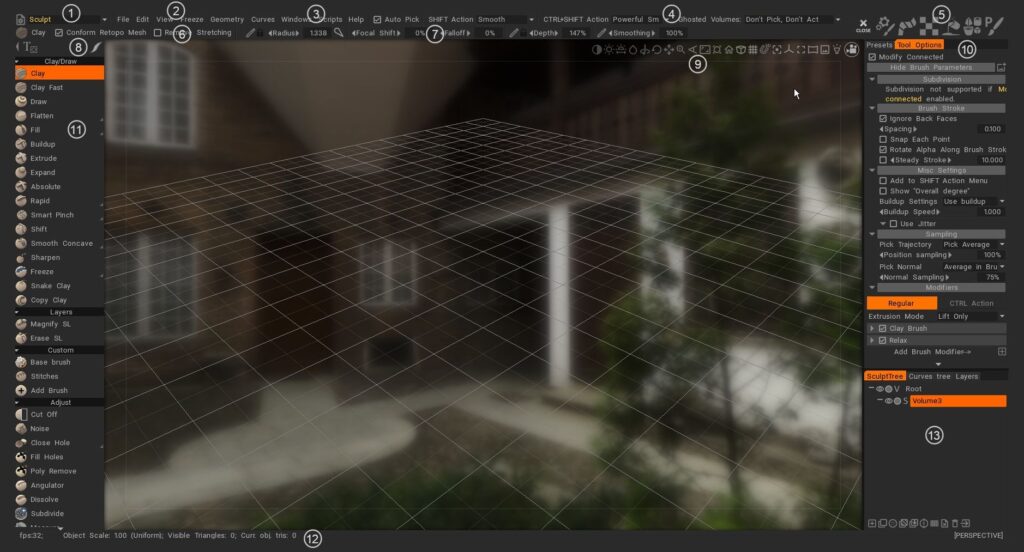
Select the menu set you want to work with from the drop-down or tab list in the status bar. This can be changed on Preferences.

  1. Main Menu: First menus are always available. Use this selection to change rooms.
  2. Individual menus: Remaining menus change depending of which room set you choose. This helps focus your work on related tools.
  3. Windows panel: Here you can select windows panels for different rooms.
  4. Status Line: Pick and Snap selection method. Tool options. Change depending on which room set you choose.
  5. Activity Bar: this video briefly demonstrates the usage of the Activity bar in the upper right corner or vertical right on viewport (can be changed on Preferences), when you hover over it quickly expands different pallets or panels for that icon, without disturbing the overall layout of the UI.
  6. Tool type: show current selected tool.
  7. Tool Bar Options: has some common parameters based on the tool that you are using. It changes contextually.
  8. Stroke modes: specifies the way that your stroke behaves from mouse click to mouse release. Several Stroke modes exist in the Stroke Panel to help control the application of Brush strokes, as well as an extensive array of spline and polygon based drawing modes.
  9. Camera and Navigation: Common to all rooms are the standard methods for displaying your scene and individual models in 3D Viewport.
  10. Tool Options Panel: as in other rooms, the upper bar contains the usual brush settings, it contains tool specific parameters and buttons. Some brushes and tools will have parameters others will not.
  11. Left Tool Panel: all tools selection related to current room.
  12. Statistics Line: there are statistics about the scene’s total count of vertices, faces and triangles, in addition to your current selection of objects.
  13. Layers: 3DCoat have 3 types of layers. Sculpt layers, paint layers (for paint and sculpt layers) and Curves layers.

Tutorials


3DCoat Text and Icons too Large?: This video shows how to quickly adjust the UI text and icon size in 3DCoat, to fit your personal preferences.

3DC 2021 UI Overview: This video begins an overview of the 3DCoat 2021 User Interface, looking at some of the newest changes, but also how to optimize, customize and minimize the number of panels that are visible, in order to fit your preference.

3DCoat Overview: This video provides an overview of 3D Coat 4.5, focusing on its multi-workspace design and workflow. The video explains the different workspaces, their functions, and how they interact with each other. It also highlights the baking process, which allows users to transfer high-poly details onto low-poly models.

Was this helpful?

1 Yes  No
Related Articles
  • Surface Array
  • Top Bar
  • Curves Properties RMB
  • Left tool panel Kitbash
  • Create kitbash
  • Color management
Previously
Lightwave uplink
Up Next
Boîte de dialogue d'ouverture (menu de démarrage rapide)
AI:
Hi! How can I help you?
Attention: This is a beta version of AI chat. Some answers may be wrong. See full version of AI chat