• Magyar
  • 3DCoat dokumentáció
  • Chapters
    • A 3DCoat bemutatása
    • Elkezdeni
    • Interfész és navigáció
    • Brush alkatrészek
    • Munkaterületek Szobák
    • Scripting & Core API
    • Kérdések és válaszok
    • licensing
    • Képzési oktatóanyagok
  • Pilgway
  • Products
    • 3DCoat
    • 3DCoatTextura
    • 3DCoatPrint
    • PBRLibrary
  • Blog Posts
  • Store
  • Magyar Magyar
    • English English
    • Українська Українська
    • Español Español
    • Deutsch Deutsch
    • Français Français
    • 日本語 日本語
    • Русский Русский
    • 한국어 한국어
    • Polski Polski
    • 中文 (中国) 中文 (中国)
    • Português Português
    • Italiano Italiano
    • Suomi Suomi
    • Svenska Svenska
    • 中文 (台灣) 中文 (台灣)
    • Dansk Dansk
    • Slovenčina Slovenčina
    • Türkçe Türkçe
    • Nederlands Nederlands
    • ไทย ไทย
    • हिन्दी हिन्दी
    • Ελληνικά Ελληνικά
    • Tiếng Việt Tiếng Việt
    • Lietuviškai Lietuviškai
    • Latviešu valoda Latviešu valoda
    • Eesti Eesti
    • Čeština Čeština
    • Română Română
    • Norsk Bokmål Norsk Bokmål
  • Creating 3D Character Using 3DCoat
  • 3DCoat dokumentáció
  • Chapters
    • A 3DCoat bemutatása
    • Elkezdeni
    • Interfész és navigáció
    • Brush alkatrészek
    • Munkaterületek Szobák
    • Scripting & Core API
    • Kérdések és válaszok
    • licensing
    • Képzési oktatóanyagok
  • Pilgway
  • Products
    • 3DCoat
    • 3DCoatTextura
    • 3DCoatPrint
    • PBRLibrary
  • Blog Posts
  • Store
  • Magyar Magyar
    • English English
    • Українська Українська
    • Español Español
    • Deutsch Deutsch
    • Français Français
    • 日本語 日本語
    • Русский Русский
    • 한국어 한국어
    • Polski Polski
    • 中文 (中国) 中文 (中国)
    • Português Português
    • Italiano Italiano
    • Suomi Suomi
    • Svenska Svenska
    • 中文 (台灣) 中文 (台灣)
    • Dansk Dansk
    • Slovenčina Slovenčina
    • Türkçe Türkçe
    • Nederlands Nederlands
    • ไทย ไทย
    • हिन्दी हिन्दी
    • Ελληνικά Ελληνικά
    • Tiếng Việt Tiếng Việt
    • Lietuviškai Lietuviškai
    • Latviešu valoda Latviešu valoda
    • Eesti Eesti
    • Čeština Čeština
    • Română Română
    • Norsk Bokmål Norsk Bokmål
  • Creating 3D Character Using 3DCoat
Expand All Collapse All
  • A 3DCoat bemutatása
  • Elkezdeni
    • System requirements
    • Why 3DCoat is Unique?
    • A 3DCoat aktiválása
    • Indítási hiba
      • Startup error Mac
    • Color management
    • Upgrading permanent license
    • Linux Setup
      • Linux initial setup per-user installation
      • Linux initial setup for system
      • Tablet setup
      • To GTK3 from GTK2
    • Mappák szerkezete
      • Custom documents folder
    • A „felbontás” különböző formái
    • Tablet on Window
    • Import & Export
    • Applinks 3DCoat
      • Blender alkalmazáslink
        • Blender with the Applink in Linux
      • Blender 4.2/3/4/5 applink
      • Max Applink
      • Houdini applink
      • Lightwave uplink
  • Navigation
    • Párbeszédpanel megnyitása (Gyorsindítás menü)
    • Navigációs panel
    • Kamera és navigáció
      • Customize Navigation as Blender
    • Viewport Navigation Gizmo
    • Left tool panel
    •  Activity Bar
    • Navigáció 3DConnexion eszközökkel
      • How to compile Spacenavd on non Ubuntu distro
    • Stylus doesn’t work in sculpting
    • Gyorsbillentyűk
  • Interfész és navigáció
    • Fájl menü
    • Szerkesztés menü
      • Calculate Curvature
      • Calculate Occlusion
      • Light Baking Tool
      • preferenciák
    • Nézet menü
    • Szimmetria
    • Textures
    • Calculate
    • Rétegek menü
    • Menü befagyasztása
    • Hide
    • Bake
    • Görbék 2022
      • Görbék menü
      • Curves Properties RMB
      • Töltsük meg hálós réteggel
      • Scale of imported curves
    • Windows menü
      • Lapos Windows előugró panelek
      • Csúszkák
    • Scripts
    • Addons
    • Capture
    • Súgó menü
    • Testreszabás
    • Módosítás vagy új szoba létrehozása
  • Brush alkatrészek
    • Brush Top Bar
    • Kefék általános használatra
      • Készítsen ecsetet és matricákat
      • Alfa készítése a jelenlegi szoborból
      • Brush létrehozása 3D objektumból
      • Create brushes based on Curves
      • Load photoshop .abr brushes
    • Strokes
      • Curves felugró menü
    • Brush opciók
    • Feltételek korlátozója
    • Strips Panel
    • Stencilek panel
    • Intelligens anyagok
      • Új képek vagy anyagok hozzáadása
      • Rögzítsen egy Smart anyagot egy réteghez
      • Import Quixel Material
    • Hogyan készítsünk előbeállításokat az Brush
  • Munkaterületek Szobák
    • Painting
      • Textúra Painting és módok
        • Per-Pixel Painting
        • Eltolásos Painting (Micro-Vertex)
        • Ptex Painting
        • Painting (polifestés)
      • Importálás a Painting
        • Initial CC subdivision
        • UV Set smoothing
        • Sharp (hard) edge
        • Normál zárolás
        • Új UV elrendezés betöltése a modellváltások után
        • DAZ Genesis models into 3DCoat
      • A Painting munkaterület menüi
        • Edit menu
        • Textúrák menü
          • Textúra Baking
        • Elrejt
        • Menü a Bake Paint
        • A Színválasztó
      • Felső sáv a Painting
      • A Rétegek panel
        • A keverési panel
        • Layer and Clipping Masks
      • Painting Eszközök
      • Átlátszatlanság – Átlátszóság
      • A munkaterület finomítása
        • Tweak Toolset
        • Exportálás a Tweak Room-ból
      • Maszk/anyag előnézeti panel
      • Exportálás a Painting
    • UV munkaterület
      • UV felső sáv
      • UV Bal oldali szerszám panel
      • UV előnézeti panel
      • UV munkafolyamat példa
      • Importálás az UV szobába
      • Exportálás az UV teremből
    • Retopológia
      • Importálás a Retopo szobába
      • Retopo Mesh Menu és Bake Menu
        • Virtuális tükör mód
      • Bake menu
        • Treat Poly Groups as Paint Objects
        • Baking guide
      • Legjobb bár
        • Válassza ki a geometriát
      • Bal oldali eszközpanel a Retopológia szobában
        • Általános cél és funkció
        • Geometria hozzáadása
          • Strokes eszköz a retopológiában
        • Retopo Tweak Tools
        • UV eszközök
        • Parancsok a Retopológiai szoba számára
      • AUTORETOPO
        • Autopo guide
      • Poli csoportok
    • Farag
      • Sculpt Layer
      • Sculp Tree
      • Sculpt Brush opciók
      • Top Bar
      • Brush motor
      • Geometria almenü
      • Alakítsa ki a „jobb gombbal” menüt
      • Árnyékolók
      • Voxel mód
        • Pure Voxel Sculpting
        • Sűrűség és felbontás
        • Clay Engine
        • Voxel eszközök
        • Felületi eszközök a Voxeleken
        • Voxel beállítási eszközök
        • Volumetrikus Painting
        • Voxel objektumok eszközök
      • Felszíni mód
        • Felületi szerszámok
        • Felületi egyedi szerszámok
        • Felületbeállító eszközök
        • Painting
        • Felületi objektumok eszközök
        • Többszintű felbontás
          • Multires tools
          • Multires adjust
          • Multires commands
      • Faragni görbék
        • Spline görbék
        • Splines model creation
      • vektor elmozdulás
      • Felületátalakítási eszközök
        • Voxel transzformációs eszközök
        • Instancer
        • Move
        • Pose
        • Fit
        • Reproject
        • Surface Array
      • Voxel primitívek és Import eszközök
      • Élő logikai értékek
      • Parancsok a Sculpt szobához
      • Import a Sculpt Roomba
      • Exportálás a Szobrászteremből
    • Vakol
      • Comparison of different roughness values
      • Render Panel Funkciók
      • Lemezjátszó
      • Fakebake a világítás - nem PBR-
    • Factures
      • Munkafolyamat
    • A legegyszerűbb
    • Modellezés
      • Mesh Menu
      • Bal oldali eszközpanel a modellező szobában
        • Geometria hozzáadása
          • Kiválasztott
        • Csípés
        • Smart Hybrid
        • UV
          • Parancsok
        • Teljes háló
      • Példa a tetőtéri felületre a Fluffy által
      • Blokkolás Poeboi által
      • Import Zbrush Polygroups for UV mapping
    • Kitbash – Gyors 3D modellek létrehozása
      • Create kitbash
      • Left tool panel Kitbash
    • 3DPrint
    • Photogrammetry
      • How to install Reality Capture
      • Reality Capture doesn’t show up ?
    • Háló a NURBS szobához
    • Nodes
      • Sculp shader Nodes Library
  • Scripting & Core API
    • Scripting
    • Core API
    • Python API
  • Ingyenes 3DCoatPrint

UV Set smoothing

1060 views 0

Written by Carlos
December 5, 2023

When you import a “model for pixel painting ” with 3DCoat, the setting window for import opens.
Among them, there is an item called “Smooth UV set”.
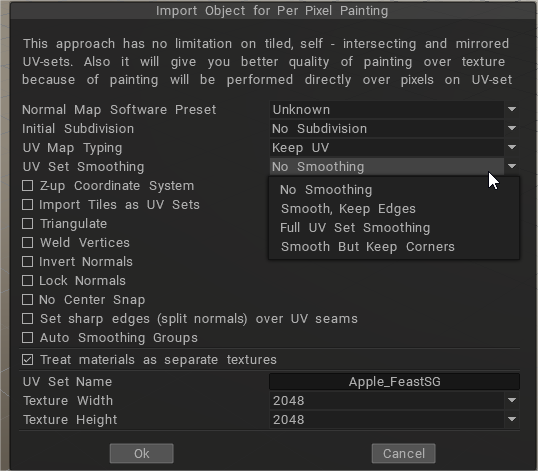
image.png

It is cut off in the image above, but when you try to select this item, the following warning will be displayed.

image.png

So if you select “No subdivision” for “Initial subdivision (number of polygons)” two items above , you will select “No smoothing” here.

Do you want to “subdivide” this? Is it assumed that the CG model you are trying to import into 3DCoat uses a subdivision surface (SDS) ?
That’s what I mean. And if you put UV textures on the SDS model, you will use the “UV smoothing interpolation” function.

“Smoothing UV set” is asked what kind of “UV smoothing interpolation” is performed in the rendering software that uses it after creating a texture with 3DCoat.
Therefore, before importing to 3DCoat, it is necessary to check the distortion using a checker map texture etc. with the rendering software and decide the optimal interpolation method.

This is a correspondence option in between softwares.
In the case of Blender , “UV Smooth” in “Detailed Settings” with the ” Subdivision Surface ” modifier applied from the modifier item:
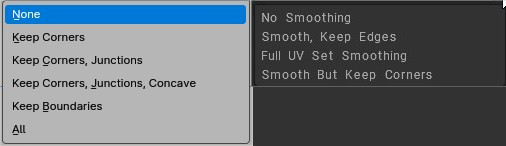
None / No Smoothing: UVs remain unchanged. UVs are not smoothed, boundaries are keep sharp.
Keep Corners / Smooth but keep corners: UV islands are smoothed, but their boundary (limits) remain unchanged.
Keep Corners, Junctions: UVs are smoothed, corners on discontinuous boundary and junctions of three or more regions are kept sharp.
Keep Corners, Junctions, Concave: UVs are smoothed, corners on discontinuous boundary, junctions of three or more regions and darts and concave corners are kept sharp.
Keep Boundaries / Smooth, Keep Edges: UVs are smoothed, boundaries (UV limits) are kept sharp.
All / Full UV Set Smoothing: UVs and their boundaries (UV limits) are smoothed.

Import for PPP using Uv Set Smoothing options


The initial subdivision (number of polygons) is “2604” (second from the top, equivalent to CC division level 2)
Smooth UV Set is “Preserve Corners and Smooth”
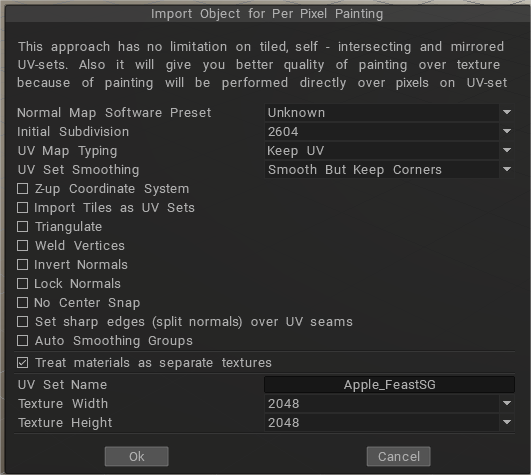
image.png

Then, the mesh model to which SDS is applied is displayed first. If you check the item “Low resolution model” from the “View” menu, the model will be replaced and the mesh model before SDS is applied will be displayed.
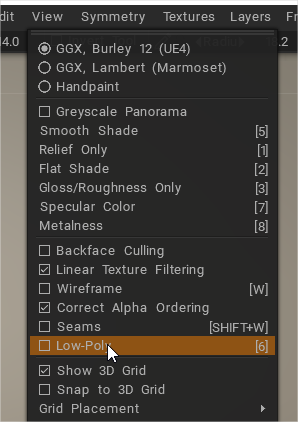
image.png

This function is assigned the default shortcut “6” on the character key side, and the model is replaced each time it is pressed.
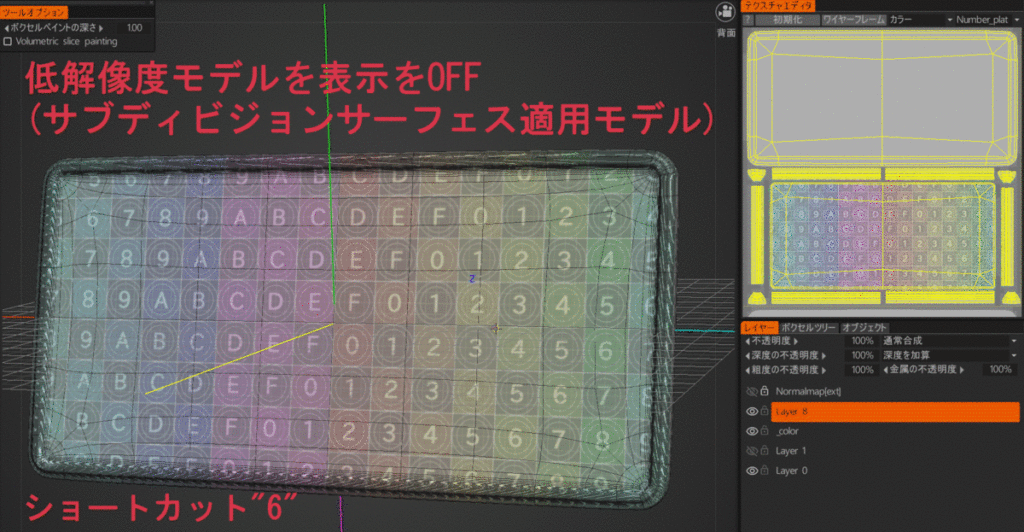
3DCoat seems to treat the former as “medium resolution mesh” and the latter as “low resolution mesh”. This is indicated in the settings when exporting the model.
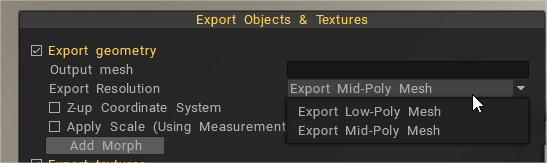
image.png

Painting is done with a medium resolution mesh displayed.

The export will be the flow of selecting the low resolution mesh.

What is UV set smoothing doing?

As SDS is subdivided, the vertices move and the texture is distorted, but the theory is that it is distorted in the opposite direction to the distortion at the import stage, and then the distortion is corrected when SDS is applied.

UV Stitching problem between 3DCoat and Blender


If you have an UV Stitching problem between 3DCoat and Blender, I mean, if in 3DCoat texture looks correctly, but when exporting to Blender, Textures looks stitched or distorted, the solution is to Triangulate the faces of the model before importing it from Blender to 3DCoat.

You can triangulate the whole model inside Blender selecting all faces and pressing CTRL + T or you can triangulate it in the import panel inside 3DCoat checking “Triangulate” option.
Also you can triangulate the model after you have done your texturing work, when you bring the model again into Blender from 3DCoat you can do CTRL + T inside Blender, and the Textures will look fine, as seen inside 3DCoat.

It seems that 3DCoat internally triangulates Blender´s Model, so that if you do (6) to look Low Poly Mesh inside 3DCoat it will appear the model before it is subdivided or triangulate inside 3DCoat so the UV Stitching will appear, but it looks fine when the Mid Poly Mesh is seen because it shows the triangulated model

So it seems that paint work in 3DCoat need tris, and to look it correctly inside Blender you also need Tris.

I hope this saves you lots of headaches as I had suffered with this Issue.

Tags:UV set smoothing

Was this helpful?

Yes  No
Related Articles
  • Surface Array
  • Top Bar
  • Curves Properties RMB
  • Left tool panel Kitbash
  • Create kitbash
  • Color management
Previously
Initial CC subdivision
Up Next
Sharp (hard) edge
AI:
Hi! How can I help you?
Attention: This is a beta version of AI chat. Some answers may be wrong. See full version of AI chat