• English
  • 3DCoat Documentation
  • Chapters
    • Introduction to 3DCoat
    • Getting started
    • Interface
    • Brush Components
    • Node System
    • GPU Texturing
    • Workspaces Rooms
    • Scripting & Core API
    • Questions/Answers
    • Licensing
  • Library
    • Getting Started
    • Painting
    • Sculpt
    • Modeling
    • Retopology
    • UV
    • Smart Materials
    • Nodes
    • Photogrammetry
    • Render
    • Print
    • Learning
    • Training Tutorials
  • Blog Posts
    • Creating 3D Character Using 3DCoat
    • DAZ Genesis models into 3DCoat
    • Cavity and Curvature maps
    • Types of normal maps
    • Texture painting pipeline
    • Load new UV layout After Model Changes
    • Import Zbrush Polygroups for UV mapping
  • Products
    • 3DCoat
    • 3DCoatTextura
    • 3DCoatPrint
    • PBRLibrary
  • Store
  • Pilgway
  • English English
    • Українська Українська
    • Español Español
    • Deutsch Deutsch
    • Français Français
    • 日本語 日本語
    • Русский Русский
    • 한국어 한국어
    • Polski Polski
    • 中文 (中国) 中文 (中国)
    • Português Português
    • Italiano Italiano
    • Suomi Suomi
    • Svenska Svenska
    • 中文 (台灣) 中文 (台灣)
    • Dansk Dansk
    • Slovenčina Slovenčina
    • Türkçe Türkçe
    • Nederlands Nederlands
    • Magyar Magyar
    • ไทย ไทย
    • हिन्दी हिन्दी
    • Ελληνικά Ελληνικά
    • Tiếng Việt Tiếng Việt
    • Lietuviškai Lietuviškai
    • Latviešu valoda Latviešu valoda
    • Eesti Eesti
    • Čeština Čeština
    • Română Română
    • Norsk Bokmål Norsk Bokmål
  • 3DCoat Documentation
  • Chapters
    • Introduction to 3DCoat
    • Getting started
    • Interface
    • Brush Components
    • Node System
    • GPU Texturing
    • Workspaces Rooms
    • Scripting & Core API
    • Questions/Answers
    • Licensing
  • Library
    • Getting Started
    • Painting
    • Sculpt
    • Modeling
    • Retopology
    • UV
    • Smart Materials
    • Nodes
    • Photogrammetry
    • Render
    • Print
    • Learning
    • Training Tutorials
  • Blog Posts
    • Creating 3D Character Using 3DCoat
    • DAZ Genesis models into 3DCoat
    • Cavity and Curvature maps
    • Types of normal maps
    • Texture painting pipeline
    • Load new UV layout After Model Changes
    • Import Zbrush Polygroups for UV mapping
  • Products
    • 3DCoat
    • 3DCoatTextura
    • 3DCoatPrint
    • PBRLibrary
  • Store
  • Pilgway
  • English English
    • Українська Українська
    • Español Español
    • Deutsch Deutsch
    • Français Français
    • 日本語 日本語
    • Русский Русский
    • 한국어 한국어
    • Polski Polski
    • 中文 (中国) 中文 (中国)
    • Português Português
    • Italiano Italiano
    • Suomi Suomi
    • Svenska Svenska
    • 中文 (台灣) 中文 (台灣)
    • Dansk Dansk
    • Slovenčina Slovenčina
    • Türkçe Türkçe
    • Nederlands Nederlands
    • Magyar Magyar
    • ไทย ไทย
    • हिन्दी हिन्दी
    • Ελληνικά Ελληνικά
    • Tiếng Việt Tiếng Việt
    • Lietuviškai Lietuviškai
    • Latviešu valoda Latviešu valoda
    • Eesti Eesti
    • Čeština Čeština
    • Română Română
    • Norsk Bokmål Norsk Bokmål
Expand All Collapse All
  • Introduction to 3DCoat
  • Getting started
    • System requirements
    • Why 3DCoat is Unique?
    • Activating 3DCoat
    • Startup error
      • Startup error Mac
    • Color management
    • Upgrading permanent license
    • Linux Setup
      • Linux initial setup per-user installation
      • Linux initial setup for system
      • Tablet setup
      • To GTK3 from GTK2
      • Error libicuuc.so.70
    • Folders Structure
      • Custom documents folder
    • Different Forms of “Resolution”
    • Tablet on Window
    • Import and Export
    • Applinks in 3DCoat specifications
      • Blender 4.1 applink
        • Blender with the Applink in Linux
      • Blender 4.2/3/4/5 applink
      • Max Applink
      • Houdini applink
      • Lightwave uplink
  • Navigation
    • Quick Start Menu
    • Navigation Panel
    • Camera and Navigation
      • Customize Navigation as Blender
    • Viewport Navigation Gizmo
    • Left tool panel
    •  Activity Bar
    • Navigation using 3DConnexion devices
      • How to compile Spacenavd on non Ubuntu distro
    • Space Bar Menu
    • Stylus doesn't work in sculpting
    • Hotkeys
  • Interface
    • File
    • Edit
      • Calculate Curvature
      • Calculate Occlusion
      • Light Baking Tool
      • Preferences
    • View
    • Symmetry
    • Textures
    • Calculate
    • Layers
    • Freeze
    • Hide
    • Bake
    • Curves
      • Curves editor
      • Curves Properties RMB
      • Fill with mesh layer
      • Scale of imported curves
    • Windows
      • Tabbed and Popup Panels
      • Controls
    • Scripts
    • Addons
    • Capture
    • Help
    • Room Customization
    • Modify or Create new Room
  • Brush Components
    • Brush Top Bar
    • Brushes general use
      • Create alpha brushes and decals
      • Making alpha from current sculpt
      • Create a Brush from a 3D Object
      • Create brushes based on Curves
      • Load photoshop .abr brushes
    • Strokes
      • Curves Popup Menu
    • Brush Options panel
    • Conditions (Height/Color) Limiter
    • Strips Panel
    • Stencils Panel
    • Smart Materials
      • Add new images or materials
      • Attach a Smart material to a layer
      • Import Quixel Megascans
    • Presets for Brush alphas
  • Node System
    • Node Editor
    • Node & Object Inspectors
    • Node Graph
    • NodeGraph Language (NGL)
    • GPU Nodes
      • Color
      • GeometryIn
      • In
      • Layer
      • Material
      • Out
      • Pattern
      • Pattern3D
      • ShaderToy
      • Shape
      • Texture
      • Tilable
      • UV
      • Vector
    • Filters
    • Masks
    • Materials
    • Modifiers
    • Volumes
  • Free 3DCoatPrint
  • GPU Texturing
    • PBM Channels
    • Per-Pixel Painting
  • Workspaces Rooms
    • Paint
      • Painting Modes
        • Per Pixel Painting
        • Displacement Painting (Micro-Vertex)
        • Ptex Painting
        • Surface Painting (Vertex painting)
      • Importing Into the Painting Room
        • Initial CC subdivision
        • UV Set smoothing
        • Sharp (hard) edge
        • Lock Normals
        • Load new UV layout After Model Changes
        • DAZ Genesis models into 3DCoat
        • ID map
      • Paint Menus
        • Edit menu
        • Textures Menu
          • Texture Baking Tools
        • Hide
        • Bake Paint menu
        • The Color Picker
      • Surface Materials
      • Top Bar for the Painting
      • The Layers Panel
        • The Blending Panel
        • Layer and Clipping Masks
      • Left Tool Panel
      • Opacity & Transparency
      • Tweak tools
        • Tweak Toolset
        • Exporting from the Tweak Room
      • Stencil & Material preview panel
      • Exporting from the Painting Room
    • UV
      • UV Top Bar
      • UV Left tool panel
      • UV Preview Panel
      • UV workflow example
      • Importing Into the UV Room
      • Exporting from the UV Room
    • Retopology
      • Importing into Retopo Room
      • Retopo Mesh Menu
        • Virtual Mirror Mode
      • Bake menu
        • Treat Poly Groups as Paint Objects
        • Baking guide
      • Strokes tool in Retopology
      • Top Bar
        • Select geometry
      • Left tool panel
        • Overall Purpose & Function
        • Add Geometry in the retopology room
        • Tweak Tools
        • UV Tools
        • Commands for Retopology room
      • AUTORETOPO
        • Autopo guide
      • Poly Groups
    • Sculpt
      • Sculpt Layer
      • Sculpt Tree
      • Sculpt Brush options
      • Top Bar
      • Brush engine
      • Geometry menu
      • Right-Click Menu
      • Shader
      • Voxel mode
        • Pure Voxel Sculpting
        • Density and Resolution
        • Clay Engine
        • Voxel Tools
        • Surface tools on Voxels
        • Voxel Adjustment Tools
        • Volumetric Painting
        • Voxel Objects Tools
      • Surface mode
        • Surface tools
        • Surface custom tools
        • Surface Layer
        • Surface adjust tools
        • Surface Painting
        • Multi Level Resolution
          • Multires tools
          • Multires adjust
          • Multires commands
      • Sculpt curves
        • Spline Curves
        • Splines model creation
      • Vector Displacement
      • Transform tools
        • Transform
        • Instancer
        • Move
        • Pose
        • Fit
        • Reproject
        • Surface Array
      • Primitives
        • Live Booleans
        • Commands for Sculpt room
        • Import to Sculpt Room
        • Exporting from the Sculpt Room
      • Render
        • Comparison of different roughness values
        • Render Panel Functions
        • Turntable
        • Fakebake the lighting -non PBR-
      • Factures
        • Workflow
      • Simplest
      • Modeling
        • Mesh Menu
        • Left tool panel
          • Add Geometry
            • Selected
          • Tweak
          • Smart Hybrid
          • UV category
            • UV: Selected and Commands
          • Entire Mesh
        • Loft surface example by Fluffy
        • Blockout by Poeboi
        • Import Zbrush Polygroups for UV mapping
      • Kitbash
        • Create kitbash
        • Left tool panel Kitbash
      • 3DPrint
      • Photogrammetry
        • How to install Reality Capture
        • Reality Capture doesn't show up ?
      • Nurbs
      • Nodes
        • Shader Nodes Library
        • Open PBR
    • Scripting & Core API
      • Core API
      • Python API
      • Extensions and Addons

    Hide

    1903 views 0

    Written by Carlos
    March 2, 2024

    On Hide menu you can find all the tools related to make some faces invisible.
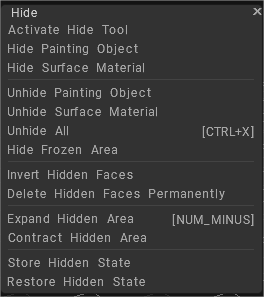
    Activate Hide Tool: Show or hide faces from the screen view.
    Hide Painting Object: Hide specific Paint Object by name.
    Hide Surface Material: Hide specific Surface Materials by name.

    Unhide Painting Object: Unhide specific Paint Object by name
    Unhide Surface Material: Unhide specific Surface Materials by name
    Unhide All:
    Hide Frozen Area:

    Invert Hidden Faces: This option hides visible faces, and unhides faces that are currently hidden.
    Delete Hidden Faces Permanently: Delete hidden faces permanently. This operation cannot be undone.

    Expand Hidden Area: Use CTRL+NUMPAD+ to gradually expand the hidden area.
    Contract Hidden Area: Use CTRL+NUMPAD- to gradually reduce the hidden area.

    Store Hidden State:
    Restore Hidden State:

    Tags:hide menu

    Was this helpful?

    Yes  1 No
    Related Articles
    • GPU Texturing
    • Vector
    • Volumes
    • Modifiers
    • Materials
    • Masks
    Previously
    Freeze
    Up Next
    Bake
    AI:
    Hi! How can I help you?
    Attention: This is a beta version of AI chat. Some answers may be wrong. See full version of AI chat