• Italiano
  • Documentazione 3DCoat
  • Chapters
    • Introduzione a 3DCoat
    • Iniziare
    • Interfaccia e navigazione
    • Componenti Brush
    • Aree di lavoro Stanze
    • Scripting e Core API
    • Domande e risposte
    • licensing
    • Tutorial di formazione
  • Pilgway
  • Products
    • 3DCoat
    • 3DCoatTextura
    • 3DCoatPrint
    • PBRLibrary
  • Blog Posts
  • Store
  • Italiano Italiano
    • English English
    • Українська Українська
    • Español Español
    • Deutsch Deutsch
    • Français Français
    • 日本語 日本語
    • Русский Русский
    • 한국어 한국어
    • Polski Polski
    • 中文 (中国) 中文 (中国)
    • Português Português
    • Suomi Suomi
    • Svenska Svenska
    • 中文 (台灣) 中文 (台灣)
    • Dansk Dansk
    • Slovenčina Slovenčina
    • Türkçe Türkçe
    • Nederlands Nederlands
    • Magyar Magyar
    • ไทย ไทย
    • हिन्दी हिन्दी
    • Ελληνικά Ελληνικά
    • Tiếng Việt Tiếng Việt
    • Lietuviškai Lietuviškai
    • Latviešu valoda Latviešu valoda
    • Eesti Eesti
    • Čeština Čeština
    • Română Română
    • Norsk Bokmål Norsk Bokmål
  • Creating 3D Character Using 3DCoat
  • Documentazione 3DCoat
  • Chapters
    • Introduzione a 3DCoat
    • Iniziare
    • Interfaccia e navigazione
    • Componenti Brush
    • Aree di lavoro Stanze
    • Scripting e Core API
    • Domande e risposte
    • licensing
    • Tutorial di formazione
  • Pilgway
  • Products
    • 3DCoat
    • 3DCoatTextura
    • 3DCoatPrint
    • PBRLibrary
  • Blog Posts
  • Store
  • Italiano Italiano
    • English English
    • Українська Українська
    • Español Español
    • Deutsch Deutsch
    • Français Français
    • 日本語 日本語
    • Русский Русский
    • 한국어 한국어
    • Polski Polski
    • 中文 (中国) 中文 (中国)
    • Português Português
    • Suomi Suomi
    • Svenska Svenska
    • 中文 (台灣) 中文 (台灣)
    • Dansk Dansk
    • Slovenčina Slovenčina
    • Türkçe Türkçe
    • Nederlands Nederlands
    • Magyar Magyar
    • ไทย ไทย
    • हिन्दी हिन्दी
    • Ελληνικά Ελληνικά
    • Tiếng Việt Tiếng Việt
    • Lietuviškai Lietuviškai
    • Latviešu valoda Latviešu valoda
    • Eesti Eesti
    • Čeština Čeština
    • Română Română
    • Norsk Bokmål Norsk Bokmål
  • Creating 3D Character Using 3DCoat
Expand All Collapse All
  • Introduzione a 3DCoat
  • Iniziare
    • System requirements
    • Why 3DCoat is Unique?
    • Attivazione di 3DCoat
    • Errore di avvio
      • Startup error Mac
    • Color management
    • Upgrading permanent license
    • Linux Setup
      • Linux initial setup per-user installation
      • Linux initial setup for system
      • Tablet setup
      • To GTK3 from GTK2
    • Struttura delle cartelle
      • Custom documents folder
    • Diverse forme di "risoluzione"
    • Tablet on Window
    • Import ed Export
    • Applinks in 3DCoat
      • Collegamento all'app Blender
        • Blender with the Applink in Linux
      • Blender 4.2/3/4/5 applink
      • Max Applink
      • Houdini applink
      • Lightwave uplink
  • Navigation
    • Finestra di dialogo di apertura (menu di avvio rapido)
    • Pannello di navigazione
    • Fotocamera e navigazione
      • Customize Navigation as Blender
    • Viewport Navigation Gizmo
    • Left tool panel
    •  Activity Bar
    • Navigazione tramite dispositivi 3DConnexion
      • How to compile Spacenavd on non Ubuntu distro
    • Stylus doesn’t work in sculpting
    • Tasti di scelta rapida
  • Interfaccia e navigazione
    • Menù File
    • Menù Modifica
      • Calculate Curvature
      • Calculate Occlusion
      • Light Baking Tool
      • Preferenze
    • Visualizza Menù
    • Simmetria
    • Textures
    • Calculate
    • Menù Livelli
    • Congela il menu
    • Hide
    • Bake
    • Curve 2022
      • Menù Curve
      • Curves Properties RMB
      • Riempi con uno strato di rete
      • Scale of imported curves
    • Menù di Windows
      • Pannelli popup di Windows a schede
      • Cursori
    • Scripts
    • Addons
    • Capture
    • Menù di aiuto
    • Personalizzazione
    • Modifica o crea una nuova stanza
  • Componenti Brush
    • Brush superiore
    • Spazzole uso generale
      • Crea pennelli e decalcomanie
      • Creare alfa dalla scultura attuale
      • Crea un Brush da un oggetto 3D
      • Create brushes based on Curves
      • Load photoshop .abr brushes
    • Colpi
      • Menu a comparsa Curve
    • Opzioni Brush
    • Limitatore di condizioni
    • Pannello a strisce
    • Pannello degli stampini
    • Materiali intelligenti
      • Aggiungi nuove immagini o materiali
      • Attacca un materiale Smart a un livello
      • Import Quixel Material
    • Come creare i preset per il Brush
  • Aree di lavoro Stanze
    • Painting
      • Texture Painting e modalità
        • Painting Per-Pixel
        • Painting di spostamento (micro-vertice)
        • Painting Ptex
        • Painting superficiale (polipittura)
      • Importazione nella stanza Painting
        • Initial CC subdivision
        • UV Set smoothing
        • Sharp (hard) edge
        • Blocca normali
        • Carica il nuovo layout UV dopo le modifiche al modello
        • DAZ Genesis models into 3DCoat
      • Menu dell'area di lavoro Painting
        • Edit menu
        • Menù Texture
          • Strumenti Baking delle trame
        • Nascondere
        • Menu per il Bake Paint
        • Il selettore di colori
      • Barra superiore per la Painting
      • Il pannello Livelli
        • Il pannello di fusione
        • Layer and Clipping Masks
      • Strumenti della stanza Painting
      • Opacità - Trasparenza
      • Modifica l'area di lavoro
        • Strumenti di modifica
        • Esportazione dalla Tweak Room
      • Pannello anteprima maschera/materiale
      • Esportazione dalla stanza Painting
    • Area di lavoro UV
      • Barra superiore UV
      • Pannello strumenti sinistro UV
      • Pannello di anteprima UV
      • Esempio di flusso di lavoro UV
      • Importazione nella stanza UV
      • Esportazione dalla sala UV
    • Retopologia
      • Importazione nella Sala Retopo
      • Retopo Mesh Menu e Bake Menu
        • Modalità specchio virtuale
      • Bake menu
        • Treat Poly Groups as Paint Objects
        • Baking guide
      • Barra superiore
        • Seleziona la geometria
      • Pannello degli strumenti a sinistra nella stanza Retopology
        • Scopo generale e funzione
        • Aggiungi geometria
          • Strumento Tratti in Retopology
        • Strumenti di modifica Retopo
        • Strumenti UV
        • Comandi per la stanza Retopology
      • AUTORETOPO
        • Autopo guide
      • Poli gruppi
    • Scolpire
      • Sculpt Layer
      • Scolpire l'albero
      • Opzioni Brush scultura
      • Top Bar
      • Motore a Brush
      • Sottomenu Geometria
      • Scolpisci il menu "tasto destro".
      • Shader
      • Modalità Voxel
        • Scultura in puro Voxel
        • Densità e risoluzione
        • Motore di argilla
        • Strumenti Voxel
        • Strumenti di superficie su Voxel
        • Strumenti di regolazione Voxel
        • Painting volumetrica
        • Strumenti per gli oggetti Voxel
      • Modalità superficie
        • Strumenti di superficie
        • Strumenti personalizzati di superficie
        • Strumenti di regolazione della superficie
        • Painting superficiale
        • Strumenti degli oggetti di superficie
        • Risoluzione multilivello
          • Multires tools
          • Multires adjust
          • Multires commands
      • Scolpisci le curve
        • Curve spline
        • Splines model creation
      • Spostamento del vettore
      • Strumenti di trasformazione della superficie
        • Strumenti di trasformazione Voxel
        • Instancer
        • Move
        • Pose
        • Fit
        • Reproject
        • Surface Array
      • Primitive Voxel e strumenti Import
      • Booleani in tempo reale
      • Comandi per la stanza Sculpt
      • Import in Sculpt Room
      • Esportazione dalla Sculpt Room
    • Rendering
      • Comparison of different roughness values
      • Funzioni del pannello di rendering
      • Giradischi
      • Fakebake l'illuminazione -non PBR
    • Factures
      • Flusso di lavoro
    • Più semplice
    • Modellazione
      • Mesh Menu
      • Pannello degli strumenti a sinistra nella stanza Modellazione
        • Aggiungi geometria
          • Selezionato
        • Modificare
        • Smart Hybrid
        • UV
          • Comandi
        • Intera maglia
      • Esempio di superficie loft di Fluffy
      • Blocco di Poeboi
      • Import Zbrush Polygroups for UV mapping
    • Kitbash - Creazione rapida di modelli 3D
      • Create kitbash
      • Left tool panel Kitbash
    • 3DPrint
    • Photogrammetry
      • How to install Reality Capture
      • Reality Capture doesn’t show up ?
    • Mesh nella stanza NURBS
    • Nodes
      • Scolpisci la libreria dei nodi degli shader
  • Scripting e Core API
    • Scripting
    • Core API
    • API Python
  • 3DCoatPrint gratuito

Light Baking Tool

768 views 1

Written by Carlos
January 4, 2025

Sometimes you need to bake all lighting into the diffuse color of the texture.
Open shader ball for example, fill layer with any reflective Smart Material, bake your reflection and it creates reflection layer  in texture.
It picks up any light you have set up in render room, including environment light (To change baked illumination change the environment map).

If bake is too dark try modifying setting intensity. 
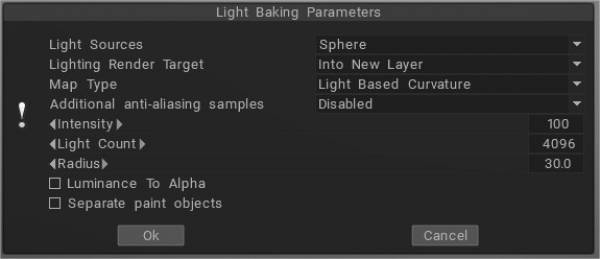
If you wish to bake light without environment “light from render room” is not necessary anymore, because you can achieve the same result by using “light and reflections” in flat shading mode.

Map Type
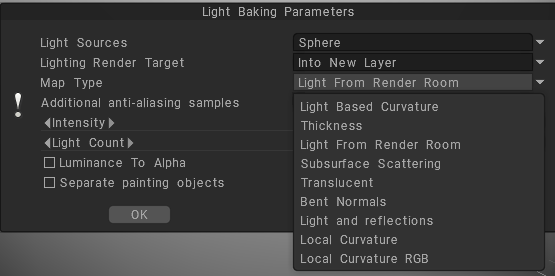

Light Based Curvature: more correctly calculates the result on UV Overlap; black areas no longer appear on different objects which have the same UV coordinates.
Thickness: Similar to AO, it casts rays from the surface of the mesh to the inside (modifying radius value). It can be used in SSS shading.
Light From Render Room: If you wish to bake light without an environment, use “light from render room” instead of “Light and Reflections.
Subsurface Scattering: Use this settings to get rid of the dirty shadow lines on the subsurface scattering.
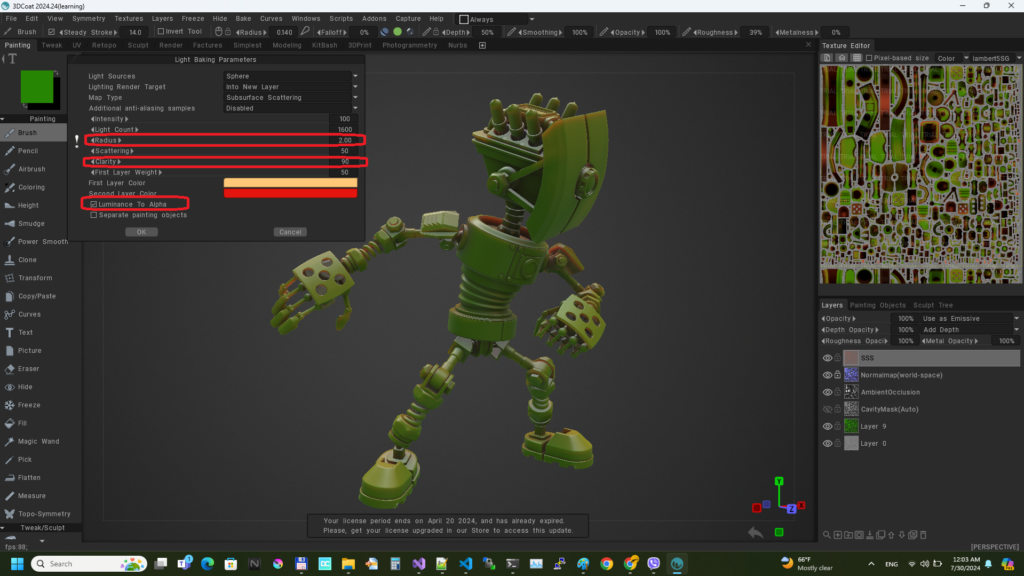
Translucent: A translucency color map can be used to vary the translucent color of a surface. Use it to recreate glassy materials.
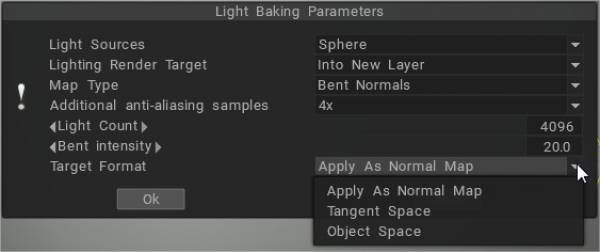
Bent Normals: Benefits of Using Bent Normals. They combine the ao and normal map together to get better occlusion for indirect light and reflection.
Light and Reflections: fill the layer with any reflective Smart Material, bake your reflection, and it creates a reflection layer in the texture layer.
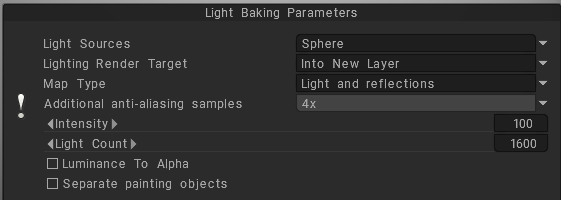
It picks up any light you have set up in the render room, including the environment light.
Local Curvature: calculates curvature on objects with a normal map and analyzes the model’s curvature in many projections pixel by pixel, which allows you to get a more accurate and beautiful result. The radius and intensity can be adjusted.
Local Curvature RGB: Bakes curvature with radius 1, 20, and 100 to RGB channels, respectively. (Use RGB cavity as the default cavity calculation method can be set on Preferences).

RGB Cavity map


The new RGB cavity was introduced as a possible default calculation method. In this case, the multi-range cavity will be calculated on the GPU, and additional control in UI of conditions/smart materials will appear, the “Cavity width.” It allows for variation in the cavity width/smoothing in real time, which is very important for realistic PBR texturing.

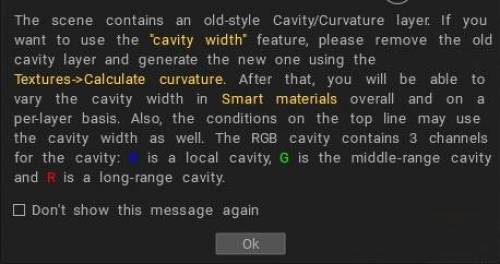
Cavity width (using the RGB cavity) may be used for smart materials for each layer separately. Each material layer has its own cavity width settings. It allows for much better effects for “aging” materials, like several differently “aged” layers of paint.

RGB cavity is a multi-range cavity texture, each channel corresponds to a different cavity scale. B is the local cavity, G is a middle-range cavity, and R is the far-range cavity.

If you already have the old cavity layer in the scene, you need to delete it to use this feature. This is a very significant feature for the PBR painting over the texture/mesh.
If the RGB cavity is enabled by default and you are loading the scene that has the old-style cavity layer, the Coat will warn you that it is better to re-calculate the cavity to get better control.
Global (light based) curvature and local curvature are related to the geometry of a surface.


Global (light based) curvature refers to the overall shape of a surface and is a measure of how much the surface deviates from being flat.
For example, a sphere has positive global curvature, while a plane has zero global curvature.

Local curvature, on the other hand, refers to the curvature of a surface at a particular point or over a small region.
This curvature can be different from the global curvature and can vary from point to point on a surface.
For example, a sphere has positive local curvature everywhere, while a parabolic cylinder has positive local curvature in some regions and negative local curvature in others.

Tutorials


Light Baking Tool: This video covers the Light Baking tool in 3DCoat.

Baking Lighting & Reflections in Unlit Shader: This video briefly shows how to bake a PBR material along with reflections and lighting into a texture for an unlit shader.

Tags:Light Baking Tool

Was this helpful?

1 Yes  No
Related Articles
  • Surface Array
  • Top Bar
  • Curves Properties RMB
  • Left tool panel Kitbash
  • Create kitbash
  • Color management
Previously
Calculate Occlusion
Up Next
Preferenze
AI:
Hi! How can I help you?
Attention: This is a beta version of AI chat. Some answers may be wrong. See full version of AI chat