• Deutsch
  • 3DCoat Dokumentation
  • Chapters
    • Einführung in 3DCoat
    • Einstieg
    • Schnittstelle & Navigation
    • Brush
    • Arbeitsbereiche Räume
    • Scripting und Core API
    • Fragen & Antworten
    • licensing
    • Schulungs-Tutorials
  • Pilgway
  • Products
    • 3DCoat
    • 3DCoatTextura
    • 3DCoatPrint
    • PBRLibrary
  • Blog Posts
  • Store
  • Deutsch Deutsch
    • English English
    • Українська Українська
    • Español Español
    • Français Français
    • 日本語 日本語
    • Русский Русский
    • 한국어 한국어
    • Polski Polski
    • 中文 (中国) 中文 (中国)
    • Português Português
    • Italiano Italiano
    • Suomi Suomi
    • Svenska Svenska
    • 中文 (台灣) 中文 (台灣)
    • Dansk Dansk
    • Slovenčina Slovenčina
    • Türkçe Türkçe
    • Nederlands Nederlands
    • Magyar Magyar
    • ไทย ไทย
    • हिन्दी हिन्दी
    • Ελληνικά Ελληνικά
    • Tiếng Việt Tiếng Việt
    • Lietuviškai Lietuviškai
    • Latviešu valoda Latviešu valoda
    • Eesti Eesti
    • Čeština Čeština
    • Română Română
    • Norsk Bokmål Norsk Bokmål
  • Creating 3D Character Using 3DCoat
  • 3DCoat Dokumentation
  • Chapters
    • Einführung in 3DCoat
    • Einstieg
    • Schnittstelle & Navigation
    • Brush
    • Arbeitsbereiche Räume
    • Scripting und Core API
    • Fragen & Antworten
    • licensing
    • Schulungs-Tutorials
  • Pilgway
  • Products
    • 3DCoat
    • 3DCoatTextura
    • 3DCoatPrint
    • PBRLibrary
  • Blog Posts
  • Store
  • Deutsch Deutsch
    • English English
    • Українська Українська
    • Español Español
    • Français Français
    • 日本語 日本語
    • Русский Русский
    • 한국어 한국어
    • Polski Polski
    • 中文 (中国) 中文 (中国)
    • Português Português
    • Italiano Italiano
    • Suomi Suomi
    • Svenska Svenska
    • 中文 (台灣) 中文 (台灣)
    • Dansk Dansk
    • Slovenčina Slovenčina
    • Türkçe Türkçe
    • Nederlands Nederlands
    • Magyar Magyar
    • ไทย ไทย
    • हिन्दी हिन्दी
    • Ελληνικά Ελληνικά
    • Tiếng Việt Tiếng Việt
    • Lietuviškai Lietuviškai
    • Latviešu valoda Latviešu valoda
    • Eesti Eesti
    • Čeština Čeština
    • Română Română
    • Norsk Bokmål Norsk Bokmål
  • Creating 3D Character Using 3DCoat
Expand All Collapse All
  • Einführung in 3DCoat
  • Einstieg
    • System requirements
    • Why 3DCoat is Unique?
    • 3DCoat aktivieren
    • Fehler beim starten
      • Startup error Mac
    • Color management
    • Upgrading permanent license
    • Linux Setup
      • Linux initial setup per-user installation
      • Linux initial setup for system
      • Tablet setup
      • To GTK3 from GTK2
    • Ordnerstruktur
      • Custom documents folder
    • Verschiedene Formen der „Auflösung“
    • Tablet on Window
    • Import und Export
    • Applinks in 3DCoat
      • Blender -Applink
        • Blender with the Applink in Linux
      • Blender 4.2/3/4/5 applink
      • Max Applink
      • Houdini applink
      • Lightwave uplink
  • Navigation
    • Dialog öffnen (Schnellstartmenü)
    • Navigationsbereich
    • Kamera und Navigation
      • Customize Navigation as Blender
    • Viewport Navigation Gizmo
    • Left tool panel
    •  Activity Bar
    • Navigation mit 3DConnexion-Geräten
      • How to compile Spacenavd on non Ubuntu distro
    • Stylus doesn’t work in sculpting
    • Hotkeys
  • Schnittstelle & Navigation
    • Dateimenü
    • Menü bearbeiten
      • Calculate Curvature
      • Calculate Occlusion
      • Light Baking Tool
      • Einstellungen
    • Ansicht-Menü
    • Symmetrie
    • Textures
    • Calculate
    • Ebenenmenü
    • Menü einfrieren
    • Hide
    • Bake
    • Kurven 2022
      • Kurvenmenü
      • Curves Properties RMB
      • Mit Maschenschicht füllen
      • Scale of imported curves
    • Windows-Menü
      • Windows-Popup-Bedienfelder mit Registerkarten
      • Schieberegler
    • Scripts
    • Addons
    • Capture
    • Hilfemenü
    • Anpassung
    • Raum ändern oder neu erstellen
  • Brush
    • Brush Top-Leiste
    • Bürsten allgemeine Verwendung
      • Erstellen Sie Pinsel und Abziehbilder
      • Aus der aktuellen Skulptur Alpha machen
      • Erstellen Sie einen Brush aus einem 3D-Objekt
      • Create brushes based on Curves
      • Load photoshop .abr brushes
    • Striche
      • Kurven-Popup-Menü
    • Brush
    • Bedingungen-Limiter
    • Streifen-Panel
    • Schablonen-Panel
    • Intelligente Materialien
      • Fügen Sie neue Bilder oder Materialien hinzu
      • Hängen Sie ein Smart-Material an eine Ebene an
      • Import Quixel Material
    • So erstellen Sie Voreinstellungen für Brush
  • Arbeitsbereiche Räume
    • Painting
      • Painting & Modi
        • Per-Pixel Painting
        • Displacement Painting (Mikro-Vertex)
        • Ptex Painting
        • Painting (Polypainting)
      • Importieren in den Painting
        • Initial CC subdivision
        • UV Set smoothing
        • Sharp (hard) edge
        • Normalen sperren
        • Laden Sie nach Modelländerungen ein neues UV Layout
        • DAZ Genesis models into 3DCoat
      • Menüs des Painting Arbeitsbereichs
        • Edit menu
        • Texturen-Menü
          • Baking für Texturen
        • Verstecken
        • Menü für die Bake Paint
        • Der Farbwähler
      • Obere Leiste für das Painting
      • Das Ebenenbedienfeld
        • Das Blending-Panel
        • Layer and Clipping Masks
      • Painting Werkzeuge
      • Deckkraft – Transparenz
      • Arbeitsbereich optimieren
        • Tweak-Toolset
        • Exportieren aus dem Tweak Room
      • Masken-/Materialvorschaufenster
      • Exportieren aus dem Painting
    • UV Arbeitsbereich
      • UV Leiste oben
      • UV Linkes Werkzeugfeld
      • UV Vorschaufenster
      • Beispiel für einen UV Workflow
      • Importieren in den UV Raum
      • Exportieren aus dem UV Raum
    • Retopologie
      • Importieren in den Retopo Raum
      • Retopo Mesh-Menü und Bake-Menü
        • Virtueller Spiegelmodus
      • Bake menu
        • Treat Poly Groups as Paint Objects
        • Baking guide
      • Obere Leiste
        • Geometrie auswählen
      • Linke Werkzeugtafel im Retopologieraum
        • Gesamtzweck und Funktion
        • Geometrie hinzufügen
          • Striche-Werkzeug in Retopology
        • Retopo Tweak-Tools
        • UV Werkzeuge
        • Befehle für den Retopologieraum
      • AUTORETOPO
        • Autopo guide
      • Poly-Gruppen
    • Bildhauen
      • Sculpt Layer
      • Baum formen
      • Brush Optionen
      • Top Bar
      • Brush
      • Geometrie-Untermenü
      • Gestalten Sie das „Rechtsklick“-Menü
      • Shader
      • Voxel Modus
        • Reines Voxel Sculpting
        • Dichte und Auflösung
        • Ton-Motor
        • Voxel -Tools
        • Oberflächenwerkzeuge auf Voxeln
        • Voxel Anpassungswerkzeuge
        • Volumetrische Painting
        • Voxel Objekte-Tools
      • Oberflächenmodus
        • Oberflächenwerkzeuge
        • Benutzerdefinierte Oberflächenwerkzeuge
        • Werkzeuge zur Oberflächenanpassung
        • Painting
        • Werkzeuge für Oberflächenobjekte
        • Mehrstufige Auflösung
          • Multires tools
          • Multires adjust
          • Multires commands
      • Kurven formen
        • Spline-Kurven
        • Splines model creation
      • Vektorverschiebung
      • Werkzeuge zur Oberflächentransformation
        • Voxel Transformationswerkzeuge
        • Instancer
        • Move
        • Pose
        • Fit
        • Reproject
        • Surface Array
      • Voxel Primitive und Import Tools
      • Live-Boolesche Werte
      • Befehle für den Sculpt-Raum
      • In Sculpt Room Import
      • Exportieren aus dem Sculpt Room
    • Machen
      • Comparison of different roughness values
      • Funktionen des Renderbereichs
      • Drehscheibe
      • Fakebake die Beleuchtung – kein PBR–
    • Factures
      • Arbeitsablauf
    • Am einfachsten
    • Modellieren
      • Mesh Menu
      • Linke Werkzeugtafel im Modellierungsraum
        • Geometrie hinzufügen
          • Ausgewählt
        • Optimieren
        • Smart Hybrid
        • UV
          • Befehle
        • Gesamtes Netz
      • Loft-Oberflächenbeispiel von Fluffy
      • Blockout von Poeboi
      • Import Zbrush Polygroups for UV mapping
    • Kitbash - Schnelle Erstellung von 3D-Modellen
      • Create kitbash
      • Left tool panel Kitbash
    • 3DPrint
    • Photogrammetry
      • How to install Reality Capture
      • Reality Capture doesn’t show up ?
    • Mesh zum NURBS-Raum
    • Nodes
      • Sculpt-Shader Nodes Library
  • Scripting und Core API
    • Scripting
    • Core API
    • Python-API
  • Kostenloser 3DCoatPrint

Linux Setup

1127 views 0

Written by Carlos
June 21, 2024
  • Using Cinnamon crashed on File Open/Save As dialogs
  • 3DCoat freezes

On the site, there is a statement that “3DCoat 202x” requires “Ubuntu 20.04”

Using Cinnamon crashed on File Open/Save As dialogs


You don’t specify which Desktop Environment you are using.
It happened before in Cinnamon, which uses Nemo file browser. If using Nautilus, it wouldn’t happen.

It could be worth a try to install and set-up temporarily Nautilus (it’s branded “Files” in Gnome now, I think, if it helps) as your default file manager, so when prompted by 3DCoat it’s the one opening and saving files.

The Save dialog is surely from Nautilus.
So, the default file browser is realy Nautilus in this case.

# The contents of ~/.config/mimeapps.list: 
[Default Applications]
inode/directory=nautilus.desktop

If that works, you could keep using a more recent version of 3DCoat until the open and save dialog crash is fixed.

3DCoat freezes


I have the same issue. I have tried the suggested solution however when I input the correct name into the environment variable and launch 3dcoat, 3DCoat freezes. I have tried 3dcoat and textura and ubuntu22.04 and 20.04 executables all with the same results. Any ideas?
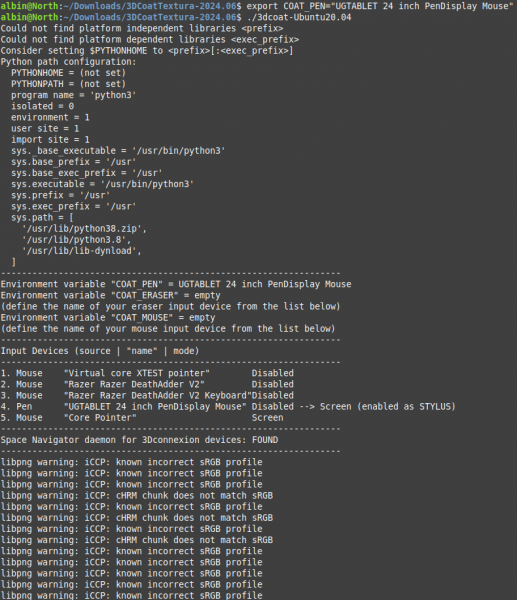
Your COAT_ERASER and COAT_MOUSE is empty, you need to set environment variable for them too. Also you need make sure your system uses files in 3DCoat -> LinuxLibs folder.
I had this problem in Debian 12, to solve it, i did next:
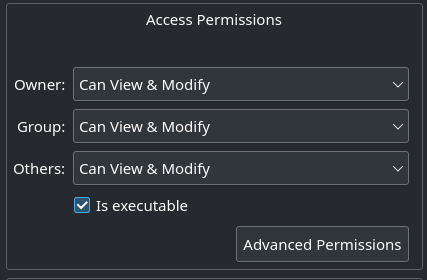
Create .sh file. We will use for execution with all additional commands. Don’t forget to make it executable.
I wrote next code, your paths and environment names will be different it’s an example:

#!/bin/bash
export LD_LIBRARY_PATH=’/home/denys/Applications/3DCoat-2024.06/LinuxLibs’ #Path for additional 3DCoat Linux libs.
export COAT_MOUSE=’Logitech G502 X’
export COAT_PEN=’HUION 256C PEN STYLUS Pen (0)’
export COAT_ERASER=’Huion Mouse’
/home/denys/Applications/3DCoat-2024.06/3dcoat-Ubuntu20.04 # Execution file

Test your .sh execution file to make sure is everything work fine. Do it from terminal.

sh ./YourFileName.sh

Create a .desktop file to run 3DCoat from desktop.

[Desktop Entry] Encoding=UTF-8 Name=3DCoat Comment=3DCoat Exec=sh /home/denys/Applications/3DCoat-2024.06/Zapustyty_3DCoat.sh %U #Execution path Icon=/home/denys/Applications/3DCoat-2024.06/data/Icon/3DCoat.png #Icon path Terminal=false Type=Application Categories=Graphics; StartupWMClass=3dcoat

That is, now you can run 3DCoat just clicking on .desktop icon. At least it worked for me for 3dcoat-ubuntu20.04, for 22.04 it didn’t. I hope it will be helpful for you.
After that my terminal looks like this.
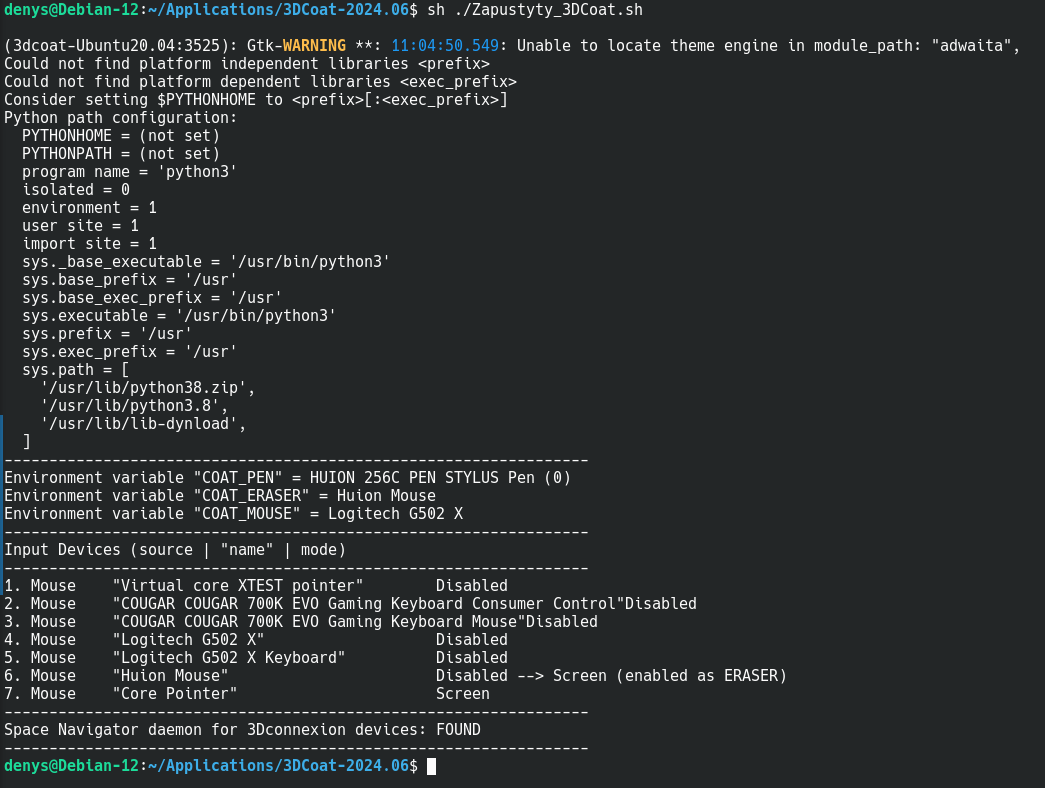
Tags:linux

Was this helpful?

Yes  No
Related Articles
  • Surface Array
  • Top Bar
  • Curves Properties RMB
  • Left tool panel Kitbash
  • Create kitbash
  • Color management
Previously
Upgrading permanent license
Up Next
Linux initial setup per-user installation
AI:
Hi! How can I help you?
Attention: This is a beta version of AI chat. Some answers may be wrong. See full version of AI chat