• Deutsch
  • 3DCoat Dokumentation
  • Chapters
    • Einführung in 3DCoat
    • Einstieg
    • Schnittstelle & Navigation
    • Brush
    • Node System
    • GPU Texturing
    • Arbeitsbereiche Räume
    • Scripting und Core API
    • Fragen & Antworten
    • Licensing
  • Learn
    • Getting Started
    • Painting
    • Sculpt
    • Modeling
    • Retopology
    • UV
    • Smart Materials
    • Nodes
    • Photogrammetry
    • Render
    • Print
    • Learning
    • Schulungs-Tutorials
  • Blog
    • 2026 Key Features and Improvements
    • Texturing with nodes
    • Shader Nodes VS. a Material Nodes
    • Multiple UV Tiles/UDIMs to one single UV set ?
    • I want to create geometry only with displacement to be manufactured with a CNC machine
    • Creating 3D Character Using 3DCoat
    • DAZ Genesis models into 3DCoat
    • Cavity and Curvature maps
    • Types of normal maps
    • Texture painting pipeline
    • Load new UV layout After Model Changes
    • Import Zbrush Polygroups for UV mapping
  • Products
    • 3DCoat
    • 3DCoatTextura
    • 3DCoatPrint
    • PBRLibrary
  • Store
  • Pilgway
  • Deutsch Deutsch
    • English English
    • Українська Українська
    • Español Español
    • Français Français
    • 日本語 日本語
    • Русский Русский
    • 한국어 한국어
    • Polski Polski
    • 中文 (中国) 中文 (中国)
    • Português Português
    • Italiano Italiano
    • Suomi Suomi
    • Svenska Svenska
    • 中文 (台灣) 中文 (台灣)
    • Dansk Dansk
    • Slovenčina Slovenčina
    • Türkçe Türkçe
    • Nederlands Nederlands
    • Magyar Magyar
    • ไทย ไทย
    • हिन्दी हिन्दी
    • Ελληνικά Ελληνικά
    • Tiếng Việt Tiếng Việt
    • Lietuviškai Lietuviškai
    • Latviešu valoda Latviešu valoda
    • Eesti Eesti
    • Čeština Čeština
    • Română Română
    • Norsk Bokmål Norsk Bokmål
  • 3DCoat Dokumentation
  • Chapters
    • Einführung in 3DCoat
    • Einstieg
    • Schnittstelle & Navigation
    • Brush
    • Node System
    • GPU Texturing
    • Arbeitsbereiche Räume
    • Scripting und Core API
    • Fragen & Antworten
    • Licensing
  • Learn
    • Getting Started
    • Painting
    • Sculpt
    • Modeling
    • Retopology
    • UV
    • Smart Materials
    • Nodes
    • Photogrammetry
    • Render
    • Print
    • Learning
    • Schulungs-Tutorials
  • Blog
    • 2026 Key Features and Improvements
    • Texturing with nodes
    • Shader Nodes VS. a Material Nodes
    • Multiple UV Tiles/UDIMs to one single UV set ?
    • I want to create geometry only with displacement to be manufactured with a CNC machine
    • Creating 3D Character Using 3DCoat
    • DAZ Genesis models into 3DCoat
    • Cavity and Curvature maps
    • Types of normal maps
    • Texture painting pipeline
    • Load new UV layout After Model Changes
    • Import Zbrush Polygroups for UV mapping
  • Products
    • 3DCoat
    • 3DCoatTextura
    • 3DCoatPrint
    • PBRLibrary
  • Store
  • Pilgway
  • Deutsch Deutsch
    • English English
    • Українська Українська
    • Español Español
    • Français Français
    • 日本語 日本語
    • Русский Русский
    • 한국어 한국어
    • Polski Polski
    • 中文 (中国) 中文 (中国)
    • Português Português
    • Italiano Italiano
    • Suomi Suomi
    • Svenska Svenska
    • 中文 (台灣) 中文 (台灣)
    • Dansk Dansk
    • Slovenčina Slovenčina
    • Türkçe Türkçe
    • Nederlands Nederlands
    • Magyar Magyar
    • ไทย ไทย
    • हिन्दी हिन्दी
    • Ελληνικά Ελληνικά
    • Tiếng Việt Tiếng Việt
    • Lietuviškai Lietuviškai
    • Latviešu valoda Latviešu valoda
    • Eesti Eesti
    • Čeština Čeština
    • Română Română
    • Norsk Bokmål Norsk Bokmål
Expand All Collapse All
  • Einführung in 3DCoat
  • Einstieg
    • System requirements
    • Why 3DCoat is Unique?
    • 3DCoat aktivieren
    • Fehler beim starten
      • Startup error Mac
    • Color management
    • Upgrading permanent license
    • Linux Setup
      • Linux initial setup per-user installation
      • Linux initial setup for system
      • Tablet setup
      • To GTK3 from GTK2
      • Error libicuuc.so.70
    • Ordnerstruktur
      • Custom documents folder
    • Verschiedene Formen der „Auflösung“
    • Tablet on Window
    • Import und Export
    • Applinks in 3DCoat
      • Blender -Applink
        • Blender with the Applink in Linux
      • Blender 4.2/3/4/5 applink
      • Max Applink
      • Houdini applink
      • Lightwave uplink
  • Navigation
    • Dialog öffnen (Schnellstartmenü)
    • Navigationsbereich
    • Kamera und Navigation
      • Customize Navigation as Blender
    • Left tool panel
    •  Activity Bar
    • Navigation mit 3DConnexion-Geräten
      • How to compile Spacenavd on non Ubuntu distro
    • Quick Access Menu
    • Stylus doesn’t work in sculpting
    • Hotkeys
  • Schnittstelle & Navigation
    • Dateimenü
    • Menü bearbeiten
      • Bake Geometry Info
      • Calculate Occlusion
      • Calculate Curvature
      • Light Baking Tool
      • Einstellungen
    • Ansicht-Menü
    • Symmetrie
    • Textures
    • Calculate
    • Ebenenmenü
    • Menü einfrieren
    • Hide
    • Bake
    • Kurven 2022
      • Kurvenmenü
      • Curves Properties RMB
      • Mit Maschenschicht füllen
      • Scale of imported curves
    • Windows-Menü
      • Windows-Popup-Bedienfelder mit Registerkarten
      • Schieberegler
    • Scripts
    • Addons
    • Capture
    • Hilfemenü
    • Anpassung
    • Raum ändern oder neu erstellen
  • Brush
    • Brush Top-Leiste
    • Bürsten allgemeine Verwendung
      • Erstellen Sie Pinsel und Abziehbilder
      • Aus der aktuellen Skulptur Alpha machen
      • Erstellen Sie einen Brush aus einem 3D-Objekt
      • Create brushes based on Curves
      • Load photoshop .abr brushes
    • Striche
      • Kurven-Popup-Menü
    • Brush
    • Bedingungen-Limiter
    • Streifen-Panel
    • Schablonen-Panel
    • Intelligente Materialien
      • Fügen Sie neue Bilder oder Materialien hinzu
      • Hängen Sie ein Smart-Material an eine Ebene an
      • Import Quixel Megascans
    • So erstellen Sie Voreinstellungen für Brush
  • Node System
    • Node Editor
    • Node & Object Inspectors
    • Node Graph
    • NodeGraph Language (NGL)
    • GPU Nodes
      • Color
      • GeometryIn
      • In
      • Layer
      • Material
      • Out
      • Pattern
      • Pattern3D
      • ShaderToy
      • Shape
      • Texture
      • Tilable
      • UV
      • Math
    • Filters
    • Masks
    • Materials
    • Modifiers
    • Volumes
  • Kostenloser 3DCoatPrint
  • GPU Texturing
    • PBM Channels
    • Per-Pixel Painting
  • Arbeitsbereiche Räume
    • Painting
      • Painting & Modi
        • Per-Pixel Painting
        • Displacement Painting (Mikro-Vertex)
        • Ptex Painting
        • Painting (Polypainting)
      • Importieren in den Painting
        • Initial CC subdivision
        • UV Set smoothing
        • Sharp (hard) edge
        • Normalen sperren
        • Laden Sie nach Modelländerungen ein neues UV Layout
        • DAZ Genesis models into 3DCoat
        • ID map
      • Menüs des Painting Arbeitsbereichs
        • Edit menu
        • Texturen-Menü
          • Baking für Texturen
        • Verstecken
        • Menü für die Bake Paint
        • Der Farbwähler
      • Surface Materials
      • Obere Leiste für das Painting
      • Das Ebenenbedienfeld
        • Das Blending-Panel
        • Layer and Clipping Masks
      • Painting Werkzeuge
      • Deckkraft – Transparenz
      • Arbeitsbereich optimieren
        • Tweak-Toolset
        • Exportieren aus dem Tweak Room
      • Masken-/Materialvorschaufenster
      • Exportieren aus dem Painting
    • UV Arbeitsbereich
      • UV Leiste oben
      • UV Linkes Werkzeugfeld
      • UV Vorschaufenster
      • Beispiel für einen UV Workflow
      • Importieren in den UV Raum
      • Exportieren aus dem UV Raum
    • Retopologie
      • Importieren in den Retopo Raum
      • Retopo Mesh-Menü und Bake-Menü
        • Virtueller Spiegelmodus
      • Bake menu
        • Treat Poly Groups as Paint Objects
        • Baking guide
      • Striche-Werkzeug in Retopology
      • Obere Leiste
        • Geometrie auswählen
      • Linke Werkzeugtafel im Retopologieraum
        • Gesamtzweck und Funktion
        • Geometrie hinzufügen
        • Retopo Tweak-Tools
        • UV Werkzeuge
        • Befehle für den Retopologieraum
      • AUTORETOPO
        • Autopo guide
      • Poly-Gruppen
    • Bildhauen
      • Sculpt Layer
      • Baum formen
      • Brush Optionen
      • Top Bar
      • Brush
      • Geometrie-Untermenü
      • Gestalten Sie das „Rechtsklick“-Menü
      • Shader
      • Voxel Modus
        • Reines Voxel Sculpting
        • Dichte und Auflösung
        • Ton-Motor
        • Voxel -Tools
        • Oberflächenwerkzeuge auf Voxeln
        • Voxel Anpassungswerkzeuge
        • Volumetrische Painting
        • Voxel Objekte-Tools
      • Oberflächenmodus
        • Oberflächenwerkzeuge
        • Benutzerdefinierte Oberflächenwerkzeuge
        • Surface Layer
        • Werkzeuge zur Oberflächenanpassung
        • Painting
        • Mehrstufige Auflösung
          • Multires tools
          • Multires adjust
          • Multires commands
      • Kurven formen
        • Spline-Kurven
        • Splines model creation
      • Vektorverschiebung
      • Werkzeuge zur Oberflächentransformation
        • Voxel Transformationswerkzeuge
        • Instancer
        • Move
        • Pose
        • Fit
        • Reproject
        • Surface Array
      • Voxel Primitive und Import Tools
        • Hollow Box
      • Live-Boolesche Werte
      • Befehle für den Sculpt-Raum
      • In Sculpt Room Import
      • Exportieren aus dem Sculpt Room
    • Machen
      • Comparison of different roughness values
      • Funktionen des Renderbereichs
      • Drehscheibe
      • Fakebake die Beleuchtung – kein PBR–
    • Factures
      • Arbeitsablauf
    • Am einfachsten
    • Modellieren
      • Mesh Menu
      • Linke Werkzeugtafel im Modellierungsraum
        • Geometrie hinzufügen
          • Make Joints
          • Ausgewählt
        • Optimieren
        • Smart Hybrid
        • UV
          • Befehle
        • Gesamtes Netz
      • Loft-Oberflächenbeispiel von Fluffy
      • Blockout von Poeboi
      • Import Zbrush Polygroups for UV mapping
    • Kitbash - Schnelle Erstellung von 3D-Modellen
      • Create kitbash
      • Left tool panel Kitbash
    • 3DPrint
    • Photogrammetry
      • How to install Reality Capture
      • Reality Capture doesn’t show up ?
    • Mesh zum NURBS-Raum
    • Nodes
      • Texturing with nodes
      • Sculpt-Shader Nodes Library
      • Open PBR
  • Scripting und Core API
    • Core API
    • Python-API
    • Extensions and Addons

Bake

1610 views 0

Written by Carlos
March 2, 2024

3D baking is the process of pre-calculating and saving complex data -such as high-resolution surface details, lighting, or shadows- into flat 2D image files called texture maps.
This allows lightweight 3D models to display rich, realistic visuals in real time without overloading computers or game engines.

How Baking Works

  • High-to-Low Transfer: Software shoots invisible lines from a detailed high-poly model to record its bumps and curves onto a simpler low-poly model.
  • Lighting and Shadows: Static light behavior and shadows are computed once and frozen onto the object’s surface so the computer does not have to calculate them live.
  • Map Creation: Results are saved into distinct image files like normal maps, ambient occlusion maps, and roughness maps.

Why It Matters

  • Performance Boost: Lowers polygon counts so games and apps run smoothly on phones, web browsers, and consoles.
  • Maintains Quality: Preserves the look of tiny wrinkles, scratches, and fine edges on simple shapes.
  • Saves Time: Prevents real-time rendering lag during interactive experiences

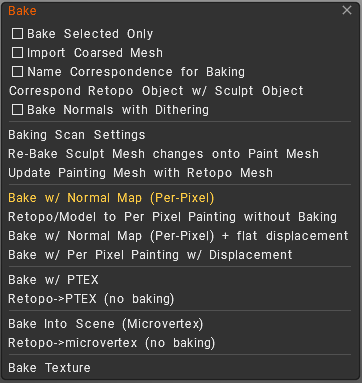
The baking process differs depending on the workspace where you are working, whether in Painting or Retopology.
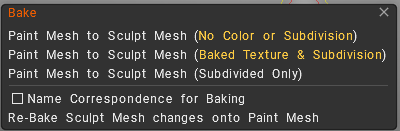
Bake menu on Paint Room

Bake menu on Retopology room

Tags:bake paint

Was this helpful?

Yes  No
Related Articles
  • Bake Geometry Info
  • Make Joints
  • Texturing with nodes
  • Hollow Box
  • GPU Texturing
  • Math
Previously
Hide
Up Next
Kurven 2022
AI:
Hi! How can I help you?
Attention: This is a beta version of AI chat. Some answers may be wrong. See full version of AI chat