• Português
  • Documentação 3DCoat
  • Chapters
    • Introdução ao 3DCoat
    • Começando
    • Interface e Navegação
    • Componentes do Brush
    • Node System
    • GPU Texturing
    • Espaços de Trabalho Salas
    • API de Scripting e Core API
    • Perguntas e Respostas
    • licensing
    • Tutoriais de treinamento
    • New Library
  • New Library
    • Getting Started
    • Painting
    • Sculpt
    • Modeling
    • Retopology
    • UV
    • Smart Materials
    • Nodes
    • Print
    • Photogrammetry
    • Render
  • Blog Posts
    • Creating 3D Character Using 3DCoat
    • DAZ Genesis models into 3DCoat
    • Cavity and Curvature maps
    • Types of normal maps
    • Texture painting pipeline
    • Load new UV layout After Model Changes
    • Import Zbrush Polygroups for UV mapping
  • Products
    • 3DCoat
    • 3DCoatTextura
    • 3DCoatPrint
    • PBRLibrary
  • Store
  • Pilgway
  • Português Português
    • English English
    • Українська Українська
    • Español Español
    • Deutsch Deutsch
    • Français Français
    • 日本語 日本語
    • Русский Русский
    • 한국어 한국어
    • Polski Polski
    • 中文 (中国) 中文 (中国)
    • Italiano Italiano
    • Suomi Suomi
    • Svenska Svenska
    • 中文 (台灣) 中文 (台灣)
    • Dansk Dansk
    • Slovenčina Slovenčina
    • Türkçe Türkçe
    • Nederlands Nederlands
    • Magyar Magyar
    • ไทย ไทย
    • हिन्दी हिन्दी
    • Ελληνικά Ελληνικά
    • Tiếng Việt Tiếng Việt
    • Lietuviškai Lietuviškai
    • Latviešu valoda Latviešu valoda
    • Eesti Eesti
    • Čeština Čeština
    • Română Română
    • Norsk Bokmål Norsk Bokmål
  • Documentação 3DCoat
  • Chapters
    • Introdução ao 3DCoat
    • Começando
    • Interface e Navegação
    • Componentes do Brush
    • Node System
    • GPU Texturing
    • Espaços de Trabalho Salas
    • API de Scripting e Core API
    • Perguntas e Respostas
    • licensing
    • Tutoriais de treinamento
    • New Library
  • New Library
    • Getting Started
    • Painting
    • Sculpt
    • Modeling
    • Retopology
    • UV
    • Smart Materials
    • Nodes
    • Print
    • Photogrammetry
    • Render
  • Blog Posts
    • Creating 3D Character Using 3DCoat
    • DAZ Genesis models into 3DCoat
    • Cavity and Curvature maps
    • Types of normal maps
    • Texture painting pipeline
    • Load new UV layout After Model Changes
    • Import Zbrush Polygroups for UV mapping
  • Products
    • 3DCoat
    • 3DCoatTextura
    • 3DCoatPrint
    • PBRLibrary
  • Store
  • Pilgway
  • Português Português
    • English English
    • Українська Українська
    • Español Español
    • Deutsch Deutsch
    • Français Français
    • 日本語 日本語
    • Русский Русский
    • 한국어 한국어
    • Polski Polski
    • 中文 (中国) 中文 (中国)
    • Italiano Italiano
    • Suomi Suomi
    • Svenska Svenska
    • 中文 (台灣) 中文 (台灣)
    • Dansk Dansk
    • Slovenčina Slovenčina
    • Türkçe Türkçe
    • Nederlands Nederlands
    • Magyar Magyar
    • ไทย ไทย
    • हिन्दी हिन्दी
    • Ελληνικά Ελληνικά
    • Tiếng Việt Tiếng Việt
    • Lietuviškai Lietuviškai
    • Latviešu valoda Latviešu valoda
    • Eesti Eesti
    • Čeština Čeština
    • Română Română
    • Norsk Bokmål Norsk Bokmål
Expand All Collapse All
  • Introdução ao 3DCoat
  • Começando
    • System requirements
    • Why 3DCoat is Unique?
    • Ativando 3DCoat
    • erro de inicialização
      • Startup error Mac
    • Color management
    • Upgrading permanent license
    • Linux Setup
      • Linux initial setup per-user installation
      • Linux initial setup for system
      • Tablet setup
      • To GTK3 from GTK2
      • Error libicuuc.so.70
    • Estrutura de Pastas
      • Custom documents folder
    • Diferentes formas de “resolução”
    • Tablet on Window
    • Import e Export
    • Applinks em 3DCoat
      • Link do aplicativo Blender
        • Blender with the Applink in Linux
      • Blender 4.2/3/4/5 applink
      • Max Applink
      • Houdini applink
      • Lightwave uplink
  • Node System
    • Node Editor
    • Node & Object Inspectors
    • Node Graph
    • NodeGraph Language (NGL)
    • GPU Nodes
      • Color
      • GeometryIn
      • In
      • Layer
      • Material
      • Out
      • Pattern
      • Pattern3D
      • ShaderToy
      • Shape
      • Texture
      • Tilable
      • UV
      • Vector
    • Filters
    • Masks
    • Materials
    • Modifiers
    • Volumes
  • GPU Texturing
    • PBM Channels
    • Per-Pixel Painting
  • Navigation
    • Diálogo de abertura (Menu de início rápido)
    • Painel de navegação
    • Câmera e navegação
      • Customize Navigation as Blender
    • Viewport Navigation Gizmo
    • Left tool panel
    •  Activity Bar
    • Navegação usando dispositivos 3DConnexion
      • How to compile Spacenavd on non Ubuntu distro
    • Space Bar Menu
    • Stylus doesn’t work in sculpting
    • Teclas de atalho
  • Interface e Navegação
    • Menu de arquivo
    • Editar menu
      • Calculate Curvature
      • Calculate Occlusion
      • Light Baking Tool
      • Preferências
    • Ver Menu
    • Simetria
    • Textures
    • Calculate
    • Menu de Camadas
    • Menu Congelar
    • Hide
    • Bake
    • Curvas 2022
      • Menu de Curvas
      • Curves Properties RMB
      • Preencher com camada de malha
      • Scale of imported curves
    • Menu do Windows
      • Painéis pop-up do Windows com guias
      • Controles deslizantes
    • Scripts
    • Addons
    • Capture
    • menu de ajuda
    • Costumização
    • Modifique ou crie uma nova sala
  • Componentes do Brush
    • Brush Barra Superior
    • Pincéis de uso geral
      • Crie pincéis e decalques
      • Fazendo alfa a partir da escultura atual
      • Crie um Brush a partir de um objeto 3D
      • Create brushes based on Curves
      • Load photoshop .abr brushes
    • Strokes
      • Menu pop-up Curvas
    • Opções de Brush
    • Limitador de Condições
    • Painel de tiras
    • Painel de estênceis
    • Materiais Inteligentes
      • Adicione novas imagens ou materiais
      • Anexe um material inteligente a uma camada
      • Import Quixel Megascans
    • Como criar predefinições para Brush
  • Espaços de Trabalho Salas
    • Painting
      • Painting de texturas e modos
        • Painting por Per-Pixel
        • Painting de Deslocamento (Micro-Vértice)
        • Painting Ptex
        • Painting de Superfície (Polipintura)
      • Importando para a sala de Painting
        • Initial CC subdivision
        • UV Set smoothing
        • Sharp (hard) edge
        • Bloquear normais
        • Carregar novo layout UV após alterações no modelo
        • DAZ Genesis models into 3DCoat
        • ID map
      • Menus da área de trabalho de Painting
        • Edit menu
        • Menu de Texturas
          • Ferramentas de Baking de textura
        • Esconder
        • Menu para o Bake Paint
        • O seletor de cores
      • Surface Materials
      • Barra superior para a Painting
      • O Painel de Camadas
        • O Painel de Mistura
        • Layer and Clipping Masks
      • Ferramentas da sala de Painting
      • Opacidade - Transparência
      • Ajustar espaço de trabalho
        • Ajuste o conjunto de ferramentas
        • Exportando da Tweak Room
      • Painel de visualização de máscara/material
      • Exportando da sala de Painting
    • espaço de trabalho UV
      • Barra Superior UV
      • Painel de ferramentas UV Esquerda
      • Painel de visualização UV
      • exemplo de fluxo de trabalho UV
      • Importando para a sala UV
      • Exportando da Sala UV
    • Retopologia
      • Importando para a sala Retopo
      • Menu Retopo Mesh e Menu Bake
        • Modo Espelho Virtual
      • Bake menu
        • Treat Poly Groups as Paint Objects
        • Baking guide
      • Ferramenta Strokes em Retopologia
      • Barra superior
        • Selecione a geometria
      • Painel de ferramentas esquerdo na sala de Retopologia
        • Objetivo geral e função
        • Adicionar geometria
        • Ferramentas de ajuste de Retopo
        • Ferramentas UV
        • Comandos para sala de Retopologia
      • AUTORETOPO
        • Autopo guide
      • Grupos poli
    • Esculpir
      • Sculpt Layer
      • esculpir árvore
      • Opções de Brush de escultura
      • Top Bar
      • Motor de Brush
      • Submenu Geometria
      • Esculpir o menu “Clique com o botão direito”
      • Shaders
      • modo Voxel
        • Escultura Pura de Voxel
        • Densidade e resolução
        • Máquina de Barro
        • Ferramentas Voxel
        • Ferramentas de superfície em Voxels
        • Ferramentas de ajuste de Voxel
        • Painting Volumétrica
        • Ferramentas de Objetos Voxel
      • Modo de superfície
        • Ferramentas de superfície
        • Ferramentas personalizadas de superfície
        • Surface Layer
        • Ferramentas de ajuste de superfície
        • Painting de superfície
        • Ferramentas de Objetos de Superfície
        • Resolução multinível
          • Multires tools
          • Multires adjust
          • Multires commands
      • Esculpir curvas
        • Curvas Spline
        • Splines model creation
      • Deslocamento do Vetor
      • Ferramentas de transformação de superfície
        • Ferramentas de Transformação Voxel
        • Instancer
        • Move
        • Pose
        • Fit
        • Reproject
        • Surface Array
      • Primitivos Voxel e Ferramentas de Import
      • Booleanos ativos
      • Comandos para a sala Sculpt
      • Import para Sala de Escultura
      • Exportando da sala de esculpir
    • Renderizar
      • Comparison of different roughness values
      • Funções do painel de renderização
      • toca discos
      • Fakebake a iluminação -não PBR-
    • Factures
      • fluxo de trabalho
    • mais simples
    • Modelagem
      • Mesh Menu
      • Painel de ferramentas esquerdo na sala de modelagem
        • Adicionar geometria
          • Selecionado
        • Puxão
        • Smart Hybrid
        • UV
          • Comandos
        • Malha inteira
      • Exemplo de superfície de loft por Fluffy
      • Bloqueio por Poeboi
      • Import Zbrush Polygroups for UV mapping
    • Kitbash - Criação Rápida de Modelos 3D
      • Create kitbash
      • Left tool panel Kitbash
    • 3DPrint
    • Photogrammetry
      • How to install Reality Capture
      • Reality Capture doesn’t show up ?
    • Malha para sala NURBS
    • Nodes
      • Biblioteca de nós de shaders de esculpir
      • Open PBR
  • API de Scripting e Core API
    • Core API
    • API do Python
    • Extensions and Addons
  • 3DCoatPrint gratuita

Per-Pixel Painting

549 views 0

Written by Volodymyr Makovetskyi
May 14, 2026

Welcome to the extended official guide on using the Node System and GPUPPP (GPU Per Pixel Painting) technology in 3DCoat. This document is specifically created for 3D artists, designers, and texture artists to help you master not only basic but also the most advanced procedural painting techniques.

The modern approach to texturing and sculpting is gradually moving away from destructive pixel editing in favor of fully procedural, non-destructive methods. In newer versions of 3DCoat, you have received a full-fledged Node System and a specialized workspace, the Node Room. Instead of layering dozens of “heavy” layers one on top of the other, you can build super-complex photorealistic or stylized materials using intuitive visual blocks—nodes.

This guide is created specifically for 3D artists. There is no code or complex mathematical formulas here—only practical tools for your creative process.
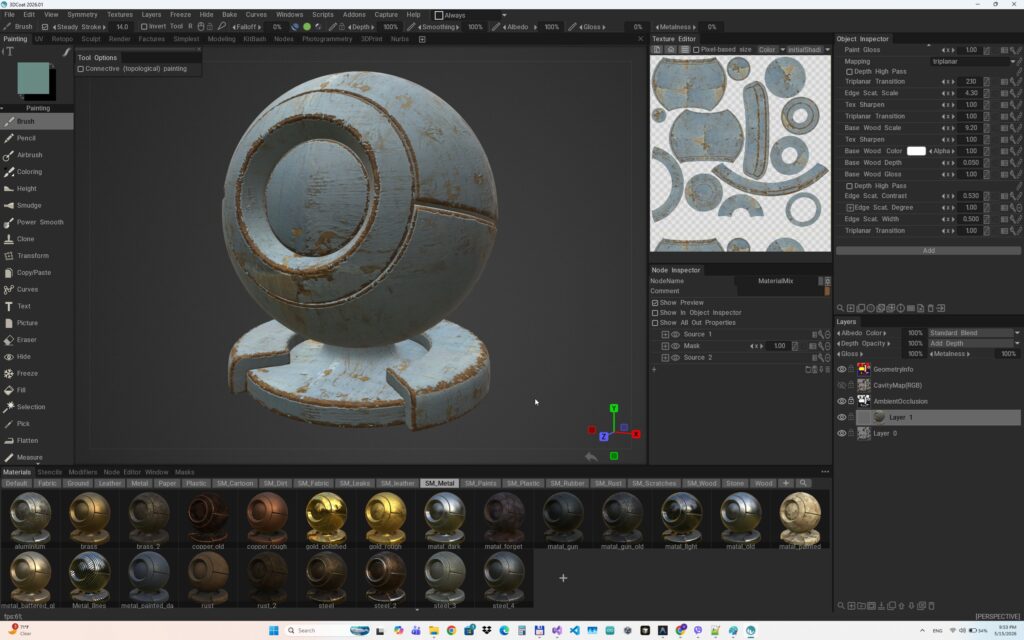
1. GPU PPP Architecture: What it Means for the Artist

In 3DCoat, you may often encounter the term GPU PPP (GPU-accelerated Per-Pixel Painting). While this is a technical term, for you as an artist, it means one very practical thing: real-time feedback.

Previously, per-pixel painting relied primarily on the Central Processing Unit (CPU). Now, all the heaviest calculations—procedural noise generation, complex mask calculation, channel blending, and surface deformations—have been transferred to your graphics card (GPU).

What advantages does this give you in your work:

  • Huge textures without lag: You can work with 8K or 16K resolution; updating procedural maps or blending layers will not “slow down.”
  • Vector Displacement: All fine surface details (skin pores, scales, mechanical recesses) are calculated by the GPU as vector displacement directly during texturing. This allows you to use a light, optimized polygonal mesh to control the silhouette, while all macro-details are generated procedurally via nodes.

2. Node Architecture in the Paint Workspace

The biggest problem with CPU texturing is the destructiveness of materials on adjust layers. With the new approach using the node system and the GPU painting engine, all materials and Adjust effects are generated non-destructively, on the fly, in real time during layer blending. This allows you to change them at any time and instantly see the result of the change. They support many more PBR channels, and they can also interact with the brush during painting, allowing the brush to influence the materials.

3. Non-Destructive Texturing and Node System in 3DCoat

Introduction

Non-destructive texturing in 3DCoat provides unprecedented control over the entire material creation process. Instead of classic destructive pixel painting, this workflow allows you to create procedural materials, filters, and masks using visual blocks (nodes). You can return to material properties such as color, rust or dirt intensity, gloss, or metalness at any stage and instantly see the changes in real-time.

This flexibility is made possible by the new ultra-fast GPUPPP (GPU Per Pixel Painting) technology, which performs all per-pixel layer calculations directly on the graphics card. Each node is driven by the NGL (NodeGraph Language) and dynamically compiled into a highly optimized shader. This ensures that procedural materials remain resolution-independent and do not lose quality or become pixelated.

Basics of Working with Nodes

In the Node Editor, material creation happens through visual programming.

  • Assigning nodes: Nodes are assigned directly to paint layers. The node graph can be applied either to an individual current Layer or globally to the entire Object.
  • Creation and connection: To create a node, simply right-click in the Node Editor and choose the desired one from the extensive list. Outputs of one node are connected to inputs of another by dragging lines.

PBR Texturing Workflow

The 3DCoat rendering system is built on the PBR (Physically Based Rendering) standard, so when painting, you simultaneously modify multiple channels: Albedo (color), Depth (displacement/bump), Glossiness (roughness), and Metalness.

Step-by-step process of creating a base material:

  1. Base material: Create a Simple material node, which will serve as the foundation (e.g., metal or paint).
  2. Loading textures: Add a versatile UVW texture node. It allows you to load both color and grayscale maps, such as a scratch or dirt map.
  3. Connecting: Connect the texture output to the corresponding inputs in the Simple material (e.g., color or gloss channels).
  4. Preview: 3DCoat has a special preview button that temporarily fills the layer with the result of the node graph, so you can evaluate the material’s look on the entire model without permanently applying it. You can also hold the Ctrl key and hover the cursor over any node input or output — this will instantly display an isolated micro-preview of that specific graph stage directly on the model.

Creating Wear Effects and Masks

To create realistic surfaces, it is necessary to properly blend materials (e.g., base metal and peeling paint).

  • Masking: Use the Simple mask node to control the degree of paint wear on the edges of the object where the metal should show through.
  • Realistic edges: To prevent wear edges from looking too artificial, apply the Degree map parameter in the mask settings. By loading a scratch texture there and slightly increasing the influence, you will get a complex, natural wear effect with noise.

These approaches are the foundation of Smart Materials, which dynamically adapt to the model’s geometry (edges, cavities, etc.). Converted old smart materials and new node presets can be found in the materials window. If you open them in the editor, you will see a pre-configured graph with loaded textures in the color, depth, gloss, and metal slots.

Working with Parameter Inspectors

Two panels are used for convenient material adjustment:

  • Node Inspector: Detailedly displays the properties of a single selected node, allowing you to tweak colors, vectors, curves, and load textures. Here you can also change the “Visibility Level” of parameters using the eye icon.
  • Object Inspector: By increasing the visibility level of a parameter in the Node Inspector, you “publish” it to the global Object Inspector. This forms a convenient “control panel” for the entire material, where only the most important settings are gathered. These settings are saved as local variables (LocalVars), making each material unique.

Applying Materials to the Model

Once the material is configured, turn off the preview button. You can apply node materials to an object in several ways:

  1. Mask: Use a NodeGraph, procedural mask to automatically apply the material to the desired areas.
  2. Fill: Using the Fill entire layer tool to instantly cover the whole object.
  3. Brush: For manual application of the material to local areas.
  4. Stencils: For adding specific details using projection.

Using the node system turns the texturing process into a flexible, controllable, and completely non-destructive process that meets the highest standards of PBR asset creation

Was this helpful?

Yes  No
Related Articles
  • GPU Texturing
  • Vector
  • Volumes
  • Modifiers
  • Materials
  • Masks
Previously
PBM Channels
Up Next
Navigation
AI:
Hi! How can I help you?
Attention: This is a beta version of AI chat. Some answers may be wrong. See full version of AI chat