• Dansk
  • 3DCoat dokumentation
  • Chapters
    • Introduktion til 3DCoat
    • Kom godt i gang
    • Interface & Navigation
    • Brush
    • Arbejdsrum Rum
    • Scripting & Core API
    • Spørgsmål/svar
    • licensing
    • Træningsvejledninger
  • Pilgway
  • Products
    • 3DCoat
    • 3DCoatTextura
    • 3DCoatPrint
    • PBRLibrary
  • Blog Posts
  • Store
  • Dansk Dansk
    • English English
    • Українська Українська
    • Español Español
    • Deutsch Deutsch
    • Français Français
    • 日本語 日本語
    • Русский Русский
    • 한국어 한국어
    • Polski Polski
    • 中文 (中国) 中文 (中国)
    • Português Português
    • Italiano Italiano
    • Suomi Suomi
    • Svenska Svenska
    • 中文 (台灣) 中文 (台灣)
    • Slovenčina Slovenčina
    • Türkçe Türkçe
    • Nederlands Nederlands
    • Magyar Magyar
    • ไทย ไทย
    • हिन्दी हिन्दी
    • Ελληνικά Ελληνικά
    • Tiếng Việt Tiếng Việt
    • Lietuviškai Lietuviškai
    • Latviešu valoda Latviešu valoda
    • Eesti Eesti
    • Čeština Čeština
    • Română Română
    • Norsk Bokmål Norsk Bokmål
  • Creating 3D Character Using 3DCoat
  • 3DCoat dokumentation
  • Chapters
    • Introduktion til 3DCoat
    • Kom godt i gang
    • Interface & Navigation
    • Brush
    • Arbejdsrum Rum
    • Scripting & Core API
    • Spørgsmål/svar
    • licensing
    • Træningsvejledninger
  • Pilgway
  • Products
    • 3DCoat
    • 3DCoatTextura
    • 3DCoatPrint
    • PBRLibrary
  • Blog Posts
  • Store
  • Dansk Dansk
    • English English
    • Українська Українська
    • Español Español
    • Deutsch Deutsch
    • Français Français
    • 日本語 日本語
    • Русский Русский
    • 한국어 한국어
    • Polski Polski
    • 中文 (中国) 中文 (中国)
    • Português Português
    • Italiano Italiano
    • Suomi Suomi
    • Svenska Svenska
    • 中文 (台灣) 中文 (台灣)
    • Slovenčina Slovenčina
    • Türkçe Türkçe
    • Nederlands Nederlands
    • Magyar Magyar
    • ไทย ไทย
    • हिन्दी हिन्दी
    • Ελληνικά Ελληνικά
    • Tiếng Việt Tiếng Việt
    • Lietuviškai Lietuviškai
    • Latviešu valoda Latviešu valoda
    • Eesti Eesti
    • Čeština Čeština
    • Română Română
    • Norsk Bokmål Norsk Bokmål
  • Creating 3D Character Using 3DCoat
Expand All Collapse All
  • Introduktion til 3DCoat
  • Kom godt i gang
    • System requirements
    • Why 3DCoat is Unique?
    • Aktivering af 3DCoat
    • Opstartsfejl
      • Startup error Mac
    • Color management
    • Upgrading permanent license
    • Linux Setup
      • Linux initial setup per-user installation
      • Linux initial setup for system
      • Tablet setup
      • To GTK3 from GTK2
    • Mappestruktur
      • Custom documents folder
    • Forskellige former for "opløsning"
    • Tablet on Window
    • Import & Export
    • Applinks i 3DCoat
      • Blender applink
        • Blender with the Applink in Linux
      • Blender 4.2/3/4/5 applink
      • Max Applink
      • Houdini applink
      • Lightwave uplink
  • Navigation
    • Åbningsdialog (hurtig startmenu)
    • Navigationspanel
    • Kamera og navigation
      • Customize Navigation as Blender
    • Viewport Navigation Gizmo
    • Left tool panel
    •  Activity Bar
    • Navigation ved hjælp af 3DConnexion-enheder
      • How to compile Spacenavd on non Ubuntu distro
    • Stylus doesn’t work in sculpting
    • Genvejstaster
  • Interface & Navigation
    • Fil menu
    • Rediger menu
      • Calculate Curvature
      • Calculate Occlusion
      • Light Baking Tool
      • Præferencer
    • Vis menu
    • Symmetri
    • Textures
    • Calculate
    • Menuen Lag
    • Frys menu
    • Hide
    • Bake
    • Kurver 2022
      • Kurver menu
      • Curves Properties RMB
      • Fyld med mesh lag
      • Scale of imported curves
    • Windows menu
      • Windows Popup-paneler med faner
      • Skydere
    • Scripts
    • Addons
    • Capture
    • Hjælp menu
    • Tilpasning
    • Rediger eller opret nyt rum
  • Brush
    • Brush Top Bar
    • Børster til almindelig brug
      • Lav børster og mærkater
      • Fremstilling af alfa fra den nuværende sculpt
      • Opret en Brush fra et 3D-objekt
      • Create brushes based on Curves
      • Load photoshop .abr brushes
    • Slagtilfælde
      • Kurver popup-menu
    • Brush muligheder
    • Betingelsesbegrænser
    • Strips Panel
    • Stencils panel
    • Smarte materialer
      • Tilføj nye billeder eller materialer
      • Vedhæft et Smart materiale til et lag
      • Import Quixel Material
    • Sådan opretter du forudindstillinger til Brush
  • Arbejdsrum Rum
    • Painting
      • Painting og tilstande
        • Per-Pixel Painting
        • Painting (Micro-Vertex)
        • Ptex Painting
        • Painting (polymaling)
      • Importer ind i Painting
        • Initial CC subdivision
        • UV Set smoothing
        • Sharp (hard) edge
        • Lås Normaler
        • Indlæs nyt UV layout efter modelændringer
        • DAZ Genesis models into 3DCoat
      • Menuer i Painting
        • Edit menu
        • Tekstur menu
          • Tekstur Baking
        • Skjule
        • Menu til Bake Paint
        • Farvevælgeren
      • Topstang til Painting
      • Panelet Lag
        • Blandingspanelet
        • Layer and Clipping Masks
      • Værktøj til Painting
      • Opacitet - Gennemsigtighed
      • Tweak arbejdsområde
        • Tweak værktøjssæt
        • Eksporterer fra Tweak Room
      • Maske/materiale Preview Panel
      • Eksporterer fra Painting
    • UV arbejdsplads
      • UV Top Bar
      • UV venstre værktøjspanel
      • UV Preview Panel
      • Eksempel på UV arbejdsgang
      • Importer ind i UV rummet
      • Eksport fra UV rummet
    • Retopologi
      • Importer til Retopo rummet
      • Retopo Mesh Menu og Bake Menu
        • Virtuel spejltilstand
      • Bake menu
        • Treat Poly Groups as Paint Objects
        • Baking guide
      • Top bar
        • Vælg geometri
      • Venstre værktøjspanel i Retopologirummet
        • Overordnet formål og funktion
        • Tilføj geometri
          • Slagværktøj i Retopologi
        • Retopo Tweak-værktøjer
        • UV værktøj
        • Kommandoer til Retopologirummet
      • AUTORETOPO
        • Autopo guide
      • Poly grupper
    • Skulptere
      • Sculpt Layer
      • Skulptér træ
      • Muligheder for Sculpt Brush
      • Top Bar
      • Brush motor
      • Geometri Undermenu
      • Skulptur "højreklik"-menuen
      • Shaders
      • Voxel -tilstand
        • Ren Voxel Sculpting
        • Tæthed og opløsning
        • Ler motor
        • Voxel værktøjer
        • Overfladeværktøjer på Voxels
        • Voxel justeringsværktøjer
        • Volumetrisk Painting
        • Voxel Objects-værktøjer
      • Overfladetilstand
        • Overfladeværktøj
        • Tilpassede overfladeværktøjer
        • Værktøj til overfladejustering
        • Painting
        • Værktøjer til overfladeobjekter
        • Multi Level Opløsning
          • Multires tools
          • Multires adjust
          • Multires commands
      • Skulptur kurver
        • Spline kurver
        • Splines model creation
      • Vektor forskydning
      • Værktøjer til overfladetransformation
        • Voxel transformationsværktøjer
        • Instancer
        • Move
        • Pose
        • Fit
        • Reproject
        • Surface Array
      • Voxel Primitives og Import
      • Levende booleanere
      • Kommandoer til Sculpt room
      • Import til Sculpt Room
      • Eksporterer fra skulpturrummet
    • Render
      • Comparison of different roughness values
      • Render panelfunktioner
      • Pladespiller
      • Fakebake the lighting -ikke PBR-
    • Factures
      • Workflow
    • Det enkleste
    • Modellering
      • Mesh Menu
      • Venstre værktøjspanel i modelleringsrum
        • Tilføj geometri
          • Valgte
        • Tweak
        • Smart Hybrid
        • UV
          • Kommandoer
        • Hele Mesh
      • Loft overflade eksempel af Fluffy
      • Blockout af Poeboi
      • Import Zbrush Polygroups for UV mapping
    • Kitbash - Hurtig oprettelse af 3D-modeller
      • Create kitbash
      • Left tool panel Kitbash
    • 3DPrint
    • Photogrammetry
      • How to install Reality Capture
      • Reality Capture doesn’t show up ?
    • Mesh til NURBS værelse
    • Nodes
      • Sculpt shaders Nodes Library
  • Scripting & Core API
    • Scripting
    • Core API
    • Python API
  • Gratis 3DCoatPrint

Comparison of different roughness values

539 views 0

Written by Carlos
November 14, 2024

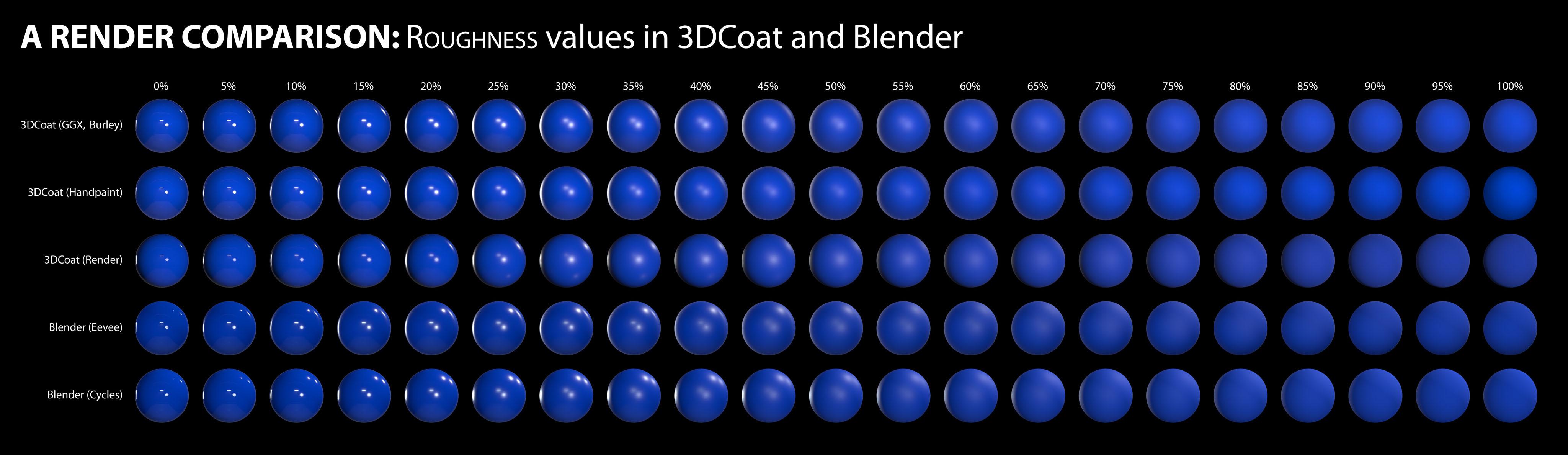
A render comparison of different roughness values in 3DCoat and Blender by DMG

I was going between 3DC and Blender a bit trying to hit the sweet spot I wanted for something, and I noticed differences between the two renders, especially caused by varying roughness values.

I decided to get a bit scientific about it, so here’s the results of my tinkering.  I used the studio.exr panorama from Blender in both programs for a fair comparison. The 3DCoat environment settings were left at default, but the light was deactivated. The HDRI was normalized when I imported it. The HDRI strength was left at default value in Blender too.

A simple sphere, identical color value in all renders. 

I’m making no judgement as to which renderer is ‘better’. This is just purely for comparison, to see how roughness values appear in each in order to make texturing a bit more predictable.

I did notice that in the HDRI there is a tiny but bright spotlight high up adjacent to the other light, but for some reason this isn’t picked up in the 3DCoat renders. Perhaps it’s just a tiny pinprick and too small to be picked up. I don’t know. There also appears to be a light down low, right of center, but only on the renders for 25% to 40% roughness in the 3DCoat renders. I don’t know where that’s coming from. It isn’t apparent in any of the others.

The rows are: 3DCoat’s GGX, Handpaint, Render; then Blender’s Eevee, Cycles.

* I think the Handpaint render (compared to the GGX one) has slightly lower intensity in the bright highlights, as well as ever so slightly more diffuse reflections when the roughness reached mid-levels. And compared to the 3DCoat render, the bright highlights in the Handpaint render are a touch more intense, and as with the GGX ones, much more defined.

Looking at the Handpaint renders and the Blender Cycles renders, they’re actually very similar. This is excellent.
I feel that if I use the Handpaint preview, I will be seeing a very close approximation of what I’ll get in Blender. So my chart is now redundant, based on the reason I created it in the first place, but it has nevertheless been very useful.
RenderComparisonChart.jpg

The most noticeable differences is that the reflections in the 3DCoat Paint Room preview are a touch more intense than both of Blender’s renders, but the same reflections are a bit feinter in 3DCoat’s Renderer.

Also, at around 35-40% roughness, the 3DCoat Renderer has greater blur on the main reflections near the center, which has almost become a single bright patch, whereas all the others still have two distinct light sources.

Like I said, this isn’t about picking a ‘winner’ or ‘favorite’.  It’s just to help me predict how my textured objects will appear and render in Blender to save time to-ing and fro-ing making adjustments.

Tags:roughness

Was this helpful?

Yes  No
Related Articles
  • Surface Array
  • Top Bar
  • Curves Properties RMB
  • Left tool panel Kitbash
  • Create kitbash
  • Color management
Previously
Render
Up Next
Render panelfunktioner
AI:
Hi! How can I help you?
Attention: This is a beta version of AI chat. Some answers may be wrong. See full version of AI chat