 Français
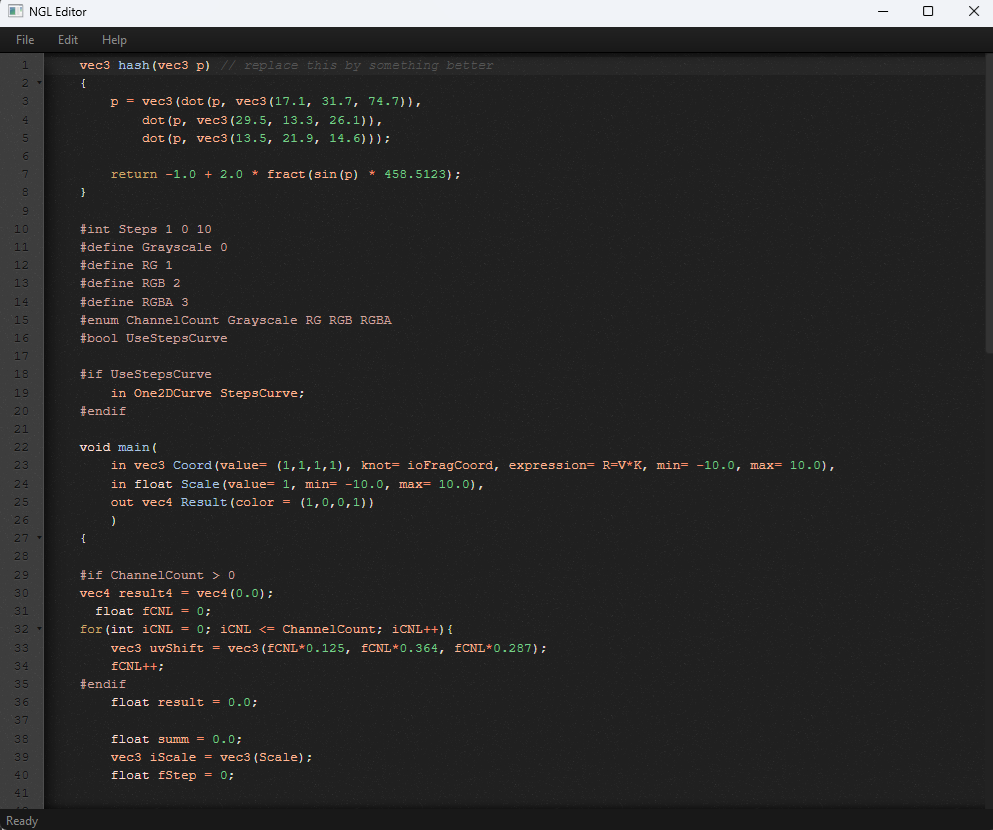
NGL is a material description language based on the GLSL shader language. It is used in 3DCoat to create nodes for materials, effects, deformations, and more.
The language includes a preprocessor that handles custom defines and provides additional features needed for node description.
Code Structure
Unlike standard GLSL, NGL offers flexibility in how you structure your code.
Implicit Main
You are not required to define a main function. You can write your shader code directly in the global scope, similar to Python scripts.
Example:
in vec3 Color;
out vec3 Result;

// Direct code execution
Result = Color * 2.0;
Explicit Main with Arguments
If you prefer to define a main function, you can declare your in and out properties directly as arguments to the function. This keeps the global namespace clean and groups property definitions with the main logic.
Example:
void main(
    in vec3 FragCoord(value= 1, knot= ioFragCoord, expression= R=(V*K), min= -10.0, max= 10.0),
    in float Scale,
    out float Closest,
    out float SecondClosest,
    out float CellID
) {
    // Shader logic here
    vec3 p = floor(FragCoord * Scale);
    // ...
}
Properties
To create incoming or outgoing properties, you can simply prefix the variable with in or out. Properties can be global variables (as seen above) or arguments of the main function.
Syntax:
in type VariableName;
out type VariableName;
Example:
in vec3 Color;
out vec4 Result;
Property Options
Additional options for each property can be specified in round brackets after the variable declaration.
Syntax:
in type VariableName(option1 = value1, option2 = value2, ...);
Available Options:
value: Default value for the property.knot: Specifies a knot type (e.g.,ioFragCoord).expression: Defines a custom expression for the property value (e.g.,R=V*D(K.x)).min: Minimum allowed value.max: Maximum allowed value.AllowCurve: (Boolean) Allows curve control. Default is false.AllowTexture: (Boolean) Allows texture input. Default is false.
Example:
in vec3 FragCoord(value = 1, knot = ioFragCoord, expression = R=V*D(K.x), min = -10.0, max = 10.0, AllowCurve = false, AllowTexture = false);
Expressions
Expressions allow you to define custom logic for property values directly in the declaration. They share the same features as NGL but are designed for compactness. You cannot create new in or out properties within an expression.
Shorthand Variables:
R: (vec4) Result variable. The output of the expression is written here.V: (vec4) Input value. The value entered by the user in the Node Inspector.K: (vec4) Knot value. The value connected to the property from another node. Defaults tovec4(1,1,1,1)if nothing is connected.
Shorthand Functions:
DC(value): Deform Curve. Applies the curve (configurable by the user for this property) to a vec4 or color value.D(value): Deform Curve (Scalar). Applies the curve to a float value or a single scalar.
Accessing Other Properties
You can access the values of other properties (including custom user-created properties not defined in the code) using dot notation:
OtherProp.V: The value ofOtherPropdefined in the Inspector (User Value).OtherProp.K: The value connected toOtherPropfrom another node (Knot Value).
Example:
// Result = UserValue * AnotherPropertyValue * AnotherPropertyConnectedValue
in float Scale(expression = R = V * AnotherProp.V * AnotherProp.K);
Example:
// Result = UserValue * DeformCurve(ConnectedValue.x)
in float Scale(expression = R=V*D(K.x));
Math Operations & Type Casting
When writing equations involving addition or subtraction between a float and a vector of any size (e.g., vec3, vec4, color), you MUST ALWAYS explicitly cast the float to the corresponding vector type. Failure to do so will result in GLSL compilation errors in 3DCoat. (Note: Multiplication and division are usually fine, but addition/subtraction strictly require matching types).
Example (Incorrect):
vec3 myColor = vec3(1.0, 0.5, 0.2);
float bias = 0.1;

// This will cause a compilation error in NGL!
vec3 result = myColor + bias;
Example (Correct):
vec3 myColor = vec3(1.0, 0.5, 0.2);
float bias = 0.1;

// Correct: explicitly cast the float to a vec3
vec3 result = myColor + vec3(bias);
Special Data Types
color
The color type is essentially a vec4, handled by the preprocessor.
- In the Editor: It appears as a color picker with a specialized UI, rather than four separate float sliders.
- Usage: Use it exactly like a
vec4in your code.
Example:
in color DiffuseColor;
One2DCurve
The One2DCurve type represents a custom 1D correction curve defined by the user in the UI.
- In the Editor: It is accessed via a curve editor.
- Usage: In code, it acts as a fixed array of 256 floats (
float[256]). You can access values using an index from 0 to 255.
Example:
in One2DCurve MyCurve;

// access value at index 128
float midValue = MyCurve[128];

// map 0.0-1.0 to 0-255 range
float value = MyCurve[int(inputVal * 255.0)];
Property Modifiers and Accessors
For in properties, you can access additional attributes and modifiers using dot notation.
.INV
Checks if the user has inverted the input property.
- Usage:
PropertyName.INVreturns a boolean (or integer 0/1). - Context: Use this to manually apply inversion logic if needed, for example, when the input controls a texture lookup rather than a direct value.
.DC()
Accesses the “Deform Curve” function associated with the property. Users can adjust an input’s curve in the UI. By default, this is applied to the input value. However, if you are using the input to control something else (like a texture coordinate or a fetched texture sample), you can apply the same curve modification to that new value.
- Syntax:
PropertyName.DC(value)
Example:
// Apply the same curve configured for 'Color' input to a texture sample
vec4 texColor = texture(MyMap, uv);
vec4 correctedColor = Color.DC(texColor);
Material Object
The Material type is a specialized structure used to represent a full PBR material. Under the hood, it is packed into an array of 7 vectors: vec4[7].
Structure and Packing
To allow mixing different material types (e.g., Glass vs. Metal) and to optimize storage, multiple properties may share the same scalar value in the underlying vectors. For example, a generic “scalar” might represent Refraction in the 0.0-0.5 range and Metalness in the 0.5-1.0 range.
Accessing Properties
You can access unpacked properties using the io prefix on the Material object properties.
Syntax: materialInstance.ioPropertyName
Available Properties:
- ioAlbedoColor (vec3)
- ioEmissive (vec3)
- ioOpacity (float)
- ioIridescence (float)
- ioAnisotropy (float)
- ioClearCoat (float)
- ioIOR (float)
- ioClearCoatRoughness (float)
- ioVolume (float)
- ioMicroprotrusionsRoughness (float)
- ioReflectionColor (vec3)
- ioRefractionBlur (float)
- ioSpecularEdgePower (float)
- ioEmissiveColor (vec3)
- ioSubSurfaceColor (vec3)
- ioSpecularEdgeColor (vec3)
- ioMicroprotrusionsColor (vec3)
- ioDiffuseSSS (float)
- ioSpecularSSS (float)
- ioRefractionChromatic (float)
- ioAmbientOcclusion (float)
- ioClearCoatEdgePower (float)
- ioMicroprotrusions (float)
- ioTSNormal (Color) – Tangent Space Normal
- ioMetalness (float)
- ioRefraction (float)
- ioRefractionMetalness (float)
- ioGloss (float)
- ioRoughness (float)
- ioVelvet (float)
Example:
out Material result;
// ...
result.ioAlbedoColor = vec3(1.0, 0.0, 0.0);
result.ioMetalness = 1.0;
result.ioRoughness = 0.2;
Implicit Material Properties
If you write io + [PropertyName] (for example ioAlbedoColor, ioGloss, ioMetalness) directly without a material object instance, the values will be written to or read from the default material to which the node scheme is applied. (Note: ioPropertyName itself is not a real variable, it just represents the naming schema). You do not need to declare these variables; they are present in the node graph by default.
Example:
// Directly writing to default material properties
ioAlbedoColor = vec3(1.0, 0.0, 0.0);
ioMetalness = 1.0;
ioGloss = 0.8;
Global Built-in Variables
NGL provides a set of global built-in variables that are always available out of the box. You can use them anywhere in your code, but you must not declare them (e.g., using in or out), as this will lead to a re-declaration compilation error.
Available global variables:ioResolution, ioMaskLayer, ioLayerColor, ioLayerBytes, ioLayerFloat, ioTime, ioTimeDelta, ioFrame, ioMouse, ioDate, ioReplaceAlpha, ioFragCoord, ioUV, ioPosition, ioGlobalPosition, ioNormal, ioGlobalNormal, ioFragCoord_DX, ioUV_DX, ioPosition_DX, ioNormal_DX, ioFragCoord_DY, ioUV_DY, ioPosition_DY, ioNormal_DY, ioSpecularMask, ioCavity, ioOcclusion, ioCameraPosition, ioRayDir, ioLightDir, ioIteration.
Global Functions: mixMTL
A global helper function to correctly mix two materials. It handles the packed structure of the Material type to ensure all properties (even those sharing scalars) are interpolated correctly.
Syntax:
Material mixMTL(Material m1, Material m2, float t);
Parameters:
m1: The first material.m2: The second material.t: Interpolation factor (0.0 to 1.0).
Preprocessor Directives
NGL supports custom preprocessor directives to generate different source code based on settings or to create UI elements.
#enum
Creates a dropdown menu in the node settings.
Syntax:
#enum DEFINE_NAME OPTION1 OPTION2 OPTION3 ...
In this case, DEFINE_NAME will be replaced by the selected element from the list. This is particularly useful for creating generic types or switching keywords.
Example 1 (Type switching):
#enum genType float vec2 vec3 vec4

// genType will be replaced by the selected type (e.g. float, vec2, etc.)
in genType Value;
Example 2 (Photoshop-like layer blending):
// NGL Node for Photoshop-like layer blending
#enum BlendMode Normal Multiply Screen Overlay Darken Lighten ColorDodge ColorBurn HardLight SoftLight Difference Exclusion

in color Base(value=vec4(0.5, 0.5, 0.5, 1.0));
in color Blend(value=vec4(0.5, 0.5, 0.5, 1.0));
in float Opacity(value=1.0, min=0.0, max=1.0);
out color Result;

vec3 Normal(vec3 b, vec3 a) { return a; }
vec3 Multiply(vec3 b, vec3 a) { return b * a; }
vec3 Screen(vec3 b, vec3 a) { return 1.0 - (1.0 - b) * (1.0 - a); }
vec3 Overlay(vec3 b, vec3 a) {
    vec3 mult = 2.0 * b * a;
    vec3 screen = 1.0 - 2.0 * (1.0 - b) * (1.0 - a);
    return mix(mult, screen, step(0.5, b));
}
vec3 Darken(vec3 b, vec3 a) { return min(b, a); }
vec3 Lighten(vec3 b, vec3 a) { return max(b, a); }
vec3 ColorDodge(vec3 b, vec3 a) {
    return mix(min(vec3(1.0), b / max(1.0 - a, vec3(0.00001))), vec3(1.0), step(1.0, a));
}
vec3 ColorBurn(vec3 b, vec3 a) {
    return mix(max(vec3(0.0), 1.0 - (1.0 - b) / max(a, vec3(0.00001))), vec3(0.0), step(a, vec3(0.0)));
}
vec3 HardLight(vec3 b, vec3 a) {
    vec3 mult = 2.0 * b * a;
    vec3 screen = 1.0 - 2.0 * (1.0 - b) * (1.0 - a);
    return mix(mult, screen, step(0.5, a));
}
vec3 SoftLight(vec3 b, vec3 a) {
    vec3 darken = b - (1.0 - 2.0 * a) * b * (1.0 - b);
    vec3 lighten = b + (2.0 * a - 1.0) * (sqrt(b) - b);
    return mix(darken, lighten, step(0.5, a));
}
vec3 Difference(vec3 b, vec3 a) { return abs(b - a); }
vec3 Exclusion(vec3 b, vec3 a) { return b + a - 2.0 * b * a; }

// Clamping to avoid artifacts on overbright colors
vec3 baseCol = clamp(Base.rgb, 0.0, 1.0);
vec3 blendCol = clamp(Blend.rgb, 0.0, 1.0);

// Selecting blending math via #enum substitution
vec3 blended = BlendMode(baseCol, blendCol);

// Opacity and Alpha factoring
float totalBlendFactor = clamp(Blend.a * Opacity, 0.0, 1.0);

vec3 finalColor = mix(Base.rgb, blended, totalBlendFactor);
float finalAlpha = max(Base.a, Blend.a * Opacity);

Result = vec4(finalColor, finalAlpha);
#int
Allows you to set an integer value via the UI.
Syntax:
#int DEFINE_NAME DEFAULT_VALUE MIN_VALUE MAX_VALUE
Example:
#int ITERATIONS 5 0 10
#bool
Creates a checkbox in the settings.
Syntax:
#bool DEFINE_NAME
You can check if it is enabled using #if.
Example:
#bool ENABLE_SHADOWS

#if ENABLE_SHADOWS
    // Shadow calculation code
#endif
#sampler
Provides direct access to a bitmap texture and Sampler2D.
Syntax:
#sampler DEFINE_NAME
This allows users to load textures, and you can use DEFINE_NAME as a Sampler2D in your code.
Example:
#sampler AlbedoMap

void main() {
    vec4 color = texture(AlbedoMap, uv);
}