 Español
In 3DCoat, the node system offers two main inspector windows for adjusting parameters: Node Inspector and Object Inspector. They work in tandem, allowing you to both deeply dive into the settings of individual blocks and create convenient “control panels” for the entire material or object.
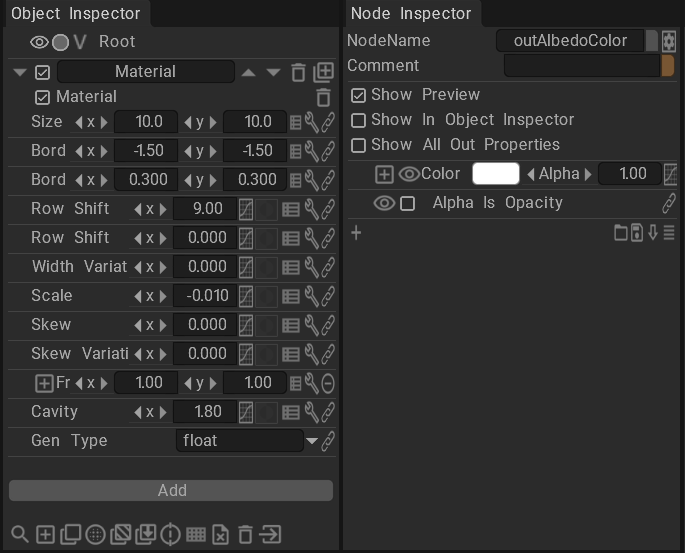
1. Node Inspector
The Node Inspector is a panel that detailedly displays the properties of one specifically selected node in your graph.
Core Features:
- Pinpoint Adjustments: Color selection, entering numerical values (Float, Vectors), adjusting curves and textures for the selected block.
- Visibility Management (Visibility Level): This is the most important feature of the inspector. Not all node parameters are needed constantly. To the left of many parameters, there is a special button (an eye icon, a gear, etc.). By clicking on it, you change the “visibility level” of this parameter.
- Exporting Parameters: By increasing the visibility level of a parameter in the Node Inspector, you “publish” it to the global Object Inspector.
2. Object Inspector
The Object Inspector is a higher-level panel. It displays the parameters of the entire object, which can contain many complex node schemes (graphs) and layers within itself.
How does this help the artist?
Instead of searching for the needed node in a huge scheme every time you want to change the base color or roughness of a material, you simply mark these parameters as “visible” in the Node Inspector.
After that, they appear in the Object Inspector. Thus, you create a clean, understandable “control panel” for the material, where only the most important sliders and settings are gathered. This is especially useful when creating material presets for other artists on the team or for reuse.
3. Parameter Settings (Properties)
In both inspectors, parameters are displayed as a list. Depending on the data type (Color, Number, Vector), you will see different interface elements:
- Sliders and Fields (x, y, z, w / Alpha): For changing numerical values and vectors.
- Color Field: Clicking on it opens the standard 3DCoat color palette.
- Links: You can see if a parameter is connected to another node. You can open (expand) or collapse nested connections.
- Expressions: The list icon (
view_list) opens the mathematical expression editor, where you can define the behavior of the parameter with a formula. (If the expression contains an error, the parameter will be highlighted in red with an[EXP. ERROR]mark). - Invert: A button for quickly inverting a value or curve.
4. Curve and Gradient Editor (Property Ramp / Curve Editor)
Some parameters use curves (Ramps) for more complex control, for example, for setting up gradients, transition profiles, or levels. By clicking the curve edit button (edit_curves), you activate a powerful editor that has several operating modes:
Curve / Gradient Mode
Allows you to draw flexible graphs and create multi-color gradients.
- Adding Points: Click on the curve line to add a new control point.
- Moving: Grab a point with LMB and drag.
- Snapping: Hold the Shift key while dragging a point to make it smoothly snap to grid steps.
- Deleting Points: Select a point and press the Delete key on the keyboard.
Simple Mode
If the node supports it or you switched it to simple mode, the curve turns into a slider with two markers: Black and White. This is ideal for simple value clipping or contrast adjustment without having to draw complex curves.
Levels Mode
Similar to the “Levels” tool in popular 2D editors. Uses three markers:
- Black Point: Sets the black color threshold.
- White Point: Sets the white color threshold.
- Gamma (Midpoint): Allows you to smoothly lighten or darken midtones (gamma correction) without changing the darkest and lightest areas.
(Note: Holding the Ctrl key while dragging markers in Simple and Levels modes activates a special mode for precise or symmetrical adjustment).