• Українська
  • Документація 3DCoat
  • Chapters
    • Знайомство з 3DCoat
    • Починаємо
    • Інтерфейс і навігація
    • Компоненти Brush
    • Робочі місця Кімнати
    • Scripting та Core API
    • Питання/Відповіді
    • licensing
    • Навчальні посібники
  • Pilgway
  • Products
    • 3DCoat
    • 3DCoatTextura
    • 3DCoatPrint
    • PBRLibrary
  • Blog Posts
  • Store
  • Українська Українська
    • English English
    • Español Español
    • Deutsch Deutsch
    • Français Français
    • 日本語 日本語
    • Русский Русский
    • 한국어 한국어
    • Polski Polski
    • 中文 (中国) 中文 (中国)
    • Português Português
    • Italiano Italiano
    • Suomi Suomi
    • Svenska Svenska
    • 中文 (台灣) 中文 (台灣)
    • Dansk Dansk
    • Slovenčina Slovenčina
    • Türkçe Türkçe
    • Nederlands Nederlands
    • Magyar Magyar
    • ไทย ไทย
    • हिन्दी हिन्दी
    • Ελληνικά Ελληνικά
    • Tiếng Việt Tiếng Việt
    • Lietuviškai Lietuviškai
    • Latviešu valoda Latviešu valoda
    • Eesti Eesti
    • Čeština Čeština
    • Română Română
    • Norsk Bokmål Norsk Bokmål
  • Creating 3D Character Using 3DCoat
  • Документація 3DCoat
  • Chapters
    • Знайомство з 3DCoat
    • Починаємо
    • Інтерфейс і навігація
    • Компоненти Brush
    • Робочі місця Кімнати
    • Scripting та Core API
    • Питання/Відповіді
    • licensing
    • Навчальні посібники
  • Pilgway
  • Products
    • 3DCoat
    • 3DCoatTextura
    • 3DCoatPrint
    • PBRLibrary
  • Blog Posts
  • Store
  • Українська Українська
    • English English
    • Español Español
    • Deutsch Deutsch
    • Français Français
    • 日本語 日本語
    • Русский Русский
    • 한국어 한국어
    • Polski Polski
    • 中文 (中国) 中文 (中国)
    • Português Português
    • Italiano Italiano
    • Suomi Suomi
    • Svenska Svenska
    • 中文 (台灣) 中文 (台灣)
    • Dansk Dansk
    • Slovenčina Slovenčina
    • Türkçe Türkçe
    • Nederlands Nederlands
    • Magyar Magyar
    • ไทย ไทย
    • हिन्दी हिन्दी
    • Ελληνικά Ελληνικά
    • Tiếng Việt Tiếng Việt
    • Lietuviškai Lietuviškai
    • Latviešu valoda Latviešu valoda
    • Eesti Eesti
    • Čeština Čeština
    • Română Română
    • Norsk Bokmål Norsk Bokmål
  • Creating 3D Character Using 3DCoat
Expand All Collapse All
  • Знайомство з 3DCoat
  • Починаємо
    • System requirements
    • Why 3DCoat is Unique?
    • Активація 3DCoat
    • Помилка запуску
      • Startup error Mac
    • Color management
    • Upgrading permanent license
    • Linux Setup
      • Linux initial setup per-user installation
      • Linux initial setup for system
      • Tablet setup
      • To GTK3 from GTK2
    • Структура папок
      • Custom documents folder
    • Різні форми «резолюції»
    • Tablet on Window
    • Import та Export
    • Applinks в 3DCoat
      • Посилання на додаток Blender
        • Blender with the Applink in Linux
      • Blender 4.2/3/4/5 applink
      • Max Applink
      • Houdini applink
      • Lightwave uplink
  • Navigation
    • Відкриття діалогового вікна (меню швидкого запуску)
    • Панель навігації
    • Камера та навігація
      • Customize Navigation as Blender
    • Viewport Navigation Gizmo
    • Left tool panel
    •  Activity Bar
    • Навігація за допомогою пристроїв 3DConnexion
      • How to compile Spacenavd on non Ubuntu distro
    • Stylus doesn’t work in sculpting
    • Гарячі клавіші
  • Інтерфейс і навігація
    • Меню «Файл».
    • Меню редагування
      • Calculate Curvature
      • Calculate Occlusion
      • Light Baking Tool
      • Уподобання
    • Перегляд меню
    • Симетрія
    • Textures
    • Calculate
    • Меню шарів
    • Заморозити меню
    • Hide
    • Bake
    • Криві 2022
      • Меню кривих
      • Curves Properties RMB
      • Заповніть сітчастим шаром
      • Scale of imported curves
    • Меню Windows
      • Спливаючі панелі Windows із вкладками
      • Повзунки
    • Scripts
    • Addons
    • Capture
    • Меню довідки
    • Налаштування
    • Змінити або створити нову кімнату
  • Компоненти Brush
    • Верхня панель Brush
    • Щітки загального користування
      • Створюйте пензлі та наклейки
      • Створення альфа-версії з поточного скульпту
      • Створіть Brush із тривимірного об’єкта
      • Create brushes based on Curves
      • Load photoshop .abr brushes
    • Штрихи
      • Криві спливаюче меню
    • Варіанти Brush
    • Обмежувач умов
    • Смуги панелі
    • Панель трафаретів
    • Розумні матеріали
      • Додайте нові зображення або матеріали
      • Приєднайте розумний матеріал до шару
      • Import Quixel Material
    • Як створити стилі для Brush
  • Робочі місця Кімнати
    • Painting
      • Painting текстур і режими
        • Per-Pixel Painting
        • Painting зміщення (мікровершина)
        • Painting Ptex
        • Painting поверхні (поліфарбування)
      • Імпорт до кімнати Painting
        • Initial CC subdivision
        • UV Set smoothing
        • Sharp (hard) edge
        • Блокування нормалей
        • Завантажити новий макет UV після зміни моделі
        • DAZ Genesis models into 3DCoat
      • Меню робочої області Painting
        • Edit menu
        • Меню текстур
          • Інструменти для Baking текстури
        • Сховати
        • Меню для Bake Paint
        • Вибір кольорів
      • Верхня панель для Painting
      • Панель шарів
        • Панель змішування
        • Layer and Clipping Masks
      • Інструменти для Painting кімнати
      • Opacity – Прозорість
      • Налаштуйте робочу область
        • Набір інструментів налаштування
        • Експорт із кімнати налаштування
      • Панель попереднього перегляду маски/матеріалу
      • Експорт із кімнати Painting
    • Робоча область UV
      • Верхня UV панель
      • Ліва панель інструментів UV
      • Панель попереднього перегляду UV
      • Приклад робочого процесу UV
      • Імпорт в UV кімнату
      • Експорт з UV кімнати
    • Ретопологія
      • Імпорт до кімнати Retopo
      • Меню Retopo Mesh і меню випікання
        • Режим віртуального дзеркала
      • Bake menu
        • Treat Poly Groups as Paint Objects
        • Baking guide
      • Верхня панель
        • Виберіть геометрію
      • Ліва панель інструментів у кімнаті ретопології
        • Загальне призначення та функції
        • Додайте геометрію
          • Інструмент «Обведення» в ретопології
        • Інструменти налаштування Retopo
        • UV інструменти
        • Команди для кабінету ретопології
      • АВТОРЕТОПО
        • Autopo guide
      • Групи Poly
    • Ліпити
      • Sculpt Layer
      • Ліпити дерево
      • Параметри Brush для скульптури
      • Top Bar
      • Brush двигун
      • Підменю Геометрія
      • Скульптуйте меню «Клацання правою кнопкою миші».
      • Шейдери
      • Voxel режим
        • Чиста Voxel скульптура
        • Щільність і роздільна здатність
        • Clay Engine
        • Voxel інструменти
        • Інструменти поверхні на вокселях
        • Інструменти налаштування Voxel
        • Об'ємний Painting
        • Інструменти Voxel Objects
      • Поверхневий режим
        • Поверхневі інструменти
        • Поверхневі спеціальні інструменти
        • Інструменти для регулювання поверхні
        • Painting поверхні
        • Інструменти Surface Objects
        • Багаторівнева роздільна здатність
          • Multires tools
          • Multires adjust
          • Multires commands
      • Ліпити криві
        • Сплайн-криві
        • Splines model creation
      • Векторне зміщення
      • Інструменти трансформації поверхні
        • Інструменти Voxel перетворення
        • Instancer
        • Move
        • Pose
        • Fit
        • Reproject
        • Surface Array
      • Voxel примітиви та інструменти Import
      • Живі логічні значення
      • Команди для Sculpt room
      • Import до Sculpt Room
      • Експорт із кімнати скульптур
    • Рендер
      • Comparison of different roughness values
      • Функції панелі візуалізації
      • Поворотний стіл
      • Fakebake освітлення - не PBR-
    • Factures
      • робочий процес
    • Найпростіший
    • Моделювання
      • Mesh Menu
      • Ліва панель інструментів у кімнаті моделювання
        • Додайте геометрію
          • Вибране
        • Твік
        • Smart Hybrid
        • UV
          • Команди
        • Ціла сітка
      • Приклад поверхні лофт від Fluffy
      • Блокування від Poeboi
      • Import Zbrush Polygroups for UV mapping
    • Kitbash - швидке створення 3D моделей
      • Create kitbash
      • Left tool panel Kitbash
    • 3DPrint
    • Photogrammetry
      • How to install Reality Capture
      • Reality Capture doesn’t show up ?
    • Сітка до кімнати NURBS
    • Nodes
      • Бібліотека вузлів шейдерів скульптури
  • Scripting та Core API
    • Scripting
    • Core API
    • API Python
  • Безкоштовний 3DCoatPrint

Comparison of different roughness values

539 views 0

Written by Carlos
November 14, 2024

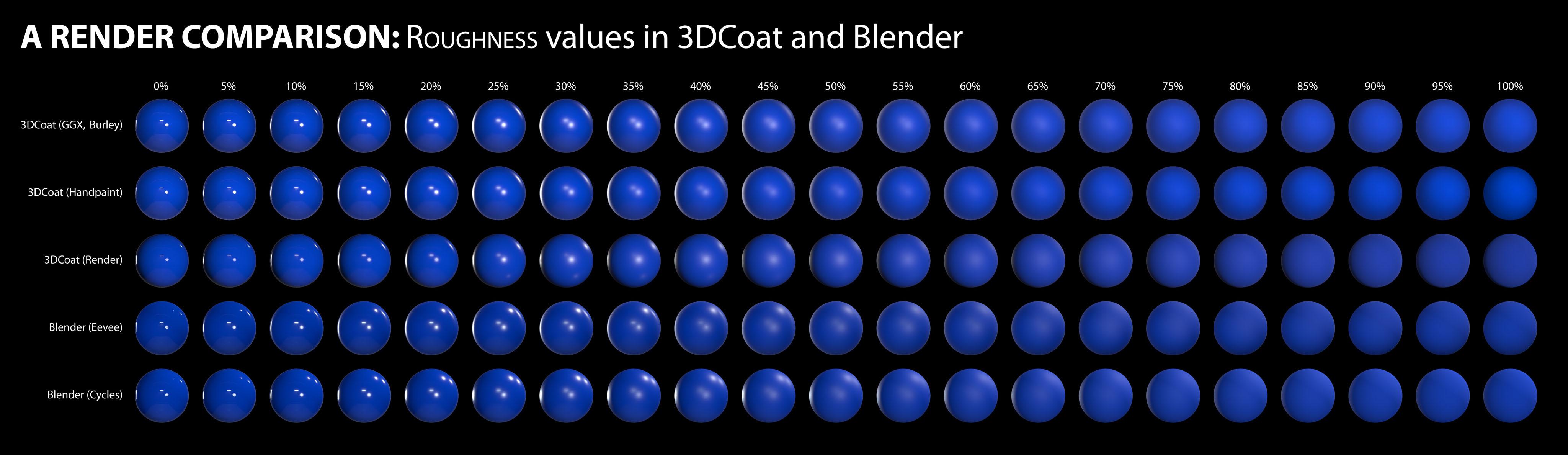
A render comparison of different roughness values in 3DCoat and Blender by DMG

I was going between 3DC and Blender a bit trying to hit the sweet spot I wanted for something, and I noticed differences between the two renders, especially caused by varying roughness values.

I decided to get a bit scientific about it, so here’s the results of my tinkering.  I used the studio.exr panorama from Blender in both programs for a fair comparison. The 3DCoat environment settings were left at default, but the light was deactivated. The HDRI was normalized when I imported it. The HDRI strength was left at default value in Blender too.

A simple sphere, identical color value in all renders. 

I’m making no judgement as to which renderer is ‘better’. This is just purely for comparison, to see how roughness values appear in each in order to make texturing a bit more predictable.

I did notice that in the HDRI there is a tiny but bright spotlight high up adjacent to the other light, but for some reason this isn’t picked up in the 3DCoat renders. Perhaps it’s just a tiny pinprick and too small to be picked up. I don’t know. There also appears to be a light down low, right of center, but only on the renders for 25% to 40% roughness in the 3DCoat renders. I don’t know where that’s coming from. It isn’t apparent in any of the others.

The rows are: 3DCoat’s GGX, Handpaint, Render; then Blender’s Eevee, Cycles.

* I think the Handpaint render (compared to the GGX one) has slightly lower intensity in the bright highlights, as well as ever so slightly more diffuse reflections when the roughness reached mid-levels. And compared to the 3DCoat render, the bright highlights in the Handpaint render are a touch more intense, and as with the GGX ones, much more defined.

Looking at the Handpaint renders and the Blender Cycles renders, they’re actually very similar. This is excellent.
I feel that if I use the Handpaint preview, I will be seeing a very close approximation of what I’ll get in Blender. So my chart is now redundant, based on the reason I created it in the first place, but it has nevertheless been very useful.
RenderComparisonChart.jpg

The most noticeable differences is that the reflections in the 3DCoat Paint Room preview are a touch more intense than both of Blender’s renders, but the same reflections are a bit feinter in 3DCoat’s Renderer.

Also, at around 35-40% roughness, the 3DCoat Renderer has greater blur on the main reflections near the center, which has almost become a single bright patch, whereas all the others still have two distinct light sources.

Like I said, this isn’t about picking a ‘winner’ or ‘favorite’.  It’s just to help me predict how my textured objects will appear and render in Blender to save time to-ing and fro-ing making adjustments.

Tags:roughness

Was this helpful?

Yes  No
Related Articles
  • Surface Array
  • Top Bar
  • Curves Properties RMB
  • Left tool panel Kitbash
  • Create kitbash
  • Color management
Previously
Рендер
Up Next
Функції панелі візуалізації
AI:
Hi! How can I help you?
Attention: This is a beta version of AI chat. Some answers may be wrong. See full version of AI chat