• Slovenčina
  • Dokumentácia 3DCoat
  • Chapters
    • Úvod do 3DCoat
    • Začíname
    • Rozhranie a navigácia
    • Komponenty Brush
    • Pracovné priestory Miestnosti
    • Scripting a Core API
    • Otázky/Odpovede
    • licensing
    • Školenia
  • Pilgway
  • Products
    • 3DCoat
    • 3DCoatTextura
    • 3DCoatPrint
    • PBRLibrary
  • Blog Posts
  • Store
  • Slovenčina Slovenčina
    • English English
    • Українська Українська
    • Español Español
    • Deutsch Deutsch
    • Français Français
    • 日本語 日本語
    • Русский Русский
    • 한국어 한국어
    • Polski Polski
    • 中文 (中国) 中文 (中国)
    • Português Português
    • Italiano Italiano
    • Suomi Suomi
    • Svenska Svenska
    • 中文 (台灣) 中文 (台灣)
    • Dansk Dansk
    • Türkçe Türkçe
    • Nederlands Nederlands
    • Magyar Magyar
    • ไทย ไทย
    • हिन्दी हिन्दी
    • Ελληνικά Ελληνικά
    • Tiếng Việt Tiếng Việt
    • Lietuviškai Lietuviškai
    • Latviešu valoda Latviešu valoda
    • Eesti Eesti
    • Čeština Čeština
    • Română Română
    • Norsk Bokmål Norsk Bokmål
  • Creating 3D Character Using 3DCoat
  • Dokumentácia 3DCoat
  • Chapters
    • Úvod do 3DCoat
    • Začíname
    • Rozhranie a navigácia
    • Komponenty Brush
    • Pracovné priestory Miestnosti
    • Scripting a Core API
    • Otázky/Odpovede
    • licensing
    • Školenia
  • Pilgway
  • Products
    • 3DCoat
    • 3DCoatTextura
    • 3DCoatPrint
    • PBRLibrary
  • Blog Posts
  • Store
  • Slovenčina Slovenčina
    • English English
    • Українська Українська
    • Español Español
    • Deutsch Deutsch
    • Français Français
    • 日本語 日本語
    • Русский Русский
    • 한국어 한국어
    • Polski Polski
    • 中文 (中国) 中文 (中国)
    • Português Português
    • Italiano Italiano
    • Suomi Suomi
    • Svenska Svenska
    • 中文 (台灣) 中文 (台灣)
    • Dansk Dansk
    • Türkçe Türkçe
    • Nederlands Nederlands
    • Magyar Magyar
    • ไทย ไทย
    • हिन्दी हिन्दी
    • Ελληνικά Ελληνικά
    • Tiếng Việt Tiếng Việt
    • Lietuviškai Lietuviškai
    • Latviešu valoda Latviešu valoda
    • Eesti Eesti
    • Čeština Čeština
    • Română Română
    • Norsk Bokmål Norsk Bokmål
  • Creating 3D Character Using 3DCoat
Expand All Collapse All
  • Úvod do 3DCoat
  • Začíname
    • System requirements
    • Why 3DCoat is Unique?
    • Aktivácia 3DCoat
    • Chyba pri spustení
      • Startup error Mac
    • Color management
    • Upgrading permanent license
    • Linux Setup
      • Linux initial setup per-user installation
      • Linux initial setup for system
      • Tablet setup
      • To GTK3 from GTK2
    • Štruktúra priečinkov
      • Custom documents folder
    • Rôzne formy „rozlíšenia“
    • Tablet on Window
    • Import & Export
    • Applinks v 3DCoat
      • Odkaz na aplikáciu Blender
        • Blender with the Applink in Linux
      • Blender 4.2/3/4/5 applink
      • Max Applink
      • Houdini applink
      • Lightwave uplink
  • Navigation
    • Otvorenie dialógového okna (ponuka rýchleho spustenia)
    • Navigačný panel
    • Fotoaparát a navigácia
      • Customize Navigation as Blender
    • Viewport Navigation Gizmo
    • Left tool panel
    •  Activity Bar
    • Navigácia pomocou zariadení 3DConnexion
      • How to compile Spacenavd on non Ubuntu distro
    • Stylus doesn’t work in sculpting
    • Klávesové skratky
  • Rozhranie a navigácia
    • Ponuka Súbor
    • Menu Upraviť
      • Calculate Curvature
      • Calculate Occlusion
      • Light Baking Tool
      • Predvoľby
    • Zobraziť menu
    • Symetria
    • Textures
    • Calculate
    • Menu Vrstvy
    • Menu zmrazenia
    • Hide
    • Bake
    • Krivky 2022
      • Menu Krivky
      • Curves Properties RMB
      • Vyplňte sieťovou vrstvou
      • Scale of imported curves
    • Menu systému Windows
      • Vyskakovacie panely systému Windows s kartami
      • Posúvače
    • Scripts
    • Addons
    • Capture
    • Ponuka Pomoc
    • Prispôsobenie
    • Upravte alebo vytvorte novú miestnosť
  • Komponenty Brush
    • Vrchná lišta Brush
    • Štetce na všeobecné použitie
      • Vytvárajte štetce a nálepky
      • Vytváranie alfy zo súčasného sochárstva
      • Vytvorte Brush z 3D objektu
      • Create brushes based on Curves
      • Load photoshop .abr brushes
    • Ťahy
      • Vyskakovacie menu Krivky
    • Možnosti Brush
    • Obmedzovač podmienok
    • Panel pásov
    • Panel šablón
    • Inteligentné materiály
      • Pridajte nové obrázky alebo materiály
      • Pripojte inteligentný materiál k vrstve
      • Import Quixel Material
    • Ako vytvoriť predvoľby pre Brush
  • Pracovné priestory Miestnosti
    • Painting
      • Painting textúr a režimy
        • Painting na Per-Pixel
        • Displacement Painting (Micro-Vertex)
        • Ptex Painting
        • Povrchové Painting (Polypainting)
      • Import do Painting
        • Initial CC subdivision
        • UV Set smoothing
        • Sharp (hard) edge
        • Zamknúť Normály
        • Načítať nové rozloženie UV po zmenách modelu
        • DAZ Genesis models into 3DCoat
      • Ponuky pracovného priestoru Painting
        • Edit menu
        • Menu textúry
          • Nástroje na Baking textúr
        • Skryť
        • Menu pre Bake Paint
        • Výber farieb
      • Horná lišta pre Painting
      • Panel Vrstvy
        • Panel miešania
        • Layer and Clipping Masks
      • Nástroje na Painting
      • Nepriehľadnosť – transparentnosť
      • Vylaďte pracovný priestor
        • Súprava nástrojov Tweak
        • Export z Tweak Room
      • Panel náhľadu masky/materiálu
      • Export z miestnosti na Painting
    • Pracovný priestor UV
      • Horná UV lišta
      • UV Ľavý panel nástrojov
      • Panel náhľadu UV
      • Príklad pracovného postupu UV
      • Import do UV miestnosti
      • Vývoz z UV miestnosti
    • Retopológia
      • Import do miestnosti Retopo
      • Menu Retopo Mesh a Menu pečenia
        • Režim virtuálneho zrkadla
      • Bake menu
        • Treat Poly Groups as Paint Objects
        • Baking guide
      • Horná lišta
        • Vyberte geometriu
      • Ľavý panel nástrojov v miestnosti retopológie
        • Celkový účel a funkcia
        • Pridať geometriu
          • Nástroj ťahy v Retopológii
        • Retopo Tweak Tools
        • UV nástroje
        • Príkazy pre miestnosť retopológie
      • AUTORETOPO
        • Autopo guide
      • Poly skupiny
    • Sculpt
      • Sculpt Layer
      • Vyrezávať strom
      • Možnosti Sculpt Brush
      • Top Bar
      • Motor Brush
      • Podmenu Geometria
      • Vystrihnite ponuku „Kliknite pravým tlačidlom myši“.
      • Shaders
      • Voxel režim
        • Čisté vyrezávanie Voxel
        • Hustota a rozlíšenie
        • Hlinený motor
        • Nástroje Voxel
        • Povrchové nástroje na voxeloch
        • Nástroje na úpravu Voxel
        • Objemové Painting
        • Nástroje Voxel objektov
      • Povrchový režim
        • Povrchové nástroje
        • Vlastné nástroje pre povrch
        • Nástroje na úpravu povrchu
        • Povrchové Painting
        • Nástroje povrchových objektov
        • Viacúrovňové rozlíšenie
          • Multires tools
          • Multires adjust
          • Multires commands
      • Vytvarujte krivky
        • Spline krivky
        • Splines model creation
      • Vektorové posunutie
      • Nástroje na transformáciu povrchu
        • Nástroje na transformáciu Voxel
        • Instancer
        • Move
        • Pose
        • Fit
        • Reproject
        • Surface Array
      • Voxel Primitives & Import Tools
      • Živé boolovské hodnoty
      • Príkazy pre miestnosť Sculpt
      • Import do Sculpt Room
      • Export z miestnosti Sculpt Room
    • Vykresliť
      • Comparison of different roughness values
      • Funkcie panela vykresľovania
      • Gramofón
      • Falošné osvetlenie - bez PBR-
    • Factures
      • Pracovný tok
    • Najjednoduchšie
    • Modelovanie
      • Mesh Menu
      • Ľavý panel nástrojov v Modelárni
        • Pridať geometriu
          • Vybraný
        • Tweak
        • Smart Hybrid
        • UV
          • Príkazy
        • Celá sieťovina
      • Príklad loftového povrchu od Fluffy
      • Blockout od Poeboi
      • Import Zbrush Polygroups for UV mapping
    • Kitbash - Rýchla tvorba 3D modelov
      • Create kitbash
      • Left tool panel Kitbash
    • 3DPrint
    • Photogrammetry
      • How to install Reality Capture
      • Reality Capture doesn’t show up ?
    • Sieťka do miestnosti NURBS
    • Nodes
      • Sculpt shaders Nodes Library
  • Scripting a Core API
    • Scripting
    • Core API
    • Python API
  • Bezplatná 3DCoatPrint

Light Baking Tool

768 views 1

Written by Carlos
January 4, 2025

Sometimes you need to bake all lighting into the diffuse color of the texture.
Open shader ball for example, fill layer with any reflective Smart Material, bake your reflection and it creates reflection layer  in texture.
It picks up any light you have set up in render room, including environment light (To change baked illumination change the environment map).

If bake is too dark try modifying setting intensity. 
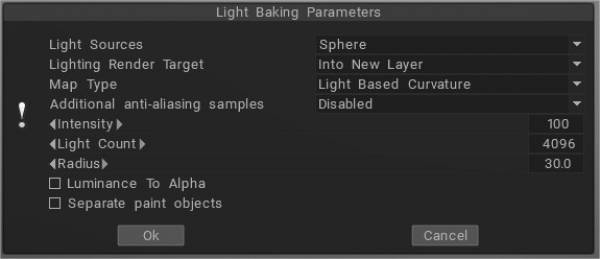
If you wish to bake light without environment “light from render room” is not necessary anymore, because you can achieve the same result by using “light and reflections” in flat shading mode.

Map Type
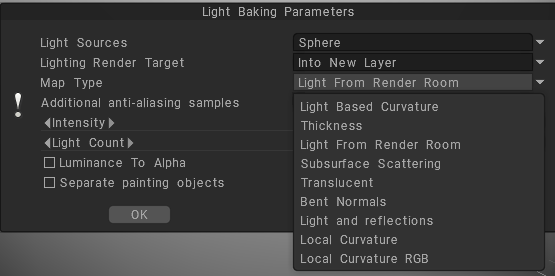

Light Based Curvature: more correctly calculates the result on UV Overlap; black areas no longer appear on different objects which have the same UV coordinates.
Thickness: Similar to AO, it casts rays from the surface of the mesh to the inside (modifying radius value). It can be used in SSS shading.
Light From Render Room: If you wish to bake light without an environment, use “light from render room” instead of “Light and Reflections.
Subsurface Scattering: Use this settings to get rid of the dirty shadow lines on the subsurface scattering.
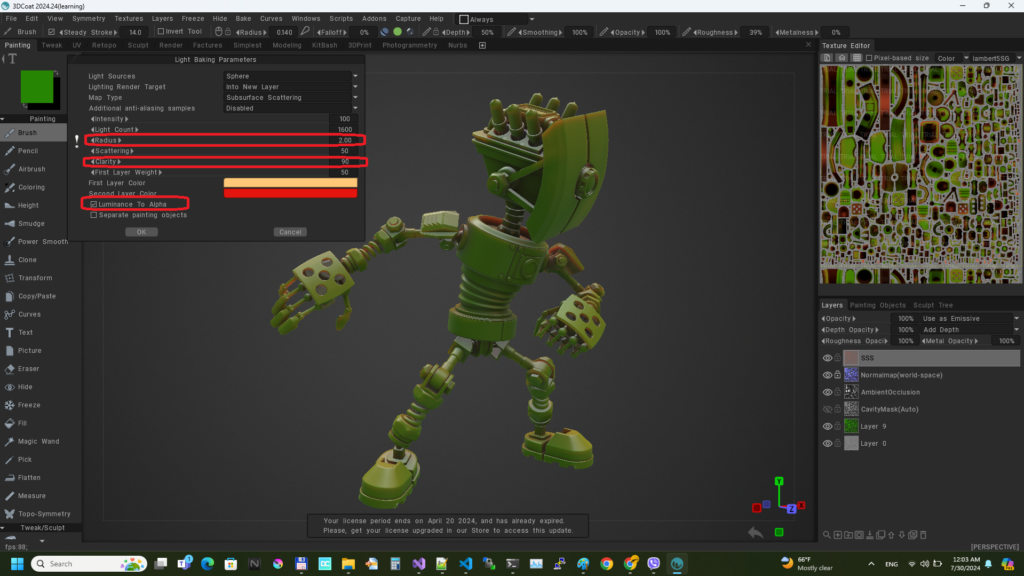
Translucent: A translucency color map can be used to vary the translucent color of a surface. Use it to recreate glassy materials.
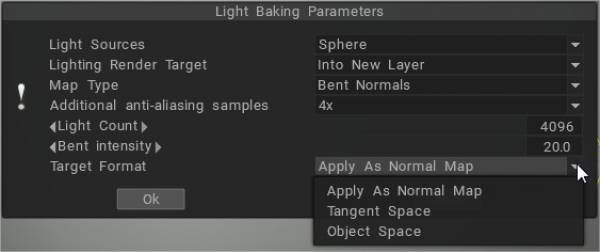
Bent Normals: Benefits of Using Bent Normals. They combine the ao and normal map together to get better occlusion for indirect light and reflection.
Light and Reflections: fill the layer with any reflective Smart Material, bake your reflection, and it creates a reflection layer in the texture layer.
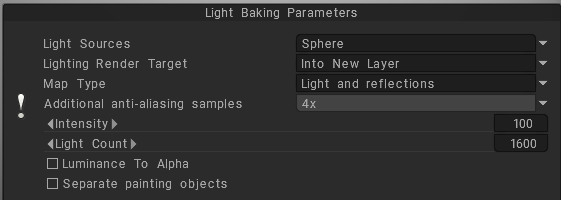
It picks up any light you have set up in the render room, including the environment light.
Local Curvature: calculates curvature on objects with a normal map and analyzes the model’s curvature in many projections pixel by pixel, which allows you to get a more accurate and beautiful result. The radius and intensity can be adjusted.
Local Curvature RGB: Bakes curvature with radius 1, 20, and 100 to RGB channels, respectively. (Use RGB cavity as the default cavity calculation method can be set on Preferences).

RGB Cavity map


The new RGB cavity was introduced as a possible default calculation method. In this case, the multi-range cavity will be calculated on the GPU, and additional control in UI of conditions/smart materials will appear, the “Cavity width.” It allows for variation in the cavity width/smoothing in real time, which is very important for realistic PBR texturing.

Cavity width (using the RGB cavity) may be used for smart materials for each layer separately. Each material layer has its own cavity width settings. It allows for much better effects for “aging” materials, like several differently “aged” layers of paint.

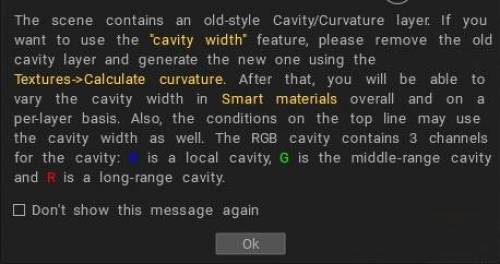
RGB cavity is a multi-range cavity texture, each channel corresponds to a different cavity scale. B is the local cavity, G is a middle-range cavity, and R is the far-range cavity.

If you already have the old cavity layer in the scene, you need to delete it to use this feature. This is a very significant feature for the PBR painting over the texture/mesh.
If the RGB cavity is enabled by default and you are loading the scene that has the old-style cavity layer, the Coat will warn you that it is better to re-calculate the cavity to get better control.
Global (light based) curvature and local curvature are related to the geometry of a surface.


Global (light based) curvature refers to the overall shape of a surface and is a measure of how much the surface deviates from being flat.
For example, a sphere has positive global curvature, while a plane has zero global curvature.

Local curvature, on the other hand, refers to the curvature of a surface at a particular point or over a small region.
This curvature can be different from the global curvature and can vary from point to point on a surface.
For example, a sphere has positive local curvature everywhere, while a parabolic cylinder has positive local curvature in some regions and negative local curvature in others.

Tutorials


Light Baking Tool: This video covers the Light Baking tool in 3DCoat.

Baking Lighting & Reflections in Unlit Shader: This video briefly shows how to bake a PBR material along with reflections and lighting into a texture for an unlit shader.

Tags:Light Baking Tool

Was this helpful?

1 Yes  No
Related Articles
  • Surface Array
  • Top Bar
  • Curves Properties RMB
  • Left tool panel Kitbash
  • Create kitbash
  • Color management
Previously
Calculate Occlusion
Up Next
Predvoľby
AI:
Hi! How can I help you?
Attention: This is a beta version of AI chat. Some answers may be wrong. See full version of AI chat