 Čeština
  English
 Українська
 Español
 Deutsch
 Français
 日本語
日本語 Русский
 한국어
한국어 Polski
 中文 (中国)
 Português
 Italiano
 Suomi
Suomi Svenska
 中文 (台灣)
 Dansk
Dansk Slovenčina
 Türkçe
 Nederlands
 Magyar
 ไทย
ไทย हिन्दी
 Ελληνικά
 Tiếng Việt
 Lietuviškai
 Latviešu valoda
 Eesti
Eesti Română
 Norsk Bokmål
On current development step nodes will only work with sculpted objects.
By example you can use the node system to create voxel displacement by utilizing the “Nodes” workspace.
Node source codes are on UserPrefs/Scripts/GPUNodes folder
New features found on version 2026+:
- the node system has been updated to prevent links between incompatible properties.
- The material preview renderer has been updated.
- A button for inverting input channels has been added.
- Required maps, such as Ambient Occlusion and Curvature, are now automatically calculated.
- The ability to use input channel correction curves in the node source code has been added.
Here are the steps
- Switch to the “Nodes” workspace.
- Create a new node graph.
- Add a “Voxel Displacement” node to your graph.
- Connect the necessary input nodes, such as texture maps or procedural textures, to define the displacement pattern.
- Adjust the parameters of the “Voxel Displacement” node to control the intensity and direction of the displacement.
- Apply the node graph to your voxel object to see the displacement effect.
This process allows you to create complex displacement patterns using a visual node-based approach.
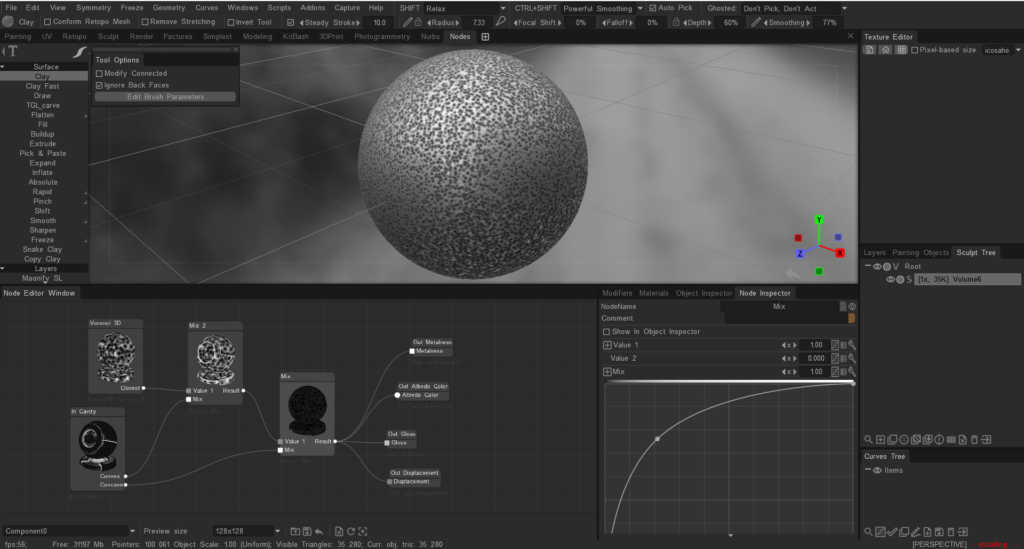
Node system for painting
The node system for painting is not directly available as it is primarily used for creating shaders and procedural textures.
Painting in 3DCoat is typically done using the tools and features available in the Paint Room, such as brushes, layers, and smart materials.
If you are looking to create complex textures or effects, you can use the existing painting tools and techniques, but the node system is not used for painting directly.
We plan to post a build with a node system for per-pixel texturing on the forum, but it will be a separate .exe file of the beta version, since this is a very big change and it will need to be tested separately.