• Русский
  • Документация 3DCoat
  • Chapters
    • Введение в 3DCoat
    • Начиная
    • Интерфейс и навигация
    • Компоненты Brush
    • Node System
    • GPU Texturing
    • Рабочие помещения
    • Scripting и Core API
    • Вопросы и Ответы
    • Licensing
  • Learn
    • Getting Started
    • Painting
    • Sculpt
    • Modeling
    • Retopology
    • UV
    • Smart Materials
    • Nodes
    • Photogrammetry
    • Render
    • Print
    • Learning
    • Учебные пособия
  • Blog
    • Creating 3D Character Using 3DCoat
    • DAZ Genesis models into 3DCoat
    • Cavity and Curvature maps
    • Types of normal maps
    • Texture painting pipeline
    • Load new UV layout After Model Changes
    • Import Zbrush Polygroups for UV mapping
  • Products
    • 3DCoat
    • 3DCoatTextura
    • 3DCoatPrint
    • PBRLibrary
  • Store
  • Pilgway
  • Русский Русский
    • English English
    • Українська Українська
    • Español Español
    • Deutsch Deutsch
    • Français Français
    • 日本語 日本語
    • 한국어 한국어
    • Polski Polski
    • 中文 (中国) 中文 (中国)
    • Português Português
    • Italiano Italiano
    • Suomi Suomi
    • Svenska Svenska
    • 中文 (台灣) 中文 (台灣)
    • Dansk Dansk
    • Slovenčina Slovenčina
    • Türkçe Türkçe
    • Nederlands Nederlands
    • Magyar Magyar
    • ไทย ไทย
    • हिन्दी हिन्दी
    • Ελληνικά Ελληνικά
    • Tiếng Việt Tiếng Việt
    • Lietuviškai Lietuviškai
    • Latviešu valoda Latviešu valoda
    • Eesti Eesti
    • Čeština Čeština
    • Română Română
    • Norsk Bokmål Norsk Bokmål
  • Документация 3DCoat
  • Chapters
    • Введение в 3DCoat
    • Начиная
    • Интерфейс и навигация
    • Компоненты Brush
    • Node System
    • GPU Texturing
    • Рабочие помещения
    • Scripting и Core API
    • Вопросы и Ответы
    • Licensing
  • Learn
    • Getting Started
    • Painting
    • Sculpt
    • Modeling
    • Retopology
    • UV
    • Smart Materials
    • Nodes
    • Photogrammetry
    • Render
    • Print
    • Learning
    • Учебные пособия
  • Blog
    • Creating 3D Character Using 3DCoat
    • DAZ Genesis models into 3DCoat
    • Cavity and Curvature maps
    • Types of normal maps
    • Texture painting pipeline
    • Load new UV layout After Model Changes
    • Import Zbrush Polygroups for UV mapping
  • Products
    • 3DCoat
    • 3DCoatTextura
    • 3DCoatPrint
    • PBRLibrary
  • Store
  • Pilgway
  • Русский Русский
    • English English
    • Українська Українська
    • Español Español
    • Deutsch Deutsch
    • Français Français
    • 日本語 日本語
    • 한국어 한국어
    • Polski Polski
    • 中文 (中国) 中文 (中国)
    • Português Português
    • Italiano Italiano
    • Suomi Suomi
    • Svenska Svenska
    • 中文 (台灣) 中文 (台灣)
    • Dansk Dansk
    • Slovenčina Slovenčina
    • Türkçe Türkçe
    • Nederlands Nederlands
    • Magyar Magyar
    • ไทย ไทย
    • हिन्दी हिन्दी
    • Ελληνικά Ελληνικά
    • Tiếng Việt Tiếng Việt
    • Lietuviškai Lietuviškai
    • Latviešu valoda Latviešu valoda
    • Eesti Eesti
    • Čeština Čeština
    • Română Română
    • Norsk Bokmål Norsk Bokmål
Expand All Collapse All
  • Введение в 3DCoat
  • Начиная
    • System requirements
    • Why 3DCoat is Unique?
    • Активация 3DCoat
    • Ошибка запуска
      • Startup error Mac
    • Color management
    • Upgrading permanent license
    • Linux Setup
      • Linux initial setup per-user installation
      • Linux initial setup for system
      • Tablet setup
      • To GTK3 from GTK2
      • Error libicuuc.so.70
    • Структура папок
      • Custom documents folder
    • Различные формы «резолюции»
    • Tablet on Window
    • Import и Export
    • Applinks в 3DCoat
      • Ссылка на приложение Blender
        • Blender with the Applink in Linux
      • Blender 4.2/3/4/5 applink
      • Max Applink
      • Houdini applink
      • Lightwave uplink
  • Navigation
    • Открытие диалогового окна (меню быстрого запуска)
    • Панель навигации
    • Камера и навигация
      • Customize Navigation as Blender
    • Viewport Navigation Gizmo
    • Left tool panel
    •  Activity Bar
    • Навигация с использованием устройств 3DConnexion
      • How to compile Spacenavd on non Ubuntu distro
    • Space Bar Menu
    • Stylus doesn’t work in sculpting
    • Горячие клавиши
  • Интерфейс и навигация
    • Меню «Файл»
    • Меню редактирования
      • Calculate Curvature
      • Calculate Occlusion
      • Light Baking Tool
      • Настройки
    • Меню просмотра
    • Симметрия
    • Textures
    • Calculate
    • Меню слоев
    • Меню стоп-кадра
    • Hide
    • Bake
    • Кривые 2022
      • Меню кривых
      • Curves Properties RMB
      • Заполнить слоем сетки
      • Scale of imported curves
    • Меню Windows
      • Всплывающие панели Windows с вкладками
      • Слайдеры
    • Scripts
    • Addons
    • Capture
    • Меню справки
    • Настройка
    • Изменить или создать новую комнату
  • Компоненты Brush
    • Верхняя панель Brush
    • Кисти общего назначения
      • Создание кистей и декалей
      • Делаем альфу из текущего скульпта
      • Создайте Brush из 3D-объекта
      • Create brushes based on Curves
      • Load photoshop .abr brushes
    • Удары
      • Всплывающее меню кривых
    • Параметры Brush
    • Условия Ограничитель
    • Панель полос
    • Панель трафаретов
    • Умные материалы
      • Добавляйте новые изображения или материалы
      • Прикрепите смарт-материал к слою
      • Import Quixel Megascans
    • Как создать пресеты для Brush
  • Node System
    • Node Editor
    • Node & Object Inspectors
    • Node Graph
    • NodeGraph Language (NGL)
    • GPU Nodes
      • Color
      • GeometryIn
      • In
      • Layer
      • Material
      • Out
      • Pattern
      • Pattern3D
      • ShaderToy
      • Shape
      • Texture
      • Tilable
      • UV
      • Vector
    • Filters
    • Masks
    • Materials
    • Modifiers
    • Volumes
  • Бесплатный 3DCoatPrint
  • GPU Texturing
    • PBM Channels
    • Per-Pixel Painting
  • Рабочие помещения
    • Painting
      • Painting текстур и режимы
        • Per-Pixel Painting
        • Painting смещения (Micro-Vertex)
        • Ptex Painting
        • Painting поверхности (полиокраска)
      • Импорт в комнату Painting
        • Initial CC subdivision
        • UV Set smoothing
        • Sharp (hard) edge
        • Блокировка нормалей
        • Загрузить новый UV макет после изменения модели
        • DAZ Genesis models into 3DCoat
        • ID map
      • Меню рабочей области Painting
        • Edit menu
        • Меню текстур
          • Инструменты для Baking текстуры
        • Скрывать
        • Меню для Bake Paint
        • Выбор цвета
      • Surface Materials
      • Верхняя планка для Painting
      • Панель слоев
        • Панель смешивания
        • Layer and Clipping Masks
      • Инструменты для Painting
      • Непрозрачность - Прозрачность
      • Настройка рабочего пространства
        • Набор инструментов настройки
        • Экспорт из Tweak Room
      • Панель предварительного просмотра маски/материала
      • Экспорт из студии Painting
    • UV рабочее пространство
      • UV верхняя полоса
      • UV Левая панель инструментов
      • Панель предварительного просмотра UV
      • Пример рабочего процесса UV
      • Импорт в UV комнату
      • Экспорт из UV комнаты
    • Ретопология
      • Импорт в комнату Retopo
      • Сетчатое меню Retopo и меню выпечки
        • Режим виртуального зеркала
      • Bake menu
        • Treat Poly Groups as Paint Objects
        • Baking guide
      • Инструмент «Штрихи» в ретопологии
      • Верхняя панель
        • Выберите геометрию
      • Левая панель инструментов в комнате ретопологии
        • Общая цель и функция
        • Добавить геометрию
        • Инструменты настройки Retopo
        • UV инструменты
        • Команды для комнаты ретопологии
      • АВТОРЕТОПО
        • Autopo guide
      • Полигруппы
    • Лепить
      • Sculpt Layer
      • Скульптурное дерево
      • Параметры скульптурной Brush
      • Top Bar
      • Brush двигатель
      • Подменю геометрии
      • Скульптурное меню «Правый клик»
      • Шейдеры
      • Voxel режим
        • Чистая Voxel скульптура
        • Плотность и разрешение
        • Глиняный двигатель
        • Voxel инструменты
        • Поверхностные инструменты на вокселах
        • Инструменты настройки Voxel
        • Объемная Painting
        • Инструменты Voxel объектов
      • Поверхностный режим
        • Инструменты поверхности
        • Пользовательские инструменты поверхности
        • Surface Layer
        • Инструменты настройки поверхности
        • Painting поверхности
        • Многоуровневое разрешение
          • Multires tools
          • Multires adjust
          • Multires commands
      • Скульптурные кривые
        • Сплайн-кривые
        • Splines model creation
      • Смещение вектора
      • Инструменты преобразования поверхности
        • Инструменты преобразования Voxel
        • Instancer
        • Move
        • Pose
        • Fit
        • Reproject
        • Surface Array
      • Voxel примитивы и инструменты Import
        • Cardboard Box
      • Живые логические значения
      • Команды для скульптурной комнаты
      • Import в Sculpt Room
      • Экспорт из Sculpt Room
    • Оказывать
      • Comparison of different roughness values
      • Функции панели рендеринга
      • Проигрыватель
      • Поддельное освещение - без PBR-
    • Factures
      • Рабочий процесс
    • Самый простой
    • Моделирование
      • Mesh Menu
      • Левая панель инструментов в комнате моделирования
        • Добавить геометрию
          • Выбрано
        • Твик
        • Smart Hybrid
        • UV
          • Команды
        • Вся сетка
      • Пример лофтовой поверхности от Fluffy
      • Блокаут от Poeboi
      • Import Zbrush Polygroups for UV mapping
    • Kitbash - Быстрое создание 3D моделей
      • Create kitbash
      • Left tool panel Kitbash
    • 3DPrint
    • Photogrammetry
      • How to install Reality Capture
      • Reality Capture doesn’t show up ?
    • Сетка для комнаты NURBS
    • Nodes
      • Библиотека узлов скульпт-шейдеров
      • Open PBR
  • Scripting и Core API
    • Core API
    • API Python
    • Extensions and Addons

Nodes

1169 views 0

Written by Carlos
March 21, 2025

The 3DCoat Node System is a non-destructive, procedural engine that lets artists build complex materials, masks, and shaders by visually linking mathematical operations, procedural noises, and geometry in a graph. Instead of drawing pixels destructively, the software dynamically compiles these node graphs into highly optimized GPU shader.
Nodes let you to generate textures from procedural patterns within node-based graphics.

Is Non-destructive texturing (Node-Based Workflow) No more limitations of classic pixel painting!
Now you can create materials, masks, and effects using a visual editor (Node Editor).
Any element — rust intensity, base color, glossiness, or scratches — remains editable at any stage of work. Change parameters and instantly observe the result on the 3D model in real time.

How It Works Under the Hood


Each node functions as an input, output, or operation. You connect nodes together in the Node Editor, and 3DCoat uses NodeGraph Language (NGL)—an extension of GLSL—to execute the math directly on your graphics card. This means the materials you create are resolution-independent and will automatically adapt to your 3D model’s curvature, ambient occlusion, and physical spac

– High-performance GPU nodes (NGL) Under the hood of the new system, dynamic compilation of nodes into optimized shaders based on NodeGraph Language (NGL) is working. All procedural magic, mathematical operations, and noise generators are calculated directly on the graphics card (GPU).

– A new generation of smart materials, masks, and other presets:

  • NGMaterials: Procedural smart materials that perfectly adapt to the curvature, shading (Ambient Occlusion), and other properties of your model.
  • NGMasks: Procedural “smart” masks for generating realistic wear, dirt, scratches, etc.
  • NGModifiers and NGFilters: Powerful tools for geometry deformation and procedural post-processing of current layers.

– These materials support approximately 30 channels; you can read more about them in the documentation, in the PBM Channels section.

– You can find more detailed documentation on these features in the Node System and GPU Texturing  sections; the documentation will be updated.

Core Node Categories


3DCoat provides a robust library of GPU nodes to control how your textures and materials behave

In & Out: Primary data sources (inputs) and nodes that define the final routing into PBR channels like Albedo, Metalness, or Gloss (outputs).
Material: High-level nodes used to assemble, mix, or break apart full PBR materials.
Patterns & Pattern3D: Generators for 2D noises/geometric shapes and true volumetric 3D noise that flow seamlessly across UV seams.
GeometryIn: Nodes that extract fundamental spatial data from the mesh, such as world position and surface normals.
Color & Vector: Nodes dedicated to color correction and basic mathematical operations (e.g., Add, Subtract, Multiply) that act as the logic glue between nodes.
Texture: Utilities for sampling external bitmaps, handling standard UV mapping, and triplanar projection.

Practical Uses


You can access the node graph editor directly from your Sculpt Layers or the Material IO tab. With it, artists can easily:

  • Generate resolution-independent Smart Materials.
  • Drive procedural surface effects (e.g., rust, wear, or dirt) based on model geometry.
  • Add detailed surface relief or displacement without altering base geometry.

Updated User Interface New windows have been added for convenient work


Node Editor (the main space for building logic), Node Inspector, and Object Inspector.
You can pin any node parameters (using the “eye” icon) in the general object or layer parameters and easily change them via the Object Inspector.
This allows for configuring complex materials with convenient sliders without constantly diving into the node graph.
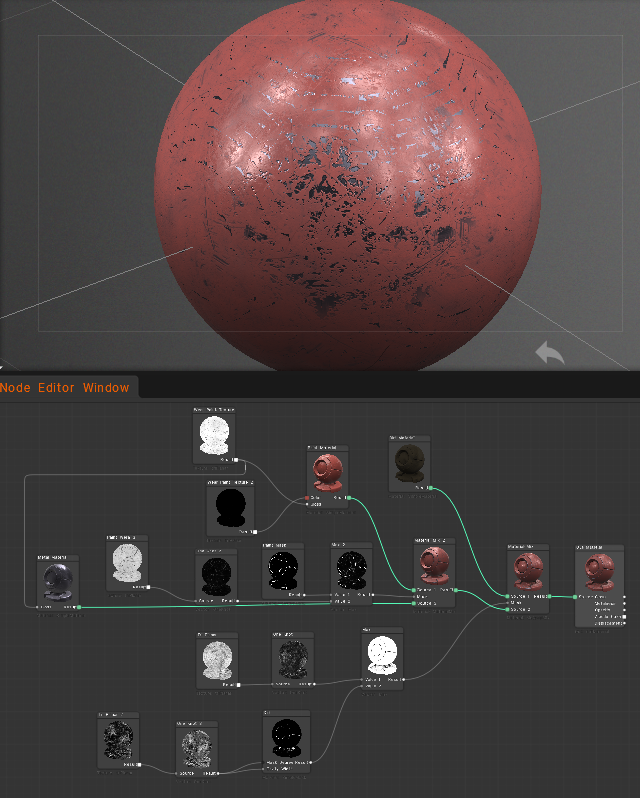
On v2025 nodes will only work with sculpted objects. On v2026 work on Sculpted and Painted Objects.

New features found on version 2026+:

  • the node system has been updated to prevent links between incompatible properties.
  • The material preview renderer has been updated.
  • A button for inverting input channels has been added.
  • Required maps, such as Ambient Occlusion and Curvature, are now automatically calculated.
  • The ability to use input channel correction curves in the node source code has been added.

Here are the steps


  • Switch to the “Nodes” workspace.
  • Create a new node graph.
  • Add a “Voxel Displacement” node to your graph.
  • Connect the necessary input nodes, such as texture maps or procedural textures, to define the displacement pattern.
  • Adjust the parameters of the “Voxel Displacement” node to control the intensity and direction of the displacement.
  • Apply the node graph to your voxel object to see the displacement effect.

This process allows you to create complex displacement patterns using a visual node-based approach.
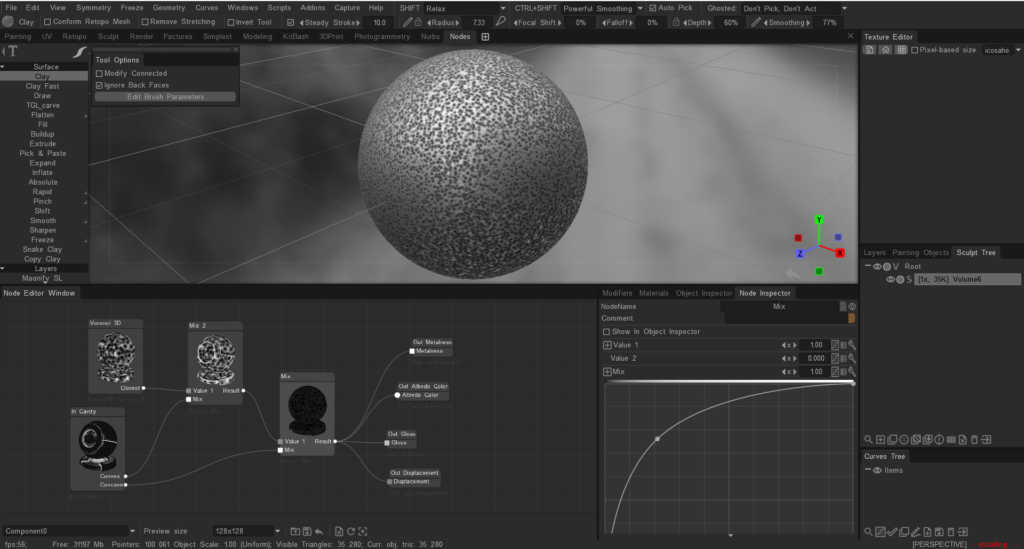
Node system for painting


The node system for painting is available an v2026 as it is primarily used for creating shaders and procedural textures for Materials.

Painting in 3DCoat is typically done using the tools and features available in the Paint Room, such as brushes, layers, and smart materials.

If you are looking to create complex textures or effects, you can use the existing painting tools and techniques, but the node system is not used for painting directly.

Tutorials


3DCoat 2026 GPU version Intro: A short video demonstrating the main functions.

3DCoat Nodal Network Introduction (for Sculpt Objects): This video is a very brief introduction to the Nodal Network, first available for dense Voxel or High Poly objects within the Sculpt workspace, using shaders as the base.
Once the user is satisfied with the results, they can later bake those shaders to a material.
In the 2026 Release, this nodal network will be available for the Paint workspace (via PPP/Per Pixel Painting mode), offering an unprecedented combination of powerful Texture Painting tools and Nodal Material creation.

Was this helpful?

Yes  No
Related Articles
  • Cardboard Box
  • GPU Texturing
  • Vector
  • Volumes
  • Modifiers
  • Materials
Previously
Сетка для комнаты NURBS
Up Next
Библиотека узлов скульпт-шейдеров
AI:
Hi! How can I help you?
Attention: This is a beta version of AI chat. Some answers may be wrong. See full version of AI chat