• Italiano
  • Documentazione 3DCoat
  • Chapters
    • Introduzione a 3DCoat
    • Iniziare
    • Interfaccia e navigazione
    • Componenti Brush
    • Aree di lavoro Stanze
    • Scripting e Core API
    • Domande e risposte
    • licensing
    • Tutorial di formazione
  • Pilgway
  • Products
    • 3DCoat
    • 3DCoatTextura
    • 3DCoatPrint
    • PBRLibrary
  • Blog Posts
    • Creating 3D Character Using 3DCoat
  • Store
  • Italiano Italiano
    • English English
    • Українська Українська
    • Español Español
    • Deutsch Deutsch
    • Français Français
    • 日本語 日本語
    • Русский Русский
    • 한국어 한국어
    • Polski Polski
    • 中文 (中国) 中文 (中国)
    • Português Português
    • Suomi Suomi
    • Svenska Svenska
    • 中文 (台灣) 中文 (台灣)
    • Dansk Dansk
    • Slovenčina Slovenčina
    • Türkçe Türkçe
    • Nederlands Nederlands
    • Magyar Magyar
    • ไทย ไทย
    • हिन्दी हिन्दी
    • Ελληνικά Ελληνικά
    • Tiếng Việt Tiếng Việt
    • Lietuviškai Lietuviškai
    • Latviešu valoda Latviešu valoda
    • Eesti Eesti
    • Čeština Čeština
    • Română Română
    • Norsk Bokmål Norsk Bokmål
  • Documentazione 3DCoat
  • Chapters
    • Introduzione a 3DCoat
    • Iniziare
    • Interfaccia e navigazione
    • Componenti Brush
    • Aree di lavoro Stanze
    • Scripting e Core API
    • Domande e risposte
    • licensing
    • Tutorial di formazione
  • Pilgway
  • Products
    • 3DCoat
    • 3DCoatTextura
    • 3DCoatPrint
    • PBRLibrary
  • Blog Posts
    • Creating 3D Character Using 3DCoat
  • Store
  • Italiano Italiano
    • English English
    • Українська Українська
    • Español Español
    • Deutsch Deutsch
    • Français Français
    • 日本語 日本語
    • Русский Русский
    • 한국어 한국어
    • Polski Polski
    • 中文 (中国) 中文 (中国)
    • Português Português
    • Suomi Suomi
    • Svenska Svenska
    • 中文 (台灣) 中文 (台灣)
    • Dansk Dansk
    • Slovenčina Slovenčina
    • Türkçe Türkçe
    • Nederlands Nederlands
    • Magyar Magyar
    • ไทย ไทย
    • हिन्दी हिन्दी
    • Ελληνικά Ελληνικά
    • Tiếng Việt Tiếng Việt
    • Lietuviškai Lietuviškai
    • Latviešu valoda Latviešu valoda
    • Eesti Eesti
    • Čeština Čeština
    • Română Română
    • Norsk Bokmål Norsk Bokmål
Expand All Collapse All
  • Introduzione a 3DCoat
  • Iniziare
    • System requirements
    • Why 3DCoat is Unique?
    • Attivazione di 3DCoat
    • Errore di avvio
      • Startup error Mac
    • Color management
    • Upgrading permanent license
    • Linux Setup
      • Linux initial setup per-user installation
      • Linux initial setup for system
      • Tablet setup
      • To GTK3 from GTK2
      • Error libicuuc.so.70
    • Struttura delle cartelle
      • Custom documents folder
    • Diverse forme di "risoluzione"
    • Tablet on Window
    • Import ed Export
    • Applinks in 3DCoat
      • Collegamento all'app Blender
        • Blender with the Applink in Linux
      • Blender 4.2/3/4/5 applink
      • Max Applink
      • Houdini applink
      • Lightwave uplink
  • Navigation
    • Finestra di dialogo di apertura (menu di avvio rapido)
    • Pannello di navigazione
    • Fotocamera e navigazione
      • Customize Navigation as Blender
    • Viewport Navigation Gizmo
    • Left tool panel
    •  Activity Bar
    • Navigazione tramite dispositivi 3DConnexion
      • How to compile Spacenavd on non Ubuntu distro
    • Space Bar Menu
    • Stylus doesn’t work in sculpting
    • Tasti di scelta rapida
  • Interfaccia e navigazione
    • Menù File
    • Menù Modifica
      • Calculate Curvature
      • Calculate Occlusion
      • Light Baking Tool
      • Preferenze
    • Visualizza Menù
    • Simmetria
    • Textures
    • Calculate
    • Menù Livelli
    • Congela il menu
    • Hide
    • Bake
    • Curve 2022
      • Menù Curve
      • Curves Properties RMB
      • Riempi con uno strato di rete
      • Scale of imported curves
    • Menù di Windows
      • Pannelli popup di Windows a schede
      • Cursori
    • Scripts
    • Addons
    • Capture
    • Menù di aiuto
    • Personalizzazione
    • Modifica o crea una nuova stanza
  • Componenti Brush
    • Brush superiore
    • Spazzole uso generale
      • Crea pennelli e decalcomanie
      • Creare alfa dalla scultura attuale
      • Crea un Brush da un oggetto 3D
      • Create brushes based on Curves
      • Load photoshop .abr brushes
    • Colpi
      • Menu a comparsa Curve
    • Opzioni Brush
    • Limitatore di condizioni
    • Pannello a strisce
    • Pannello degli stampini
    • Materiali intelligenti
      • Aggiungi nuove immagini o materiali
      • Attacca un materiale Smart a un livello
      • Import Quixel Megascans
    • Come creare i preset per il Brush
  • Aree di lavoro Stanze
    • Painting
      • Texture Painting e modalità
        • Painting Per-Pixel
        • Painting di spostamento (micro-vertice)
        • Painting Ptex
        • Painting superficiale (polipittura)
      • Importazione nella stanza Painting
        • Initial CC subdivision
        • UV Set smoothing
        • Sharp (hard) edge
        • Blocca normali
        • Carica il nuovo layout UV dopo le modifiche al modello
        • DAZ Genesis models into 3DCoat
        • ID map
      • Menu dell'area di lavoro Painting
        • Edit menu
        • Menù Texture
          • Strumenti Baking delle trame
        • Nascondere
        • Menu per il Bake Paint
        • Il selettore di colori
      • Surface Materials
      • Barra superiore per la Painting
      • Il pannello Livelli
        • Il pannello di fusione
        • Layer and Clipping Masks
      • Strumenti della stanza Painting
      • Opacità - Trasparenza
      • Modifica l'area di lavoro
        • Strumenti di modifica
        • Esportazione dalla Tweak Room
      • Pannello anteprima maschera/materiale
      • Esportazione dalla stanza Painting
    • Area di lavoro UV
      • Barra superiore UV
      • Pannello strumenti sinistro UV
      • Pannello di anteprima UV
      • Esempio di flusso di lavoro UV
      • Importazione nella stanza UV
      • Esportazione dalla sala UV
    • Retopologia
      • Importazione nella Sala Retopo
      • Retopo Mesh Menu e Bake Menu
        • Modalità specchio virtuale
      • Bake menu
        • Treat Poly Groups as Paint Objects
        • Baking guide
      • Strumento Tratti in Retopology
      • Barra superiore
        • Seleziona la geometria
      • Pannello degli strumenti a sinistra nella stanza Retopology
        • Scopo generale e funzione
        • Aggiungi geometria
        • Strumenti di modifica Retopo
        • Strumenti UV
        • Comandi per la stanza Retopology
      • AUTORETOPO
        • Autopo guide
      • Poli gruppi
    • Scolpire
      • Sculpt Layer
      • Scolpire l'albero
      • Opzioni Brush scultura
      • Top Bar
      • Motore a Brush
      • Sottomenu Geometria
      • Scolpisci il menu "tasto destro".
      • Shader
      • Modalità Voxel
        • Scultura in puro Voxel
        • Densità e risoluzione
        • Motore di argilla
        • Strumenti Voxel
        • Strumenti di superficie su Voxel
        • Strumenti di regolazione Voxel
        • Painting volumetrica
        • Strumenti per gli oggetti Voxel
      • Modalità superficie
        • Strumenti di superficie
        • Strumenti personalizzati di superficie
        • Surface Layer
        • Strumenti di regolazione della superficie
        • Painting superficiale
        • Strumenti degli oggetti di superficie
        • Risoluzione multilivello
          • Multires tools
          • Multires adjust
          • Multires commands
      • Scolpisci le curve
        • Curve spline
        • Splines model creation
      • Spostamento del vettore
      • Strumenti di trasformazione della superficie
        • Strumenti di trasformazione Voxel
        • Instancer
        • Move
        • Pose
        • Fit
        • Reproject
        • Surface Array
      • Primitive Voxel e strumenti Import
      • Booleani in tempo reale
      • Comandi per la stanza Sculpt
      • Import in Sculpt Room
      • Esportazione dalla Sculpt Room
    • Rendering
      • Comparison of different roughness values
      • Funzioni del pannello di rendering
      • Giradischi
      • Fakebake l'illuminazione -non PBR
    • Factures
      • Flusso di lavoro
    • Più semplice
    • Modellazione
      • Mesh Menu
      • Pannello degli strumenti a sinistra nella stanza Modellazione
        • Aggiungi geometria
          • Selezionato
        • Modificare
        • Smart Hybrid
        • UV
          • Comandi
        • Intera maglia
      • Esempio di superficie loft di Fluffy
      • Blocco di Poeboi
      • Import Zbrush Polygroups for UV mapping
    • Kitbash - Creazione rapida di modelli 3D
      • Create kitbash
      • Left tool panel Kitbash
    • 3DPrint
    • Photogrammetry
      • How to install Reality Capture
      • Reality Capture doesn’t show up ?
    • Mesh nella stanza NURBS
    • Nodes
      • Scolpisci la libreria dei nodi degli shader
      • Open PBR
  • Scripting e Core API
    • Scripting
    • Core API
    • API Python
    • Extensions and Addons
  • 3DCoatPrint gratuito

Open PBR

35 views 0

Written by Carlos
May 1, 2026

OpenPBR is an open-source, standardized “uber-shader” specification developed by Adobe and Autodesk, designed to provide a unified physically-based rendering (PBR) material model across different DCC (Digital Content Creation) tools and renderers.

Overview


Designed as an über-shader, it aims to be capable of accurately modeling the vast majority of CG Materials used in practical visual effects and feature animation productions.
It is heavily based on MaterialX, acting as a high-fidelity shading model intended to merge the capabilities of Autodesk Standard Surface and Adobe Standard Material.
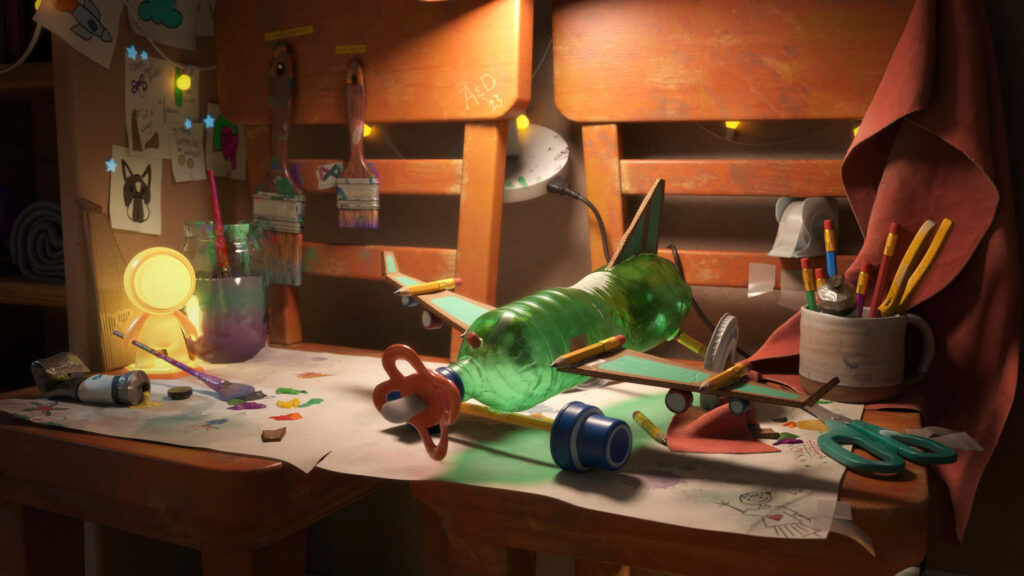
It is hosted by the Academy Software Foundation (ASWF) and organized as a subproject of MaterialX.
More information about the history and design can be found on this page detailing the OpenPBR Surface specification.

Key Components & Libraries

  • OpenPBR Surface (Core Specification): The fundamental model, defining parameters for surface layering such as base, coat, thin film, and fuzz.
  • MaterialX Implementation: OpenPBR is primarily defined and used via MaterialX node definitions (.mtlx), allowing for consistent appearance between Arnold, USD, and real-time engines.
  • NVIDIA SimReady Materials: The PhysicalAI-SimReady-Materials GitHub repository contains USD/MaterialX-based materials utilizing OpenPBR v1.1.
  • OpenPBR Shader Playground: A GitHub project by DigitalProductionExampleLibrary containing MaterialX files and USD examples demonstrating the shader’s capabilities.
  • Reference BSDF: A reference implementation for the OpenPBR BSDF (Bidirectional Scattering Distribution Function) exists on GitHub for developers

Key Features of OpenPBR Nodes

  • Layering System: Uses a “slab” model (base, coat, fuzz, emission).
  • Fuzz Layer: Replaces traditional sheen to represent microfiber reflections.
  • Advanced Thin Film: Offers micrometer-based thickness for better iridescent effects.
  • Metalness: Uses Specular Weight to control metal reflectivity.
  • Uniformity: It is designed to be cross-platform, making it ideal for USD-based workflows

The OpenPBR material is made up of several layers.

  • Base: The base layer sits at the bottom and can be configured to simulate many material types. It can represent a dielectric or metallic material and is responsible for the primary reflection layer. This is controlled by the Metalness parameter found in the Base parameters group. Normally materials are either fully metallic (Metalness 1) or fully dielectric (Metalness 0) but the OpenPBR material also supports a mixture when Metalness values fall between 0 and 1.
    • Metallic: When Metalness is used, reflections take on the Base Color and the Specular Color controls the color seen at glancing angles. Primary parameter groups are Base and Specular.
    • Dielectric: When a material is non-metallic it can be set up to represent the three main conditions covered below, but blending between them is possible by adjusting their relevant weights.
      • Glossy-diffuse: An opaque dielectric material that’s good for many common materials that don’t exhibit significant light scattering or transmission like wood and stone. Primary parameter groups are Base and Specular.
      • Subsurface: An opaque dielectric material that heavily scatters light internally like skin, plastic, marble, and wax. Primary parameter groups are Base, Specular, and Subsurface.
      • Translucent: A dielectric material that transmits and refracts a significant amount of light and one that is more transparent than a subsurface material. Primary parameter groups are Base, Specular, and Transmission.
  • Thin-Film: A very thin dielectric layer, measured in micrometers, between the base and coat layer used to represent the colorful effects as seen with soap bubbles, insects, and oil mixing with water.
  • Emission: A light emitting layer that sits above the base layer but below the coat and fuzz layers. The emissive layer is tinted by the coat and fuzz, making it easy to represent emissive surfaces like a TV screen — using the coat for the reflective glass and the fuzz for dust on top.
  • Coat: An optional dielectric layer that adds a secondary reflection layer over the base layer, great for clear coats and varnish.
  • Fuzz: An optional layer that sits on top of everything that can be used to simulate dust or the velvety sheen of cloth.

The main difference between the V-Ray material model and OpenPBR is the layers’ structure. See the diagram for information on how OpenPBR’s layers are calculated.
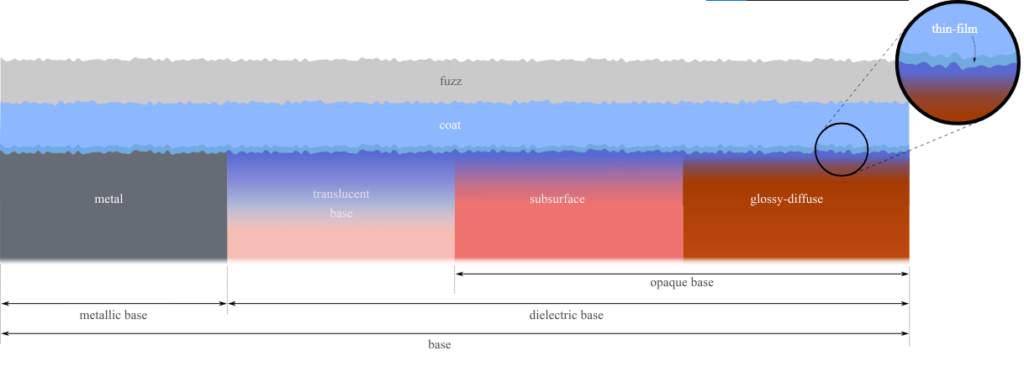
Schematic illustration of the idealized physical material that our shader models. Horizontal stacking of slabs represents statistical mixture and vertical stacking represents layering.

Unlike previous models such as Autodesk Standard Surface, ASWF define the model by describing the physical structure as unambiguously as possible, rather than by specifying a particular form of implementation.
At the level of computer graphics, the model is completely physically specified if the BSDF (Bidirectional Scattering Distribution Function) of each slab interface, and the volumetric properties of each slab ,edium, are specified.
The ground truth appearance of the model is then defined to be given by the BSDF obtained by physical light transport through the whole structure of component slabs.

Tutorials


Unlock Seamless Material Interchange for Virtual Worlds with OpenUSD, MaterialX, and OpenPBR: NVIDIA, and the Alliance for OpenUSD (AOUSD) announced the AOUSD Materials Working Group, an initiative for standardizing the interchange of materials in Universal Scene Description, known as OpenUSD.

Was this helpful?

Yes  No
Related Articles
  • Extensions and Addons
  • Surface Layer
  • Error libicuuc.so.70
  • Space Bar Menu
  • Surface Materials
  • Factures
Previously
Scolpisci la libreria dei nodi degli shader
Up Next
Scripting e Core API
AI:
Hi! How can I help you?
Attention: This is a beta version of AI chat. Some answers may be wrong. See full version of AI chat