• Français
  • Documentation 3DCoat
  • Chapters
    • Présentation de 3DCoat
    • Commencer
    • Interface et navigation
    • Composants de la Brush
    • Node System
    • GPU Texturing
    • Salles d’espaces de travail
    • Core API de Scripting et de base
    • Questions et réponses
    • Licensing
  • Learn
    • Getting Started
    • Painting
    • Sculpt
    • Modeling
    • Retopology
    • UV
    • Smart Materials
    • Nodes
    • Photogrammetry
    • Render
    • Print
    • Learning
    • Tutoriels de formation
  • Blog
    • 2026 Key Features and Improvements
    • Texturing with nodes
    • Shader Nodes VS. a Material Nodes
    • Multiple UV Tiles/UDIMs to one single UV set ?
    • I want to create geometry only with displacement to be manufactured with a CNC machine
    • Creating 3D Character Using 3DCoat
    • DAZ Genesis models into 3DCoat
    • Cavity and Curvature maps
    • Types of normal maps
    • Texture painting pipeline
    • Load new UV layout After Model Changes
    • Import Zbrush Polygroups for UV mapping
  • Products
    • 3DCoat
    • 3DCoatTextura
    • 3DCoatPrint
    • PBRLibrary
  • Store
  • Pilgway
  • Français Français
    • Sélecteur multilingue
    • Sélecteur multilingue
    • Sélecteur multilingue
    • Sélecteur multilingue
    • Sélecteur multilingue
    • Sélecteur multilingue
    • Sélecteur multilingue
    • Sélecteur multilingue
    • Sélecteur multilingue
    • Sélecteur multilingue
    • Sélecteur multilingue
    • Sélecteur multilingue
    • Sélecteur multilingue
    • Sélecteur multilingue
    • Sélecteur multilingue
    • Sélecteur multilingue
    • Sélecteur multilingue
    • Sélecteur multilingue
    • Sélecteur multilingue
    • Sélecteur multilingue
    • Sélecteur multilingue
    • Sélecteur multilingue
    • Sélecteur multilingue
    • Sélecteur multilingue
    • Sélecteur multilingue
    • Sélecteur multilingue
    • Sélecteur multilingue
    • Sélecteur multilingue
    • Sélecteur multilingue
  • Documentation 3DCoat
  • Chapters
    • Présentation de 3DCoat
    • Commencer
    • Interface et navigation
    • Composants de la Brush
    • Node System
    • GPU Texturing
    • Salles d’espaces de travail
    • Core API de Scripting et de base
    • Questions et réponses
    • Licensing
  • Learn
    • Getting Started
    • Painting
    • Sculpt
    • Modeling
    • Retopology
    • UV
    • Smart Materials
    • Nodes
    • Photogrammetry
    • Render
    • Print
    • Learning
    • Tutoriels de formation
  • Blog
    • 2026 Key Features and Improvements
    • Texturing with nodes
    • Shader Nodes VS. a Material Nodes
    • Multiple UV Tiles/UDIMs to one single UV set ?
    • I want to create geometry only with displacement to be manufactured with a CNC machine
    • Creating 3D Character Using 3DCoat
    • DAZ Genesis models into 3DCoat
    • Cavity and Curvature maps
    • Types of normal maps
    • Texture painting pipeline
    • Load new UV layout After Model Changes
    • Import Zbrush Polygroups for UV mapping
  • Products
    • 3DCoat
    • 3DCoatTextura
    • 3DCoatPrint
    • PBRLibrary
  • Store
  • Pilgway
  • Français Français
    • Sélecteur multilingue
    • Sélecteur multilingue
    • Sélecteur multilingue
    • Sélecteur multilingue
    • Sélecteur multilingue
    • Sélecteur multilingue
    • Sélecteur multilingue
    • Sélecteur multilingue
    • Sélecteur multilingue
    • Sélecteur multilingue
    • Sélecteur multilingue
    • Sélecteur multilingue
    • Sélecteur multilingue
    • Sélecteur multilingue
    • Sélecteur multilingue
    • Sélecteur multilingue
    • Sélecteur multilingue
    • Sélecteur multilingue
    • Sélecteur multilingue
    • Sélecteur multilingue
    • Sélecteur multilingue
    • Sélecteur multilingue
    • Sélecteur multilingue
    • Sélecteur multilingue
    • Sélecteur multilingue
    • Sélecteur multilingue
    • Sélecteur multilingue
    • Sélecteur multilingue
    • Sélecteur multilingue
Expand All Collapse All
  • Présentation de 3DCoat
  • Commencer
    • System requirements
    • Why 3DCoat is Unique?
    • Activation de 3DCoat
    • Erreur de démarrage
      • Startup error Mac
    • Color management
    • Upgrading permanent license
    • Linux Setup
      • Linux initial setup per-user installation
      • Linux initial setup for system
      • Tablet setup
      • To GTK3 from GTK2
      • Error libicuuc.so.70
    • Structure des dossiers
      • Custom documents folder
    • Différentes formes de « résolution »
    • Tablet on Window
    • Import et Export
    • Applinks dans 3DCoat
      • Lien de l'application Blender
        • Blender with the Applink in Linux
      • Blender 4.2/3/4/5 applink
      • Max Applink
      • Houdini applink
      • Lightwave uplink
  • Navigation
    • Boîte de dialogue d'ouverture (menu de démarrage rapide)
    • Panneau de navigation
    • Caméra et Navigation
      • Customize Navigation as Blender
    • Left tool panel
    •  Activity Bar
    • Navigation à l'aide d'appareils 3DConnexion
      • How to compile Spacenavd on non Ubuntu distro
    • Quick Access Menu
    • Stylus doesn’t work in sculpting
    • Raccourcis
  • Interface et navigation
    • Menu Fichier
    • Modifier le menu
      • Bake Geometry Info
      • Calculate Occlusion
      • Calculate Curvature
      • Light Baking Tool
      • Préférences
    • Afficher le menu
    • Symétrie
    • Textures
    • Calculate
    • Menu Couches
    • Geler le menu
    • Hide
    • Bake
    • Courbes 2022
      • Menu Courbes
      • Curves Properties RMB
      • Remplir avec une couche de maille
      • Scale of imported curves
    • Menu Fenêtres
      • Panneaux contextuels Windows à onglets
      • Curseurs
    • Scripts
    • Addons
    • Capture
    • Menu d'aide
    • Personnalisation
    • Modifier ou créer une nouvelle pièce
  • Composants de la Brush
    • Barre supérieure de la Brush
    • Brosses usage général
      • Créer des pinceaux et des décalcomanies
      • Faire de l'alpha à partir de la sculpture actuelle
      • Créer un Brush à partir d'un objet 3D
      • Create brushes based on Curves
      • Load photoshop .abr brushes
    • Coups
      • Menu contextuel Courbes
    • Options de Brush
    • Limiteur de conditions
    • Panneau de bandes
    • Panneau Pochoirs
    • Matériaux intelligents
      • Ajouter de nouvelles images ou matériaux
      • Attacher un matériau intelligent à un calque
      • Import Quixel Megascans
    • Comment créer des préréglages pour le Brush
  • Node System
    • Node Editor
    • Node & Object Inspectors
    • Node Graph
    • NodeGraph Language (NGL)
    • GPU Nodes
      • Color
      • GeometryIn
      • In
      • Layer
      • Material
      • Math
      • Noise
      • Noise3D
      • Out
      • Pattern
      • Pattern3D
      • Shape
      • Texture
      • Tilable
      • UV
    • Filters
    • Masks
    • Materials
    • Modifiers
    • Volumes
  • 3DCoatPrint gratuit
  • GPU Texturing
    • PBM Channels
    • Per-Pixel Painting
  • Salles d'espaces de travail
    • Painting
      • Painting de texture et modes
        • Painting par Per-Pixel
        • Painting par déplacement (Micro-Vertex)
        • Painting Ptex
        • Painting de surface (polypeinture)
      • Importation dans la salle de Painting
        • Initial CC subdivision
        • UV Set smoothing
        • Sharp (hard) edge
        • Verrouiller les normales
        • Charger une nouvelle présentation UV après les modifications du modèle
        • DAZ Genesis models into 3DCoat
        • ID map
      • Menus de l'espace de travail de Painting
        • Edit menu
        • Menu Textures
          • Outils de Baking de textures
        • Cacher
        • Menu pour la Bake Paint
        • Le sélecteur de couleurs
      • Surface Materials
      • Barre supérieure pour la Painting
      • Le panneau Calques
        • Le panneau de fusion
        • Layer and Clipping Masks
      • Outils de salle de Painting
      • Opacité - Transparence
      • Ajuster l'espace de travail
        • Ensemble d'outils d'ajustement
        • Exportation à partir de la salle de réglages
      • Panneau de prévisualisation de masque/matériau
      • Exportation depuis la salle de Painting
    • Espace de travail UV
      • Barre supérieure UV
      • Panneau d'outils UV gauche
      • Panneau de prévisualisation UV
      • Exemple de flux de travail UV
      • Importation dans la chambre UV
      • Exportation depuis la chambre UV
    • Retopologie
      • Importation dans la salle Retopo
      • Menu Retopo Mesh et Menu Bake
        • Mode miroir virtuel
      • Bake menu
        • Treat Poly Groups as Paint Objects
        • Baking guide
      • Outil Traits en Retopologie
      • Barre du haut
        • Sélectionnez la géométrie
      • Panneau d'outils de gauche dans la salle de retopologie
        • Objectif général et fonction
        • Ajouter une géométrie
        • Outils d'ajustement Retopo
        • Outils UV
        • Commandes pour la salle de retopologie
      • AUTORETOPO
        • Autopo guide
      • Groupes poly
    • Sculpter
      • Sculpt Layer
      • Sculpter l'arbre
      • Options de Brush de sculpture
      • Top Bar
      • Moteur de Brush
      • Sous-menu Géométrie
      • Sculptez le menu "clic droit"
      • Shaders
      • Mode Voxel
        • Sculpture de Voxel purs
        • Densité et résolution
        • Moteur d'argile
        • Outils Voxel
        • Outils de surface sur Voxels
        • Outils de réglage des Voxel
        • Painting volumétrique
        • Outils d'objets Voxel
      • Mode surface
        • Outils de surface
        • Outils personnalisés de surface
        • Surface Layer
        • Outils de réglage de surface
        • Painting de surface
        • Résolution à plusieurs niveaux
          • Multires tools
          • Multires adjust
          • Multires commands
      • Sculpter les courbes
        • Courbes splines
        • Splines model creation
      • Déplacement vectoriel
      • Outils de transformation de surface
        • Outils de transformation de Voxel
        • Instancer
        • Move
        • Pose
        • Fit
        • Reproject
        • Surface Array
      • Primitives Voxel et outils Import
        • Hollow Box
      • Booléens en direct
      • Commandes pour la salle Sculpt
      • Import dans la salle de sculpture
      • Exportation depuis la salle Sculpt
    • Rendre
      • Comparison of different roughness values
      • Fonctions du panneau de rendu
      • Plaque tournante
      • Fakebake l'éclairage - non PBR-
    • Factures
      • Flux de travail
    • Le plus simple
    • La modélisation
      • Mesh Menu
      • Panneau d'outils de gauche dans la salle de modélisation
        • Ajouter une géométrie
          • Make Joints
          • Choisi
        • tordre
        • Smart Hybrid
        • UV
          • Commandes
        • Maillage entier
      • Exemple de surface de loft par Fluffy
      • Blocage par Poeboi
      • Import Zbrush Polygroups for UV mapping
    • Kitbash - Création rapide de modèles 3D
      • Create kitbash
      • Left tool panel Kitbash
    • 3DPrint
    • Photogrammetry
      • How to install Reality Capture
      • Reality Capture doesn’t show up ?
    • Maillage vers la salle NURBS
    • Nodes
      • Texturing with nodes
      • Sculpt shaders Bibliothèque de nœuds
      • Open PBR
  • Core API de Scripting et de base
    • Core API
    • API Python
    • Extensions and Addons

PBM Channels

2247 views 3

Written by Volodymyr Makovetskyi
May 13, 2026

The 3DCoat render system supports an advanced physically based material (PBR/PBM) model. It includes not only standard channels but also specialized effects to create the most realistic surfaces possible.

Below is a detailed description of each channel and its impact on the material’s appearance, based on the internal shader architecture.


1. Base Channels

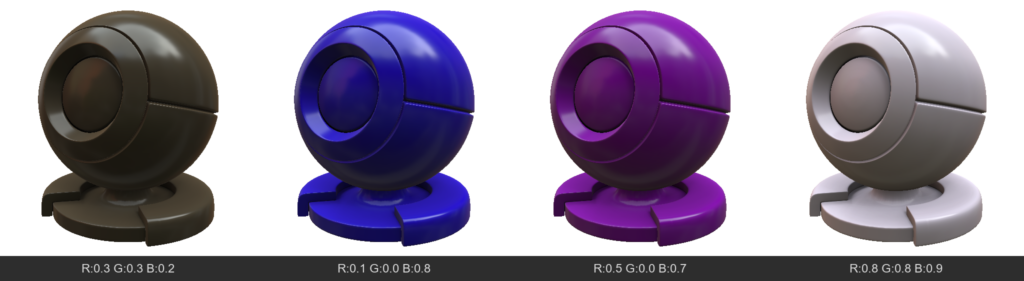
  • AlbedoColor (Albedo / Base Color)
    The main color of the surface. For dielectrics (non-metals), this is their own color. For metals, it’s their reflection color.
  • Opacity
    Determines how opaque a pixel is. Usually used for “CutOut” transparency (leaves, meshes), hiding geometry where the value is low.
  • Emissive
    Adds self-illumination to the material. The surface will be bright even in complete darkness and can cast light on neighboring objects (via global illumination).
  • TSNormal (Tangent Space Normal)
    A normal map that defines fine surface relief without altering the geometry itself.
  • AmbientOcclusion
    Micro-shadowing in recesses. Darkens areas that are hard for diffuse light to reach, emphasizing the volume of the relief.
  • Mask
    A general technical channel that can be used for layer blending logic or creating custom effects.

2. Specular & Metalness

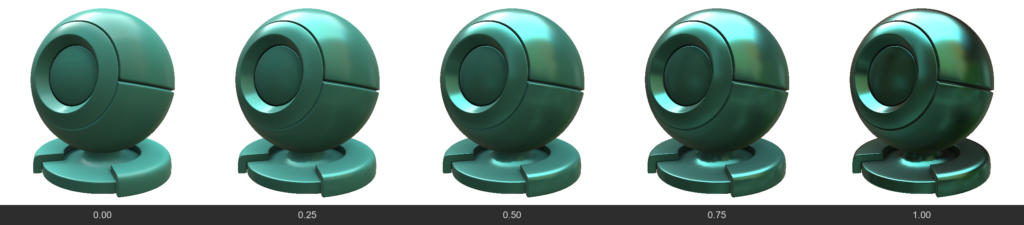
  • Metalness
    Determines whether a material is a metal.
    0 (Dielectric): Reflects only 4% of light at a direct angle (depends on IOR), albedo acts as the surface color.
    1 (Metal): Albedo becomes the reflection color (e.g., yellow gold), and the diffuse color disappears.
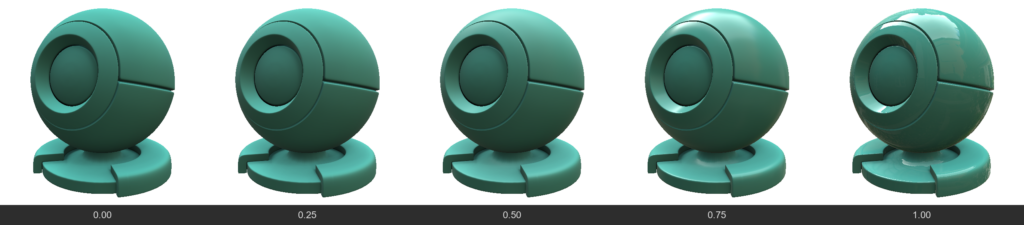
  • Roughness / Gloss
    Gloss = 1.0 - Roughness. Determines the “polish” of the surface. High Gloss gives sharp, mirror-like reflections, while high Roughness blurs reflections, making the surface matte.
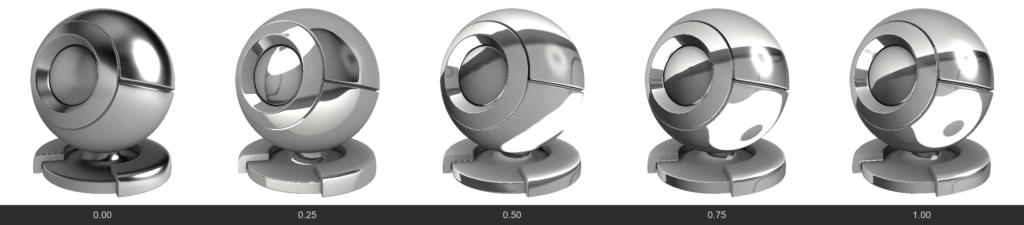
  • IOR (Index of Refraction)
    Determines the strength of the base reflection (F0) for non-metals. For example, water has an IOR ~1.33, glass ~1.5. Affects how strongly a surface reflects light when viewed at a direct angle.
    For refractive materials, IOR affects the refractive power of the Fresnel, and for opaque materials, only the Fresnel
    To enable control of this value via a brush, the internal parameter accepts values ​​ranging from 0 to 1; however, it is applied as a value three times greater—meaning 0 corresponds to 1, 0.333 corresponds to 1, and 1 corresponds to 3. Nevertheless, individual nodes within the node editor will accept the actual physical IOR value.
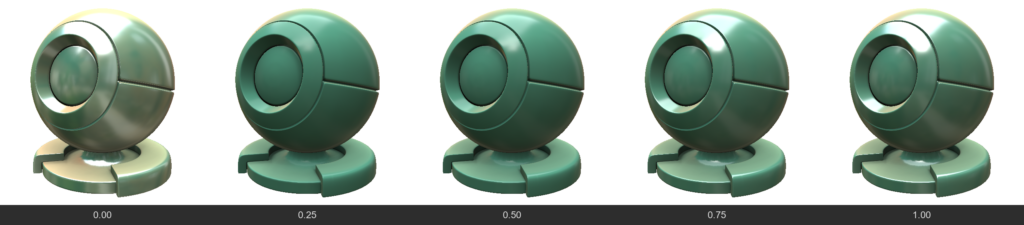
  • ReflectionColor
    Additional color control for reflection. Usually, reflection for non-metals is colorless, but this channel allows you to forcefully change its tint (e.g., for stylized materials).
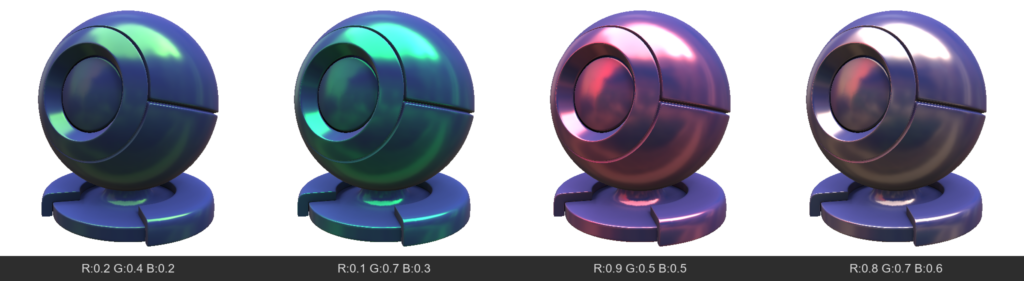
  • SpecularEdgePower
    Controls the Fresnel effect (how strongly a material reflects light when viewed at a grazing angle). Allows you to enhance or weaken highlights on the edges of an object.
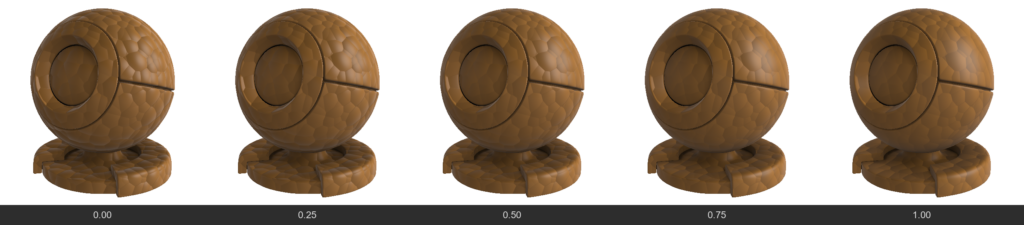
  • FlatSpecular
    Allows you to “flatten” reflections, ignoring fine irregularities from the normal map. Useful for stylization or avoiding “noisy” highlights on complex details.

3. Refraction / Glass

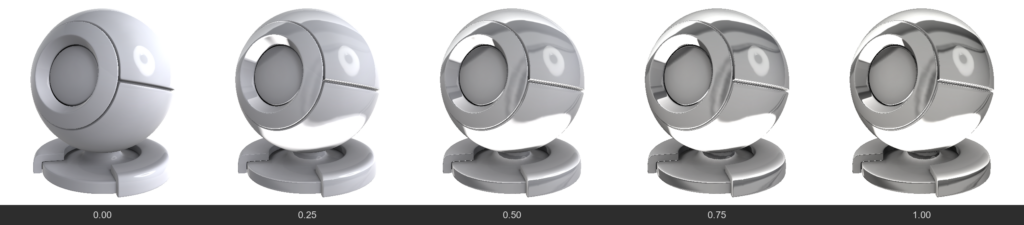
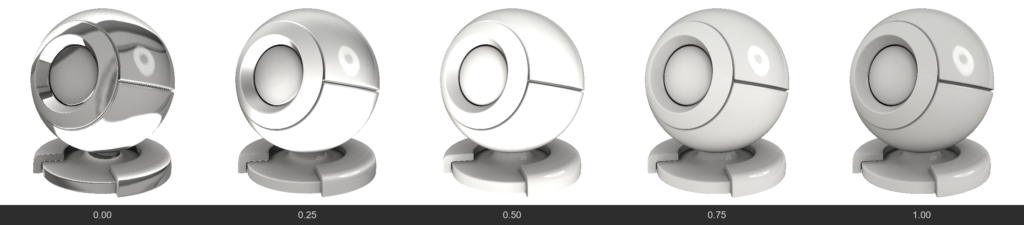
  • Refraction
    Unlike Opacity (which simply “cuts” a hole), this is physical material transparency (like glass or water). Light passes through the surface and refracts. The higher the value, the more transparent the material.
  • RefractionBlur
    Frosted glass. Blurs the background visible through a transparent object. Often linked to regular Roughness but allows controlling background blur separately.
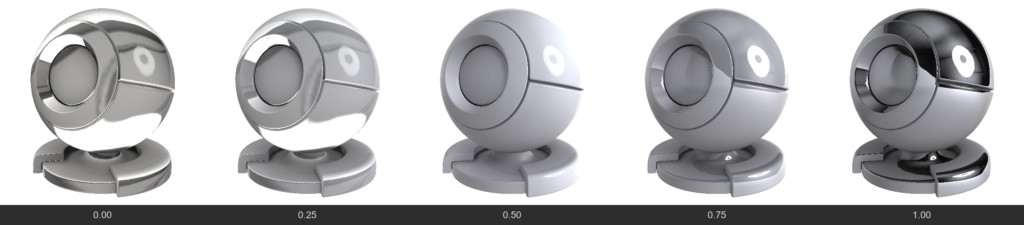
  • RefractionMetalness
    0 = refraction, 0.5 = dielectric, 1.0 = metalness
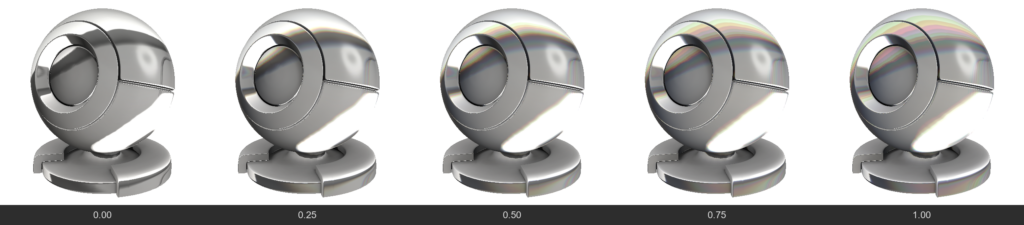
  • RefractionChromatic (Chromatic Aberration)
    Separates refracted light into a spectrum (like a prism), creating colored halos on the edges of thick glass.

4. SubSurface Scattering (SSS & Volume)

Used for translucent materials (skin, wax, milk, plastic, jade).

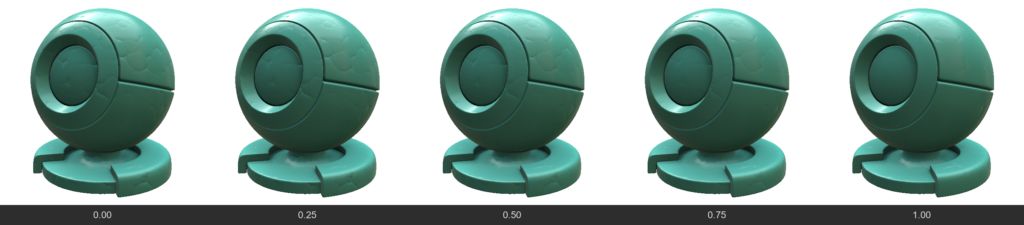
  • SubSurface / Volume
    Determines how deep light penetrates into the material. This makes shadows softer and translucent edges brighter.
  • SubSurfaceColor
    The color of the light that scatters beneath the surface. For example, for human skin, AlbedoColor would be flesh-toned, while SubSurfaceColor would be red (due to blood under the skin).
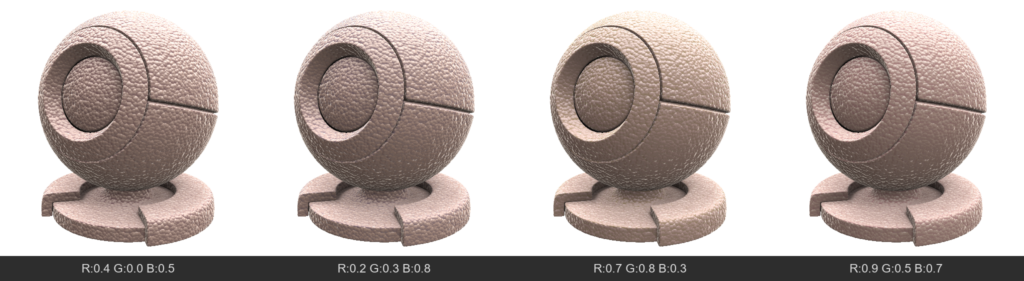
    SubSurface Color also affects the refraction color.
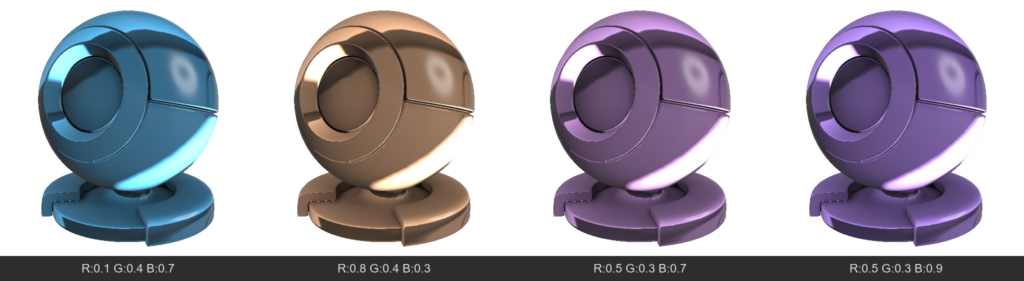

5. Special Surface Effects

  • Anisotropy
    Stretches the specular highlight in a specific direction. Characteristic of brushed metal (pots), hair, or silk.
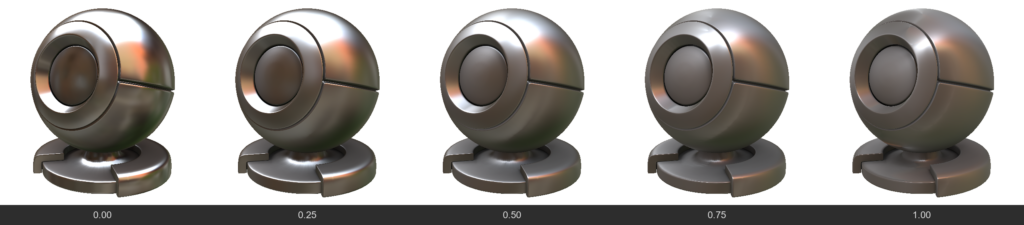
  • Iridescence
    Thin film interference effect. Creates rainbow shifting colors depending on the viewing angle (like on soap bubbles, insect wings, or spilled gasoline).
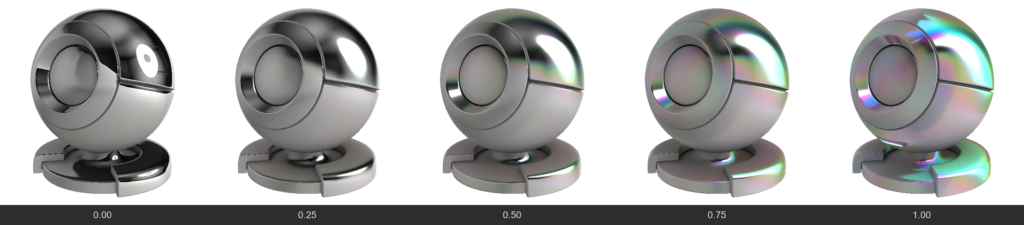
  • EffectNormal
    A color channel (vector direction) that defines the direction for stretching the anisotropic highlight and the direction for the iridescence gradient.
  • ClearCoat
    Creates an additional transparent glossy layer on top of the existing material (like car paint or varnished wood). This layer has its own reflection, independent of the base material.
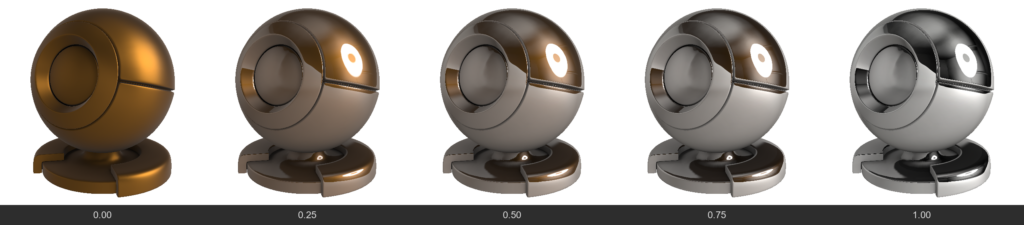
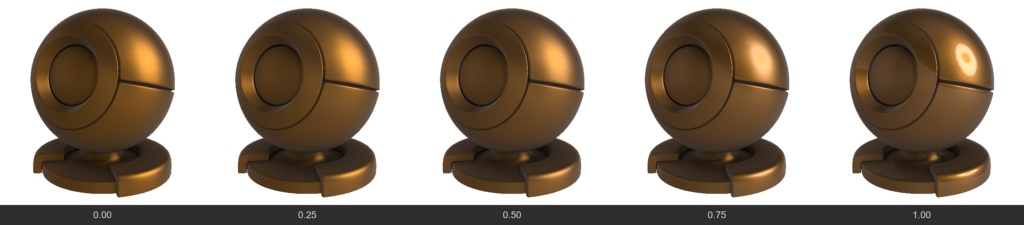
  • ClearCoatGloss
    Determines how smooth the clear coat layer is.
6. Fabrics, micro-protrusions and Fuzz

These channels are designed to simulate materials with complex microstructures on the surface (fabrics, dust).

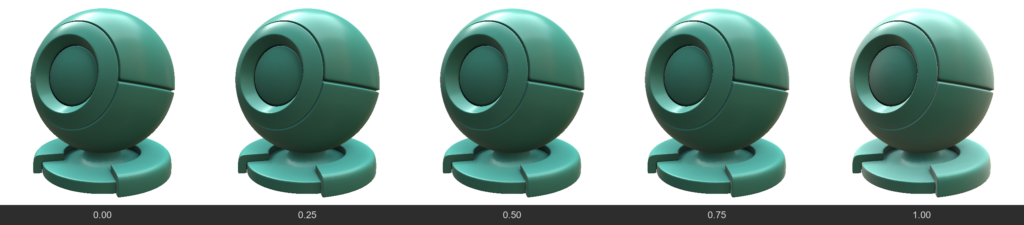
  • Sheen
    Creates a soft highlight on the edges of an object. Characteristic of velvet, peach, suede. This is light reflecting from micro-fibers at grazing angles.
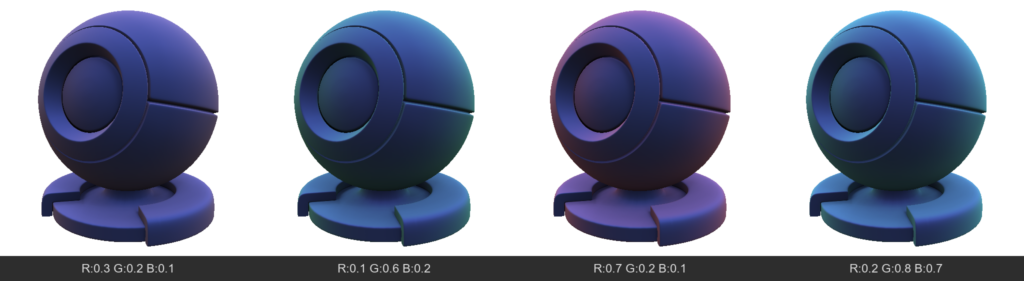
  • SheenColor
    Tints the fabric highlight a specific color.
  • Microprotrusions (Fuzz / Dust)
    Simulates the presence of microscopic particles (or dust) on the surface that scatter light differently than the main surface. Can make the material “dusty”.
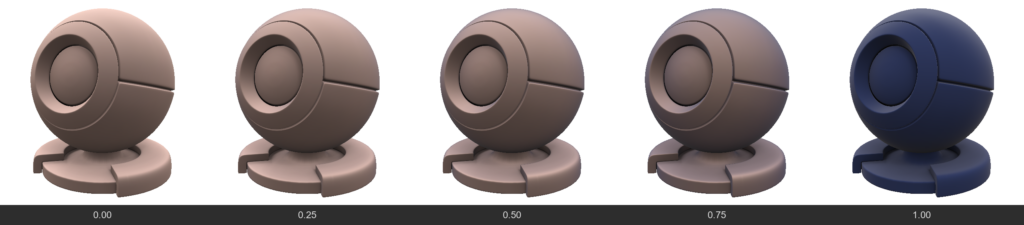
  • MicroprotrusionsGloss
    Controls how sharply these micro-fibers reflect light.
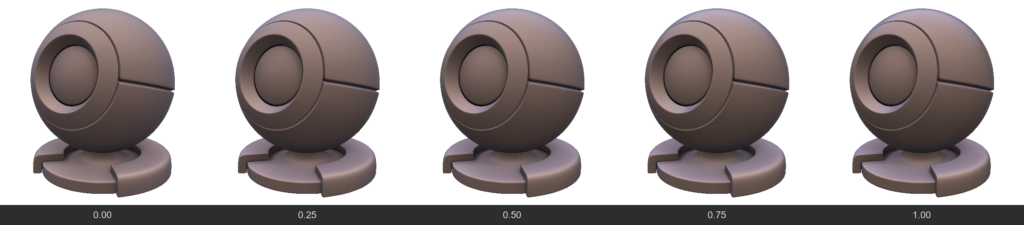
  • MicroprotrusionsColor
    The color of the dust or fuzz resting on the material.
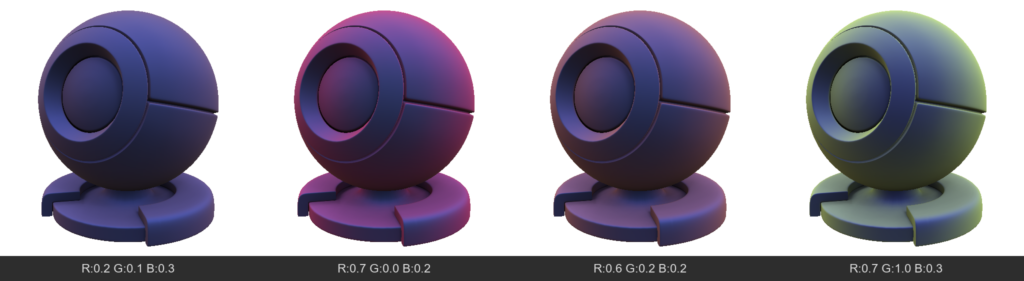
In 3DCoat, FWSNormal is a specific technical property used in node-based materials within the GPUPPP (GPU Per-Pixel Painting) mode.
It specifically functions as a combination map that defines the direction of fur and organic fibers when simulating complex, layered textures.
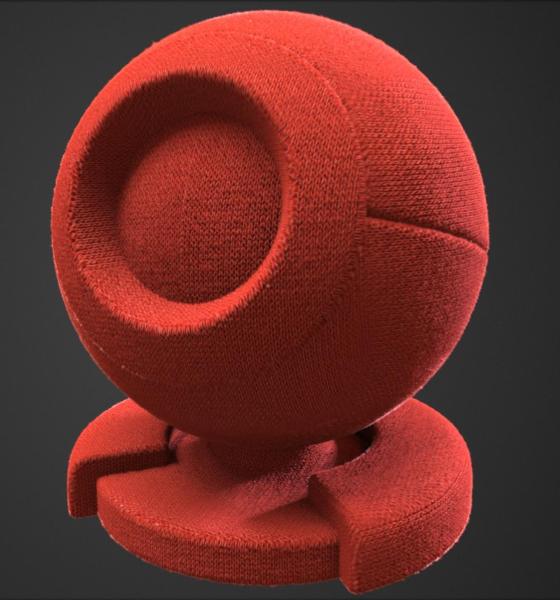

How it Works
The node-based system utilizes FWSNormal alongside two other crucial parameters to create realistic, dynamic fur surfaces:

  • SoftDisplacement: Shifts the mesh vertices outwards to give the fur physical volume and height without ruining the underlying shading models.
  • Sheen: Simulates the way light scatters softly across the micro-fibers or tiny hairs.
  • FWSNormal: Acts as the directional map, telling the system exactly which way the fur or hair flows across the 3D surface.

How to Use It
To make sure properties like FWSNormal and SoftDisplacement function correctly during texturing, you need to ensure specific viewport settings are active:

  • Navigate to the View Menu.
  • Turn on “Show Displacement Mesh”.
  • Ensure Tessellation is enabled and configured properly so the software has enough geometry to calculate the physical shift.

Was this helpful?

3 Yes  No
Related Articles
  • Noise3D
  • Noise
  • Bake Geometry Info
  • Make Joints
  • Texturing with nodes
  • Hollow Box
Previously
GPU Texturing
Up Next
Per-Pixel Painting
AI:
Hi! How can I help you?
Attention: This is a beta version of AI chat. Some answers may be wrong. See full version of AI chat