 Українська
Because of the drastic increase to the of Wacom stylus pressure levels in recent versions of Wacom tablets, an important adjustment needs to be made in the PREFERENCES panel of 3D Coat, regarding the pressure sensitivity.
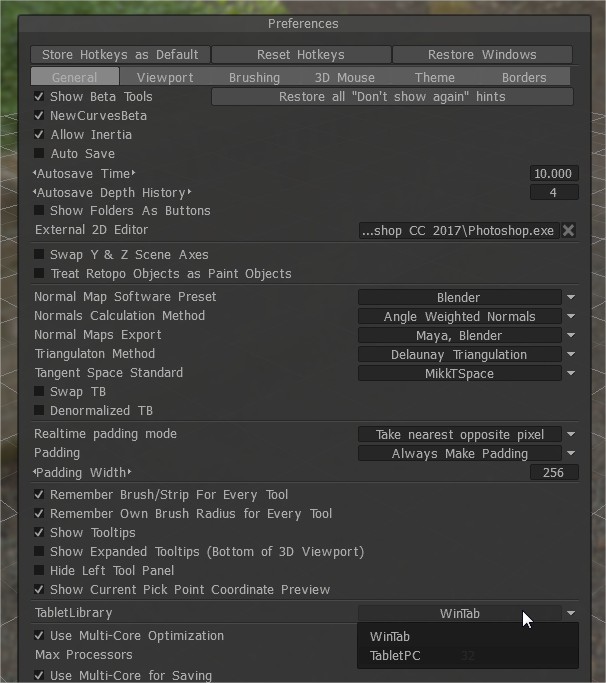
Go to Preferences >Tablet Library
This option let you select input used by “3DCoat”. Switch between two tablet libraries: “WinTab” and “Tablet PC”.
Currently “3DCoat” uses “WinTab” which will work only if you will install Wacom “WinTab” driver.
When using “Tablet PC” library which should work without additional Wacom “WinTab” driver.
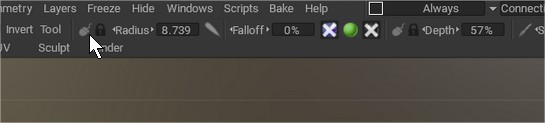
Also remember switching this icon to pen (pressing LMB over the icon)
Pressure Sensitivity
To adjust your tablet’s pressure sensitivity in 3DCoat, you can fine-tune the app’s global preferences and also toggle the pen mode directly from the workspace for optimal stroke control.
1. Adjust Global Sensitivity in Preferences
If your strokes don’t feel responsive—especially with modern tablets that have 8,192 pressure levels—you can adjust the global sensitivity curve.
- Open 3DCoat and navigate to Edit > Preferences.
- Go to the Brushing tab and locate the Brush Sensitivity setting.
- Change the value (e.g., lowering it to
0.1will make the brush respond more noticeably to light pressure compared to the default1setting).
If your stylus is not responding at all, try switching the tablet library located in Edit > Preferences > Brushing > Tablet Interface (or Tablet Library). You can toggle between WinTab and Tablet PC (Windows Ink) to see which one works best for your specific tablet driver.
2. Configure Your Tablet Driver
If adjusting 3DCoat’s preferences isn’t enough, you may need to calibrate the physical pressure curve in your tablet’s native control panel:
- Wacom: Open the Wacom Center or Wacom Tablet Properties, select your device, and go to the Pen tab to adjust the Tip Feel slider (Soft to Firm) or customize the pressure curve graph.
- Huion: Open the Huion app, go to Digital Pen, and click Pressure Sensitivity Adjustment to adjust the curve or apply a soft/hard preset.
3. Toggle Pressure Modes in the Top Bar
You can quickly change how individual brushes react to your stylus using the icons next to the Radius/Depth sliders in the top toolbar:
- Pen Icon: Turns pen pressure ON (your brush will dynamically change based on how hard you press).
- Mouse Icon: Turns pen pressure OFF and applies constant pressure throughout the entire stroke.
For a visual walkthrough of these adjustments, including how to set up brush libraries for newer drawing tablets:
Tutorial
This old video show how to setup Tablet sensitivity on Preferences