• ไทย
  • เอกสาร 3DCoat
  • Chapters
    • รู้เบื้องต้นเกี่ยวกับ 3DCoat
    • เริ่มต้นใช้งาน
    • อินเทอร์เฟซและการนำทาง
    • ส่วนประกอบของ Brush
    • ห้องพื้นที่ทำงาน
    • Scripting และ Core API
    • คำถามและคำตอบ
    • licensing
    • บทแนะนำการฝึกอบรม
  • Pilgway
  • Products
    • 3DCoat
    • 3DCoatTextura
    • 3DCoatPrint
    • PBRLibrary
  • Blog Posts
    • Creating 3D Character Using 3DCoat
  • Store
  • ไทย ไทย
    • English English
    • Українська Українська
    • Español Español
    • Deutsch Deutsch
    • Français Français
    • 日本語 日本語
    • Русский Русский
    • 한국어 한국어
    • Polski Polski
    • 中文 (中国) 中文 (中国)
    • Português Português
    • Italiano Italiano
    • Suomi Suomi
    • Svenska Svenska
    • 中文 (台灣) 中文 (台灣)
    • Dansk Dansk
    • Slovenčina Slovenčina
    • Türkçe Türkçe
    • Nederlands Nederlands
    • Magyar Magyar
    • हिन्दी हिन्दी
    • Ελληνικά Ελληνικά
    • Tiếng Việt Tiếng Việt
    • Lietuviškai Lietuviškai
    • Latviešu valoda Latviešu valoda
    • Eesti Eesti
    • Čeština Čeština
    • Română Română
    • Norsk Bokmål Norsk Bokmål
  • เอกสาร 3DCoat
  • Chapters
    • รู้เบื้องต้นเกี่ยวกับ 3DCoat
    • เริ่มต้นใช้งาน
    • อินเทอร์เฟซและการนำทาง
    • ส่วนประกอบของ Brush
    • ห้องพื้นที่ทำงาน
    • Scripting และ Core API
    • คำถามและคำตอบ
    • licensing
    • บทแนะนำการฝึกอบรม
  • Pilgway
  • Products
    • 3DCoat
    • 3DCoatTextura
    • 3DCoatPrint
    • PBRLibrary
  • Blog Posts
    • Creating 3D Character Using 3DCoat
  • Store
  • ไทย ไทย
    • English English
    • Українська Українська
    • Español Español
    • Deutsch Deutsch
    • Français Français
    • 日本語 日本語
    • Русский Русский
    • 한국어 한국어
    • Polski Polski
    • 中文 (中国) 中文 (中国)
    • Português Português
    • Italiano Italiano
    • Suomi Suomi
    • Svenska Svenska
    • 中文 (台灣) 中文 (台灣)
    • Dansk Dansk
    • Slovenčina Slovenčina
    • Türkçe Türkçe
    • Nederlands Nederlands
    • Magyar Magyar
    • हिन्दी हिन्दी
    • Ελληνικά Ελληνικά
    • Tiếng Việt Tiếng Việt
    • Lietuviškai Lietuviškai
    • Latviešu valoda Latviešu valoda
    • Eesti Eesti
    • Čeština Čeština
    • Română Română
    • Norsk Bokmål Norsk Bokmål
Expand All Collapse All
  • รู้เบื้องต้นเกี่ยวกับ 3DCoat
  • เริ่มต้นใช้งาน
    • System requirements
    • Why 3DCoat is Unique?
    • การเปิดใช้งาน 3DCoat
    • ข้อผิดพลาดในการเริ่มต้น
      • Startup error Mac
    • Color management
    • Upgrading permanent license
    • Linux Setup
      • Linux initial setup per-user installation
      • Linux initial setup for system
      • Tablet setup
      • To GTK3 from GTK2
      • Error libicuuc.so.70
    • โครงสร้างโฟลเดอร์
      • Custom documents folder
    • รูปแบบต่างๆ ของ “การแก้ปัญหา”
    • Tablet on Window
    • Import และ Export
    • Applinks ใน 3DCoat
      • ลิงค์แอป Blender
        • Blender with the Applink in Linux
      • Blender 4.2/3/4/5 applink
      • Max Applink
      • Houdini applink
      • Lightwave uplink
  • Navigation
    • การเปิดกล่องโต้ตอบ (เมนูเริ่มด่วน)
    • แผงนำทาง
    • กล้องและระบบนำทาง
      • Customize Navigation as Blender
    • Viewport Navigation Gizmo
    • Left tool panel
    •  Activity Bar
    • การนำทางโดยใช้อุปกรณ์ 3DConnexion
      • How to compile Spacenavd on non Ubuntu distro
    • Space Bar Menu
    • Stylus doesn’t work in sculpting
    • ปุ่มลัด
  • อินเทอร์เฟซและการนำทาง
    • เมนูไฟล์
    • แก้ไขเมนู
      • Calculate Curvature
      • Calculate Occlusion
      • Light Baking Tool
      • การตั้งค่า
    • ดูเมนู
    • สมมาตร
    • Textures
    • Calculate
    • เมนูเลเยอร์
    • เมนูแช่แข็ง
    • Hide
    • Bake
    • เส้นโค้ง 2022
      • เมนูเส้นโค้ง
      • Curves Properties RMB
      • เติมชั้นตาข่าย
      • Scale of imported curves
    • เมนู Windows
      • แผงป๊อปอัพ Windows แบบแท็บ
      • สไลเดอร์
    • Scripts
    • Addons
    • Capture
    • เมนูช่วยเหลือ
    • การปรับแต่ง
    • แก้ไขหรือสร้างห้องใหม่
  • ส่วนประกอบของ Brush
    • แถบด้านบน Brush
    • แปรงใช้งานทั่วไป
      • สร้างแปรงและสติกเกอร์
      • สร้างอัลฟ่าจากการแกะสลักปัจจุบัน
      • สร้าง Brush จากวัตถุ 3 มิติ
      • Create brushes based on Curves
      • Load photoshop .abr brushes
    • จังหวะ
      • เมนูป๊อปอัพเส้นโค้ง
    • ตัวเลือก Brush
    • ตัวจำกัดเงื่อนไข
    • แผงแถบ
    • แผงลายฉลุ
    • วัสดุอัจฉริยะ
      • เพิ่มรูปภาพหรือวัสดุใหม่
      • แนบวัสดุอัจฉริยะเข้ากับเลเยอร์
      • Import Quixel Material
    • วิธีสร้างพรีเซ็ตสำหรับ Brush
  • ห้องพื้นที่ทำงาน
    • Painting
      • Painting พื้นผิวและโหมด
        • Painting Per-Pixel
        • Painting แทนที่ (Micro-Vertex)
        • Ptex Painting
        • Painting พื้นผิว (Polypainting)
      • นำเข้าสู่ห้อง Painting
        • Initial CC subdivision
        • UV Set smoothing
        • Sharp (hard) edge
        • ล็อคค่าปกติ
        • โหลดเค้าโครง UV ใหม่หลังจากการเปลี่ยนแปลงโมเดล
        • DAZ Genesis models into 3DCoat
        • ID map
      • เมนูของพื้นที่ทำงาน Painting
        • Edit menu
        • เมนูพื้นผิว
          • เครื่องมือ Baking พื้นผิว
        • ซ่อน
        • เมนูสำหรับ Bake Paint
        • ตัวเลือกสี
      • Surface Materials
      • แถบด้านบนสำหรับ Painting
      • แผงเลเยอร์
        • แผงผสม
        • Layer and Clipping Masks
      • เครื่องมือห้อง Painting
      • ความทึบ - ความโปร่งใส
      • ปรับแต่งพื้นที่ทำงาน
        • ปรับแต่งชุดเครื่องมือ
        • ส่งออกจากห้องปรับแต่ง
      • แผงแสดงตัวอย่างหน้ากาก/วัสดุ
      • ส่งออกจากห้อง Painting
    • พื้นที่ทำงาน UV
      • แถบด้านบน UV
      • แผงเครื่องมือ UV ด้านซ้าย
      • แผงแสดงตัวอย่าง UV
      • ตัวอย่างขั้นตอนการทำงาน UV
      • นำเข้าห้อง UV
      • ส่งออกจากห้อง UV
    • รีโทโพโลยี
      • นำเข้าสู่ห้อง Retopo
      • เมนู Retopo Mesh และเมนู Bake
        • โหมดกระจกเสมือน
      • Bake menu
        • Treat Poly Groups as Paint Objects
        • Baking guide
      • เครื่องมือ Strokes ใน Retopology
      • ท็อปบาร์
        • เลือกรูปทรงเรขาคณิต
      • แผงเครื่องมือด้านซ้ายในห้อง Retopology
        • วัตถุประสงค์และหน้าที่โดยรวม
        • เพิ่มรูปทรงเรขาคณิต
        • เครื่องมือปรับแต่ง Retopo
        • เครื่องมือ UV
        • คำสั่งสำหรับห้อง Retopology
      • AUTORETOPO
        • Autopo guide
      • โพลีกรุ๊ป
    • ปั้น
      • Sculpt Layer
      • ต้นไม้แกะสลัก
      • ตัวเลือก Sculpt Brush
      • Top Bar
      • เครื่องยนต์ Brush
      • เมนูย่อยเรขาคณิต
      • แกะเมนู “คลิกขวา”
      • เฉดสี
      • โหมด Voxel
        • การแกะสลัก Voxel บริสุทธิ์
        • ความหนาแน่นและความละเอียด
        • เครื่องยนต์ดิน
        • เครื่องมือ Voxel
        • เครื่องมือพื้นผิวบน Voxels
        • เครื่องมือปรับแต่ง Voxel
        • Painting เชิงปริมาตร
        • เครื่องมือวัตถุ Voxel
      • โหมดพื้นผิว
        • เครื่องมือพื้นผิว
        • เครื่องมือปรับแต่งพื้นผิว
        • Surface Layer
        • เครื่องมือปรับพื้นผิว
        • Painting พื้นผิว
        • เครื่องมือวัตถุพื้นผิว
        • ความละเอียดหลายระดับ
          • Multires tools
          • Multires adjust
          • Multires commands
      • ปั้นโค้ง
        • เส้นโค้งสไปลน์
        • Splines model creation
      • การแทนที่เวกเตอร์
      • เครื่องมือแปลงพื้นผิว
        • เครื่องมือแปลง Voxel
        • Instancer
        • Move
        • Pose
        • Fit
        • Reproject
        • Surface Array
      • Voxel Primitives & เครื่องมือ Import
      • บูลีนสด
      • คำสั่งสำหรับห้อง Sculpt
      • Import สู่ห้องแกะสลัก
      • ส่งออกจากห้องแกะสลัก
    • แสดงผล
      • Comparison of different roughness values
      • ฟังก์ชั่น Render Panel
      • จานเสียง
      • อบแสงปลอม - ไม่ใช่ PBR-
    • Factures
      • ขั้นตอนการทำงาน
    • ง่ายที่สุด
    • การสร้างแบบจำลอง
      • Mesh Menu
      • แผงเครื่องมือด้านซ้ายในห้องสร้างแบบจำลอง
        • เพิ่มเรขาคณิต
          • เลือกแล้ว
        • บิด
        • Smart Hybrid
        • UV
          • คำสั่ง
        • ตาข่ายทั้งหมด
      • ตัวอย่างพื้นผิวห้องใต้หลังคาโดย Fluffy
      • การปิดกั้นโดย Poeboi
      • Import Zbrush Polygroups for UV mapping
    • Kitbash - การสร้างโมเดล 3 มิติอย่างรวดเร็ว
      • Create kitbash
      • Left tool panel Kitbash
    • 3DPrint
    • Photogrammetry
      • How to install Reality Capture
      • Reality Capture doesn’t show up ?
    • ตาข่ายถึงห้อง NURBS
    • Nodes
      • Sculpt shaders Nodes Library
  • Scripting และ Core API
    • Scripting
    • Core API
    • ไพทอน API
  • ฟรี 3DCoatPrint

Surface Layer

7 views 0

Written by Carlos
March 11, 2026

If you’re sculpting in 3D coat and coming from a ZBrush background, you may want to know what is the equivalent of the morph target tool and the morph brush. That’s what we’re going to focus on here. And we want to make sure that our layer in the sculpt tree object panel is in surface mode indicated by the [S] icon on the left hand side of the layer.
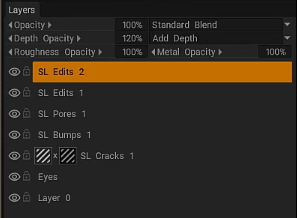
I need to also mention that the layer panel is exactly the same that you find in the paint workspace and it stores color, glossiness or roughness, metalness and depth. And in the depth channel, 3D coat is storing all your deformation changes. You never have to turn on a recording. 3DCoat’s just storing that information continuously throughout the sculpting process.

The equivalent of the switch button is simply hiding and unhiding the individual sculpt layers. Like you would adjust a morph target, you can adjust the depth intensity of a sculpt layer by going to the depth opacity parameter and making adjustments.

Magnify SL: The Magnify SL Brush allows users to increase or decrease the depth level of a Sculpt Layer, beneath their brush. It’s especially useful when an artist wants to feather the sculpted area, so that it blends in with surrounding sculpted detail.
Erase SL: erase the Magnify tool effect.

Tutorials


Morph Target & Morph Brush Equivalent in 3DCoat: This video demonstrates the general equivalents of a few tools many artists will be accustomed to using, coming from a Zbrush background. Namely Morph Targets and the Morph Brush.

Magnify & Erase Sculpt Layer Brushes: This video is an updated (3DCoat 2026) demonstration of the Magnify and Erase Sculpt Layer brushes. The Magnify SL Brush is similar to the Morph brush an artist may be familiar with in another major sculpting application. The Depth Opacity parameter in the Layer panel would be similar to the Morph Target. Hiding/Unhiding the Layer is the equivalent to clicking the Switch button.

Was this helpful?

Yes  No
Related Articles
  • Error libicuuc.so.70
  • Space Bar Menu
  • Surface Materials
  • Factures
  • ID map
  • Surface Array
Previously
เครื่องมือปรับแต่งพื้นผิว
Up Next
เครื่องมือปรับพื้นผิว
AI:
Hi! How can I help you?
Attention: This is a beta version of AI chat. Some answers may be wrong. See full version of AI chat